
Pop-up blockers on iPhones are designed to protect users from unwanted ads and suspicious websites. However, there are times when pop-ups are actually needed such as when a website opens a payment window, login page, or document preview. If a site isn’t working properly, the pop-up blocker could be the reason.
This guide walks you through simple, safe steps to turn off the pop-up blocker on your iPhone. Start with these at-home fixes. If your phone still doesn’t behave as expected, professional help may be the better option.
What Is the Pop-Up Blocker on iPhone?
The pop-up blocker is a built-in feature in iOS that prevents websites from opening extra windows or tabs without your permission. It mainly affects browsing in Safari, though some other browsers also include similar controls.
While helpful, it can sometimes block important content, especially on banking, booking, or business websites.
How to Turn Off Pop-Up Blocker in Safari (Step-by-Step)
Safari is the default browser on iPhone, and most users experience pop-up issues here.
- Open the Settings app
- Scroll down and tap Safari
- Find Block Pop-ups
- Toggle the switch off (the switch will turn grey)
That’s it. Safari will now allow pop-ups from websites.
Close Safari and Test the Website Again
After changing the setting:
- Fully close Safari (swipe up from the app switcher)
- Reopen Safari
- Visit the website that was not working earlier
In many cases, this alone resolves the issue.
Turning Off Pop-Up Blockers in Other Browsers
If you use a browser other than Safari, such as Chrome or Firefox, the setting is controlled inside the app.
For Google Chrome:
- Open Chrome
- Tap the three-dot menu
- Go to Settings
- Tap Content Settings
- Select Pop-ups
- Turn pop-ups off

For Firefox:
- Open Firefox
- Tap the menu icon
- Go to Settings
- Find Block Pop-up Windows
- Disable the option
Each browser manages pop-ups separately, so changing Safari settings will not affect other apps.
Check Screen Time Restrictions
Sometimes pop-ups are blocked due to Screen Time controls, especially on family or shared devices.
- Open Settings
- Tap Screen Time
- Select Content & Privacy Restrictions
- Tap Content Restrictions
- Go to Web Content
- Choose Unrestricted Access (if appropriate)
Be cautious when changing these settings, particularly on a child’s device.
Restart Your iPhone
If pop-ups are still blocked after adjusting settings:
- Restart your iPhone
- Recheck the pop-up blocker settings
- Test the website again
A simple restart can clear temporary system glitches.
When Settings Don’t Save or Safari Acts Unusual
If you notice any of the following, there may be a deeper software or hardware issue:
- Settings switching back on their own
- Safari freezing or crashing
- Touch not responding properly in Settings
- Phone running unusually slow
At this point, continuing to troubleshoot at home may waste time.
When to Visit a Repair Store in Mississauga
If pop-up issues are part of a bigger problem with your iPhone, visiting a trusted Mississauga phone repair shop is the smarter choice. A technician can quickly check whether the issue is related to iOS software, storage problems, or internal hardware faults.
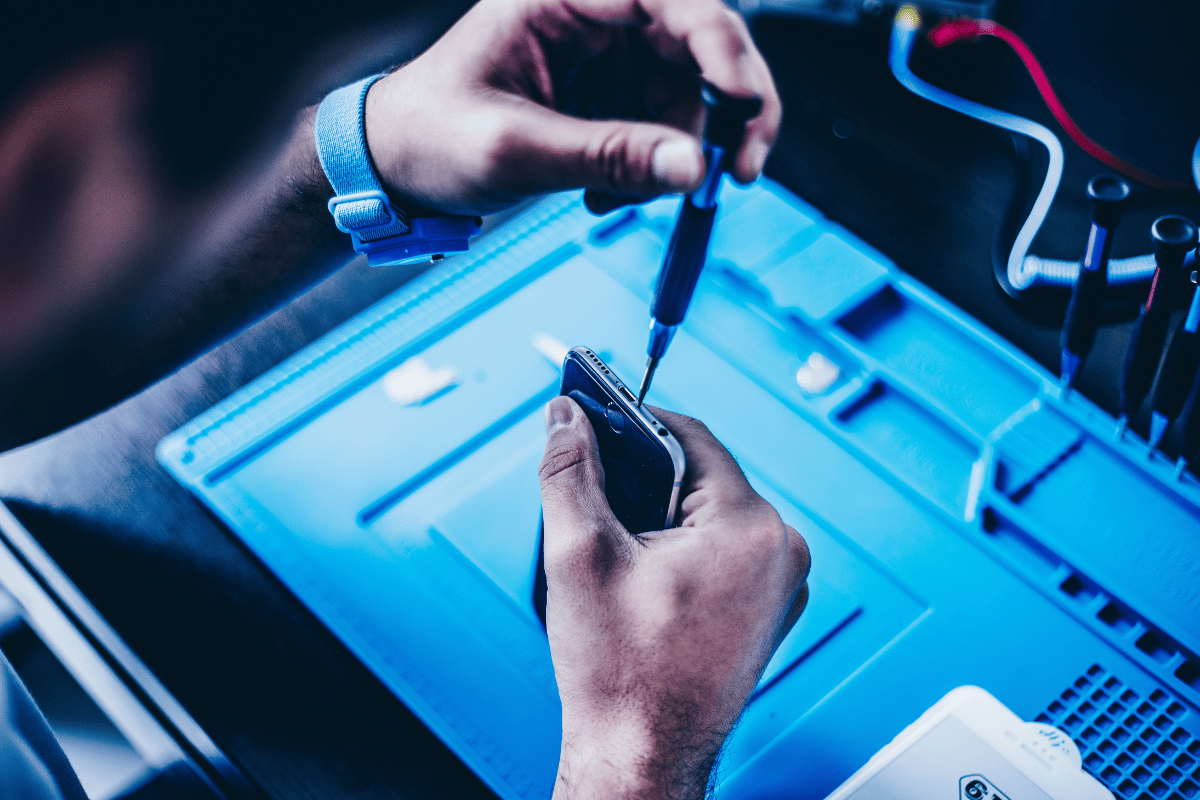
At fixphonemississauga.ca, customers often come in for browsing and app issues that turn out to be connected to system errors. Getting help from an iPhone repair Mississauga specialist ensures the problem is fixed correctly without risking your data.
Turning off the pop-up blocker is safe when done intentionally and temporarily. If a website works properly afterward, you can always turn the blocker back on for daily browsing. If your iPhone continues to behave unpredictably, professional inspection is recommended to prevent bigger issues later.
