Many drivers use Android Auto for navigation, music, and hands-free communication. However, Android Auto does not officially support video streaming apps like Netflix while driving because of safety restrictions.
If you want to watch Netflix on Android Auto while parked, there are a few methods that may work depending on your phone, Android version, and vehicle system. This guide explains the available options, troubleshooting steps, and when you may need professional assistance.
Can You Watch Netflix on Android Auto?
By default, Netflix is blocked on Android Auto. Google designed Android Auto to prevent video playback on the vehicle screen while driving.
To access Netflix, users typically rely on third-party apps that enable video playback through Android Auto. These solutions are intended for use only when the vehicle is parked.
Always follow local traffic laws and avoid watching videos while operating a vehicle.
Before You Start
Make sure you have:
- An Android phone running a recent version of Android
- The latest Android Auto app
- A stable internet connection
- An active Netflix subscription
- A compatible vehicle infotainment system
Also, update your phone and Android Auto before attempting any fixes.
Method 1: Use a Third-Party Android Auto Video App
Several third-party applications allow video streaming through Android Auto. Common examples include screen mirroring or Android Auto video launcher apps.
General setup steps:
- Download a compatible Android Auto video app from a trusted source.
- Enable Developer Settings in Android Auto.
- Allow installation from unknown sources if required.
- Connect your phone to your vehicle.
- Launch the video app through Android Auto.
- Open Netflix and start streaming while parked.
If the app does not appear on your vehicle display, continue with the troubleshooting steps below.
Method 2: Update Android Auto and Netflix
Outdated software can prevent apps from working properly.
To update:
- Open Google Play Store.
- Search for Android Auto.
- Install any available updates.
- Repeat the process for Netflix.
- Restart your phone and reconnect to your vehicle.
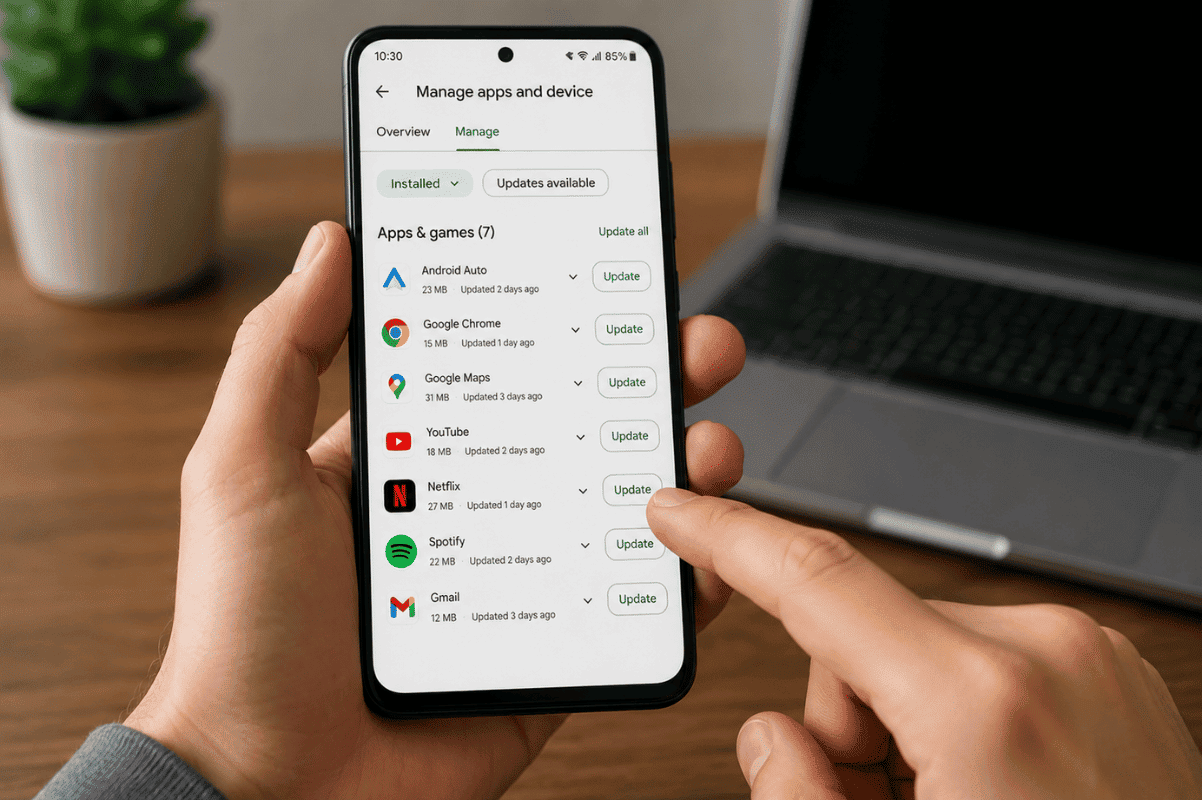
Many connection and compatibility issues are resolved through software updates.
Method 3: Clear Android Auto Cache
Corrupted cache files may interfere with Android Auto functions.
Steps:
- Open Settings on your Android phone.
- Tap Apps.
- Select Android Auto.
- Choose Storage.
- Tap Clear Cache.
- Restart your device.
Reconnect your phone and test Netflix again.
Method 4: Check USB Cable and Connection
A poor-quality cable can cause Android Auto features to fail.
Try the following:
- Use the original USB cable whenever possible.
- Test a different certified cable.
- Inspect the charging port for dust or debris.
- Try another USB port in the vehicle if available.
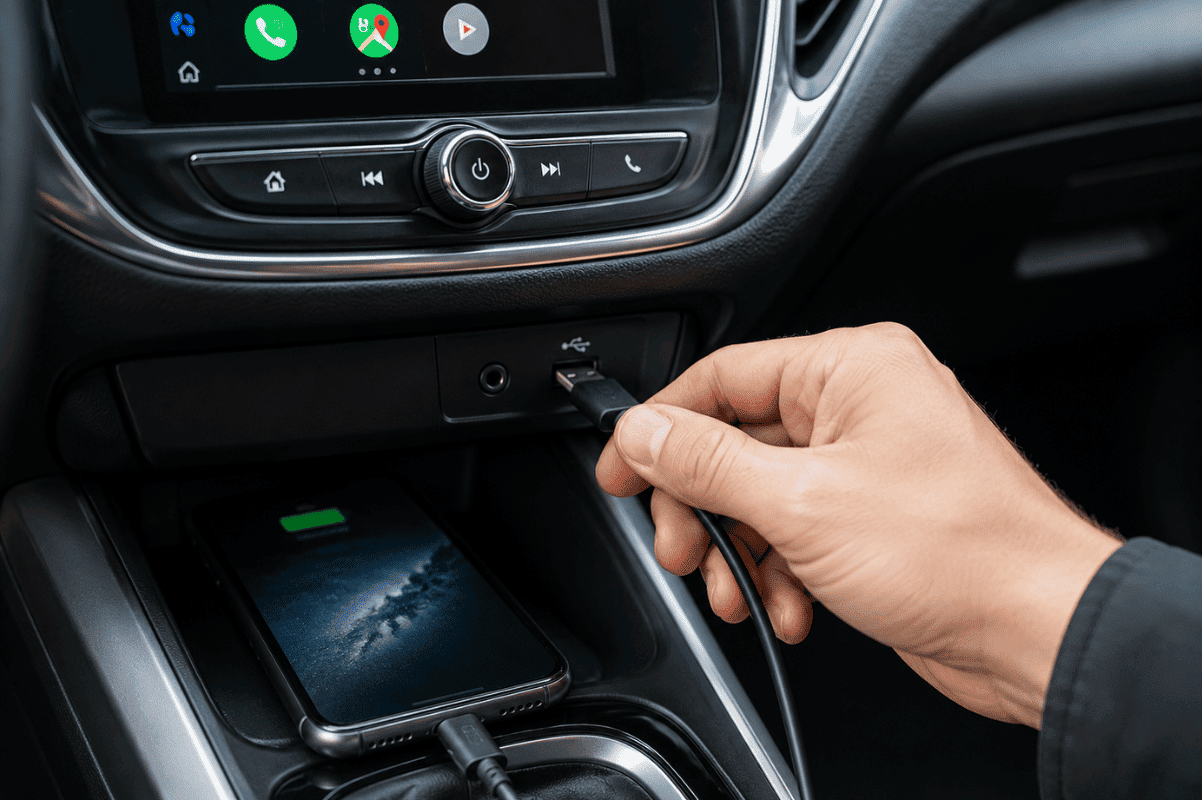
Connection problems are one of the most common causes of Android Auto issues.
Method 5: Enable Developer Settings in Android Auto
Some video-enabling applications require Android Auto Developer Mode.
To enable it:
- Open Android Auto settings.
- Scroll to Version.
- Tap the version number multiple times.
- Developer Settings will appear.
- Open Developer Settings and review available options required by your chosen app.
Be cautious when changing advanced settings and only follow instructions from trusted developers.
Common Problems and Fixes
Netflix Opens but Shows a Black Screen
Possible solutions:
- Update Netflix
- Restart your phone
- Reinstall the video app
- Check app permissions
Android Auto Disconnects Frequently
Try:
- Replacing the USB cable
- Updating phone software
- Cleaning the charging port
- Restarting the infotainment system
Video App Not Appearing
Try:
- Re-enabling Developer Settings
- Reinstalling the app
- Disconnecting and reconnecting Android Auto
- Checking compatibility with your Android version
When DIY Fixes Don’t Work
If Android Auto continues to malfunction after trying these steps, the issue may be related to:
- A damaged charging port
- USB communication failures
- Software corruption
- Internal motherboard issues
In these situations, professional diagnostics may be necessary. A qualified Cell phone repair technician can inspect your device and identify hardware-related problems that prevent Android Auto from functioning correctly.
For local users experiencing persistent phone connectivity issues, visiting a trusted Phone repair Mississauga service provider can help determine whether the problem is caused by the device itself or the vehicle connection.
Watching Netflix on Android Auto is not officially supported by Google, but some third-party solutions may allow video playback while your vehicle is parked. Start with software updates, cache clearing, and connection checks before trying more advanced methods.
If Android Auto still fails to work properly after troubleshooting, professional inspection can help identify underlying hardware or software issues and prevent further frustration.