Online ads can interrupt browsing, slow down page loading, and use extra mobile data. If you want a cleaner experience without installing an ad blocker app, changing your Android device’s DNS settings is one of the easiest methods.
This guide explains how DNS ad blocking works, how to set it up on Android, its limitations, and what to do if it does not work.
What Is DNS Ad Blocking?
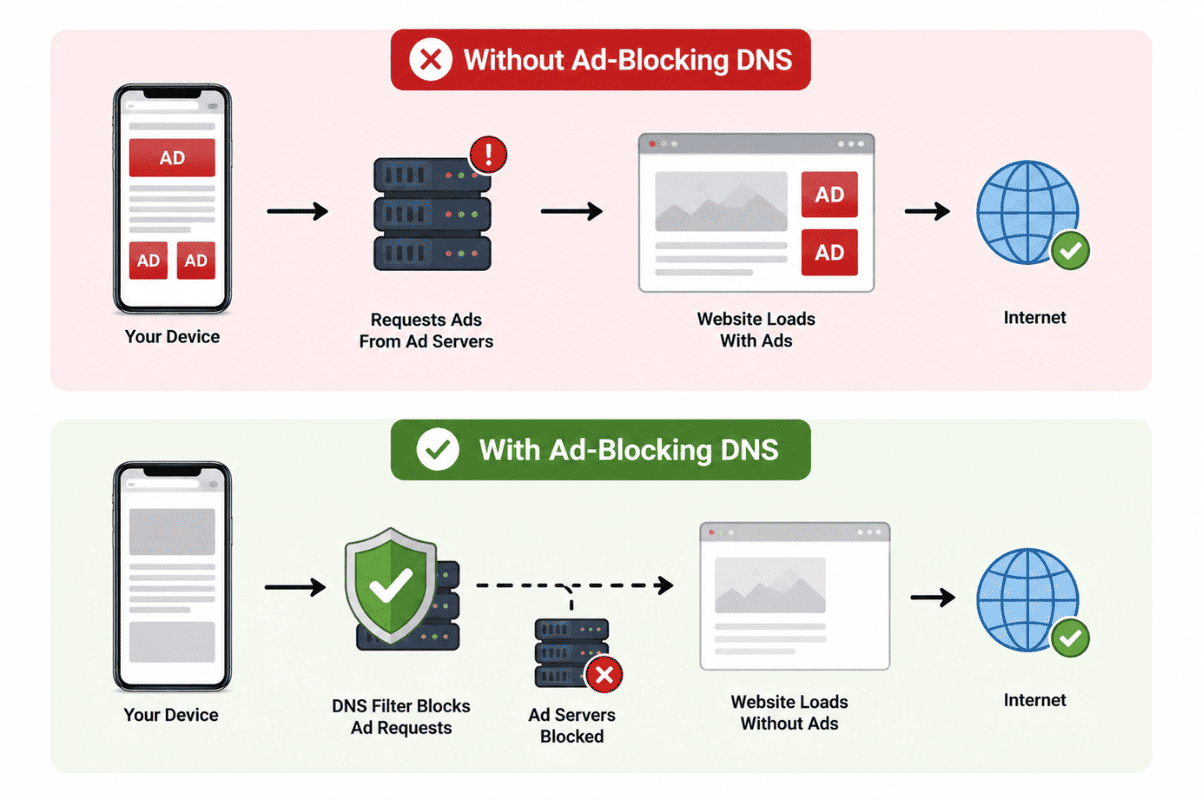
DNS, or Domain Name System, translates website names into IP addresses. Some DNS providers block requests to known advertising domains before they load on your phone.
Instead of downloading an app that runs continuously in the background, your Android device simply uses a DNS server that filters many ads automatically.
This method works on most modern Android phones running Android 9 or newer.
Benefits of Blocking Ads With DNS
Using a private DNS service offers several advantages:
- Reduces many website advertisements
- Can improve page loading speed
- Uses less mobile data in some situations
- Requires no additional app installation
- Works across many browsers and apps
It is also easy to disable if you ever need to restore your default settings.
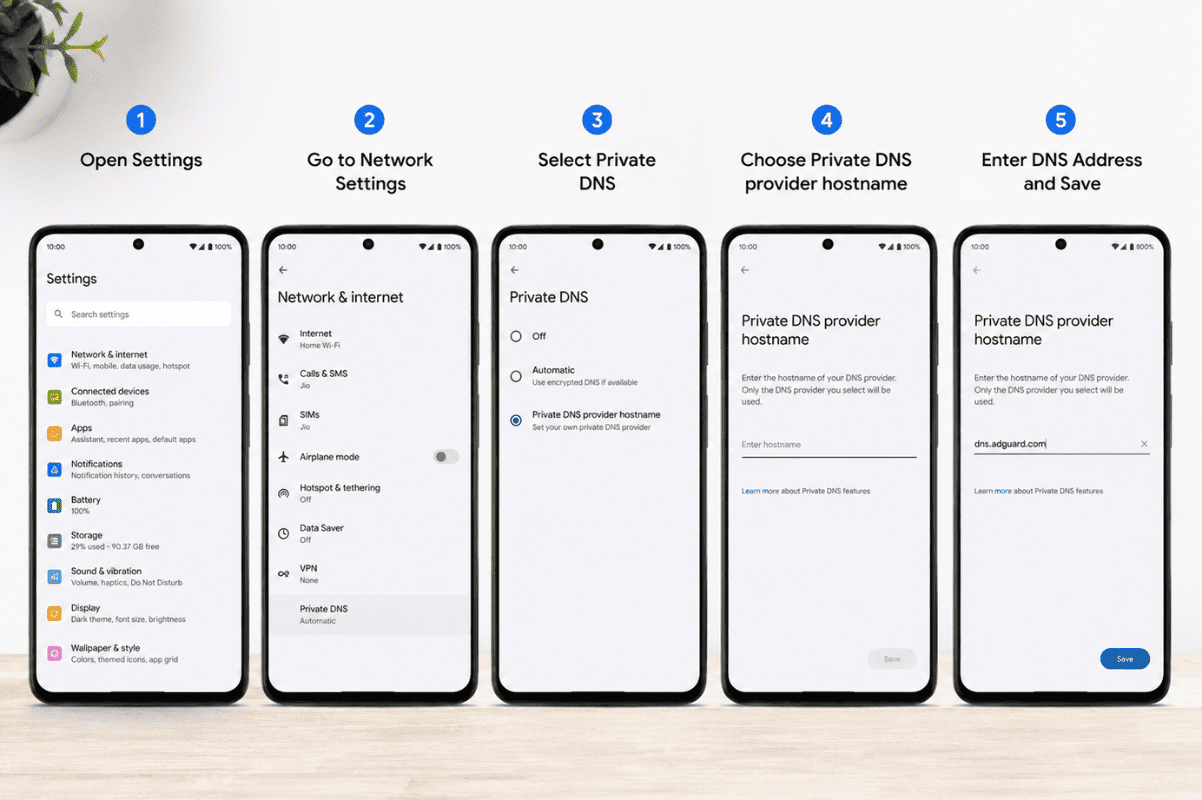
How to Block Ads on Android With DNS
Follow these steps to enable Private DNS.
Step 1: Open Settings
Open the Settings app on your Android phone.
Step 2: Go to Network Settings
Depending on your device manufacturer, navigate to one of the following:
- Network & Internet
- Connections
- More Connection Settings
Look for Private DNS.
Step 3: Select Private DNS Provider Hostname
Choose Private DNS provider hostname instead of Automatic or Off.
Step 4: Enter a DNS Provider
A commonly used ad-blocking DNS hostname is:
dns.adguard.com
Enter the hostname exactly as shown.
Step 5: Save Your Settings
Tap Save.
Open your browser and visit a few websites. Many advertisements should no longer appear.
Popular DNS Providers for Ad Blocking
Several DNS providers offer ad filtering.
| DNS Provider | Ad Blocking | Free |
| AdGuard DNS | Yes | Yes |
| Control D | Optional | Yes |
| NextDNS | Customizable | Yes (limited free plan) |
Each provider offers slightly different filtering rules. Some allow you to customize what gets blocked.
Does DNS Block Every Advertisement?
No.
DNS filtering blocks requests to advertising servers, but it cannot stop every ad.
Some advertisements are served directly from the same server as the website or app itself. These usually cannot be blocked through DNS alone.
You may still see:
- YouTube ads
- Sponsored social media posts
- Ads built directly into certain mobile apps
This is normal and does not mean your DNS setup is incorrect.
What If Private DNS Is Not Working?
If ads continue appearing, try these troubleshooting steps.
Restart Your Phone
A simple restart refreshes the network connection and applies the new DNS settings.
Check the DNS Address
Even one incorrect character prevents the DNS server from working.
Verify the hostname carefully.
Disable VPN Services
Some VPNs override your DNS settings.
Temporarily disable your VPN and test again.
Try Another Network
Public Wi-Fi networks sometimes force their own DNS servers.
Switch to mobile data or another Wi-Fi connection to test.
Update Android
Older software versions may contain networking issues.
Install the latest Android updates available for your device.
Is DNS Ad Blocking Safe?
Using a reputable DNS provider is generally safe.
Choose providers with transparent privacy policies and a good reputation. Avoid unknown DNS services that do not explain how they handle your browsing data.
Can DNS Improve Battery Life?
Some users notice a small improvement because fewer ads load in the background. However, battery savings vary depending on your browsing habits and installed apps.
The primary benefit is reducing unnecessary network traffic rather than significantly extending battery life.
When DNS Problems May Indicate a Bigger Issue
If your phone constantly loses internet connectivity, refuses to save network settings, or experiences Wi-Fi failures after multiple troubleshooting attempts, the issue may not be related to DNS.
Damaged network hardware, software corruption, or motherboard problems can affect wireless connectivity.
If basic troubleshooting does not solve the problem, having the device inspected by a professional can help identify the underlying cause. At Fix Phone Mississauga, our technicians handle a wide range of device issues, from software troubleshooting to Cell phone repair for hardware-related problems.
Using Private DNS is one of the easiest ways to reduce ads on Android without installing additional software. It takes only a few minutes to configure and works well for everyday browsing.
Keep in mind that DNS cannot block every advertisement, especially those delivered directly through apps or streaming platforms. If your phone continues experiencing network problems beyond ad blocking, professional diagnosis may be the next step. Whether it’s a software issue or a more complex Phone repair Mississauga service, addressing the root cause helps keep your device running reliably.
Frequently Asked Questions
Does Private DNS work on all Android phones?
Private DNS is available on Android 9 (Pie) and newer versions. Older devices may require third-party apps.
Can I use DNS ad blocking on mobile data?
Yes. Private DNS works on both Wi-Fi and mobile data, provided your carrier does not interfere with DNS traffic.
Will DNS block YouTube ads?
No. Most YouTube ads are served directly by YouTube, making them difficult to block using DNS alone.
Can I turn DNS off later?
Yes. Return to Private DNS settings and select Automatic or Off to restore your original network configuration.
Does DNS affect internet speed?
In many cases, users notice similar or slightly faster browsing because many advertising requests are blocked before loading.