Many Android users want to record WhatsApp voice calls for interviews, business discussions, or personal reference. However, recording WhatsApp calls isn’t always straightforward. Android privacy features, app restrictions, and local laws can affect whether call recording is possible.
This guide explains the available options, their limitations, and what you can try safely before seeking professional help for device-related issues.
Can You Record WhatsApp Calls on Android?
Yes, but it depends on:
- Your Android version
- Your phone manufacturer
- WhatsApp updates
- Local privacy laws
- Whether your device supports call recording
Unlike regular phone calls, WhatsApp uses internet-based voice communication, which limits how Android apps can access audio during a call.
Before recording any conversation, make sure you have permission from everyone involved. Recording laws vary by state, province, and country.
Method 1: Use Your Phone’s Built-In Screen Recorder
Many newer Android phones include a built-in screen recorder that can capture system audio or microphone audio.
Steps:
- Swipe down to open Quick Settings.
- Tap Screen Recorder.
- Select the available audio option.
- Start recording.
- Make or answer your WhatsApp call.
- Stop the recording when finished.
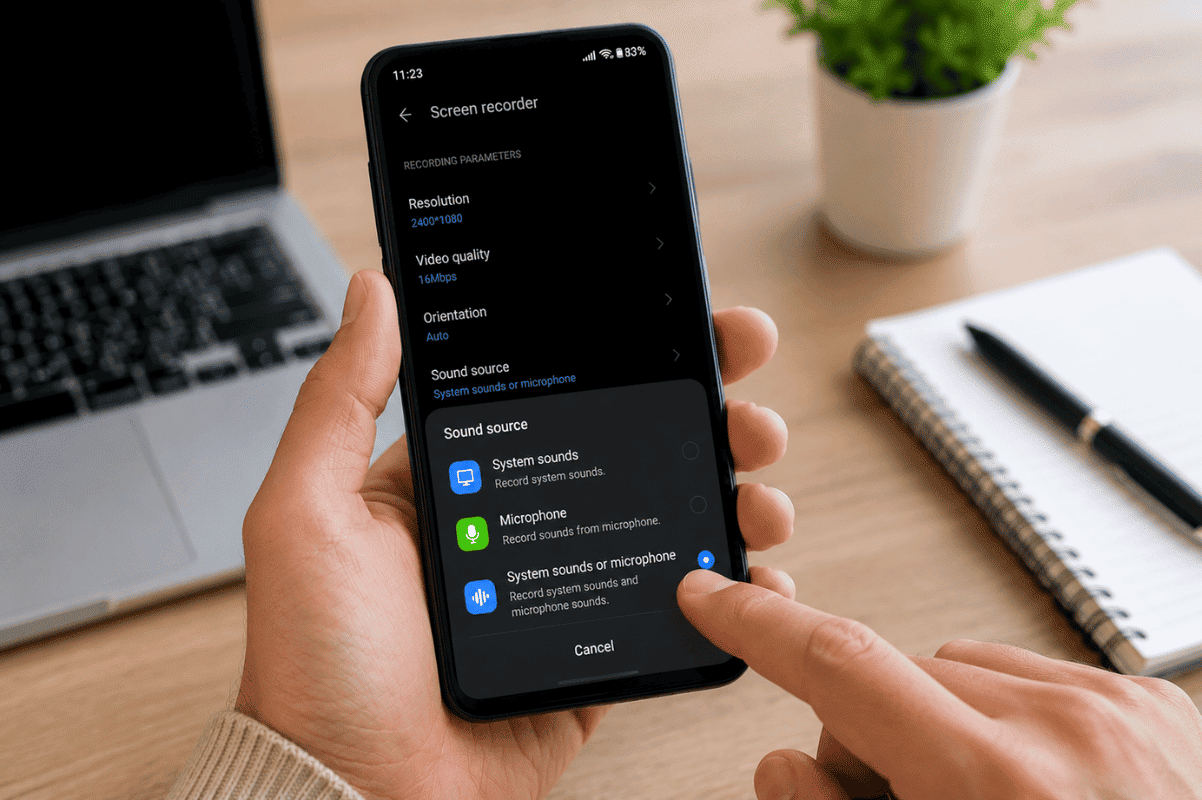
Keep in mind that many Android devices only record your own voice and may not capture the other person’s audio because of privacy restrictions.
Method 2: Use a Secondary Device
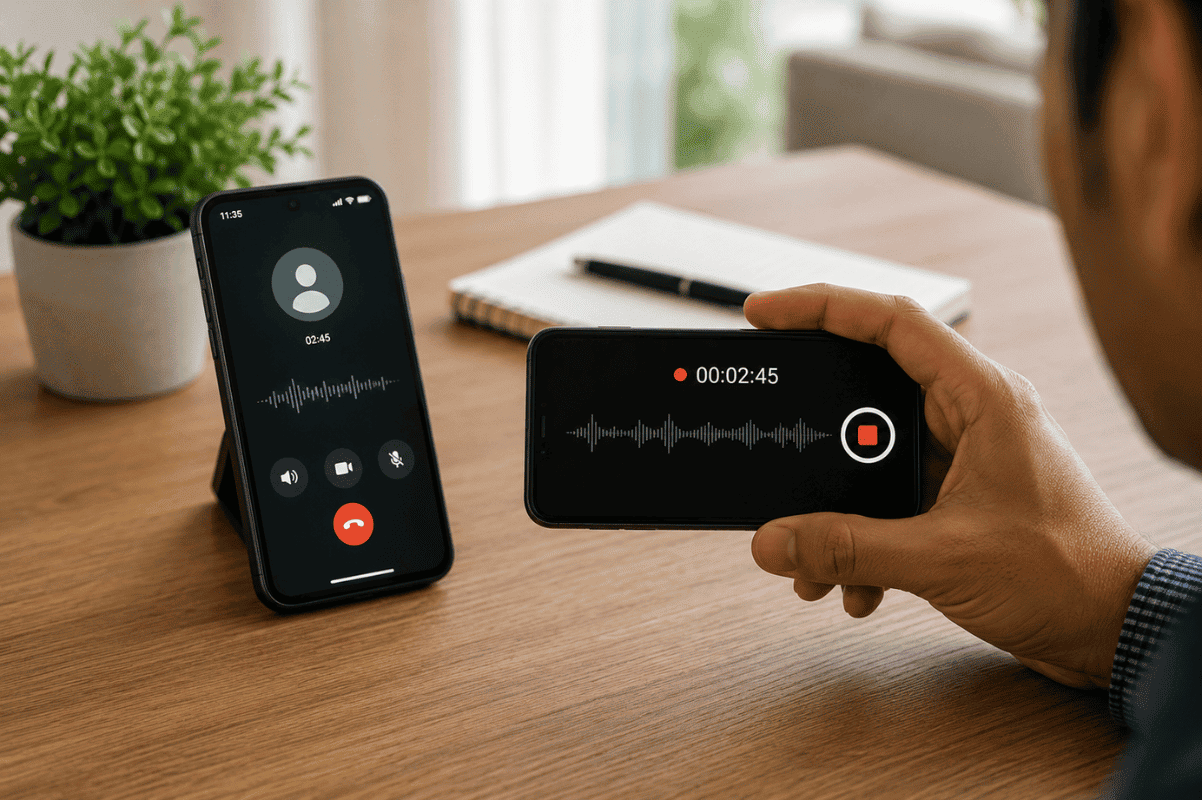
One of the simplest and most reliable methods is using another phone or audio recorder.
Here’s how:
- Put the WhatsApp call on speaker.
- Place another phone or digital recorder nearby.
- Start recording before the conversation begins.
- Save the recording after the call ends.
This method usually captures both sides of the conversation with reasonable audio quality.
Method 3: Try a Third-Party Recording App
Some apps claim to record VoIP calls, including WhatsApp.
Before installing one:
- Read recent user reviews.
- Check compatibility with your Android version.
- Review app permissions carefully.
- Download only from trusted sources.
Because Android security changes frequently, many third-party recording apps no longer work consistently on newer devices.
Method 4: Record Video Calls with Screen Recording
If you’re on a WhatsApp video call, your phone’s screen recorder may capture the video.
However, audio recording may still be limited depending on your phone model and Android version.
Test the feature before relying on it for an important conversation.
Why Isn’t WhatsApp Call Recording Working?
Several factors can prevent successful recording:
- Android privacy restrictions
- Manufacturer software limitations
- Disabled microphone permissions
- Outdated Android version
- WhatsApp security updates
- Recording app incompatibility
These restrictions are designed to improve user privacy and security.
Troubleshooting Tips
If recording isn’t working, try these steps:
- Restart your Android phone.
- Update WhatsApp.
- Install the latest Android software update.
- Check microphone permissions.
- Test your screen recorder with other apps.
- Free up storage space.
Sometimes a simple software update resolves compatibility issues.
When the Problem Is Device-Related
If your phone experiences problems like:
- Microphone not working
- Speaker producing distorted sound
- App crashes during calls
- Screen recorder constantly failing
The issue may involve hardware or software faults rather than WhatsApp itself.
In these situations, a professional Cell Phone repair by an expert service can diagnose microphone, speaker, or software problems that affect call recording performance.
Tips for Better Audio Quality
If you’re using another device to record:
- Choose a quiet room.
- Enable speaker mode.
- Keep the recorder close to the phone.
- Avoid covering the microphone.
- Turn off background music or TV noise.
These small adjustments can noticeably improve recording clarity.
Recording WhatsApp calls on Android has become more challenging because of Android’s privacy protections and WhatsApp’s security measures. Start by trying your phone’s built-in screen recorder or using a secondary recording device for the most reliable results. If recording features suddenly stop working because of microphone issues, software errors, or hardware faults, professional diagnosis may be necessary.
At Fix Phone Mississauga, we recommend trying safe troubleshooting steps first. If your Android phone is experiencing microphone, speaker, or software issues that interfere with WhatsApp calls, our experienced technicians can diagnose the problem and recommend the right solution.
Frequently Asked Questions
Does WhatsApp have a built-in call recording feature?
No. WhatsApp does not include a built-in feature for recording voice or video calls.
Why can’t I hear the other person’s voice in the recording?
Many Android devices block internal audio recording during internet calls to protect user privacy.
Are third-party recording apps reliable?
Some work on certain Android models, but many have limited functionality due to Android security restrictions introduced in recent versions.
Is recording WhatsApp calls legal?
It depends on where you live. Some locations require consent from everyone participating in the conversation before recording. Always check your local laws before recording any call.