Digital business cards make it easier to share your contact details without carrying printed cards. Whether you’re a freelancer, business owner, student, or salesperson, an Android phone lets you create and share a professional digital business card in just a few minutes.
This guide explains several easy methods you can use, including Google’s built-in features and free apps. If your Android phone has display issues or touch problems that prevent you from setting up your card, fixing the device first may be necessary. In that case, professional Cell phone repair services can help restore normal functionality.
Why Use a Digital Business Card?
A digital business card offers several advantages over paper cards.
Benefits include:
- Easy to update contact information
- Eco-friendly alternative to printed cards
- Can include website and social media links
- Simple sharing through QR codes, NFC, text message, or email
- No printing costs
Because your information stays online, you don’t need to order new cards whenever your phone number or email changes.
What You’ll Need
Before creating your digital business card, prepare:
- An Android smartphone
- Internet connection
- Professional profile photo (optional)
- Business logo (optional)
- Your contact information
- Website or portfolio link
- Social media profiles (if relevant)
Method 1: Create a Digital Business Card Using Google Contacts
One of the easiest methods is using Google Contacts.
Step 1
Open the Contacts app.
Step 2
Tap your profile and update your contact information.
Step 3
Add:
- Full name
- Phone number
- Email address
- Company
- Job title
- Website
- Address (optional)
Step 4
Save the changes.
Step 5
Share your contact using the Share Contact option.
People can quickly save your information without manually typing it.
Method 2: Use a Free Digital Business Card App
Several Android apps are designed specifically for creating digital business cards.
Popular options include:
- HiHello
- Blinq
- Wave
- Popl
Most apps allow you to:
- Customize colors
- Add your company logo
- Include multiple phone numbers
- Generate a QR code
- Share via text, email, or NFC
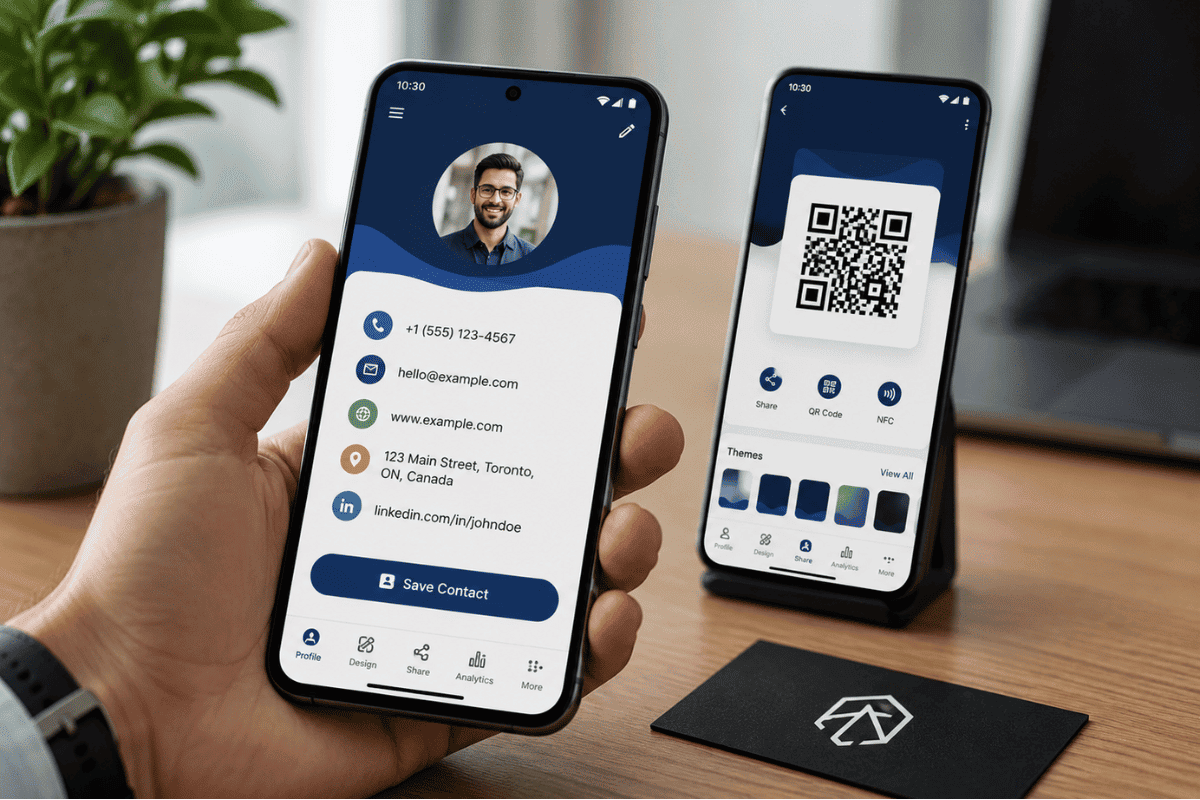
Many free versions provide enough features for personal and small business use.
Method 3: Create a QR Code for Your Contact Information
QR codes are one of the easiest ways to share a digital business card.
Simply:
- Create your contact profile.
- Generate a QR code using your preferred app.
- Save the QR code as an image.
- Print it on marketing materials or display it on your phone.
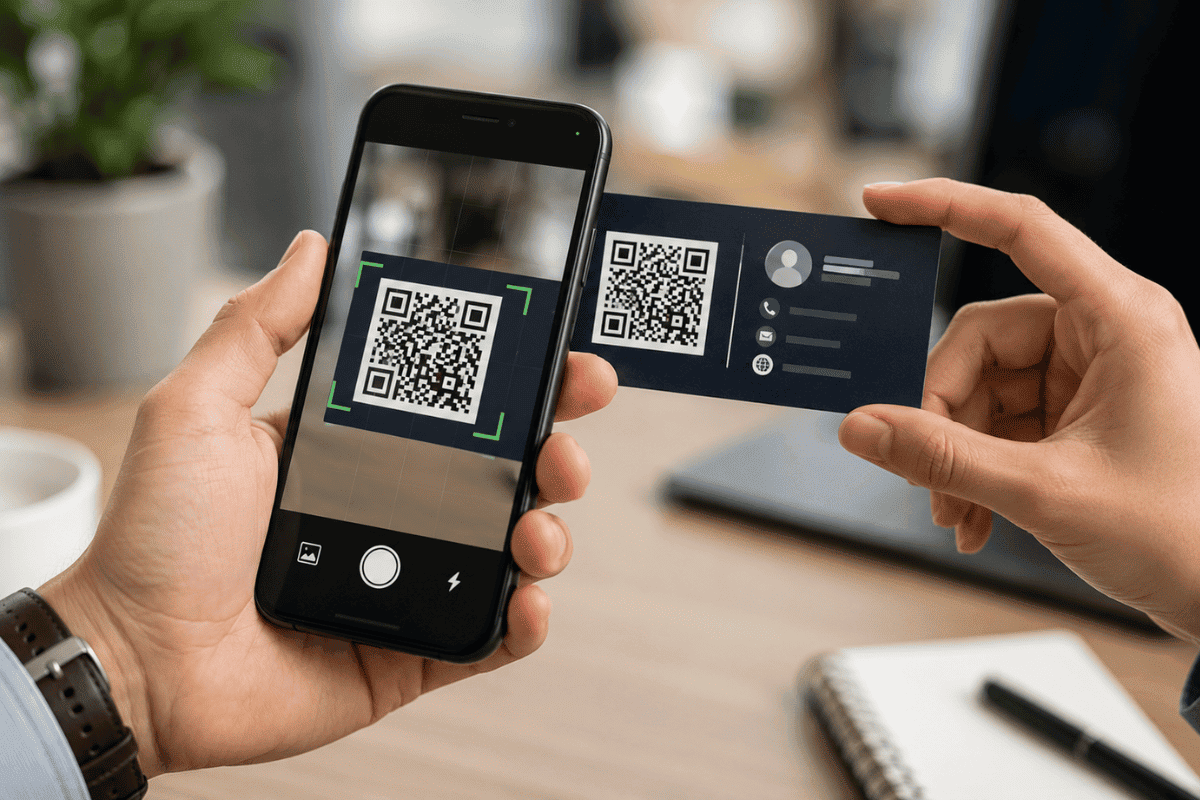
Anyone can scan the code using their smartphone camera to save your contact information instantly.
Tips for Making Your Digital Business Card Look Professional
A clean and organized card creates a better first impression.
Follow these tips:
- Use a clear headshot
- Include only important contact details
- Keep colors consistent with your brand
- Add your company website
- Double-check for spelling mistakes
- Update information whenever it changes
Avoid adding too many social media links unless they support your business.
How to Share Your Digital Business Card
Once your card is ready, you can share it in several ways.
Common methods include:
- QR code
- NFC tap
- Text message
- Google Contacts sharing
- AirDrop alternatives for Android
Choose the sharing method that works best for your audience.
Common Problems and Simple Fixes
Sometimes users run into small issues while creating or sharing their digital business card.
QR Code Doesn’t Scan
Make sure:
- The QR code isn’t blurry.
- Screen brightness is high enough.
- The code isn’t cropped.
Contact Information Isn’t Updating
Try:
- Refreshing Google Contacts.
- Syncing your Google account.
- Restarting your phone.
App Keeps Crashing
You can:
- Update the app.
- Clear cache.
- Restart the device.
If the issue continues across multiple apps, your phone may have software or hardware problems.
When Your Android Phone Needs Professional Repair
Creating a digital business card requires a working touchscreen and stable software.
If your phone has:
- Unresponsive touch
- Broken display
- Charging issues
- Random restarts
- Water damage
these problems should be repaired before relying on the device for business networking.
If you’re located in Ontario, professional Phone repair Mississauga technicians can diagnose hardware issues and restore your device so you can continue using important business tools without interruption.
Creating a digital business card on Android is simple and only takes a few minutes. Whether you use Google Contacts or a dedicated app, you’ll have an easy way to share your professional information with clients, coworkers, and new contacts.
If your Android phone isn’t working properly due to a damaged screen, touch issues, or charging problems, resolving those hardware issues first will make everyday tasks much easier. A trusted repair professional can help restore your phone so you can confidently use business tools whenever you need them.
Frequently Asked Questions
Can I create a digital business card for free?
Yes. Google Contacts and several Android apps offer free options.
Do I need a special app?
No. Google Contacts can be enough for basic sharing, although dedicated apps provide more customization.
Can I include social media links?
Yes. Most digital business card apps allow multiple links.
Is a QR code necessary?
No, but it makes sharing much faster and more convenient.
Can I edit my digital business card later?
Yes. Most services let you update your information at any time without creating a new card.