
Switching from an iPhone to an Android phone, or simply sending memories to someone using Android, is easier than many people expect. The main challenge is that Apple and Android use different systems, so some sharing methods work better than others.
This guide explains the most reliable ways to transfer photos and videos from an iPhone to an Android device. Start with the easiest method. If one option does not work, move to the next. If your iPhone has storage problems, transfer errors, or physical damage that prevents sharing, it may be time to visit a Phone repair Mississauga technician for professional assistance.
Method 1: Share Using Google Photos
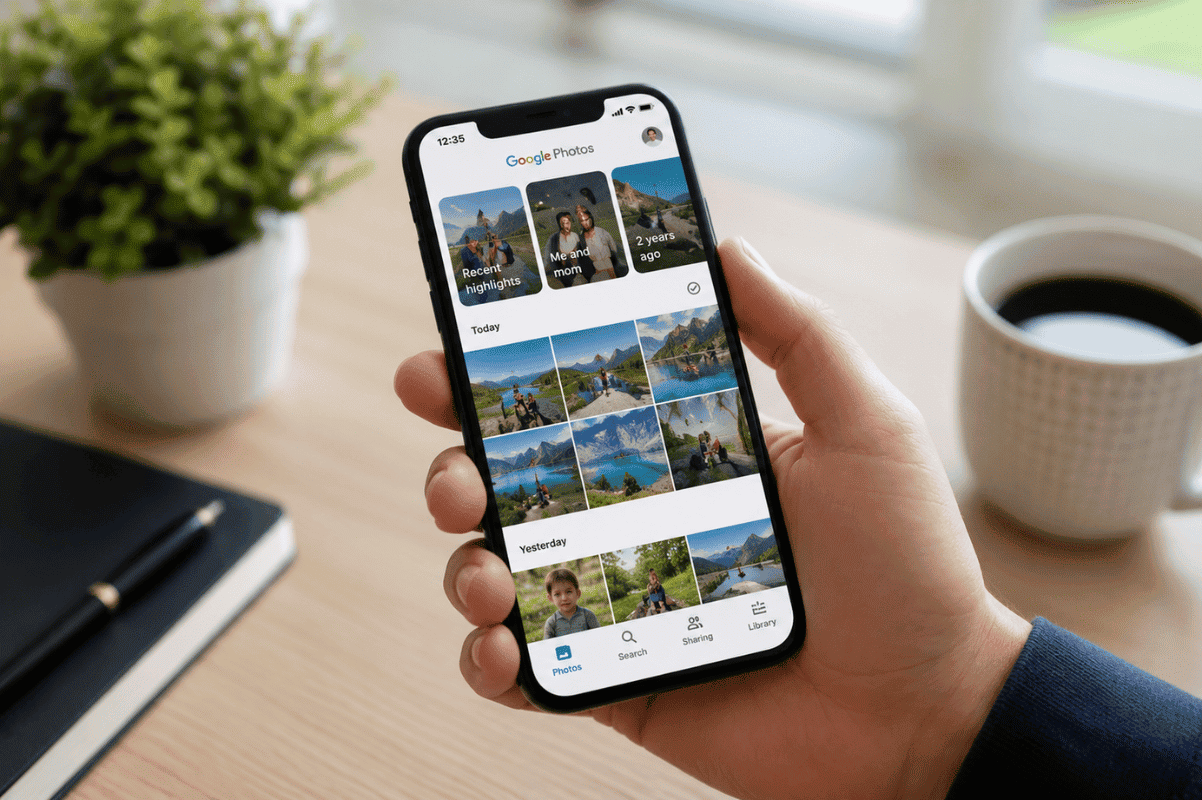
Google Photos is one of the easiest ways to transfer pictures and videos between iPhone and Android.
Steps
- Download Google Photos from the App Store.
- Sign in with your Google account.
- Allow the app to back up your photos and videos.
- Wait until the upload is complete. This may take time if you have a large library.
- Sign into the same Google account on the Android phone.
- Open Google Photos to view and download your files.
Best for
- Moving to a new Android phone.
- Sharing a large collection of photos.
- Keeping your media backed up online.
Method 2: Use a Cloud Storage Service
Cloud services such as Google Drive, Microsoft OneDrive, or Dropbox allow you to upload files from your iPhone and access them on Android.
Steps
- Install your preferred cloud storage app.
- Upload the photos and videos you want to transfer.
- Open the same account on the Android device.
- Download the files if needed.
This method works well when you only need to move selected albums instead of your entire photo library.
Method 3: Send Photos Through Messaging Apps
Many messaging apps support sharing photos and videos between iPhone and Android.
Popular options include:
- Telegram
- Facebook Messenger
- Signal
Keep in mind that some apps may reduce image or video quality unless you choose to send the files as documents.
Method 4: Transfer Using a Computer
A computer provides a dependable option for large transfers.
For Windows Users
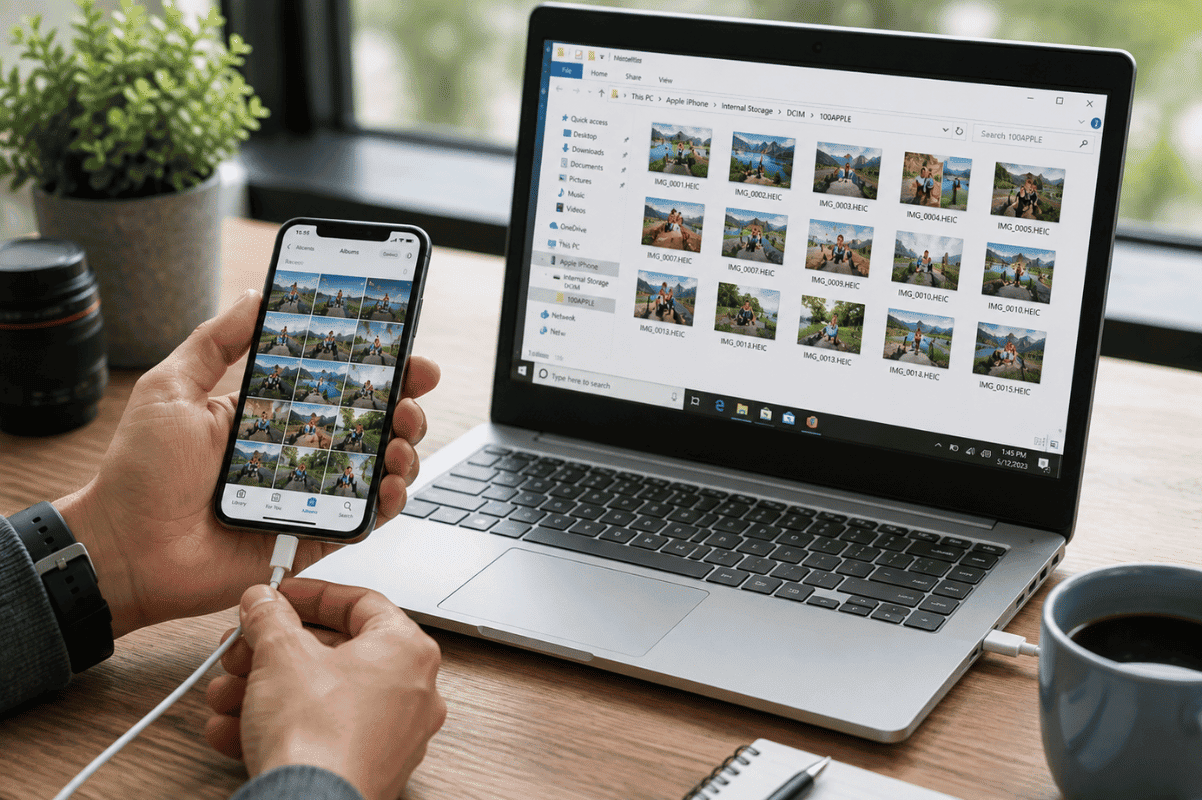
- Connect your iPhone with a Lightning or USB-C cable.
- Unlock the phone and trust the computer.
- Open File Explorer.
- Copy photos from the iPhone’s DCIM folder.
- Disconnect the iPhone.
- Connect the Android phone.
- Copy the files into the Pictures or DCIM folder.
For Mac Users
Use Android File Transfer or another compatible file management application to copy files from your Mac to the Android phone.
Method 5: Use Nearby Share or Quick Share During Setup
Many new Android phones include a setup process that can import data directly from an iPhone.
Depending on the manufacturer, you may be able to transfer:
- Photos
- Videos
- Contacts
- Messages
- Calendar data
Follow the instructions shown during the Android phone’s initial setup.
Common Problems and How to Fix Them
Photos Are Not Uploading
Check that:
- Your Wi-Fi connection is stable.
- The iPhone has enough battery.
- Google Photos or your cloud app has permission to access your photos.
Videos Will Not Transfer
Large videos may take longer to upload.
Try:
- Uploading over Wi-Fi.
- Splitting very large videos.
- Waiting until the upload finishes before opening them on Android.
Transfer Stops Unexpectedly
Restart both phones and try again. Also check available storage on both devices.
Some Photos Are Missing
Open the Photos app and make sure all images have finished syncing before starting the transfer.
Before You Start
A few simple checks can prevent transfer issues.
- Update both phones to the latest software version.
- Connect to a reliable Wi-Fi network.
- Charge both devices.
- Verify there is enough free storage on the Android phone.
- Keep both devices unlocked during wired transfers.
When Home Solutions Are Not Enough
Sometimes transferring photos is difficult because the phone has another problem.
Examples include:
- The iPhone will not power on.
- The screen is damaged and cannot be unlocked.
- The charging port is not working.
- Storage errors prevent backups.
- Water damage has affected the device.
In these situations, forcing repeated transfer attempts can make recovery more difficult. Professional technicians can often recover important photos before further damage occurs.
If your device has hardware issues, visiting a trusted shop for Iphone repair can help restore access to your files safely.
Most people can successfully share photos and videos from an iPhone to an Android phone using Google Photos, cloud storage, messaging apps, or a computer. Start with the simplest method and make sure your devices have enough storage and a stable internet connection.
If the transfer still fails because of a damaged phone, charging issue, or storage problem, stop troubleshooting at home and seek professional assistance. A qualified repair technician can diagnose the problem and help recover your important photos and videos before permanent data loss occurs.