
A slow internet connection on an Android phone can be frustrating, especially when websites take too long to load, videos keep buffering, or messages take several seconds to send. Before assuming your phone needs a repair, it is worth checking a few common causes at home.
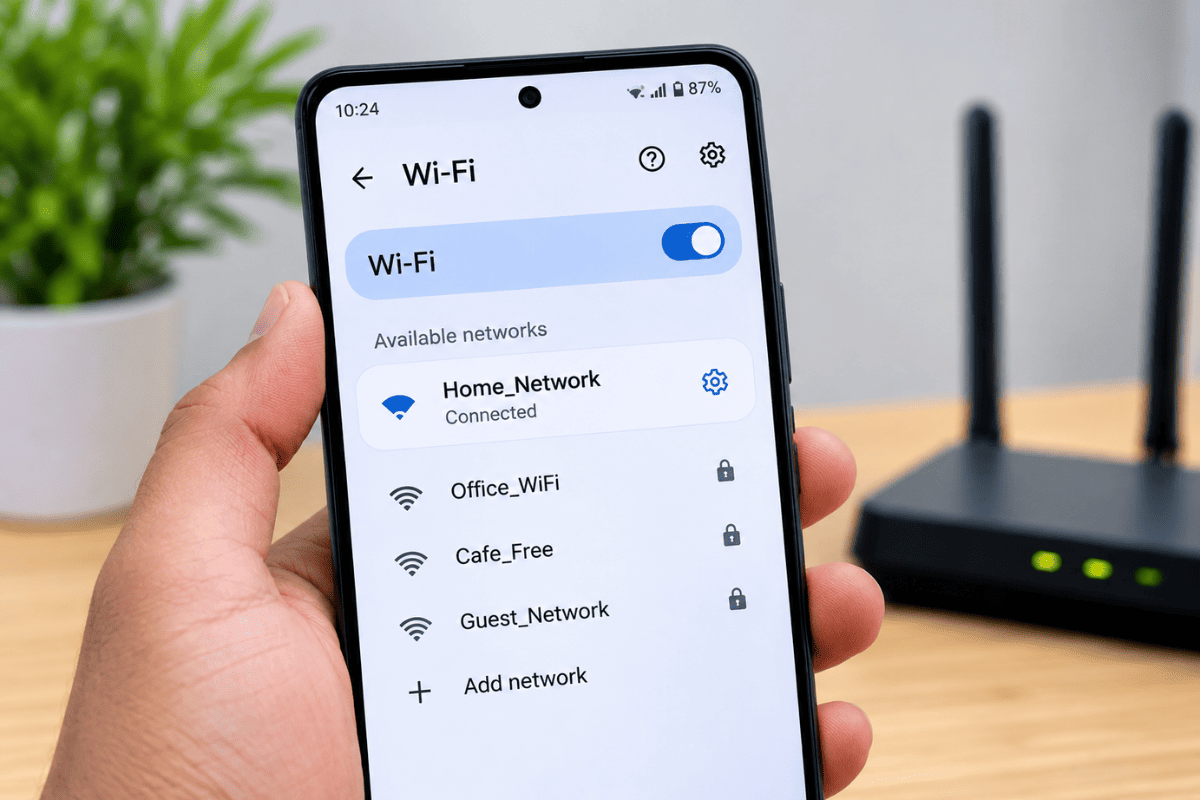
Slow internet can result from a weak Wi-Fi signal, poor mobile coverage, network congestion, background data usage, outdated software, incorrect network settings, or a problem with the phone itself.
This practical guide explains what you can check yourself. If these steps do not improve the connection, a professional cell phone repair technician can help determine whether your Android phone has a hardware or software issue.
1. Check Whether Wi-Fi or Mobile Data Is Slow
Start by identifying which connection is causing the problem.
If you are connected to Wi-Fi, open several websites or apps and see how they perform. Then test another device on the same Wi-Fi network. If your laptop, tablet, or another phone is also slow, the problem may be with your internet service or router rather than your Android phone.
If other devices work normally but your Android phone is slow, continue troubleshooting the phone.
For mobile data, check the signal bars at the top of your screen. A weak cellular signal can make internet speeds much slower, particularly inside concrete buildings, basements, elevators, or areas with limited network coverage.
2. Restart Your Android Phone
Restarting your phone is one of the easiest troubleshooting steps and can resolve temporary network problems.
A restart closes background processes, refreshes wireless connections, and clears temporary software glitches.
Press and hold the power button and select Restart. Once the phone turns back on, connect to Wi-Fi or mobile data and test your internet again.
If the problem returns frequently after every restart, continue with the other steps below.
3. Restart Your Wi-Fi Router
If your Android phone is slow only when connected to your home Wi-Fi, your router may need attention.
Turn off the router and unplug it from the power outlet. Wait approximately 30 seconds before plugging it back in. Give the router a few minutes to reconnect to your internet service.
Then reconnect your Android phone and test several websites.
If every device in your home has slow internet, contact your internet service provider. The issue may involve your plan, local service, network congestion, or an outage.
4. Move Closer to the Router
Distance and physical obstacles can weaken a Wi-Fi signal.
Walls, floors, large appliances, and other electronic equipment can affect wireless performance. If your phone is slow in one room but works normally near the router, the Wi-Fi signal may be the main issue.
Try moving closer to the router and test the connection again.
For larger homes, a properly positioned mesh Wi-Fi system or extender may provide better coverage than a single router.
5. Turn Airplane Mode On and Off
Airplane Mode can refresh your phone’s wireless connections without requiring a full restart.
Open Quick Settings and turn Airplane Mode on. Wait around 10 to 15 seconds, then turn it off.
Your phone should reconnect to available cellular and Wi-Fi networks.
This can help when your Android phone appears connected but the internet is not responding normally.
6. Check Background Data Usage
Some apps continuously use internet data in the background. Cloud backups, social media, video applications, automatic updates, and file synchronization can consume bandwidth.
Open Settings and look for Network & Internet, Connections, or Data Usage, depending on your Android model.
Check which apps are using the most data. If an app is consuming more data than expected, review its background data permissions.
You can also close apps that you are not using and pause unnecessary downloads or cloud synchronization while testing your connection.
7. Clear Your Browser Cache
If your internet seems slow mainly when browsing websites, the browser itself may be contributing to the problem.
Temporary browser files can accumulate over time. Clearing the cache may help if pages are loading incorrectly or unusually slowly.
Go to your browser’s app settings and select the option to clear its cache.
Be careful when selecting Clear Storage or Clear Data, because those options can remove saved settings, accounts, or other app information.
8. Test Another Website or App
Sometimes the internet connection is not actually the problem.
A particular website or online service may be experiencing high traffic, maintenance, or technical issues. If one website loads slowly while other websites and apps work normally, the issue may be with that specific service.
Try opening Google, another news website, or a different app that requires an internet connection.
If everything is slow, continue troubleshooting your phone or network.
9. Check for Android Software Updates
An outdated operating system can sometimes cause connectivity, performance, or compatibility problems.
Open Settings > System > Software Update, although the exact menu may vary by manufacturer.
If an update is available, connect your phone to a reliable Wi-Fi network and make sure the battery has sufficient charge before starting the installation.
You should also check the Google Play Store for app updates.
Keeping Android and your frequently used apps updated can help prevent software-related problems.
10. Reset Network Settings
If your Android phone continues to have connection problems, resetting network settings may help.
The option is commonly found under Settings > System > Reset options, but the exact location varies between Samsung, Google Pixel, Motorola, OnePlus, and other Android devices.
A network reset can remove saved Wi-Fi networks, passwords, Bluetooth pairings, and certain mobile network settings. Make sure you know your Wi-Fi password before performing this step.
After the reset, reconnect to your Wi-Fi network and test the internet.
Could a Phone Problem Cause Slow Internet?
Yes. Although network problems are more common, a phone can sometimes have an underlying hardware or software issue affecting connectivity.
For example, physical damage, a faulty antenna, internal connection problems, water exposure, or other hardware faults may interfere with wireless communication.
If your phone recently suffered a drop or liquid exposure and internet problems started afterward, professional inspection is recommended.
When Should You Get Professional Phone Repair?
If your Android phone remains slow after testing multiple Wi-Fi networks and completing the troubleshooting steps above, it may be time to have the device inspected.
This is especially important if:
- Wi-Fi is slow on your phone but works normally on other devices.
- Mobile data remains slow in locations where other phones have good service.
- The phone frequently disconnects from Wi-Fi.
- The problem started after physical damage.
- Your phone shows unusual network or software errors.
- Wi-Fi or mobile data stops working completely.
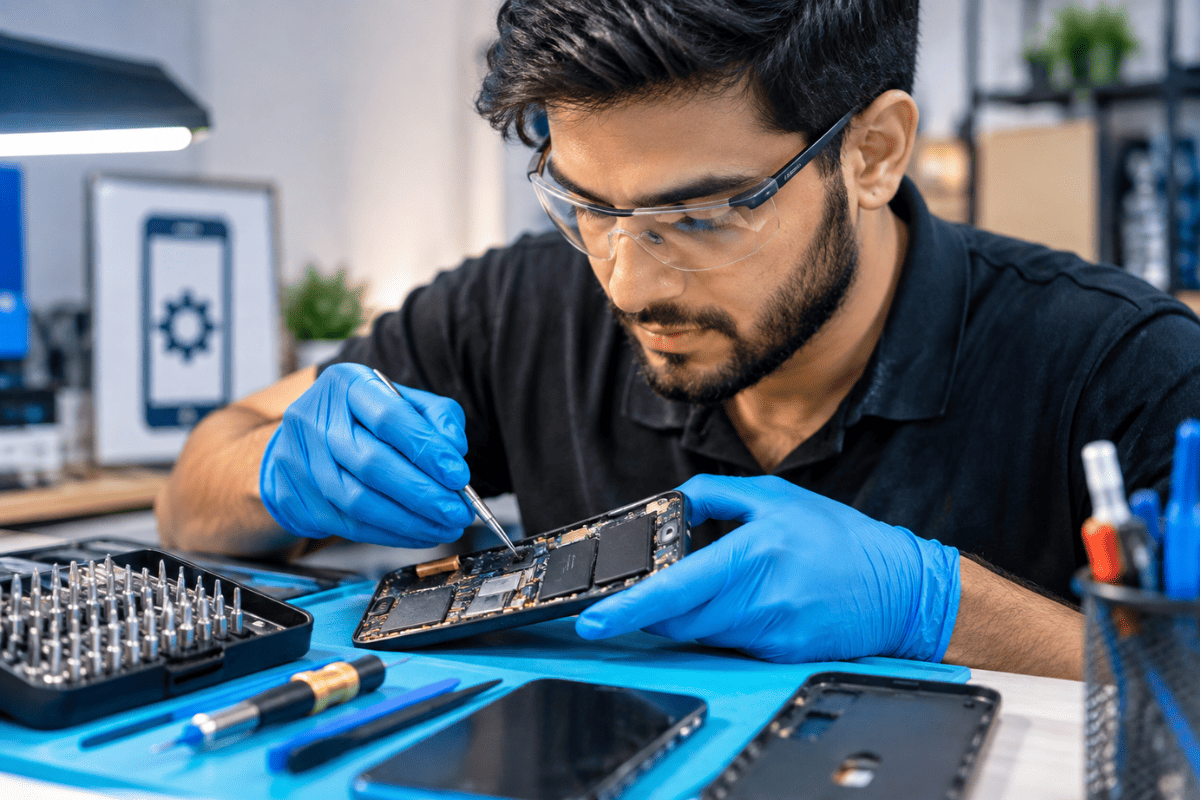
If you need Phone repair Mississauga a professional technician can test the phone’s connectivity and identify whether the issue is software-related, network-related, or caused by hardware.Slow internet on an Android phone does not automatically mean you need a repair. Start with simple checks such as restarting the phone, restarting the router, moving closer to the Wi-Fi source, refreshing the connection with Airplane Mode, checking background data, clearing browser cache, and installing available updates.If the problem continues across different networks, professional diagnosis is the better next step. A technician can inspect the device and determine whether there is an underlying hardware or software problem before recommending a repair.