
Apps running in the background can use battery, mobile data, and system resources even when you are not actively using them. Android manages background activity automatically, but you can restrict certain apps when they are using too much power or data.
The exact menu names can vary between Samsung Galaxy, Google Pixel, Motorola, OnePlus, and other Android phones. Follow the steps below to reduce unnecessary background activity without disabling important system functions.
1. Check Which Apps Are Using Battery
Before restricting apps, identify which ones are actually consuming power.
- Open Settings.
- Tap Battery or Battery and device care.
- Select Battery usage.
- Review the apps near the top of the list.
- Tap an app to see how much battery it uses in the background.
If an app is using significant battery when you rarely use it, consider restricting its background activity.
2. Restrict Background Battery Usage
Many Android phones let you control how individual apps operate in the background.
- Open Settings.
- Go to Apps or Apps & notifications.
- Select the app you want to manage.
- Tap Battery.
- Choose a restricted or optimized battery setting when available.
On Samsung Galaxy devices, you may also find options under Battery and device care > Battery > Background usage limits. You can add rarely used apps to sleeping or deep sleeping categories.
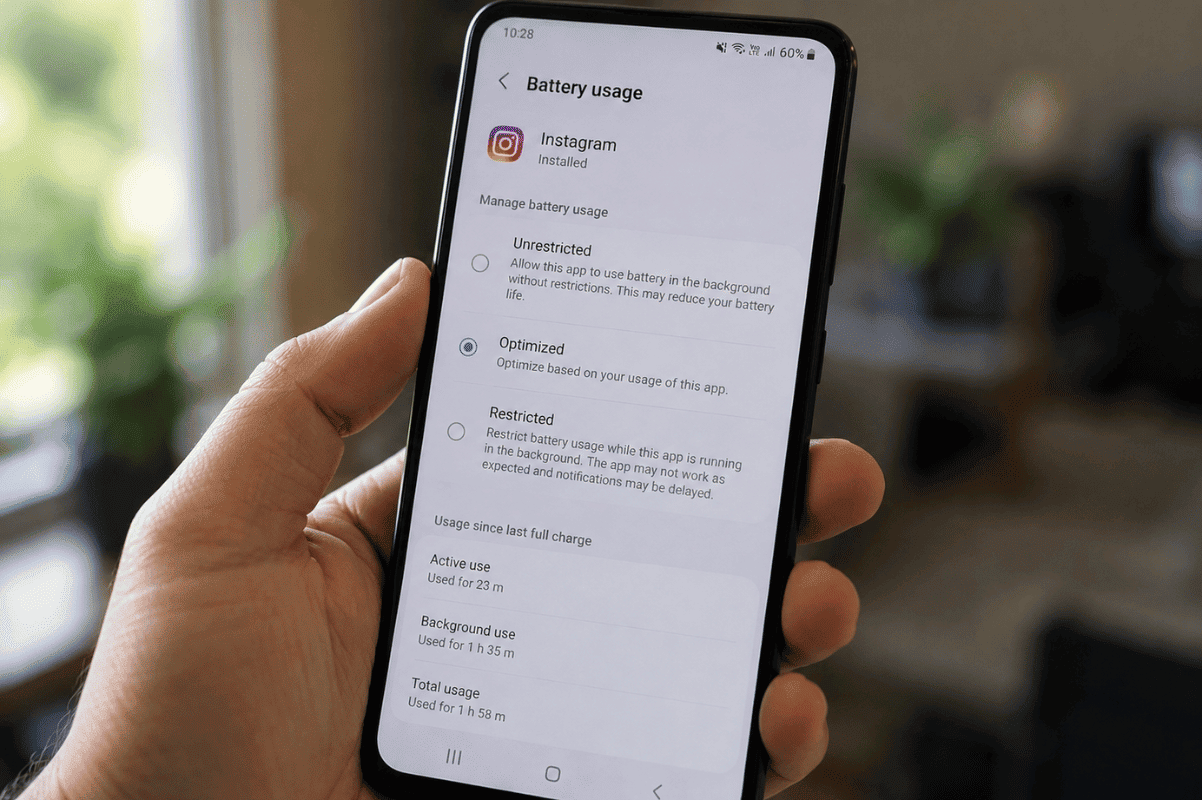
Keep in mind that restricting an app may delay notifications or prevent some background features from working normally.
3. Turn Off Background Mobile Data
If your concern is mobile data rather than battery life, you can limit an app’s background data.
- Open Settings.
- Tap Apps.
- Select the app.
- Choose Mobile data or Mobile data & Wi-Fi.
- Turn off Allow background data usage, if the option is available.
This can be useful for apps that regularly sync photos, videos, social feeds, or other content while you are using cellular data.
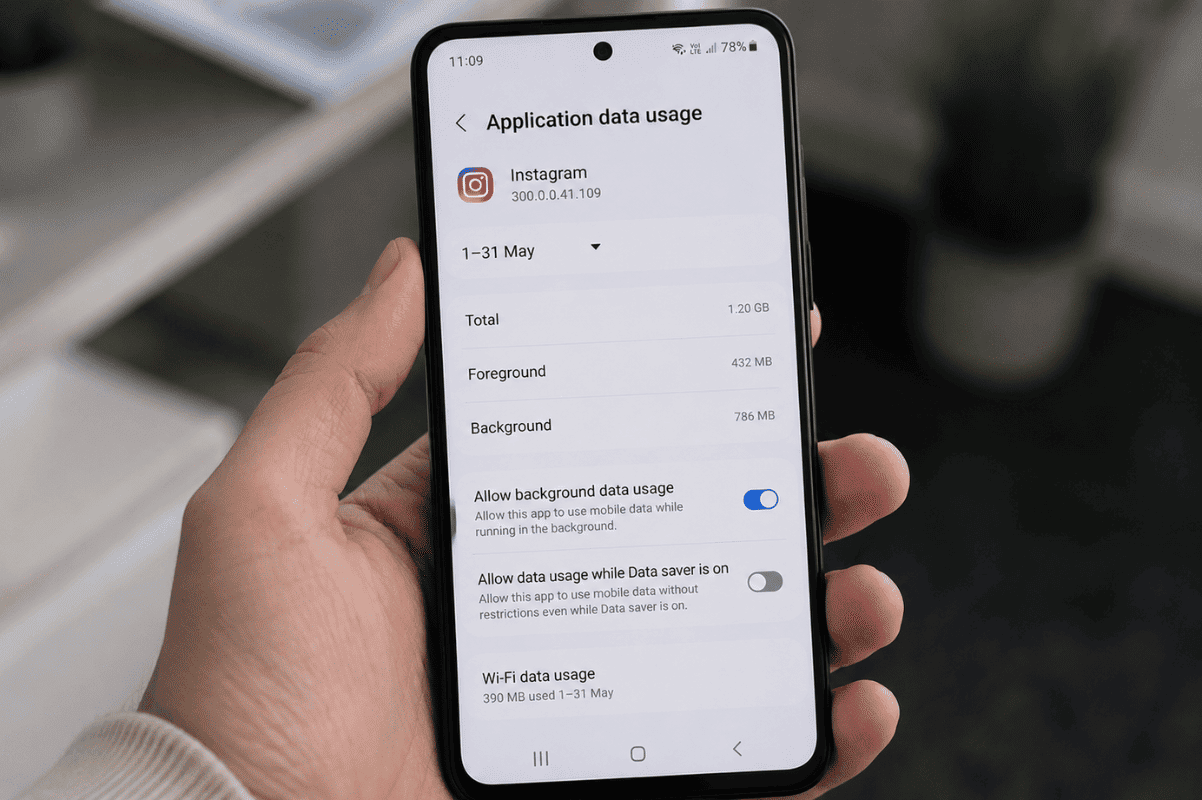
4. Force Stop an App You Are Not Using
If an app is frozen, behaving unusually, or consuming resources unexpectedly, you can temporarily stop it.
- Open Settings > Apps.
- Select the problematic app.
- Tap Force stop.
- Confirm the action.
Force stopping is different from uninstalling an app. The app can normally be opened again later.
Avoid force stopping essential Android system apps or services unless you know what they do.
5. Disable Apps You Do Not Need
Some phones include preinstalled apps that you cannot uninstall but may allow you to disable.
Open Settings > Apps, select the relevant app, and look for Disable. If Android does not provide this option, leave the app enabled rather than attempting to remove system components through unofficial methods.
For apps you installed yourself and no longer need, uninstalling them is usually a better solution than repeatedly stopping them.
6. Restart Your Android Phone
A simple restart can resolve temporary background processes and software glitches.
Press and hold the power button, select Restart, and allow the phone to boot normally. After restarting, monitor battery usage for a day or two to see whether the problem returns.
If one particular app continues consuming excessive resources, check whether an update is available or consider reinstalling it.
7. Keep Android and Apps Updated
Outdated software can sometimes cause battery drain, crashes, or unusual background activity.
Check Settings > System > Software update for Android updates. Then open the Google Play Store, tap your profile icon, and check for available app updates.
Updates can include performance improvements and bug fixes that help apps operate more efficiently.
When You Should Get Professional Help
If your Android phone continues losing battery rapidly after you have restricted unnecessary apps, the problem may not be caused by background activity alone. An aging battery, charging issue, software problem, overheating, or hardware fault can also cause abnormal battery drain.
At that point, professional cell phone repair can help identify the actual cause instead of repeatedly changing settings.
For users in the Mississauga area, a professional Phone repair Mississauga service can diagnose persistent battery, charging, or performance problems when basic troubleshooting does not resolve them.
Start by checking battery usage, then restrict unnecessary background activity, limit background mobile data, and remove apps you no longer need. Do not disable important Android services just to save a small amount of battery.
If the phone still drains quickly, overheats, shuts down unexpectedly, or behaves abnormally, the issue may require professional diagnosis rather than another settings change.