
If you use an Android phone for texting, you may sometimes notice a message that says “Sent as SMS” after you send a text. If you are wondering what does sent as SMS mean on Android, the simple answer is that your phone sent the message through your cellular network as a traditional SMS text instead of using an internet-based messaging service.
This is usually normal and does not automatically mean there is a problem with your Android phone. However, if your messages suddenly switch to SMS, fai l to send, or show unexpected behaviour, a few settings and connection issues may be worth checking.
What Does “Sent as SMS” Mean on Android?
SMS stands for Short Message Service. It is the traditional texting system supported by mobile carriers.
When your Android phone sends a message as SMS, it generally means the message was delivered through your carrier’s cellular network rather than through an internet-based service such as RCS.
For example, your messaging app may normally use RCS when both you and the recipient have compatible services and internet connectivity. If RCS is unavailable, your phone may fall back to SMS so you can still send the message.
This is one reason you might see “Sent as SMS” even though you did not manually choose SMS.
SMS vs. RCS: What Is the Difference?
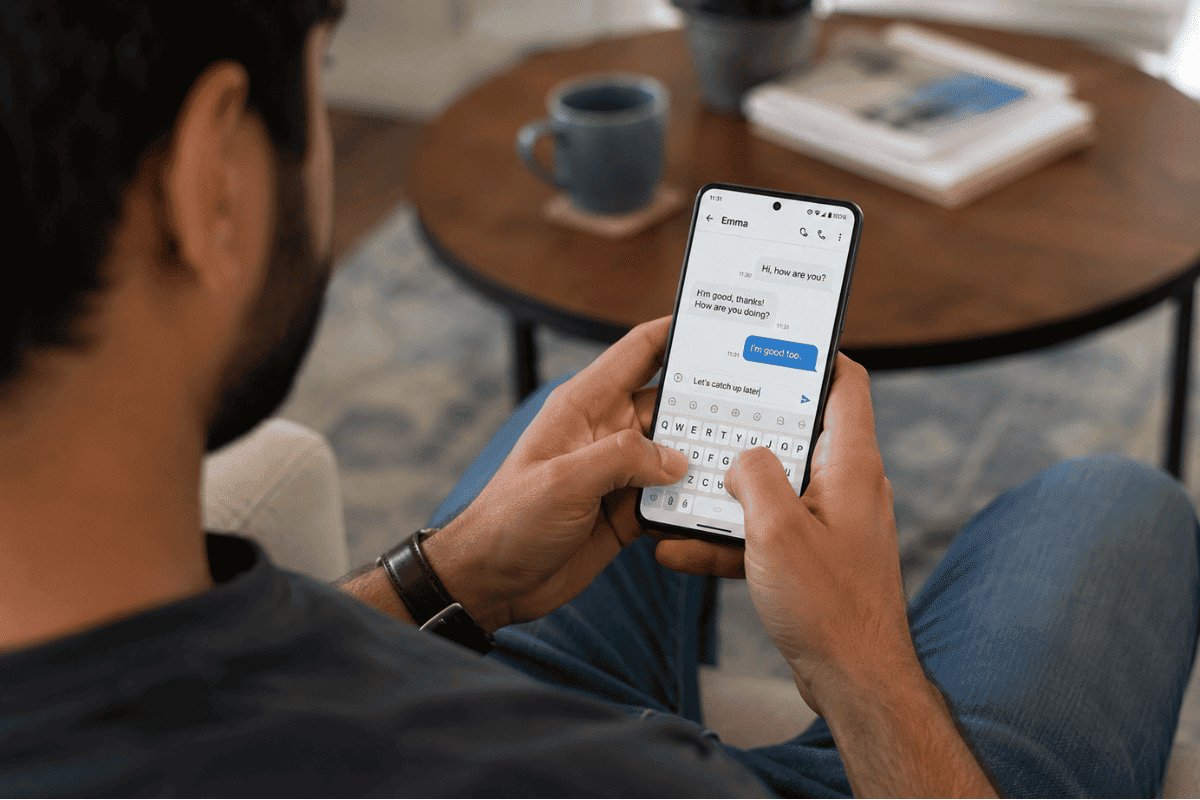
Understanding the difference between SMS and RCS can make the message easier to understand.
SMS:
- Uses your mobile carrier’s cellular network
- Does not require mobile data or Wi-Fi
- Works with most mobile phones
- Has fewer modern messaging features
- May have limitations for photos, videos, and group conversations
RCS:
- Uses an internet connection
- Can provide typing indicators and read receipts
- Supports higher-quality photos and videos
- Can offer improved group messaging
- Requires compatible messaging services and settings
If your phone normally uses RCS but switches to SMS, it may simply be responding to a temporary connection or compatibility issue.
Why Did My Android Message Switch to SMS?
There are several common reasons why a message may be sent as SMS.
1. RCS Is Not Available
If RCS is disabled on your phone, unavailable temporarily, or not supported by the recipient’s messaging setup, your phone may send the message as SMS instead.
Open your messaging app’s settings and look for options related to RCS chats, Chat features, or similar terminology. The exact menu can vary depending on your Android phone and messaging app.
2. Your Internet Connection Is Unavailable
RCS requires an internet connection. If mobile data and Wi-Fi are unavailable or unstable, your messaging app may fall back to SMS.
Try opening a website or another internet-based app. If other services are also having trouble connecting, check your Wi-Fi or mobile data connection.
3. The Recipient Cannot Receive RCS
RCS messaging depends partly on the recipient’s device and messaging service. If the person you are texting does not have compatible RCS messaging enabled, your phone may use SMS instead.
This can happen when messaging someone who uses a different device, carrier, or messaging configuration.
4. Temporary Network Problems
A short-term carrier or messaging service issue can also affect how messages are sent. If the problem appears suddenly, wait a few minutes and try sending another message.
You can also restart your phone to refresh its cellular and network connections.
How to Check RCS Settings on Android
If you want your Android phone to use RCS when available, check your messaging settings.
In Google Messages, open the app and look for the RCS chats or Chat features section in settings. Depending on your Android version and app version, the wording and location of this setting may differ.
Check whether RCS is enabled and whether the service shows a connected or available status.
If it is disconnected, follow the instructions shown in the app. You may also need to confirm that your phone number is correctly associated with the messaging service.
What If “Sent as SMS” Appears but the Message Will Not Send?
Seeing “Sent as SMS” is not necessarily a problem. The important question is whether the recipient actually receives the message.
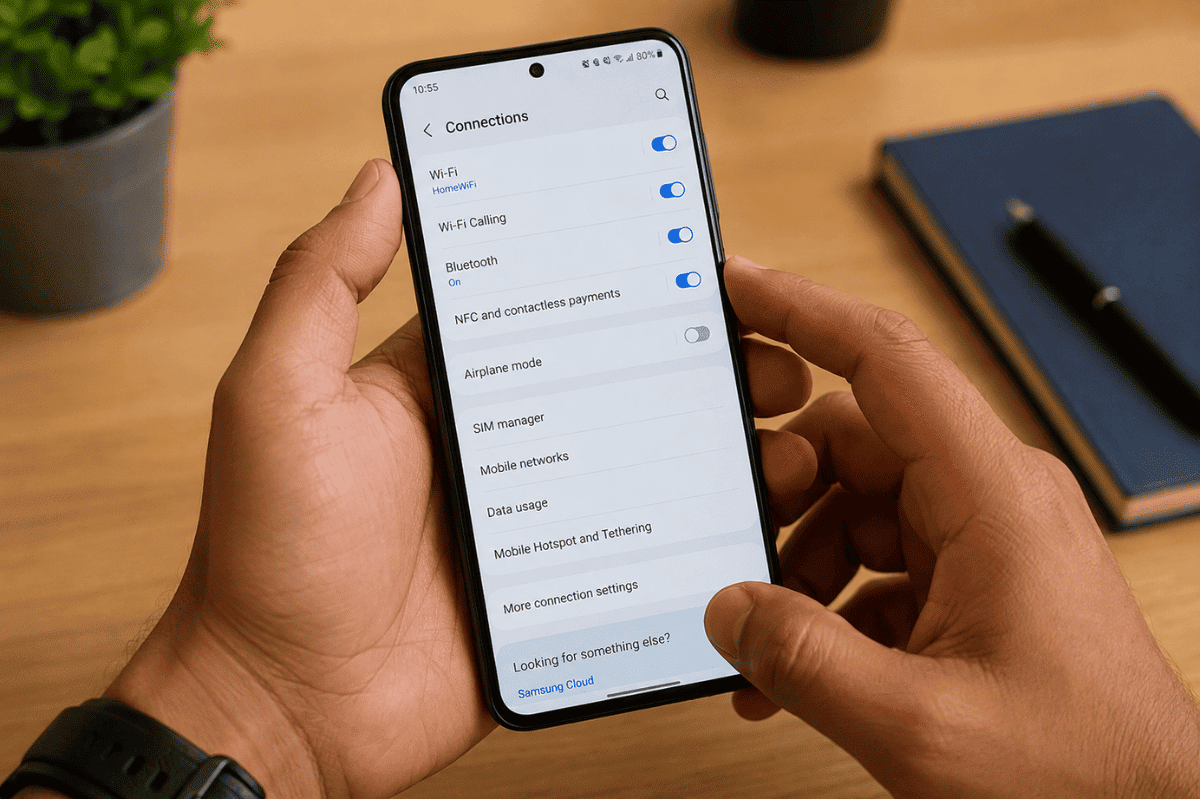
If messages are failing to send, try these basic fixes:
- Check cellular signal: Make sure your phone has a usable mobile signal.
- Check Airplane Mode: Confirm that Airplane Mode is turned off.
- Restart your phone: A restart can resolve temporary network or messaging glitches.
- Check your SIM or eSIM: Make sure your mobile service is active.
- Test another contact: This can help determine whether the problem affects one recipient or all messages.
- Check your messaging settings: Make sure SMS and RCS-related settings have not been changed.
- Update your messaging app: An outdated app can sometimes cause unexpected behaviour.
If regular SMS messages also fail to send, the issue may involve your carrier account, SIM, cellular connection, or phone hardware rather than RCS alone.
Does “Sent as SMS” Mean I Am Blocked?
No. Seeing “Sent as SMS” does not prove that someone has blocked you.
A message can switch from RCS to SMS for many ordinary reasons, including an unavailable internet connection, RCS being disabled, or differences between the sender’s and recipient’s messaging services.
You should not use the “Sent as SMS” status by itself to determine whether another person has blocked your number.
When Should You Consider Phone Repair?
Most situations involving “Sent as SMS” can be checked at home without professional assistance. However, persistent messaging problems may indicate a deeper issue.
Consider professional Phone repair Mississauga if your Android phone repeatedly loses cellular connectivity, cannot maintain a reliable network connection, has SIM-related problems, or continues experiencing communication issues after basic troubleshooting.
Before seeking repair, confirm that your mobile account is active and that the problem is not caused by a carrier outage or account restriction. Testing your SIM or service in another compatible phone can also help identify whether the issue is with the phone itself.
So, what does sent as SMS mean on Android? In most cases, it simply means your phone sent the message using traditional SMS rather than RCS or another internet-based messaging service.
There is usually no reason to worry when this happens occasionally. Check your internet connection, RCS settings, cellular signal, and messaging app before assuming something is wrong with your phone.
If ordinary SMS messages continue failing or your Android device has persistent network problems, basic troubleshooting should come first. If those steps do not solve the issue, professional diagnosis can help determine whether your phone needs repair.