
Seeing the message Android Setup keeps stopping can be frustrating, especially when it appears while you are setting up a new phone, restoring an older device, or trying to finish a factory reset. The error usually means that an Android system component responsible for completing the setup process has stopped working correctly.The good news is that you can often fix the problem yourself without immediately taking your phone to a repair shop. A restart, clearing temporary data, checking available storage, installing system updates, or reconnecting to a reliable Wi-Fi network can sometimes resolve the issue.
This guide explains practical solutions in the order you should try them. If the problem continues after the basic troubleshooting steps, the issue may involve damaged system files, a software installation problem, or hardware-related storage trouble that requires professional diagnosis.
Why Does Android Setup Keep Stopping?
The Android setup process depends on several system services working together. If one of these services crashes or cannot access the files or resources it needs, you may repeatedly see an error such as “Android Setup keeps stopping.”
Common causes include:
- A temporary Android system glitch
- Corrupted setup app data or cache
- An incomplete software update
- Unstable Wi-Fi during setup
- Insufficient storage
- Problems restoring apps or data from another phone
- Corrupted system files
- An incompatible app or service
- A failed factory reset
- Internal storage or other hardware problems
The best approach is to start with simple fixes before making major changes to your phone.
1. Restart Your Android Phone
A basic restart should be your first troubleshooting step.Temporary system processes can sometimes become stuck during setup. Restarting the device closes active processes and allows Android to load them again.
If you can access the normal power menu:
- Press and hold the power button.
- Tap Restart.
- Wait for the phone to shut down.
- Allow Android to boot completely.
- Try the setup process again.
If the phone is frozen, the restart procedure may be different depending on the manufacturer. Many Android phones can be force restarted by holding the power button for several seconds. Some models use a combination of the power and volume buttons.Do not repeatedly press random button combinations. If you are unsure of the correct method for your model, check the manufacturer’s support instructions.
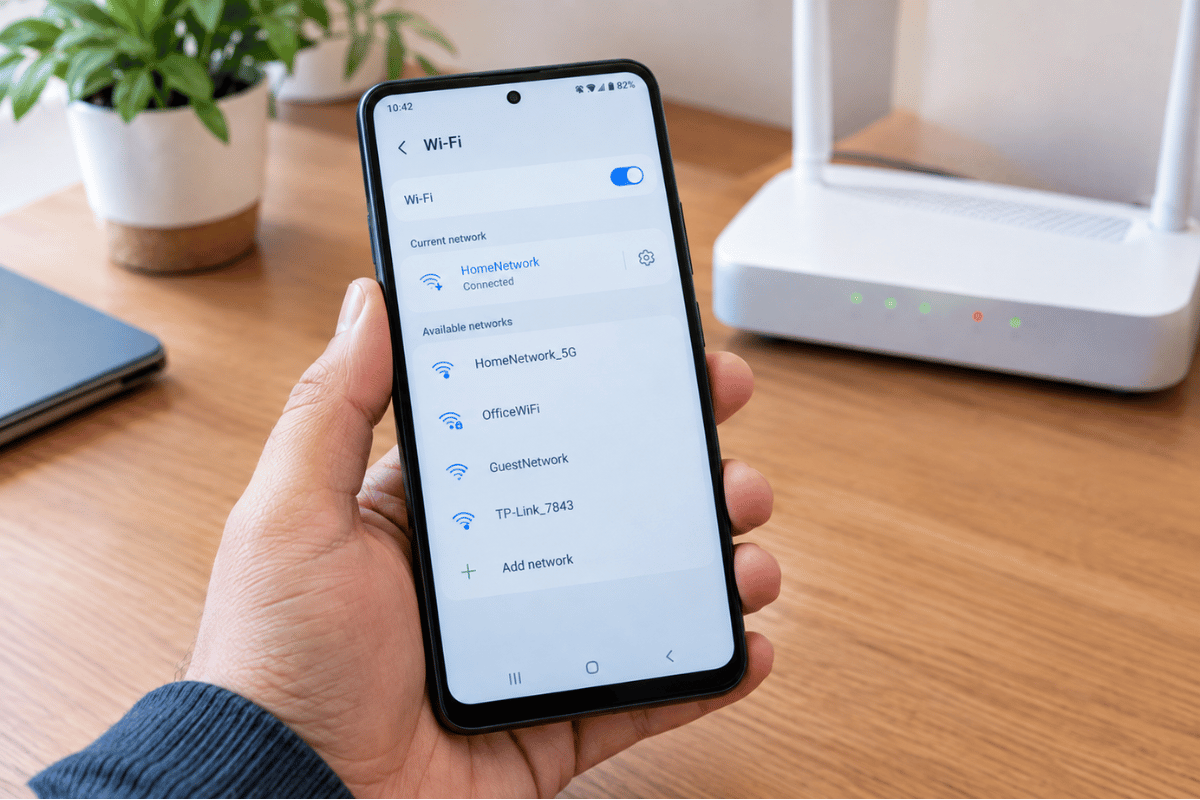
2. Check Your Wi-Fi Connection
Android setup often needs an internet connection to verify your device, download updates, restore information, or complete account-related services.An unstable connection can interrupt the setup process.
Try these steps:
- Move closer to your Wi-Fi router.
- Disconnect and reconnect to Wi-Fi.
- Restart your router if other devices are also having connection problems.
- Try another reliable Wi-Fi network.
- Avoid using a weak public Wi-Fi connection during setup.
If the setup screen allows you to skip Wi-Fi temporarily, you can sometimes continue setup and reconnect later. However, some phones require an internet connection for certain setup stages.
3. Charge the Phone Before Troubleshooting Further
Low battery power can create additional problems during system setup, especially if the phone is installing updates or restoring a large amount of data.Connect the phone to a reliable charger and allow it to charge for a while.Ideally, keep the phone connected to power while completing lengthy updates or setup procedures. If the device becomes unusually hot, repeatedly shuts down, or refuses to charge, stop troubleshooting and consider professional inspection.
4. Clear Android Setup Cache and Data
If you can reach the Android settings menu, clearing the temporary data associated with the setup service may help.
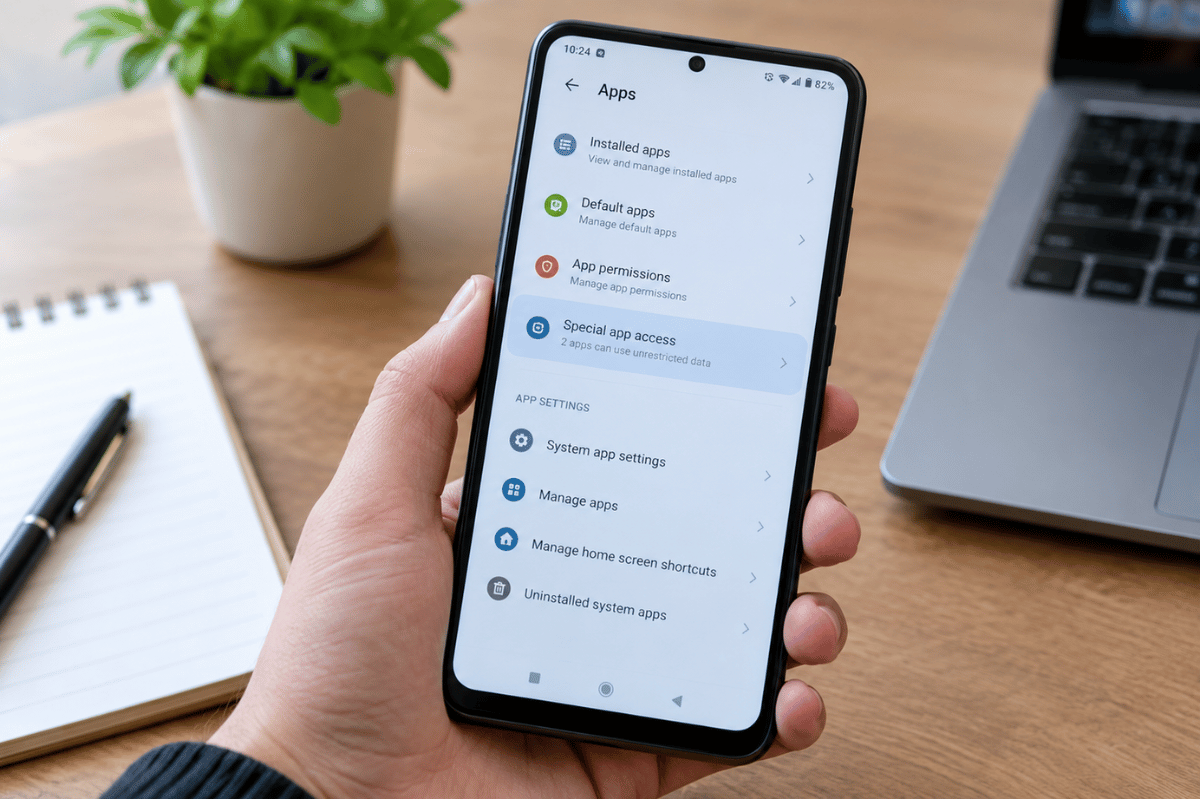
The exact menu names vary by Android version and manufacturer, but the general process is:
- Open Settings.
- Select Apps or Apps & notifications.
- Tap See all apps if necessary.
- Open the menu for system apps.
- Look for Android Setup, Setup Wizard, or a similarly named setup service.
- Open Storage & cache.
- Select Clear cache.
- Restart the phone.
If clearing the cache does not solve the problem, some devices may provide a Clear storage or Clear data option.Be careful before selecting it. Clearing data for a system setup service can cause the setup process to restart or require you to enter your account information again.If you are not sure which system app you are looking at, do not delete or disable random Android services.
5. Check Available Storage
Android needs sufficient internal storage to install updates, restore applications, create temporary files, and complete certain setup tasks.If the phone is almost full, setup may fail repeatedly.
If you can access Settings, check:
Settings > Storage
The exact location may differ between Samsung, Google Pixel, Motorola, OnePlus, and other Android devices.If storage is nearly full, remove unnecessary downloads, videos, duplicate photos, or apps you no longer need.Do not delete system files simply because they appear unfamiliar. If you are unsure what can safely be removed, focus on personal files and applications that you recognize.
6. Install Available Android Updates
An outdated or partially updated Android installation can sometimes cause system services to crash.
If you can access the phone’s settings:
- Open Settings.
- Look for System, Software update, or About phone.
- Check for available updates.
- Connect the phone to a charger if an update is available.
- Install the update.
- Restart the device.
Keep the phone connected to a reliable Wi-Fi network during the process.If an update repeatedly fails, do not keep forcing the installation. Repeated update failures may point to a deeper software or storage problem.
7. Disconnect External Devices
If you have connected accessories during setup, temporarily disconnect them.
Remove:
- USB drives
- USB hubs
- Some third-party adapters
- External storage accessories
- Unnecessary Bluetooth devices
Then restart the phone and try setup again.A faulty accessory or incompatible connection can occasionally interfere with normal startup or setup operations.
8. Try Setting Up the Phone Without Restoring Everything
If the error appears while restoring your information from another phone or cloud backup, the restoration process itself may be contributing to the problem.If possible, restart the setup process and choose a simpler configuration.For example, you can try setting up the phone without immediately restoring every application and file. Once the phone reaches the normal Android home screen, you can gradually restore your data.This can also help identify whether a particular application or backup is causing the setup process to fail.
9. Remove and Reinsert the SIM Card
On some devices, connectivity-related setup problems can be affected by SIM or network configuration.If your phone uses a physical SIM card, power the device off before removing it.
Then:
- Remove the SIM carefully.
- Check that the card is not visibly damaged.
- Reinsert it correctly.
- Restart the phone.
- Try the setup process again.
If your device uses eSIM, do not delete an eSIM profile simply as a troubleshooting experiment. Removing an eSIM can create additional activation problems.
10. Try Safe Mode If You Can Reach Android
If the phone reaches the home screen before the “Android Setup keeps stopping” message appears, Safe Mode can help determine whether a downloaded application is contributing to the problem.Safe Mode temporarily prevents most third-party applications from running.
The exact procedure differs by manufacturer, but commonly you can:
- Open the power menu.
- Press and hold the Power off option.
- Look for a Safe Mode prompt.
- Confirm the restart.
- Test the phone after it starts.
If the error disappears in Safe Mode, a recently installed application may be involved.
Think about applications installed shortly before the problem started. Remove suspicious or unnecessary apps, then restart the phone normally.
11. Avoid Repeated Factory Resets
A factory reset can solve serious software problems, but it should not be the first solution.A factory reset removes personal information and returns the phone to its initial software state. Before doing one, make sure you understand what data is backed up and whether you know the Google account credentials associated with the device.This is especially important with Android’s device protection features. After a reset, the phone may require the previously associated Google account before setup can be completed.If you do not know the account information, do not reset the phone simply to test whether it works.
12. When a Factory Reset May Be Necessary
If Android Setup repeatedly crashes and none of the simpler solutions work, a factory reset may be considered when the problem appears to be caused by corrupted software.
Before resetting:
- Back up important photos and files if possible.
- Make sure you know your Google account email and password.
- Charge the phone.
- Confirm that you understand the reset will erase personal data.
- Check the manufacturer’s reset instructions for your specific model.
If you cannot access Android settings and the phone is stuck during startup, the reset procedure may require recovery mode Because recovery menus vary by manufacturer, use the official instructions for your exact model rather than following a button combination intended for a different phone.
What If Android Setup Keeps Stopping After a Factory Reset?
If the same error appears even after a factory reset, that is an important clue.
At that point, the issue may involve:
- Damaged firmware
- Failed system installation
- Internal storage problems
- A problematic update
- Hardware failure
- A motherboard-related fault
If the phone cannot complete its initial setup even after legitimate software troubleshooting, continuing to reset it repeatedly is unlikely to help.This is where professional cell phone repair can be useful. A technician can diagnose whether the problem is software-related or connected to the phone’s internal hardware.
When Should You Get Professional Help?
Consider professional assistance if:
- Android Setup crashes repeatedly after restarting.
- The phone cannot complete initial setup.
- Factory reset does not resolve the problem.
- System updates repeatedly fail.
- The phone constantly restarts.
- The device freezes on the Android logo.
- Internal storage appears to be failing.
- The phone has recently suffered physical or liquid damage.
- You cannot access recovery or setup options safely.
A professional technician can test the device before recommending a repair. This is preferable to repeatedly changing system settings when the underlying issue is not clear.For users searching locally, Phone repair Mississauga services can provide a practical option when software troubleshooting at home has not resolved the problem.
Final Steps Before Taking Your Phone for Repair
Before handing over the phone, write down exactly what happens.
For example, note:
- When the error appears
- Whether the phone reaches the home screen
- Whether it happens after a reset
- Whether Wi-Fi connects successfully
- Whether the phone recently received an update
- Whether the phone was dropped or exposed to liquid
This information can help a technician narrow down the cause more efficiently.
Also, avoid installing unofficial firmware or downloading random repair tools from unknown websites. Incorrect firmware can create additional problems and may make professional diagnosis more difficult.The Android Setup keeps stopping error does not always mean your phone needs a major repair. Start with the safest steps: restart the device, check Wi-Fi, charge the battery, clear the appropriate setup cache, check storage, install available updates, and try completing setup without restoring everything at once.If the problem continues after these steps, especially after a factory reset, the cause may be more complicated. Professional diagnosis can help determine whether the phone has a software, storage, or hardware problem.The goal is to fix the issue without unnecessarily erasing your data or making the problem worse. Start with simple troubleshooting, keep your important information backed up, and seek professional help when the phone cannot complete setup despite the standard fixes.