
Recording a phone call on Android can be useful when you need to save important instructions, document a customer service conversation, or remember details from a meeting. The exact method depends on your Android phone, the Phone app you use, your carrier, and your country or region.Some Android phones have a built-in call recording option, while others do not. Before installing another app, check your phone’s native calling features first.
Before You Record a Phone Call
Make sure you understand the recording laws where you and the other caller are located.In Canada, section 183.1 of the Criminal Code generally provides that consent from one participant is sufficient for the interception provisions in that part of the law. Other privacy, employment, or provincial requirements may still apply depending on the situation.In the United States, federal law generally permits recording when one party to the communication consents, but individual states may have stricter requirements.The safest practical approach is to tell everyone on the call that you are recording and obtain their consent before continuing.
How to Record a Call Using the Google Phone App
Google’s Phone app includes call recording on supported devices and in supported regions.Google currently states that non-Pixel Android phones generally need Android 9 or later. Pixel phones need to be Pixel 6 or newer and running Android 14 or later. You also need the latest version of the Phone app. Availability still depends on the device, carrier, and region.
To record a call:
- Open the Phone app.
- Make or answer a phone call.
- Wait until the call has been answered.
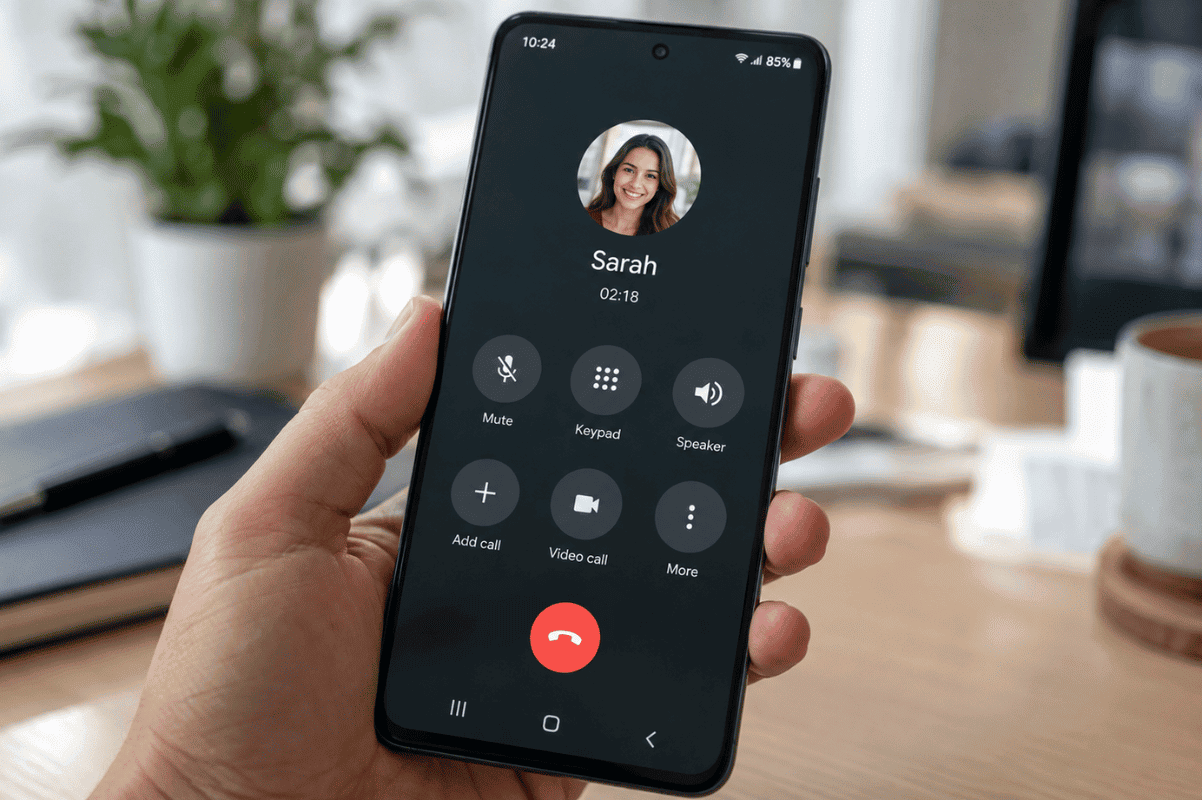
- Look for Record on the active call screen.
- Tap Record to begin recording.
- Tap Stop recording when finished.
On supported Pixel phones, you may need to tap Call Assist and then Call recording instead.Google’s system notifies participants when recording starts and when it stops.
How to Find a Recorded Call
If you recorded the call using Google’s Phone app:
- Open the Phone app.
- Find the person or phone number in your call history.
- Open the call details or history.
- Select the recording.
- Tap Play.
Google says these recordings are stored on the device rather than being automatically backed up off the phone. Deleting the related call log can also delete its recording, so save or share important recordings before clearing your history.
How to Record Calls on Samsung Galaxy Phones
Some Samsung Galaxy phones include call recording directly in Samsung’s Phone app.
When available, you can normally check:
Phone > More options > Settings > Record calls
During a call, supported Samsung phones may also provide a Record call option.Samsung notes that call recording availability varies according to the country or region, so two similar Galaxy phones sold in different markets may not have exactly the same recording features.If you cannot find the setting, that does not automatically mean something is wrong with your Samsung phone.
Why Is There No Record Button on My Android Phone?
If the recording option is missing, try these steps first.
Update Your Phone App
Open the Google Play Store and check whether an update is available for your Phone app.
Update Android
Go to:
Settings > System > Software Update
The wording may differ slightly between Samsung, Google Pixel, Motorola, OnePlus, and other Android brands.
Install available updates and restart your phone.
Check Your Default Phone App
Some Android phones have both the manufacturer’s Phone app and Google’s Phone app. Recording features can differ between them.
Go to:
Settings > Apps > Default Apps > Phone App
Check which dialler is currently being used.
Check Regional Availability
Call recording may simply be unavailable on your particular combination of phone, carrier, and region. Google specifically states that the feature is not supported everywhere.Changing settings or resetting your phone will not necessarily enable a feature that is restricted for your device or location.
Can You Use a Third-Party Call Recording App?
You may find call recording apps in app stores, but compatibility can vary considerably between Android devices.
Before relying on one:
- Check recent reviews for your specific phone model.
- Review the permissions the app requests.
- Read its privacy policy.
- Make a short test call before recording anything important.
- Confirm that both sides of the conversation can be heard clearly.
- Avoid apps that request unrelated permissions.
For sensitive business, financial, or personal conversations, consider carefully where the app stores recordings and whether files are uploaded to a cloud service.
Another Simple Option: Use a Second Device
If your phone does not support native call recording and everyone involved has agreed to the recording, a second device can sometimes be the simplest solution.Put the Android phone on speakerphone and use another phone or digital recorder to capture the conversation.Test the audio first and make sure both voices are clearly audible.
Why Does My Recording Have No Sound?
If the phone creates a recording but the audio is missing or unclear:
- Restart your Android phone.
- Update the Phone app.
- Install Android system updates.
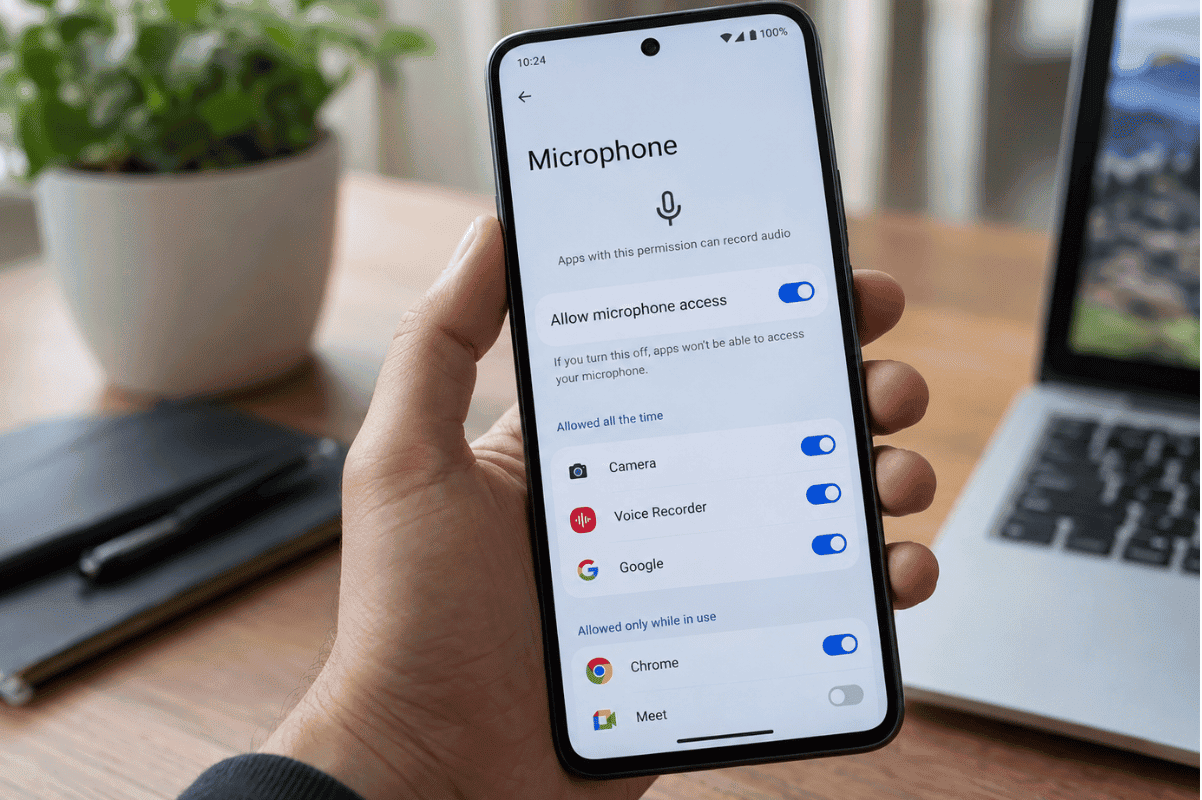
- Check microphone permissions under Settings > Apps.
- Test the microphone using the built-in voice recorder.
- Make a normal phone call and confirm that the other person can hear you.
If your microphone also fails during ordinary calls or voice recordings, you may be dealing with a hardware problem rather than a call recording setting.
When Should You Get Your Phone Checked?
A missing call recording option by itself usually does not mean your phone needs repair. It may simply be unavailable for your model, carrier, or region.Professional diagnosis may make sense if the Phone app continually crashes, the microphone does not work during normal calls, the touchscreen prevents you from using call controls, or the device has been physically damaged.For example, a damaged display that prevents you from tapping call controls may require Phone screen repair. If the problem is limited to damaged glass or touch response, a professional Screen fix can restore normal operation.For Android users in Mississauga, basic software troubleshooting should always be tried first. If the phone continues to have calling, microphone, touchscreen, or hardware problems after those steps, a mobile repair technician can inspect the device and determine whether an actual repair is necessary.The easiest way to record a phone call on Android is to use the recording feature built into your Phone app when it is available. Start a call, locate the recording control, record the conversation with the required consent, and save the file when finished.If the button does not appear, update your phone and Phone app before assuming something is broken. Call recording support varies between Android models, carriers, and regions, so some phones simply will not offer the feature.