
Yes, you can use AirPods with Android phones to listen to music, watch videos, and make calls over Bluetooth. You do not need an iPhone for basic pairing, although some Apple features, including Siri, are unavailable.
If you already own AirPods or have switched to a Samsung, Google Pixel, or another Android phone, this guide explains how to connect them, what to expect, and what to check if they do not work properly.
How to Connect AirPods to an Android Phone
Before starting, make sure your AirPods and charging case have some charge. Keep both earbuds inside the case.
1. Open Your Phone’s Bluetooth Settings
- Swipe down from the top of your Android screen.
- Touch and hold the Bluetooth icon to open its settings.
- Turn Bluetooth on.
- Tap Pair new device, or look for an Available devices list.
You can also search for “Bluetooth” in the Settings app. Menu names vary by phone manufacturer and Android version.
2. Put Your AirPods into Pairing Mode
Open the case lid with both earbuds inside, then follow the instructions for your model:
- AirPods 1, 2, or 3 and AirPods Pro 1 or 2: Press and hold the setup button on the back until the status light flashes white.
- AirPods 4, AirPods 5, or AirPods Pro 3: Double-tap the front of the case until the status light flashes white.
The flashing white light means your AirPods are ready to pair. Select their name from your phone’s Bluetooth list and accept any pairing prompt.
For AirPods Max, press and hold the noise control button until the status light flashes white, then select the headphones on your Android phone.
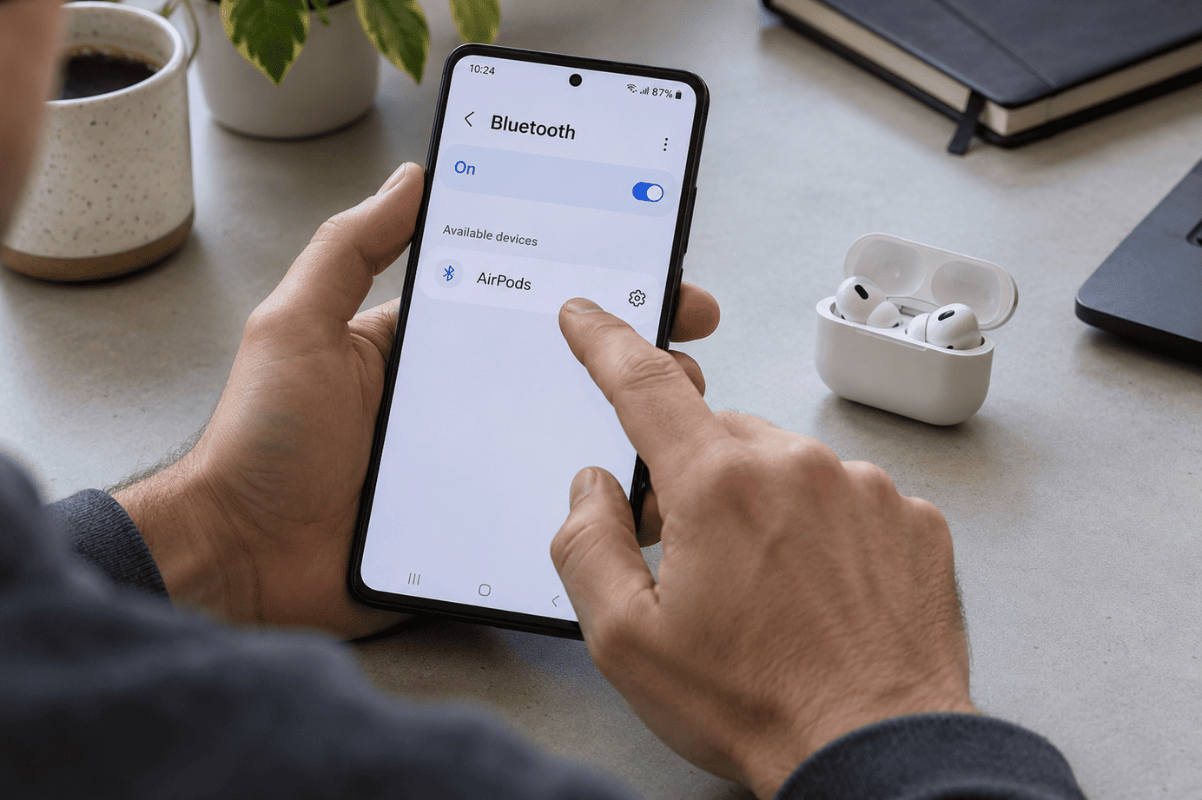
3. Test the Connection
Play a short audio clip at a comfortable volume. Sound should come through your AirPods.
Then make a test call to check that you can hear the other person and they can hear you. If music works but calls do not, check the separate call-audio setting described below.
What Works When You Use AirPods with Android?
AirPods provide the main functions of a Bluetooth headset:
- Audio playback for music, podcasts, and videos.
- Phone-call audio.
- Microphone use for supported calling apps.
However, compatibility does not mean you get every feature available on an iPhone.
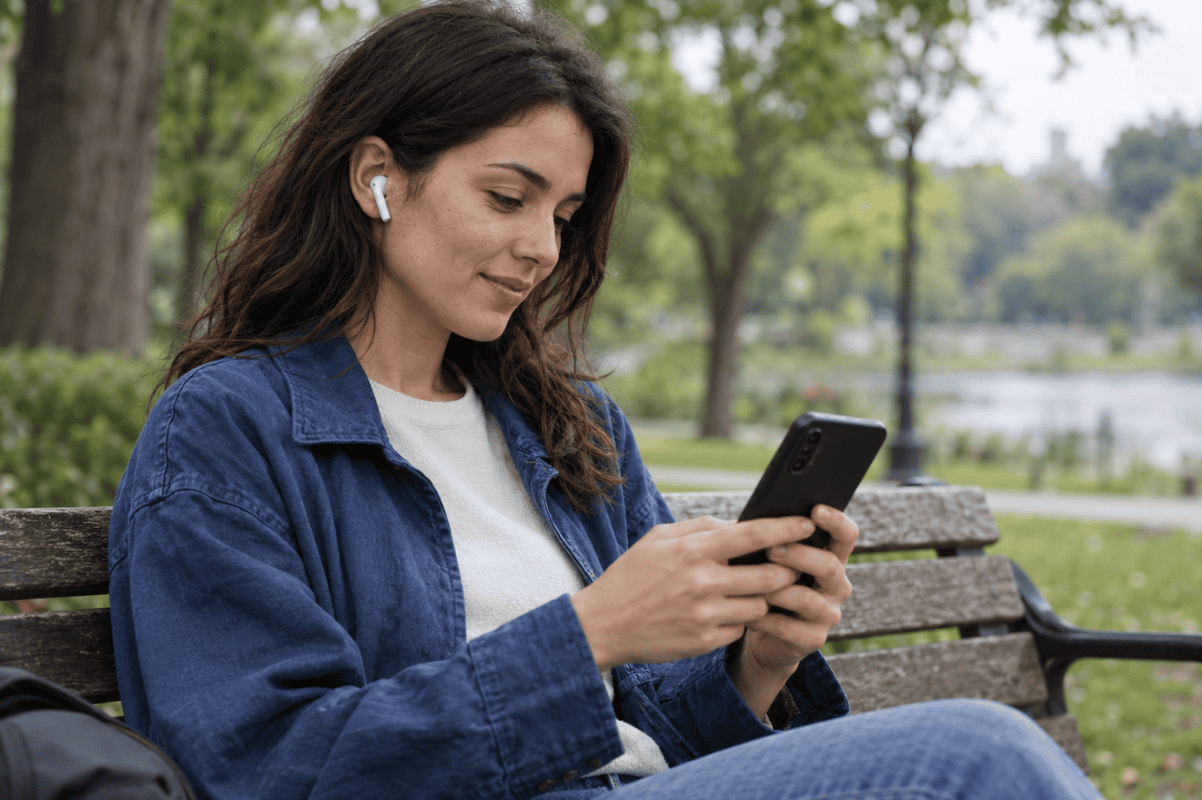
Noise Cancellation and Transparency Mode
On models that support them, you can control noise cancellation and Transparency mode directly from the AirPods. Noise cancellation reduces surrounding sound, while Transparency mode lets more outside sound through.
With both earbuds in your ears, press and hold an AirPod’s stem until you hear a chime. On AirPods Max, press the listening mode button. The modes available through these controls depend on your model and its settings.
Changing which modes the controls cycle through requires a compatible Apple device. Standard AirPods models without noise cancellation cannot gain that feature through an Android app.
Apple Features Have Limitations
Siri does not work when using AirPods with Android. Apple’s automatic switching between devices signed into the same Apple Account also does not extend to your Android phone. You can connect manually through Bluetooth instead.
Android’s Bluetooth menu does not provide the same AirPods settings experience as an iPhone. Treat Apple-specific features as something to check individually, rather than assuming they are included because audio works.
Do You Need an App to Use AirPods on Android?
No additional app is required for basic Bluetooth pairing, music, or calls. Start with your phone’s built-in Bluetooth settings.
If you consider a third-party companion app, check its compatibility with your exact AirPods model and Android version. Review its permissions before installing it, and avoid apps promising to unlock every Apple feature.
What to Do If AirPods Will Not Connect or Play Sound
A connection problem does not automatically mean you need cell phone repair. Start with these simple checks.
AirPods Do Not Appear in Bluetooth Settings
- Check that the earbuds and case are charged.
- Keep the open case close to your phone.
- Repeat the pairing action for your model and confirm that the light flashes white.
- Refresh the available-device list.
- Turn your phone’s Bluetooth off and back on. If necessary, restart the phone and try again.
AirPods Connect but Music or Calls Stay on the Phone
- Open Settings > Bluetooth, or Settings > Connected devices.
- Tap the gear icon beside your AirPods.
- Enable Media audio for music and videos.
- Enable Phone audio or Calls for phone conversations, if that option appears.
- Raise the volume gradually and check that another connected device is not receiving the audio.
The Connection Still Fails
Remove the saved pairing and reconnect:
- Open your AirPods’ entry in Bluetooth settings.
- Select Forget, Forget device, or Unpair.
- Put the AirPods back into pairing mode.
- Select them again from the available-device list.
Forgetting the pairing removes that saved Bluetooth connection. It does not erase photos, messages, or apps. A factory reset of your phone is not an appropriate first step for an isolated AirPods problem.
When Is Professional Help Appropriate?
Try your AirPods with another phone, then try another Bluetooth headset with your Android phone. These comparisons can help narrow down the issue:
- AirPods fail on multiple devices: The earbuds or case may need attention.
- Several headsets fail on your phone: A phone setting, software issue, or hardware fault may be involved.
- Only one app has trouble: Check that app’s audio settings and available updates first.
These results are clues, not proof of a hardware fault. If the phone consistently fails with multiple working Bluetooth accessories, consider professional assessment. Stop using or charging any device that shows swelling or unusual overheating, and do not open it yourself.
Keep Your AirPods, Understand the Limits
AirPods can be useful everyday headphones for Android, especially if you already own a pair. Basic Bluetooth pairing supports listening and calls, while Apple-specific features have limitations.
If troubleshooting points to a persistent phone issue and you need phone repair in Mississauga, contact Fix Phone Mississauga to discuss the symptoms and whether an assessment is appropriate.