
If you have spotted Android System Intelligence in your phone’s app list, you might wonder why it is installed, whether it is safe, or why it sometimes displays an error. The name sounds technical, but its purpose is straightforward: it helps supported Android phones provide useful automatic features.
You normally do not need to open or manage it. However, repeated crashes, missing features, or unusual battery behaviour deserve attention. This guide explains what the component does, what its presence means, and which safe checks to try before seeking help.
What Does Android System Intelligence Do?
Android System Intelligence is a Google system component within Android’s Private Compute Core. It supports functions including Live Caption, smart text selection, suggested apps, and certain contextual actions.
For example, your phone might recognise an address in selected text and offer directions. On supported devices, other features include Screen Attention, which keeps the display awake while you look at it, and Now Playing, which identifies nearby music.
Availability varies by model, software version, and feature requirements. A feature listed for a Google Pixel is not automatically available on every Samsung or other Android phone.
Unlike a messaging app, this component usually works in the background. You may notice it in Settings or an update list without seeing a normal home screen icon.
Is It Safe, and What About Privacy?
The genuine Google component is part of the software on supported phones. Its presence alone is not evidence of spyware or a compromised device.
Google says it does not have direct network access. Private Compute Services provides a controlled connection that helps improve these functions. Google also documents diagnostic data collection, with optional analytics settings.
This does not mean every app using a similar name is trustworthy. Avoid installing replacement packages from unfamiliar websites, especially if a page claims that you must download one to remove an urgent warning.
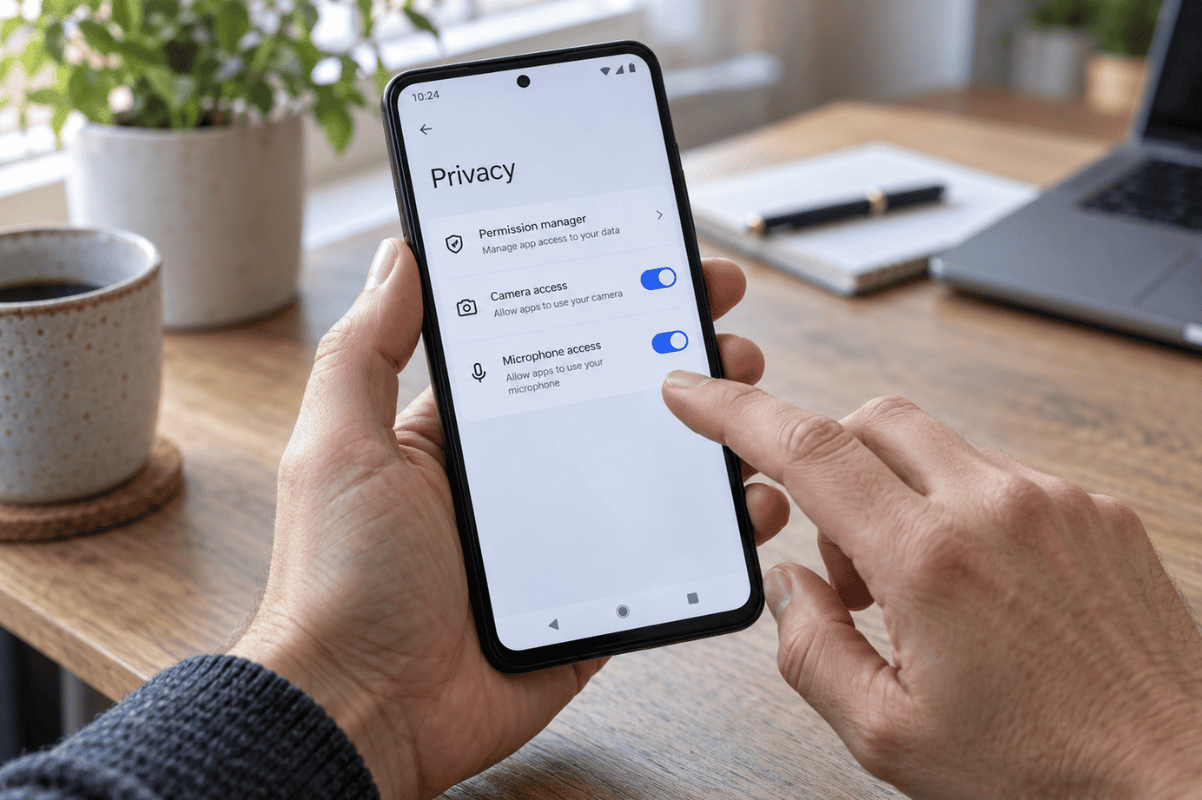
If you are concerned about permissions, review them in Settings and consult your manufacturer’s guidance. Removing permissions without understanding their purpose may prevent related features from working.
Does Every Android Phone Need It?
You should not install Android System Intelligence simply because someone else’s phone has it. Manufacturers use different software components, and supported functions differ between devices.
If your phone works normally and you cannot find this component, that alone is not a fault. Check your manufacturer’s documentation for the feature you actually want.
These instructions do not apply to iPhones. Apple devices use iOS, so Android settings paths and system components will not appear on them.
Why Does It Keep Stopping?
A recurring error means the component is encountering a problem, but the message does not identify the exact cause. Possible explanations include a software bug, an update compatibility issue, or temporary app data problems.
Start by noting when the message appears. Does it happen after restarting, while selecting text, or when using captions? Did it begin immediately after an update?
These details help distinguish an isolated feature problem from broader instability. One failing feature calls for different investigation than a phone that repeatedly restarts, freezes across multiple apps, or struggles to charge.
Safe Troubleshooting Steps to Try at Home
Follow these steps in order. After each one, repeat the action that triggered the problem. Stop once the phone behaves normally.
- Restart the phone. Open your device’s power menu and choose Restart. Button combinations vary, so follow the instructions for your model. Restarting can resolve a temporary fault. Check whether the same error returns during ordinary use.
- Install available updates. In Google Play Store, tap your profile picture, open Manage apps & device, and check pending updates. Then search Settings for Software update. Install updates offered for your device, restart when requested, and test again.
- Check the affected feature. Search Settings for the function that stopped working, such as captions. Confirm it is enabled and supported on your model. Test with suitable content. A feature being switched off does not necessarily mean its supporting component has crashed.
- Clear the cache if available. Open Settings, Apps, and the full app list. Select Android System Intelligence, then Storage & cache, and Clear cache. Some phones require Show system apps first. This removes temporary files. Restart and test; avoid selecting Clear storage accidentally.
- Check available storage. Search Settings for Storage. If the phone reports that space is nearly full, review downloads and unused apps. Before deleting personal files, confirm that important copies are backed up and accessible. Retry the affected function after freeing space.
Menu wording differs between manufacturers and Android versions. If a listed option is missing, do not substitute an unfamiliar reset setting. Check the support instructions for your exact model instead.
What If You Notice Battery Drain?
Seeing Android System Intelligence in battery usage does not prove it is malfunctioning. Background features use power, and battery percentages need context.
Open your phone’s battery settings and review the period being measured. Compare days with similar screen time, signal conditions, navigation, and video use. A demanding afternoon is not a fair comparison with a quiet morning.
After restarting and updating, monitor normal use. Note whether the phone drains quickly while idle or mainly during demanding tasks. Persistent idle drain warrants investigation, but a battery usage entry alone cannot diagnose a damaged battery.
Should You Clear Data or Disable It?
Clearing cache and clearing data are different actions. Cache contains temporary files; clearing storage or data removes information saved by the component and may reset its personalisation.
Before considering data removal, back up important phone information and read the confirmation message carefully. Ask manufacturer support which information the action affects on your model.
Disabling the component can stop dependent features. Avoid removal commands, unofficial cleaning tools, and repeated resets as routine fixes.
A factory reset erases local phone data and requires preparation, including verified backups and access to your account credentials. It should not be the first response to an isolated system error.
When Is Professional Help Appropriate?
Contact manufacturer support if crashes continue after basic checks, particularly when the problem began following an update. A software fault may require a software correction rather than replacement parts.
A cell phone repair assessment can also help when symptoms include repeated shutdowns, charging trouble, or persistent unresponsiveness. Explain when the problem started and which steps you tried.
Physical damage should be assessed separately. A cracked display or unreliable touch response may require phone screen repair, but an Android System Intelligence message alone does not establish a screen fault.
If the battery appears swollen, the screen lifts, or the phone becomes dangerously hot, stop using and charging it. Do not press the screen back into place, open the handset, or attempt battery repairs.
Before your appointment, save a screenshot of any recurring message if you can do so safely. Avoid sharing passwords in messages, and ask what preparation is needed before handing over your phone for a professional assessment.
Get Help With Persistent Android Problems
Android System Intelligence usually needs no attention when your phone works normally. If safe troubleshooting does not resolve the issue, contact Fix Phone Mississauga with your phone model, error message, and symptoms. This information can help determine an appropriate next step.