
Preinstalled apps can crowd your screen, send unwanted notifications, and occupy storage. If you are looking for android system apps that can be removed, start by separating optional apps from essential software. Games, shopping apps, and unused streaming services are usually better candidates than anything controlling calls, security, or updates.
There is no universal removal list. Options depend on your phone manufacturer, Android version, and carrier. This guide explains what to check, how to uninstall or disable optional apps safely, and when persistent problems deserve professional attention.
Which preinstalled Android apps can you remove?
Preinstalled does not automatically mean essential. Your phone may include promotional apps alongside components that keep Android working. Consider these categories first, provided you do not use them and your device offers the appropriate removal option:
- Games and trial apps: Preloaded games or demonstration apps you never opened.
- Shopping and social apps: Retail apps, Facebook, or other optional social platforms.
- Entertainment apps: Unused streaming services, music players, or podcast apps.
- Productivity extras: Optional office suites, presentation viewers, or note apps after saving your files.
- Duplicate utilities: An extra calculator, weather app, or browser, once you have checked whether anything depends on it.
Apps such as YouTube, Google TV, Samsung Health, or Samsung Members may be optional for your usage, but removal choices vary. Check each app individually rather than following a list intended for another model.
Carrier account apps also need consideration. Removing one might mean losing convenient access to usage information or billing. Leave carrier services and connectivity components alone, even if their names sound similar.
Understand uninstalling, disabling, and hiding
Uninstalling removes an app from your user environment and generally deletes its local app data. Cloud account information may remain online, but unsynced files or progress can disappear.
Disabling turns off a supported preinstalled app without fully removing its underlying system copy. It can stop that app from running and appearing in your app drawer. Storage savings vary, so disabling apps is not a guaranteed solution for a nearly full phone.
Hiding removes an icon from view on supported launchers. It does not uninstall the app or necessarily stop background activity.
Some protected apps offer neither Uninstall nor Disable. That restriction is normal. Google confirms that some Android system apps cannot be deleted, although certain preinstalled apps can be disabled.
Leave essential system components enabled
Do not remove or disable Android System, System UI, Settings, Google Play services, the package installer, or components responsible for permissions and software updates. Keep Android System WebView enabled because apps can rely on it to display web content.
Avoid experimenting with anything labelled emergency alerts, telephony, SIM, carrier services, contacts storage, or downloads. These components can support calling, connectivity, alerts, and shared information even when they have no familiar icon.
Leave your active keyboard, home screen launcher, Phone app, and messaging app enabled. Before changing a default browser or another everyday app, install and test its replacement, then check Settings for Default apps.
An unfamiliar name does not prove that an app is unnecessary. If its purpose is unclear, leave it enabled and consult support information for your exact model. These instructions apply to Android phones; iPhones use different app management settings.
Prepare before changing your apps
Take a few minutes to protect information and establish what you want to improve.
- Check storage first. Open Settings and search for Storage. Note the available space and largest categories. Photos, videos, and downloads may occupy much more space than optional apps.
- Identify the actual annoyance. If notifications are the problem, open Settings, select Notifications, and turn off that app’s nonessential alerts. This may solve the issue without removing anything.
- Back up important information. Confirm that photos, contacts, documents, and relevant app data are saved somewhere accessible. Android backups do not necessarily include every app’s files, messages, or login details.
- Check account access. Make sure you can sign back in before removing apps. Export notes or recordings where necessary. Keep authentication and password manager apps until you understand how to preserve access.
If the phone belongs to your employer or school, ask its administrator before changing managed apps. Restrictions may be intentional.
Uninstall optional apps through Settings
Use the phone’s built in controls rather than downloading a cleaner that promises to remove everything.
- Open Settings, then Apps. Depending on your device, choose See all apps or App management to display the complete list.
- Select one recognised, unused app. Review its name and storage usage. Begin with an optional game or entertainment app rather than an unfamiliar service.
- Tap Uninstall if available. Read the confirmation carefully. Uninstalling can erase local app data, so complete any required backup first.
- Check the result. Confirm that the app has disappeared from the app drawer, then revisit Storage. Available space should reflect any recovered storage, although the display may take time to refresh.
- Test normal use. Make a regular call, send a message, and open your everyday apps before changing anything else.
Removing a Home screen shortcut is different from uninstalling. If the app remains in Settings under Apps, it is still installed.

Disable an optional app when uninstalling is unavailable
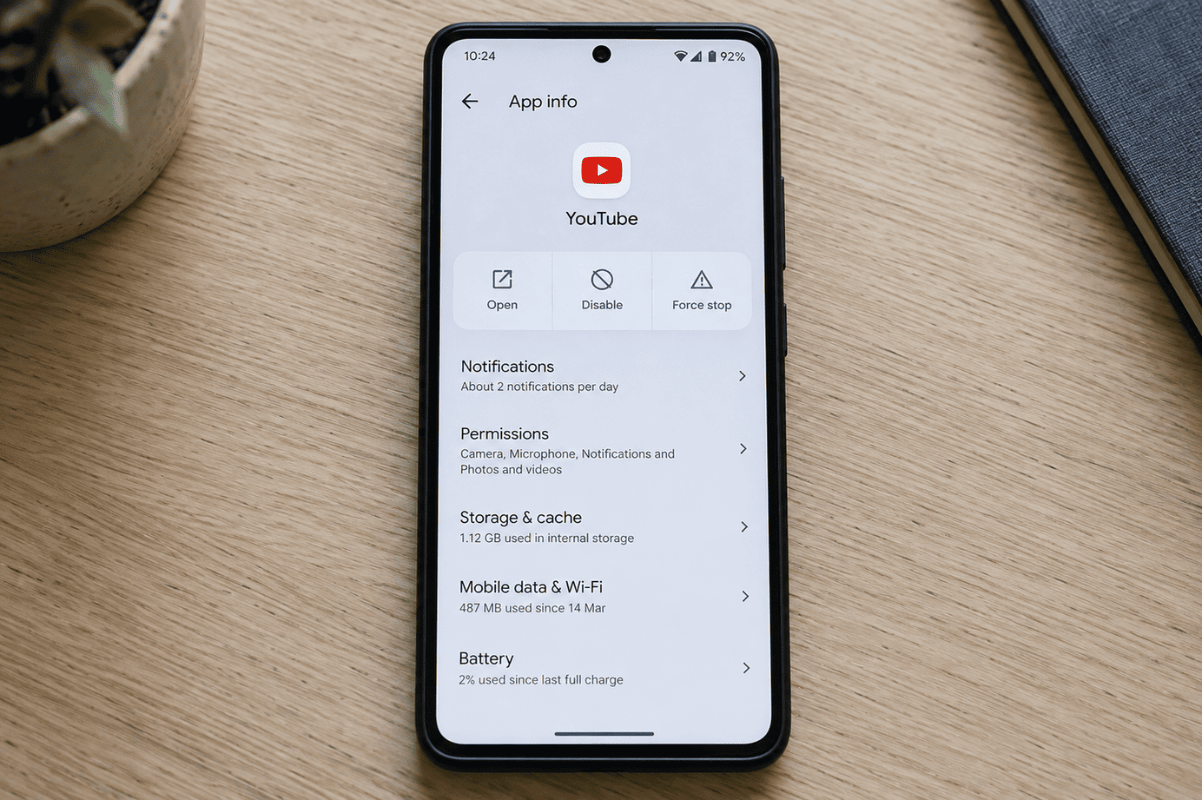
If a recognised optional app has no Uninstall button, check whether Disable is offered.
- Open its app information page. Go to Settings, Apps, then select the app.
- Read every warning. If Android warns that other apps may behave incorrectly and you cannot assess the dependency, cancel.
- Choose Disable when appropriate. Some devices may also offer to remove updates. Read that separate prompt carefully because it can affect app data and storage.
- Check your phone afterwards. Confirm that unwanted notifications stop and normal features still work. If something changes unexpectedly, return to the same page and tap Enable.
Reinstating updates through the appropriate app store may also be necessary. Change one app at a time so you can identify the cause of any problem.
Keep a simple record of each app you change and whether you uninstalled or disabled it. If a feature stops working later, this record gives you a clear starting point for reversing changes. After restoring an app, open it and check its permissions and notification settings before assuming it is broken. Missing alerts may simply reflect a setting that needs to be restored.
When to stop and ask for help
Avoid rooting, computer commands, and bulk debloating scripts for routine cleanup. They can affect dependencies that ordinary Settings controls protect. A factory reset is also unnecessary just to remove optional apps and erases personal information unless properly backed up.
If freezing, restarting, or rapid battery drain continues after reversing recent changes, record when it happens. Cell phone repair advice can help distinguish software trouble from a hardware problem; removing more apps is not a reliable diagnosis.
Stop using and charging the device if you notice swelling, a lifting screen, smoke, or dangerous overheating. Do not press the screen down, open the phone, or handle its battery. Seek professional assistance.
If you are searching for Phone repair Mississauga because safe checks have not resolved the issue, contact the shop. Share your phone model, symptoms, and recent app changes to help explain what needs attention.