An Android phone that stops receiving texts can leave you missing family updates, appointment reminders, or verification codes. Sometimes messages arrive late. Other times, only one person’s texts, pictures, or group conversations fail.
The pattern matters because different messaging problems need different fixes. This guide explains what to check safely at home, how to separate a phone issue from a carrier problem, and when professional help makes sense. Menu names may vary by phone model, messaging app, and software version.
Why your Android phone might not receive texts
Possible causes include weak cellular coverage, a carrier outage, an inactive SIM, blocked contacts, or a messaging app problem. A recent phone change can also leave your number registered with an older messaging service.
Not every missing message uses the same technology:
- SMS handles basic text messages through your mobile service.
- MMS commonly handles pictures and some group messages.
- RCS adds features such as typing indicators and uses Wi-Fi or mobile data.
Identifying which messages fail helps narrow your checks. Missing texts alone do not confirm that your phone needs cell phone repair.
1. Check whether messages are missing or simply silent
Open your messaging app and look directly at the conversation. If the message is there but your phone never alerted you, delivery is working.
Go to Settings, then Notifications or Apps, select your messaging app, and check whether notifications are allowed. Also inspect the conversation for a muted notification setting.
Temporarily turn off Do Not Disturb, Bedtime, or another mode that silences alerts. These settings can suppress notifications without stopping messages from arriving, as explained in Google’s notification guidance.
Ask someone to send another message. If it appears with an alert, stop here. If nothing arrives, continue.
2. Restart and check your mobile connection
Use your phone’s power menu and select Restart. Restarting does not erase your photos, apps, or conversations.
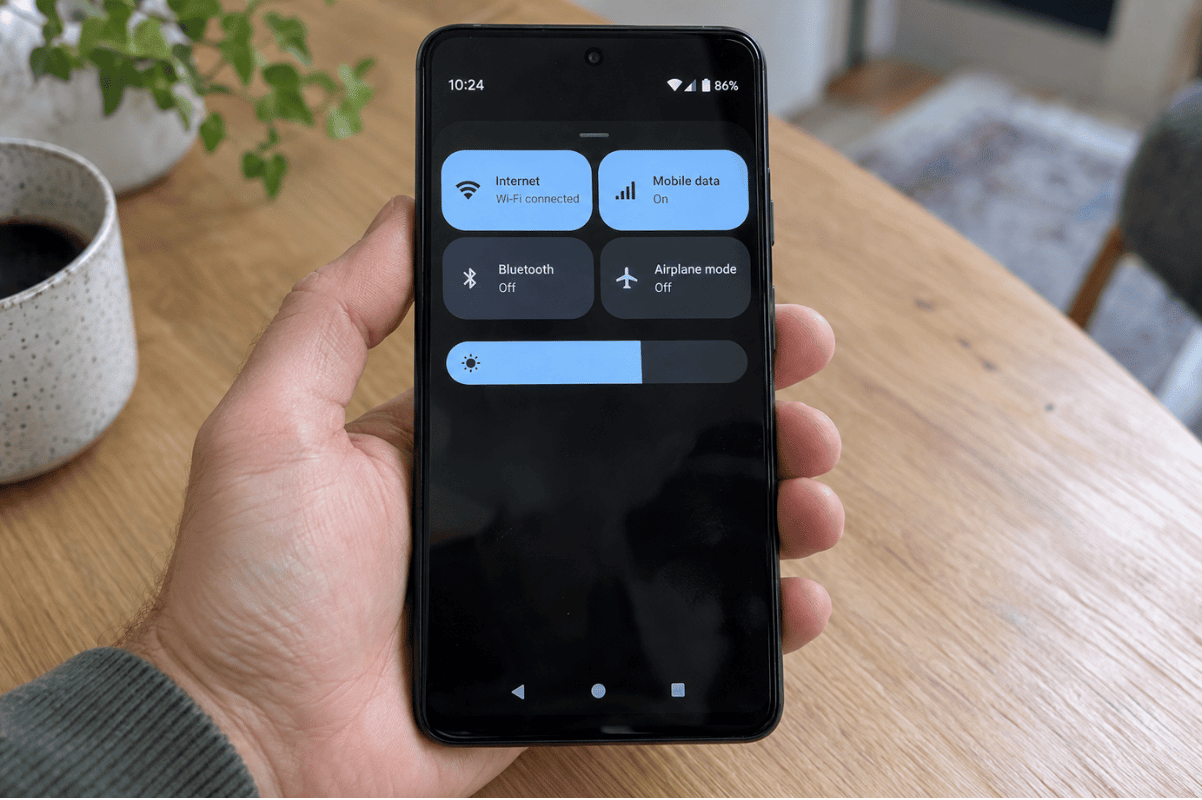
After the phone reconnects, check the signal indicator. If it shows No service or Emergency calls only, move somewhere with better reception and make sure Airplane mode is off.
You can also turn Airplane mode on briefly, then turn it off to reconnect. Wait for the signal indicator to return before testing.
Ask someone to send a plain text and try making a regular call. If both fail, the problem may involve mobile service rather than the messaging app. Check your carrier’s outage information before changing more settings.
3. Check blocked contacts and the default messaging app
If only one person’s messages are missing, review your app’s blocked numbers and spam folder. In Google Messages, look under your profile menu for Spam & blocked. Unblock the sender only if you recognize them and want their messages.
Ask that person to confirm they are texting your current number.
Next, open Settings, Apps, Default apps, then SMS app. Select the messaging app you normally use. The path can differ between devices.
Google’s messaging troubleshooting guide includes checking blocked contacts and the default texting app.
Test with two different contacts. If one succeeds, focus on the affected conversation rather than changing the whole phone.
4. Separate RCS and picture message problems
If basic texts arrive but RCS chats do not, check your internet connection. Open a webpage, then try switching between Wi-Fi and mobile data.
In Google Messages, tap your profile picture, Messages settings, then RCS chats. Look at the connection status. Connected means RCS is ready; Connecting or a verification message suggests setup is incomplete. Follow any instructions shown for your number.
Google’s RCS guidance explains these status messages. Avoid repeatedly toggling RCS while number verification is underway.
If only pictures or group MMS messages fail, turn on mobile data and retest. If that fails, ask your carrier to verify MMS support and settings. Avoid copying network settings from unrelated websites.
5. Address problems after changing phones
If you recently moved from an iPhone to Android, your number may still be registered with iMessage.
Follow Apple’s deregistration instructions. With the old iPhone available, Apple’s process includes turning off iMessage and FaceTime. If you no longer have it, use Apple’s online deregistration option.
On newer iPhones, these settings are under Settings, Apps, then Messages or FaceTime. Older versions may list those apps directly in Settings.
Some Apple devices can take a few hours to recognize the change. Ask the sender to start a new message addressed to your phone number.
If you changed Android phones or messaging apps, an old RCS registration may also need attention. Use Google’s RCS deactivation tool when appropriate.
6. Update the app and clear temporary files
Check the Play Store for an update to your messaging app. Also check Settings for an available system update.
If the app freezes or behaves inconsistently, open Settings, Apps, your messaging app, then Storage or Storage & cache. Choose Clear cache.
Clearing cache removes temporary files. Do not select Clear storage or Clear data, which can reset app information and settings.
If your phone reports that storage is nearly full, remove unnecessary downloads after backing up anything important. Reopen the app and request another test message.
Samsung’s troubleshooting guidance covers updates and app troubleshooting. Stop once messages arrive reliably.
7. Contact your carrier before considering a reset
Contact your carrier if messages still fail, particularly after changing providers, transferring your number, or activating a SIM or eSIM.
Ask them to check:
- Whether your line and incoming messaging service are active.
- Whether a number transfer is complete.
- Whether account restrictions or message blocking are involved.
- Whether your SIM or eSIM needs testing.
identifies account blocking as one possible cause.
If only verification codes fail, tell the carrier and the sending service. Record which service is affected and when you last requested a code.
Do not delete your eSIM or perform a factory reset as an early troubleshooting step. A factory reset erases local data and settings, and it cannot resolve a carrier outage. Discuss backups and less disruptive options first.
When professional inspection makes sense
Seek an assessment if reception problems began after a drop or liquid exposure, the SIM tray is visibly damaged, or the phone repeatedly loses service after your carrier has checked the line.
These signs justify inspection, but they do not prove that a particular component has failed. A technician can help determine whether the problem involves software, the SIM connection, or internal hardware.
Stop using and charging the phone if it becomes unusually hot, swells, or the screen starts lifting. Seek qualified help promptly. Do not press the screen back into place, open the phone, or handle a damaged battery.
When comparing options for phone repair Mississauga residents should describe the symptoms and the checks already completed. Bring any carrier findings, too.
What to do next
Start with notifications, reception, and a restart, then investigate the message type that fails. Contact your carrier when service or activation appears involved. If the problem persists, contact fixphonemississauga.ca to discuss the symptoms and whether an assessment is appropriate.