If your Android phone is not sending pictures, start by checking your connection and whether the message uses MMS or RCS. Turn on mobile data, try sending one small photo, and restart the phone. If pictures still fail, the cause may involve your messaging app, carrier settings or the recipient’s connection.
A failed picture message does not automatically mean your phone needs repair. Safe checks can help narrow down the problem before you change settings or pay for an assessment.
This guide focuses on pictures sent through your phone’s Messages app. If the problem happens only in WhatsApp, Messenger or another app, its connection, permissions or service may need separate troubleshooting.
Quick Checks Before You Change Settings
Use a non-sensitive photo for testing, and change one thing at a time.
- Check the recipient. Confirm that you selected the correct mobile number.
- Try one picture. Send a single small image instead of several photos or a video.
- Check the scope. Try that same image with another trusted contact.
- Record the error. Note whether the message says “Sending,” “Not sent” or something more specific.
If one contact receives the picture and another does not, investigate the affected conversation or recipient before resetting anything. If every picture fails, work through the connection and app checks below.
Avoid repeatedly pressing Send. Delayed messages may eventually arrive several times.
Why Texts Can Work While Pictures Fail
Your messaging app can use different services within the same conversation:
- SMS carries ordinary text messages. It does not carry photo attachments.
- MMS, or multimedia messaging, carries pictures through your carrier’s messaging service.
- RCS, or Rich Communication Services, supports internet-based messaging features, including photo sharing, when supported and connected.
RCS can use Wi-Fi or mobile data. MMS depends on carrier support and configuration, so being connected to Wi-Fi does not necessarily mean an MMS picture will send. Google explains these differences in its
Other possible causes include a large attachment, an unavailable photo file, restricted photo access or an app problem. Hardware becomes more relevant when messaging trouble accompanies broader connection failures or physical damage. No single failed picture proves a particular fault.
Step-by-Step Fixes for Picture Messages
Menu names vary between Samsung Galaxy, Google Pixel and other Android phones. Your Android version, carrier and messaging app can also change what appears. Use Settings search when a named option is difficult to find.
1. Test Mobile Data and Wi-Fi Separately
This check is useful when pictures stay on “Sending” or fail across several conversations.
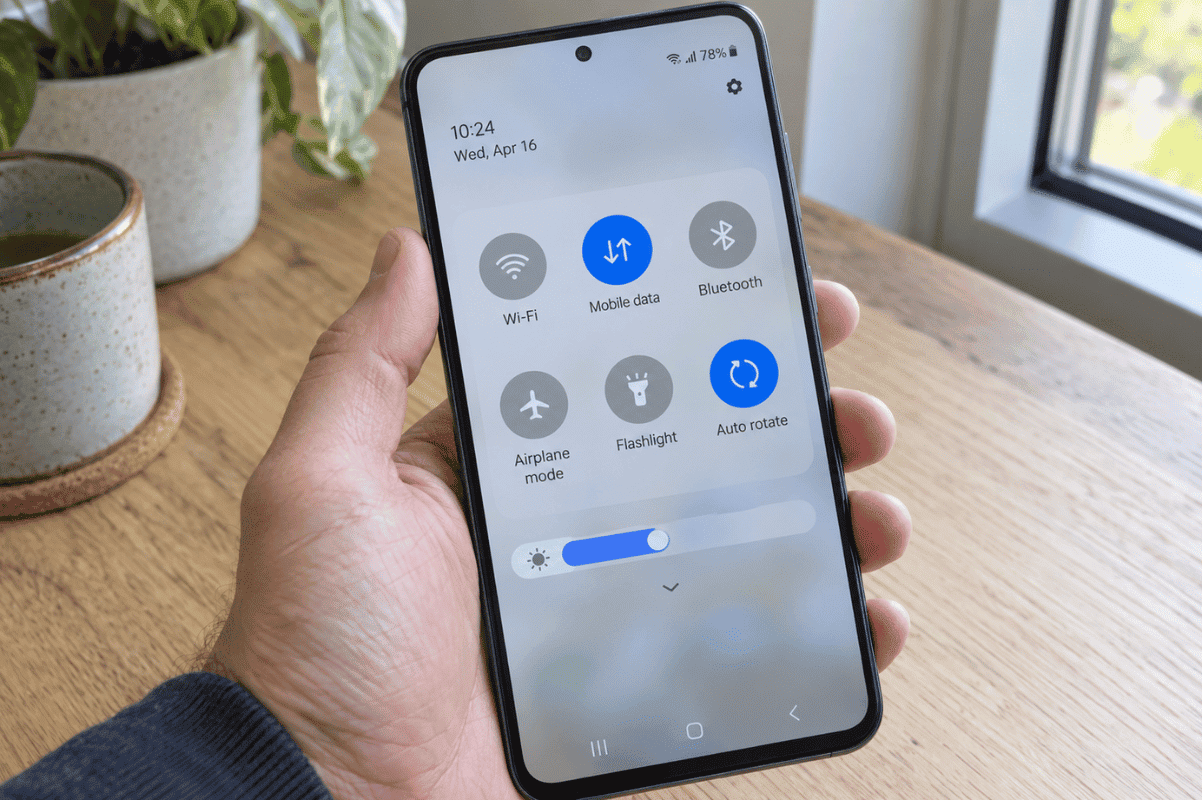
- Swipe down to open Quick Settings. Make sure Airplane mode is off.
- Turn on Mobile data, then temporarily turn off Wi-Fi.
- Open a new webpage to check whether mobile internet works.
- Try sending your test picture once.
- If mobile data fails, reconnect to a known working Wi-Fi network and test again if the conversation uses RCS.
If RCS works on Wi-Fi but not mobile data, focus on your cellular connection or plan. If mobile internet works but MMS still fails, the carrier’s picture-messaging setup may need checking.
A working webpage does not prove that MMS is configured correctly. Samsung recommends checking both carrier service and the data connection when messages fail. If you are travelling between Canada and the United States, check your plan before enabling data roaming. Roaming charges and messaging allowances vary.
2. Restart the Phone and Retry Once
A restart is relevant when the problem appeared suddenly or the messaging app seems stuck.
- Save any unfinished work.
- Open your phone’s power menu using its usual power controls.
- Select Restart.
- After the phone reconnects, reopen Messages and send the test photo.
Power-menu controls differ by model, so do not experiment with unfamiliar button combinations.
Look for the picture to leave its pending state, then ask the recipient whether it arrived. If it still fails, continue below. Repeated restarts are unlikely to help if one restart changes nothing.
3. Check Whether RCS Is Connected
Use this step if your conversation normally uses RCS or the problem began after changing phones or mobile service.
In Google Messages:
- Tap your profile picture or initial.
- Open Messages settings > RCS chats.
- Read the connection status.
“Connected” means RCS is available. “Connecting” indicates that phone-number verification is underway. For “Trouble connecting. Awaiting retry” lasting more than 30 minutes, Google directs users to Details > Submit feedback. A carrier-disabled message requires carrier assistance.
Avoid repeatedly switching RCS off and on. Google warns that doing so can affect group-chat membership.
If RCS is connected but only one conversation fails, ask that person to check their connection. If all RCS picture messages fail while other internet activity works, continue with the attachment and app checks.
4. Check the Photo Itself
This step matters when some pictures send successfully but a particular image or batch fails.
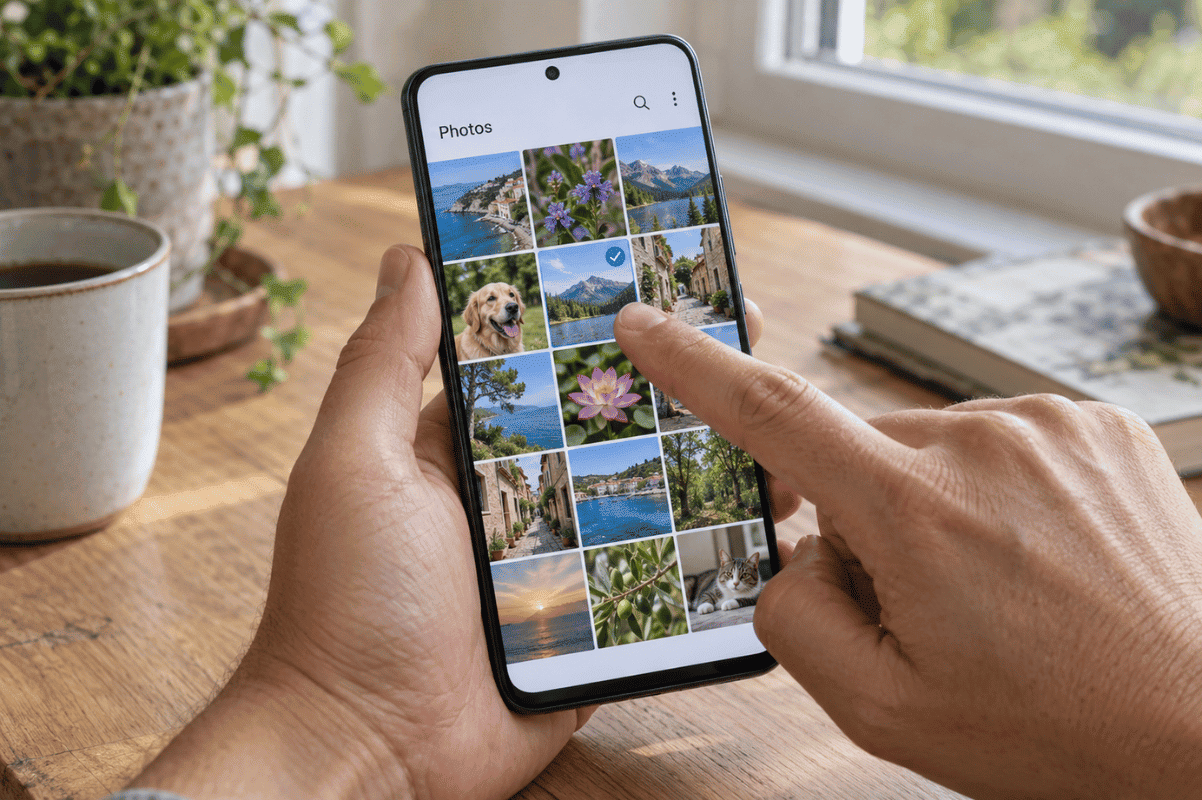
- Open the affected picture in your gallery.
- Confirm that it loads fully. A cloud thumbnail may appear before the original file has downloaded.
- Attach one locally available photo to a new message.
- If necessary, use your gallery’s editing tools to create a smaller copy, preserving the original.
If a smaller copy sends, attachment size or file handling may be involved. Carrier attachment limits vary, so there is no single size that works everywhere.
If no image sends, move to the next step. For an immediate alternative, share through an app you both already use. If sharing a cloud link, check who can open it before sending private photos.
5. Review Photo Permissions
Permissions are relevant when Messages cannot display or attach the picture. They are less likely to explain a photo that attaches normally but fails during delivery.
- Open Settings > Apps.
- Select the messaging app, then Permissions.
- Look for Photos and videos, or a similarly named media permission.
- Allow access to the images you want to send, then return to the attachment picker.
Some Android versions support access to selected photos. Other app versions use a system photo picker without requesting broad library access. Do not grant unrelated permissions or assume a missing permission option is a fault.
If the picture now attaches and sends, access was likely involved. If it attaches but still fails, continue with app maintenance.
6. Update the Messaging App
An update is worth checking when the problem started suddenly, particularly if the app also freezes or behaves differently.
- Open Google Play Store.
- Search for your messaging app and open its listing.
- Tap Update if available.
- Reopen the app and test one picture.
For an app managed through Samsung’s Galaxy Store, check that store for updates instead. Samsung devices can use both stores.
Also confirm that the app you intend to use is your default SMS app. Google includes an updated app and the correct default selection among its recommended messaging checks.
If nothing changes, continue below. Avoid downloading unfamiliar messaging or “repair” apps to diagnose the problem.
7. Clear the App’s Cache, Not Its Data
Try this when the messaging app freezes, loads attachments incorrectly or continues misbehaving after an update. The cache contains temporary files.
On Samsung Galaxy phones:
- Open Settings > Apps.
- Select your messaging app.
- Tap Storage > Clear cache.
- Reopen the app and send the test picture.
Other manufacturers may label the storage menu differently.
Choose Clear cache, not Clear data or Clear storage. Clearing app data resets the app and can remove locally stored information or settings. It is a different action with different consequences.
If clearing the cache does not help, stop repeating it. If the phone reports low storage, back up important files before removing unnecessary downloads or media.
8. Ask Your Carrier to Check MMS and Account Settings
Contact your carrier when mobile internet works but MMS pictures fail, especially after changing providers, activating a SIM or transferring your number.
- Explain whether ordinary texts, calls and mobile internet work.
- Provide the error message and an approximate time of a failed attempt.
- Ask whether MMS is enabled on your line and whether there is a service issue.
- Ask them to verify the APN settings for your exact plan and device.
An APN, or Access Point Name, tells the phone how to connect to carrier data services. Google lists resetting APNs among its MMS troubleshooting options, but carrier guidance is useful before changing an unfamiliar configuration.
Do not copy settings from an unrelated carrier or delete your eSIM. With two active SIMs, ask the carrier to confirm which line should handle messaging and data.
After any advised change, send one test picture. If the carrier confirms the account and settings are correct, seek device or app support.

When to Stop Troubleshooting
Stop using and charging the phone if you notice battery swelling, a lifting back cover, smoke, a burning smell or unusual excessive heat. Do not press the casing closed, open the phone or apply heat. If there is smoke or fire, move away and contact emergency services.
Arrange an assessment for visible impact damage, liquid exposure or connection trouble that began after a drop. Mention whether calls, mobile data and Wi-Fi are also affected.
For an undamaged phone with only picture-messaging trouble, complete the carrier checks before assuming cell phone repair is necessary.
A factory reset is not a sensible early fix for this symptom. It erases local data and cannot resolve a carrier outage or recipient-side problem. Consider it only if manufacturer support identifies a justified software troubleshooting reason and you have verified your backups and account access.
What to Expect From a Professional Assessment
A useful assessment starts by reproducing the problem. Bring the error message, your phone model, carrier name and a short list of what you tried.
Depending on the symptoms, an assessment may involve comparing MMS with RCS, reviewing app settings, checking connectivity or inspecting visible damage. Ask what the proposed diagnostic work includes before proceeding.
Cell phone repair by an expert service is appropriate when there is evidence of a device fault or safe troubleshooting has not established the cause. The result may still be a recommendation for carrier support or a software correction rather than a replacement part.
Fix Phone Mississauga is a professional repair option to contact about a persistent device problem. Confirm that the shop can assess your model and symptoms. Back up important information beforehand, and ask whether any proposed work could affect stored data.

How to Reduce Repeat Problems
Keep your messaging app updated and maintain enough free storage for attachments. Preserve original photos when making smaller copies, and keep backups of important pictures and conversations.
After changing carriers or phones, test calls, ordinary texts and picture messages before you need them urgently. Keep a note of any carrier-approved settings changes so you do not have to reconstruct them later.
Frequently Asked Questions
Why do pictures fail only when I send them to an iPhone?
Android-to-iPhone conversations can use RCS where supported, or MMS. One recipient’s service, connection or settings may be involved. Try another contact before changing your phone.
The recipient should follow iPhone-specific guidance, rather than Android menus. Apple recommends checking connectivity, available storage and carrier support for the message type.
Can pictures send without mobile data?
RCS can send over working Wi-Fi when available to the conversation. MMS behaviour depends on the carrier’s configuration. Test with mobile data enabled before concluding that Wi-Fi alone should be sufficient.
Why does a picture send individually but fail in a group?
The group may use a different messaging method, or a participant’s connection may affect delivery. Test the same picture in a one-to-one conversation and note whether the group uses RCS or MMS. Give that information to your carrier or app support.
Will a new SIM card fix picture messaging?
Only if the underlying problem involves the SIM or how the line is configured. A new SIM will not automatically fix an app bug, an oversized attachment or a recipient’s problem. Let your carrier establish whether replacement is relevant.
Get Help With a Persistent Picture-Messaging Problem
Start with one small photo, a working connection and the correct messaging service. If carrier checks and safe app troubleshooting do not resolve the problem, contact Fix Phone Mississauga to discuss an assessment and the appropriate next step.