
If your voicemail stops working on your iPhone, it can be frustrating especially when you rely on missed-call messages for work or daily communication. Before heading to a technician, there are several simple fixes you can try at home. This guide walks you through the most common solutions that work for most Canadian and U.S. carriers. If nothing helps, then it may be time to seek help from a local top rated phone repair store in Mississauga.

1. Check Your Cellular Signal
Voicemail depends on network connection. If your phone shows weak signal bars or “No Service,” voicemail may not update or download messages.
Try this:
- Move to an open area or near a window.
- Turn Airplane Mode on for 10 seconds, then turn it off.
- Restart your phone to refresh your network connection.
If signal improves, try accessing voicemail again.
2. Verify Your Voicemail Is Set Up Correctly
Sometimes voicemail stops working because the setup was never completed or it reset after an update.
How to check:
- Open the Phone app.
- Tap the Voicemail tab.
- If you see Set Up Now, follow the onscreen instructions and create a password.
If setup looks correct but voicemail still doesn’t load, continue to the next steps.
3. Call Your Voicemail Manually
iPhone visual voicemail can glitch, but calling in can confirm whether your mailbox is active.
Try this:
Press and hold 1 on the keypad or dial your carrier’s voicemail access number.
If messages appear when calling in, the problem is likely with visual voicemail syncing.
4. Update Carrier Settings
Carriers occasionally release network updates that improve voicemail performance.
To update manually:
- Go to Settings > General > About.
- If an update appears, tap Update Carrier Settings.
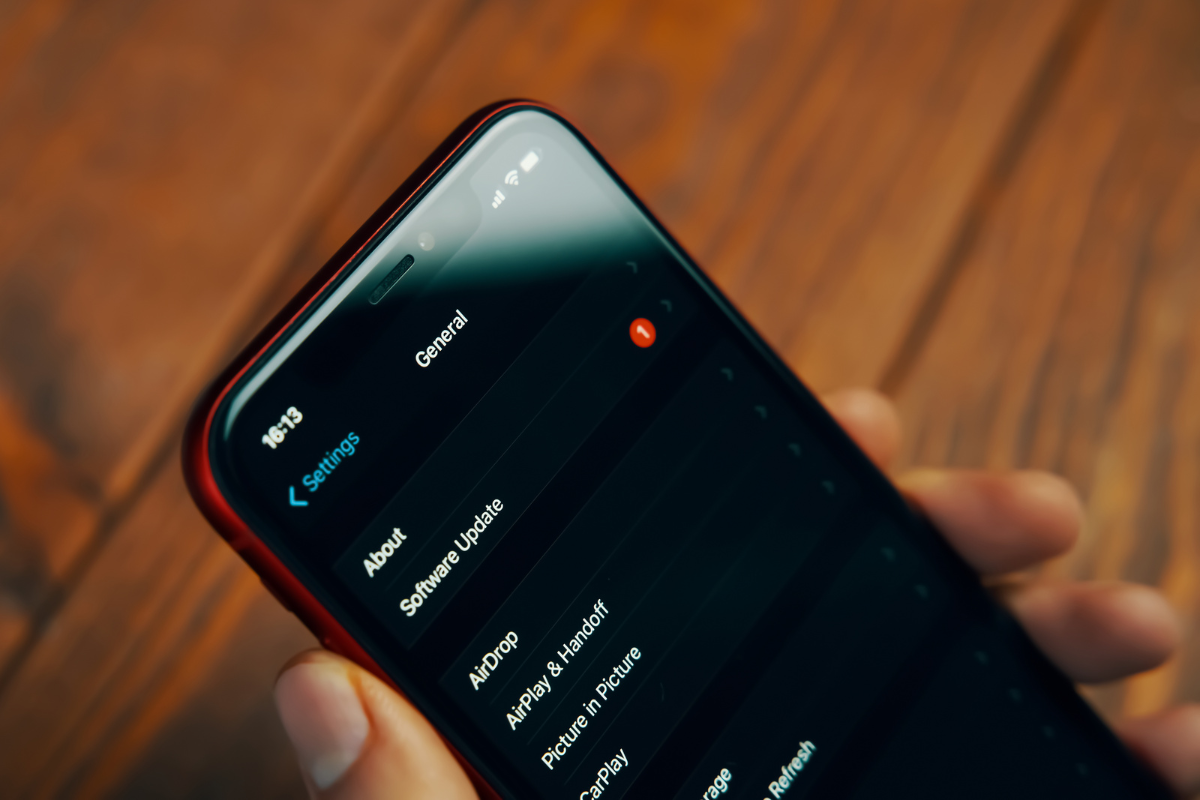
This process takes only a few seconds and can instantly fix voicemail issues.
5. Reset Network Settings
If your voicemail isn’t downloading messages or keeps showing “Call Voicemail,” network settings may be corrupted.
Reset option:
- Go to Settings > General > Transfer or Reset iPhone > Reset.
- Tap Reset Network Settings.
Your saved Wi-Fi passwords will be erased, but your personal data stays safe. After the reset, test voicemail again.
6. Turn Off Call Forwarding
Call forwarding can redirect calls, preventing voicemail from receiving messages.
Check it:
- Go to Settings > Phone > Call Forwarding.
- Make sure it is turned off.
If it was on, switch it off and try leaving yourself a test voicemail.
7. Check for iOS Updates
Software bugs are a frequent cause of voicemail failure, especially visual voicemail not loading.
Update iOS:
- Go to Settings > General > Software Update.
- Install any pending update.
After updating, restart your iPhone and test voicemail again.
8. Contact Your Carrier
If none of the steps work, the issue may be with your voicemail service—not your iPhone. Carriers can reset your voicemail box from their end.
Call your provider and ask them to:
- Reset voicemail provisioning
- Re-enable visual voicemail
- Confirm your voicemail password or mailbox configuration
9. Visit a Professional if the Problem Continues
If voicemail still isn’t working even after carrier assistance, the issue could involve your SIM card or a deeper software fault. At this point, visiting a technician is recommended.
A cell phone repair Mississauga technician can inspect your device, check for SIM-related issues, and ensure your phone is communicating properly with the network.
Voicemail problems are usually easy to fix at home with the right steps. Start with basic checks, work your way through network and software adjustments, and reach out for support when needed. If you’re still stuck, a trusted repair shop can help get your iPhone working the way it should.
