
When your iPhone suddenly shows “Connection to Server Failed,” it can interrupt email syncing, app sign-ins, backups, and basic browsing. The issue is common, and in many cases, you can fix it at home with a few simple steps. This guide walks you through practical, realistic solutions for iPhone users across Canada and the U.S.
1. Start With the Basics: Check Your Internet Connection
Many server-related errors appear when the phone briefly loses Wi-Fi or mobile data. Try these quick checks:
- Turn Wi-Fi off and on again
- Switch to mobile data if Wi-Fi is unstable
- Restart your router
- Move closer to the Wi-Fi source
If other devices are also struggling to connect, the issue may be with the network, not your iPhone.
2. Restart Your iPhone
A simple restart refreshes your system and clears temporary glitches.
How to restart:
- iPhone X or newer: Hold the Volume Up + Side button → Slide to power off
- iPhone SE/8/7/6: Hold the Side button → Slide to power off
Wait 15 seconds, then turn it back on. Many connection errors disappear after this step.
3. Update the App or Mail Account Causing the Error
If the message appears inside a specific app (Mail, Gmail, Outlook, Safari, WhatsApp, etc.):
- Update the app from the App Store
- Re-enter your login details
- Remove and re-add the email account
- Check if your email provider is experiencing downtime
This fixes many “server failed” alerts from outdated settings.
4. Reset Network Settings (Safe And Effective)
This is one of the strongest fixes for server-related problems.
It doesn’t delete photos, apps, or contacts — only network configurations.
Steps:
Settings → General → Transfer or Reset iPhone → Reset → Reset Network Settings
After restart, reconnect to Wi-Fi and check again.
5. Check Date & Time Settings
Incorrect time settings can block secure connections.
Go to:
Settings → General → Date & Time → Toggle Set Automatically ON
This ensures your phone communicates correctly with servers.
6. Update iOS
Outdated iOS versions may cause repeated server connection failures.
Steps:
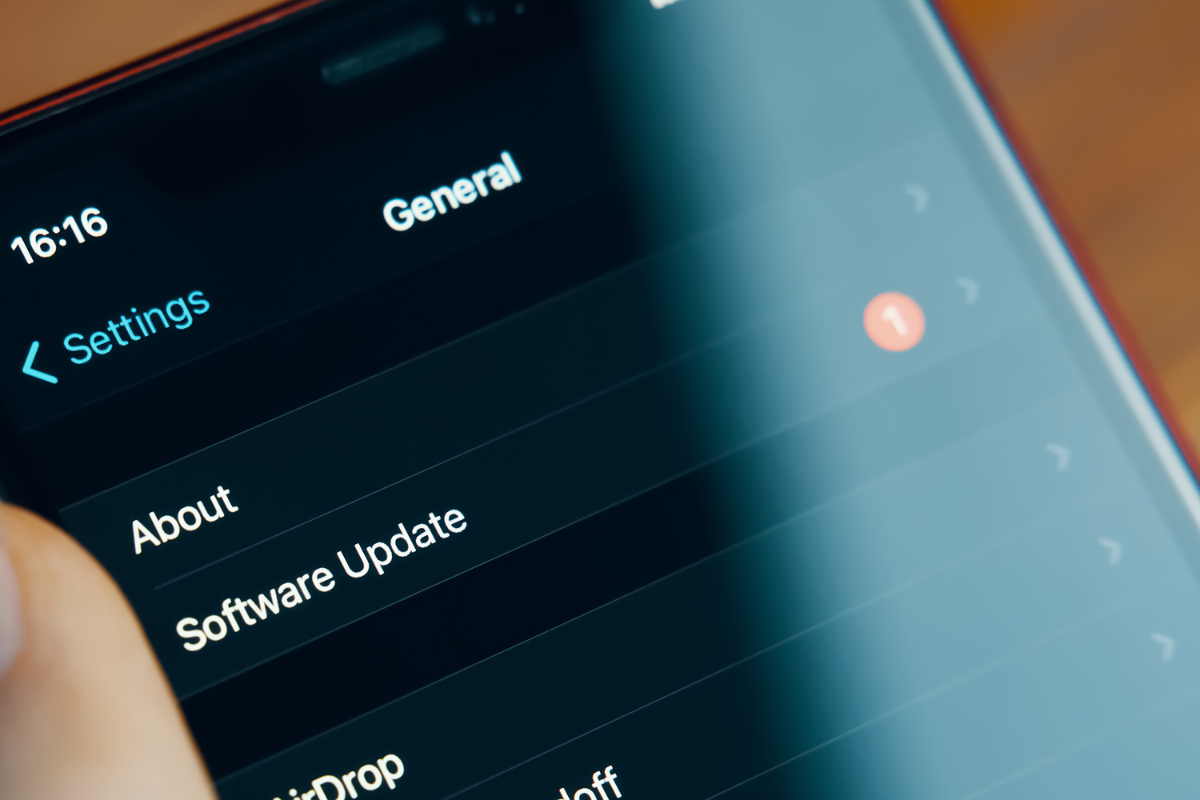
Settings → General → Software Update → Download and Install
Always keep your device updated for stability and compatibility.
7. Still Getting the Error? Your iPhone May Need Professional Repair
If none of the above fixes solve the problem, your device might have:
- A failing Wi-Fi antenna
- Damaged internal components
- Corrupted network chips
- Issues after water exposure
- System-level faults from previous unauthorized repairs
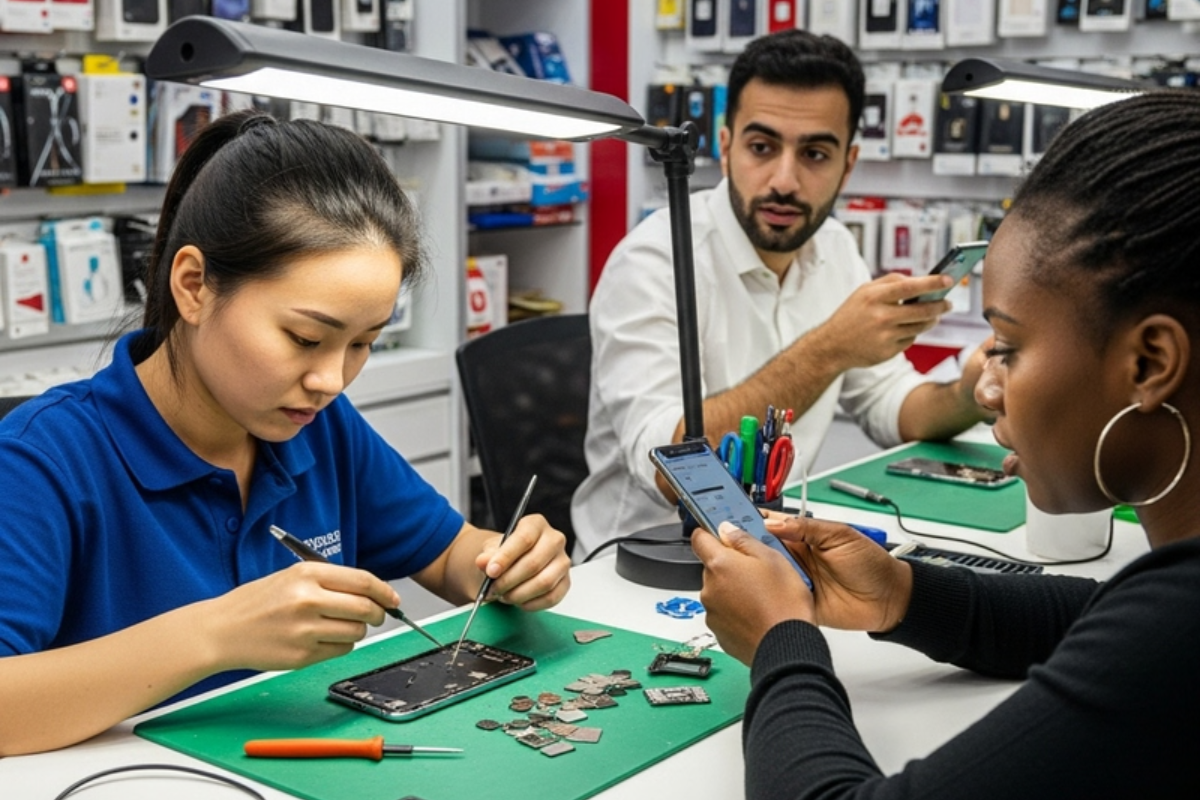
At this stage, visiting a technician is the safest option. A local top rated phone repair store in Mississauga can diagnose the exact cause and restore proper connectivity.
Our technicians at fixphonemississauga.ca regularly handle Wi-Fi issues, antenna problems, and software-related errors for iPhones. If your device still shows “Connection to Server Failed,” we can run a fast diagnostic and fix the underlying problem.
Most “Connection to Server Failed” errors can be fixed at home with simple steps like restarting the device, resetting network settings, or updating apps. But if the problem keeps returning, it’s a sign of deeper hardware or software malfunction.
Visit your trusted iPhone repair Mississauga service to get your device inspected and repaired quickly.
