
Seeing your iPhone photos saved upside down can be confusing, especially when everything looks fine while taking the picture. This issue is more common than most users think and is usually linked to settings, software behaviour, or internal sensors. In many cases, you can fix it at home without any technical skills. This guide explains practical steps you should try first, and when it’s time to visit a Local top rated phone repair store in Mississauga if the problem does not go away.
What Causes iPhone Photos to Appear Upside Down?
Your iPhone uses motion sensors to detect how it is positioned when you take a photo. If something interferes with this process, the image may rotate incorrectly after saving. Common reasons include:
- Orientation Lock being enabled
- Temporary iOS software glitches
- Using the phone at an odd angle
- Issues after a phone drop or water exposure
Knowing the cause helps avoid unnecessary troubleshooting.
Step 1: Turn Off Orientation Lock
Orientation Lock prevents your screen from rotating and can affect photo orientation.
- Swipe down from the top-right corner of the screen
- Look for the lock icon with a circular arrow
- If it is turned on, tap it to disable
Once turned off, open the Camera app and take a new photo to check if the issue is resolved.
Step 2: Hold Your iPhone in a Stable Position
The way you hold your phone matters more than most users realize.
- Keep the phone straight, not tilted
- Avoid switching positions just before tapping the shutter
- Make sure the phone is clearly vertical or horizontal
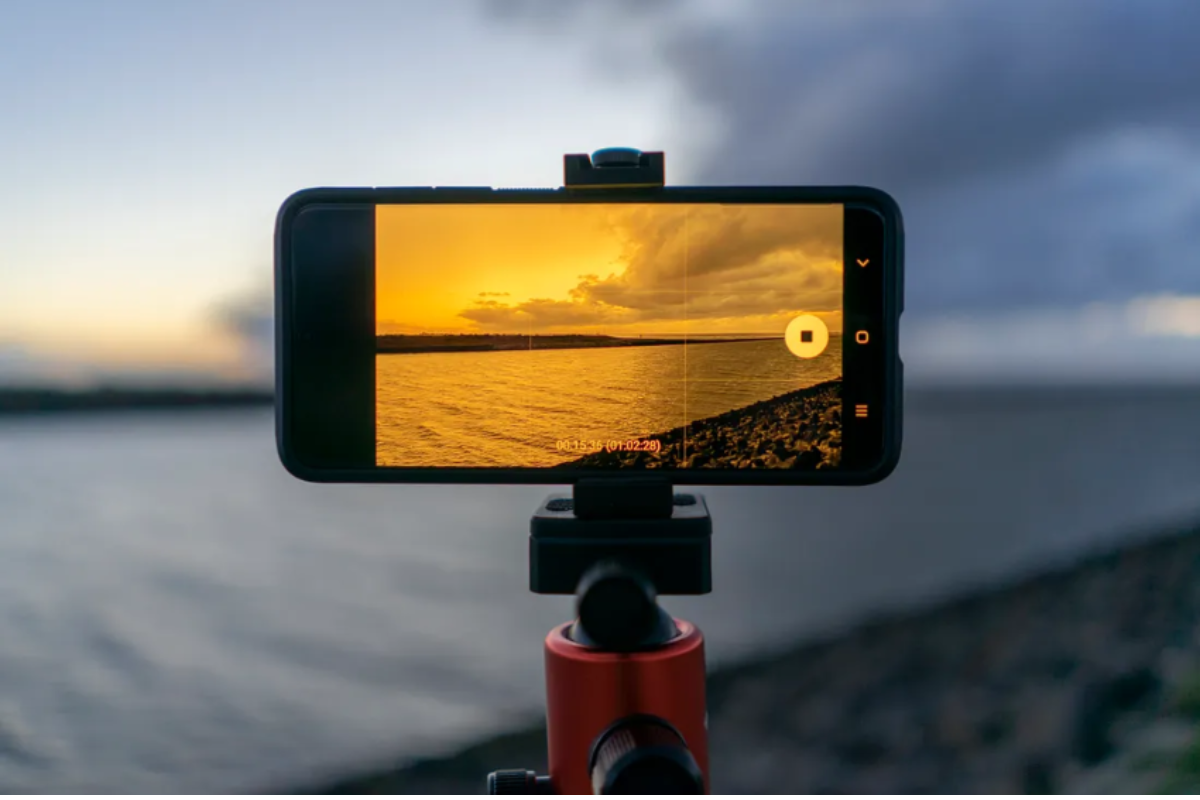
Quick movements while taking photos can confuse the orientation sensor.
Step 3: Restart Your iPhone
Restarting clears temporary system errors that may affect camera behaviour.
- Press and hold the power button and volume button
- Slide to power off
- Wait for about 30 seconds
- Turn the phone back on
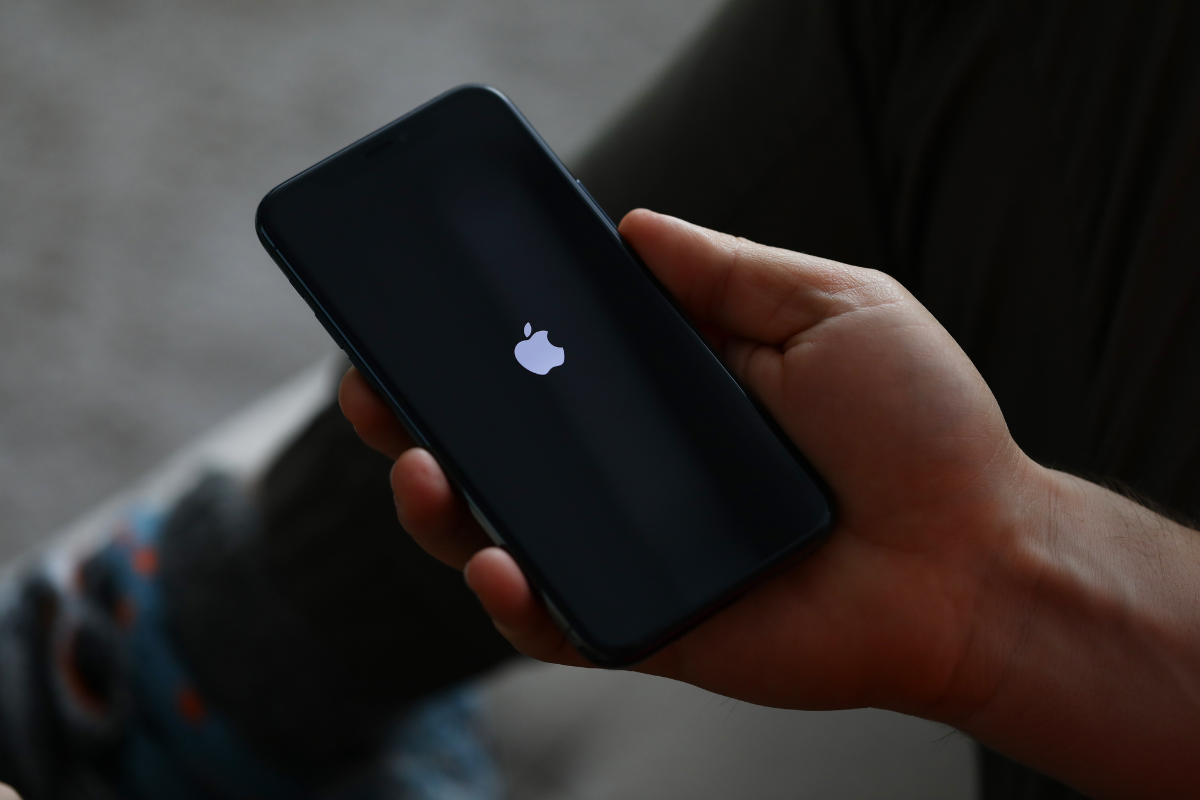
Test the camera again after restarting.
Step 4: Update Your iPhone Software
Running outdated iOS versions can cause camera-related bugs.
- Go to Settings
- Tap General
- Select Software Update
- Install any available update
Software updates often include fixes for camera and sensor issues.
Step 5: Test With the Default Camera App
If the issue happens only in a third-party camera or social media app:
- Update the app from the App Store
- Force close and reopen it
- Compare results with the built-in Camera app
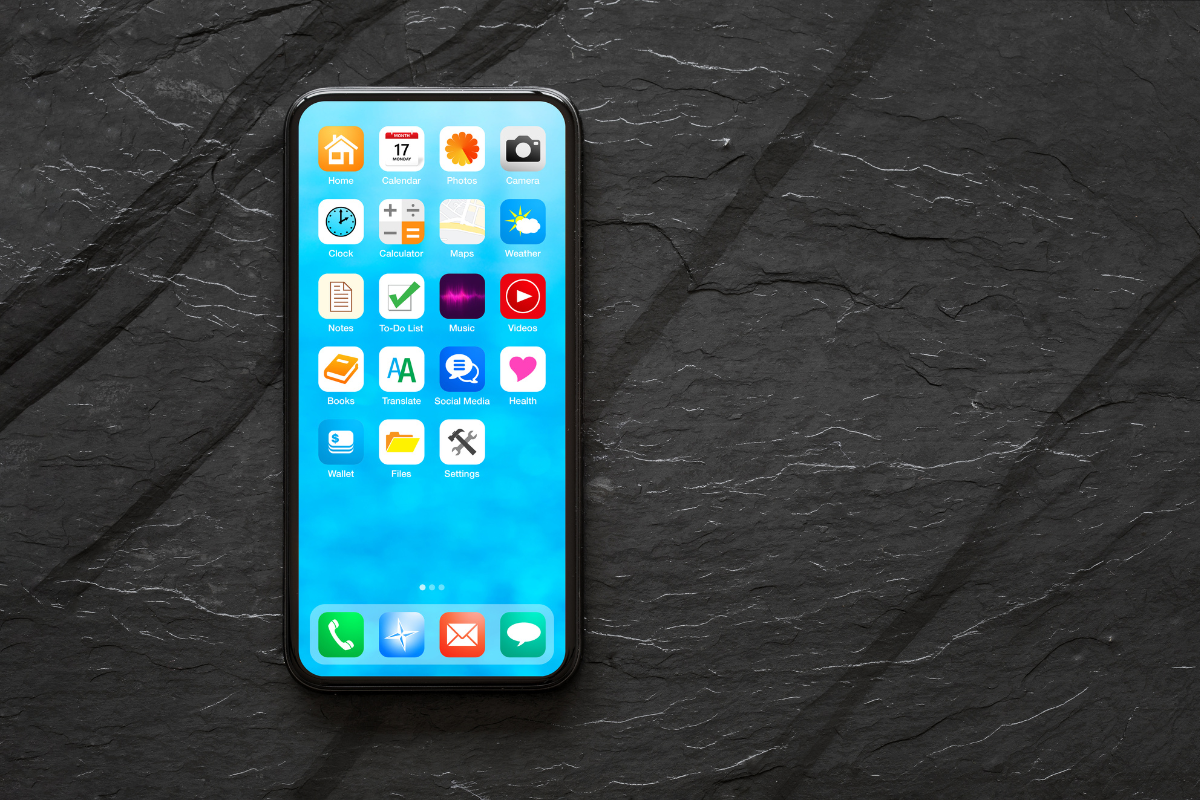
If default camera photos appear normal, the issue is app-related.
Step 6: Reset All Settings
This option resets system preferences without deleting your data.
- Open Settings
- Go to General
- Tap Transfer or Reset iPhone
- Select Reset
- Choose Reset All Settings
This can resolve deeper software conflicts affecting orientation.
When Professional Repair Is Needed
If photos still save upside down after all these steps, the problem may be hardware-related. Damage to internal motion sensors often happens after drops or moisture exposure and cannot be fixed through settings.
At this point, visiting a Cell Phone repair by an expert service near you in Mississauga is the safest option. A professional technician can diagnose sensor issues accurately and prevent further problems.
Upside down photos on an iPhone are usually caused by simple settings or software issues that can be fixed at home. Following these steps helps rule out common problems before seeking repair. If the issue continues, professional inspection ensures your iPhone camera and sensors work correctly again.
