
If you are missing calls or messages on your iPhone, one common reason is blocked numbers. Many users block contacts accidentally and later forget about it. The good news is that iOS makes it easy to check and manage blocked numbers without any technical skills. This guide walks you through simple at-home steps first. If something does not work as expected, you will know when it is time to visit a professional repair shop.
Why Checking Blocked Numbers Matters
Blocked numbers cannot call, text, or FaceTime you. This can cause problems if:
- A family member says they cannot reach you
- Important calls go straight to voicemail
- Text messages never appear
Before assuming your phone has a fault, checking your blocked list should be the first step.
How to Find Blocked Numbers on iPhone (Step-by-Step)
1. Check Blocked Numbers for Phone Calls
Follow these steps:
- Open Settings
- Scroll down and tap Phone
- Select Blocked Contacts
You will now see a list of all phone numbers and contacts currently blocked from calling you. If the list is empty, no numbers are blocked for calls.
2. Check Blocked Numbers for Messages
Blocked numbers for calls and messages can sometimes differ.
- Open Settings
- Tap Messages
- Select Blocked Contacts
If someone is blocked here, they cannot send you SMS or iMessages.
3. Check Blocked Contacts for FaceTime
To make sure FaceTime is not blocking someone:
- Open Settings
- Tap FaceTime
- Select Blocked Contacts
This is helpful if FaceTime calls are failing but regular calls are working.
How to Unblock a Number on iPhone
If you find a number that should not be blocked:
- Tap Edit (top right)
- Tap the red minus sign next to the number
- Tap Unblock
You can also swipe left on a contact and tap Unblock. Changes take effect immediately.
At-Home Fixes If the Blocked List Looks Correct
If the number is not blocked but calls or messages still do not come through, try these safe steps:
Restart Your iPhone
A simple restart can fix temporary system glitches that affect calls and messages.
Check Do Not Disturb or Focus Mode
Go to Settings > Focus and make sure no mode is silencing calls from certain contacts.
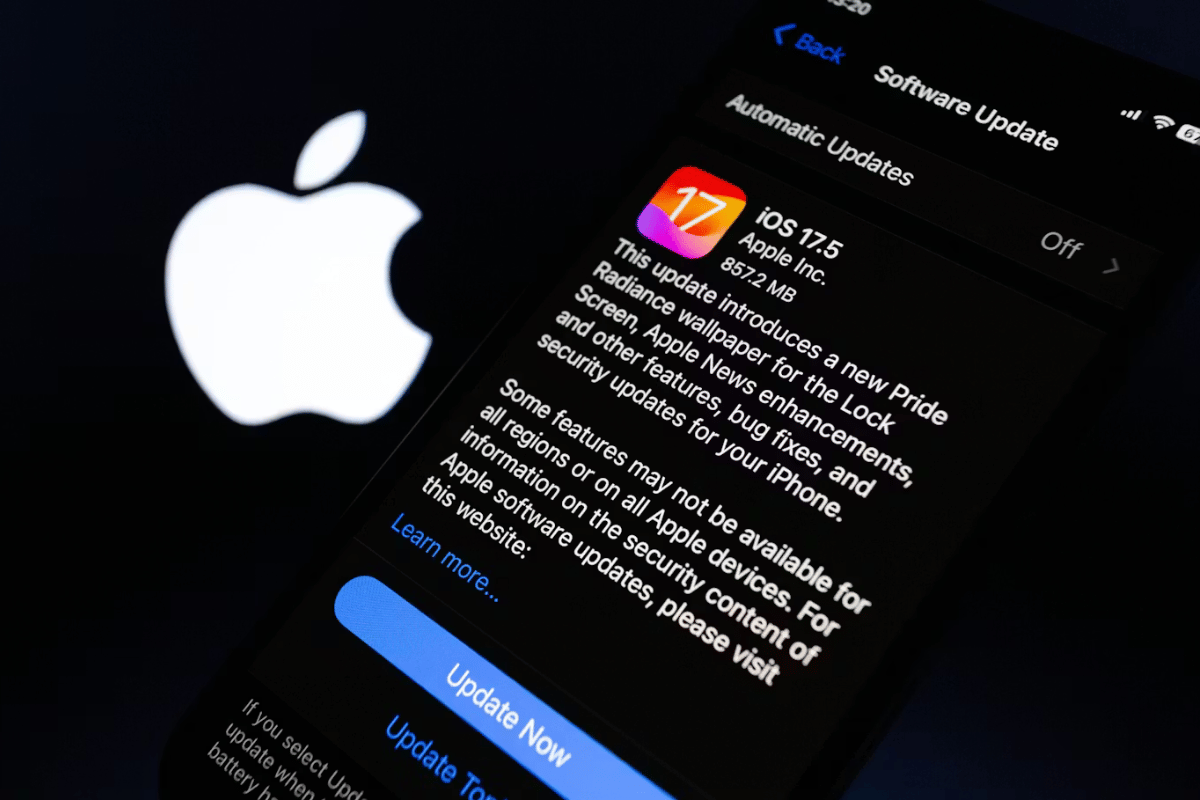
Update iOS
Outdated software can cause call or message issues.
- Go to Settings > General > Software Update
- Install any available updates
Check Carrier Settings
Go to Settings > General > About
If prompted, update your carrier settings.
When the Problem Is Not Software-Related
If blocked numbers are not the issue and basic fixes do not help, your iPhone may have:
- Network antenna issues
- SIM card reader problems
- Software corruption
- Call-handling bugs after an update
These problems require professional inspection and should not be handled at home.
When to Visit a Repair Shop in Mississauga
If calls or messages are still missing after all steps, it is time to get expert help. A trained technician can diagnose whether the issue is software-based or related to internal hardware.
At Fix Phone Mississauga, customers rely on trusted iPhone repair Mississauga services for accurate diagnosis and quick solutions. As a local top rated phone repair store in Mississauga, the team can test your device, SIM, and network functionality without unnecessary repairs.
Finding blocked numbers on an iPhone is quick and easy when you know where to look. Always start with settings checks and simple at-home fixes before assuming a serious problem. If your iPhone still does not receive calls or messages after trying everything in this guide, professional help will save you time and frustration.
A short visit to a reliable repair shop can restore your phone’s communication features and make sure you do not miss important calls again.
