
iPhones are generally secure, but unusual pop-ups, unwanted redirects, or sudden performance issues can make anyone worry their device has a virus. The good news is that most problems can be fixed with a few simple steps at home. This guide walks you through what to do before deciding whether you need professional help.
1. Identify the Signs of a Possible iPhone Virus
iPhones don’t get traditional viruses, but they can still be affected by unsafe websites, malicious profiles, or buggy apps. Watch for issues such as:
- Browser pages opening by themselves
- Pop-ups claiming your device is infected
- Apps crashing repeatedly
- Battery draining faster than usual
- iPhone running unusually hot
If any of these sound familiar, move to the next steps.
2. Restart Your iPhone
A simple restart often clears temporary bugs.
- Hold the power + volume button
- Slide to power off
- Turn the device back on
This resets background processes and might remove the issue instantly.
3. Clear Safari Website Data
If strange pop-ups appear only when browsing, the problem is often linked to website cookies or cached scripts.
- Go to Settings
- Open Safari
- Tap Clear History and Website Data
This removes harmful redirects commonly mistaken for viruses.
4. Delete Suspicious or Recently Installed Apps
If the issue started after downloading a certain app:
- Press and hold the app icon
- Tap Remove App
- Restart your phone
Some apps can cause unwanted notifications or background activity. Removing them can restore normal performance.
5. Update iOS to the Latest Version
Apple regularly releases updates that fix bugs and remove vulnerabilities.
- Open Settings
- Go to General
- Select Software Update
Install any available update. Keeping your phone current is one of the best ways to stay secure.
6. Check for Unknown Device Profiles
Some scam sites ask users to install “configuration profiles.” These can cause pop-ups or redirect your browsing.
- Go to Settings
- Tap General
- Open VPN & Device Management
- Remove any profile you don’t recognize
If you see no profiles, move on to the next step.
7. Reset All Settings (Safe and Non-Destructive)
This resets network, location, and privacy settings without deleting your photos, apps, or data.
- Go to Settings
- Choose General
- Tap Transfer or Reset iPhone
- Select Reset All Settings
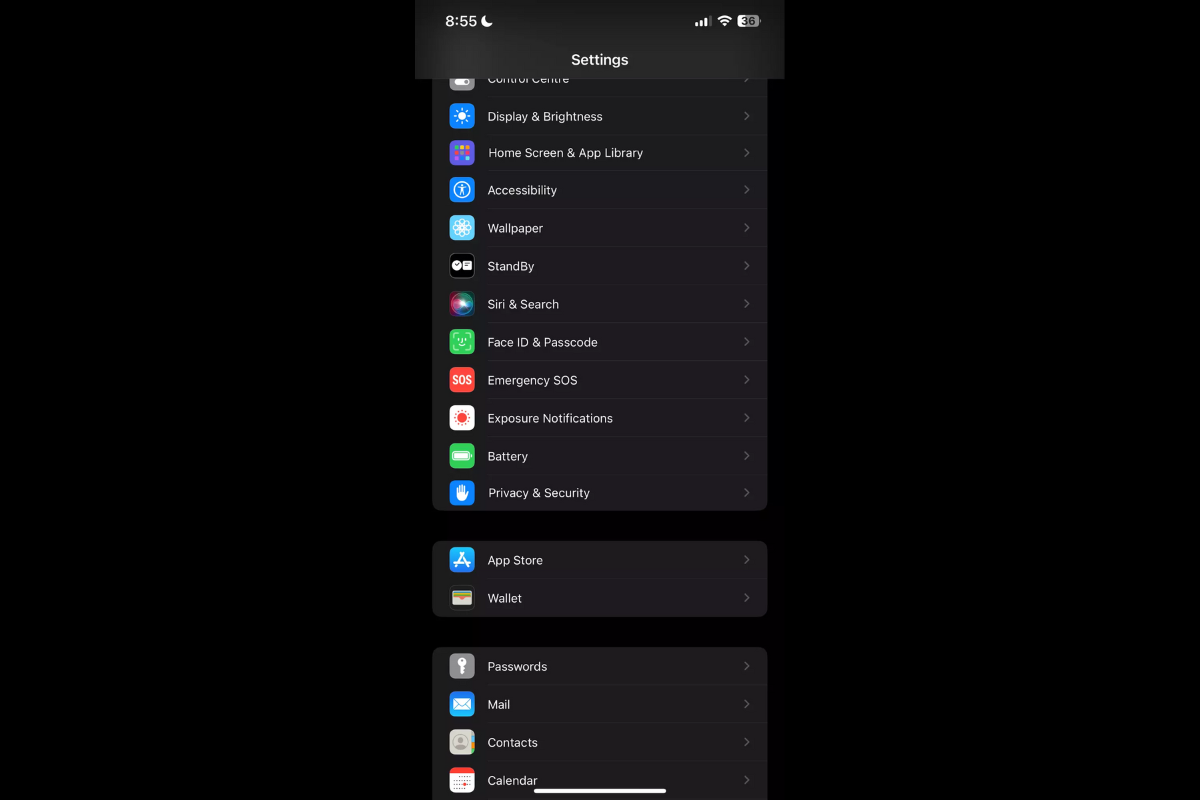
This often clears deeper software glitches that look like viruses.
8. When Home Fixes Don’t Work
If your iPhone still acts strangely after trying all steps, it may have a deeper software issue or hidden app conflict. At this point, expert support is the fastest and safest solution.
You can take your device to a local top rated phone repair store in Mississauga where technicians can run diagnostics, remove hidden problems, and restore your phone safely. Professional help is especially useful if:
- Pop-ups appear even outside Safari
- Device becomes extremely slow
- Apps won’t open at all
- The iPhone keeps restarting by itself
Shops that specialize in iPhone repair Mississauga can resolve these problems quickly without risking your data.
Most iPhone “virus” concerns come from temporary bugs, website pop-ups, or unsafe apps. By following the steps in this guide, many users can fix the issue on their own. However, if problems continue, visiting a trusted repair shop ensures your device is cleaned, secured, and running smoothly.
