
When your iPhone refuses to process payments, it can stop you from downloading apps, renewing subscriptions, or completing simple purchases. The good news is that most payment-method issues come from small settings that you can fix at home. This guide walks
1. Confirm Your Payment Details
Start with the basics Apple will decline any card with missing or outdated information.
Check your details:
- Open Settings
- Tap your Apple ID name
- Select Payment & Shipping
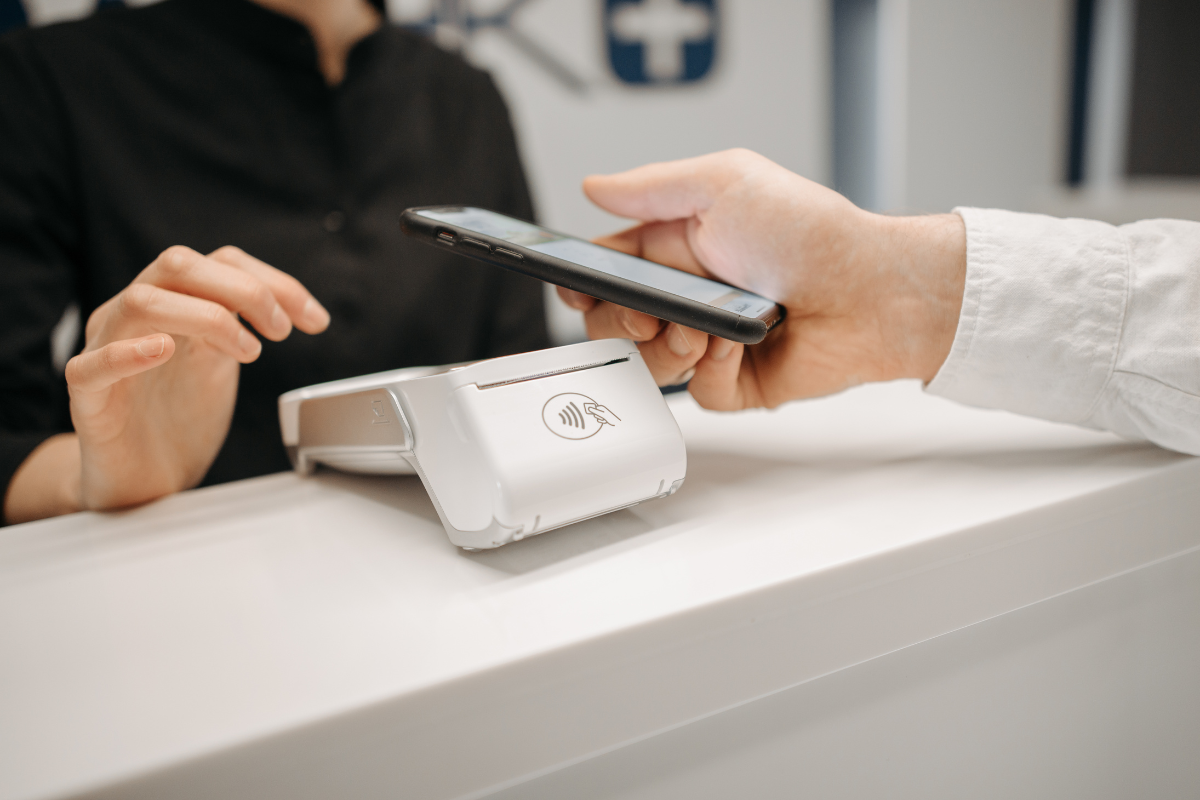
Make sure the card number, billing address, and postal code are correct. Even a small error can trigger payment failures.
2. Check for Card Expiry or Bank Restrictions
Sometimes the issue is not your iPhone it’s the card provider.
What to check:
- Card expiration date
- Sufficient funds
- International or online purchase restrictions
Some banks block digital purchases by default. If needed, call your bank and confirm that Apple transactions are allowed.
3. Update Your iPhone
If your device is running an outdated version of iOS, some payment methods may fail to verify.
To update:
- Go to Settings
- Tap General
- Select Software Update
- Install the latest version
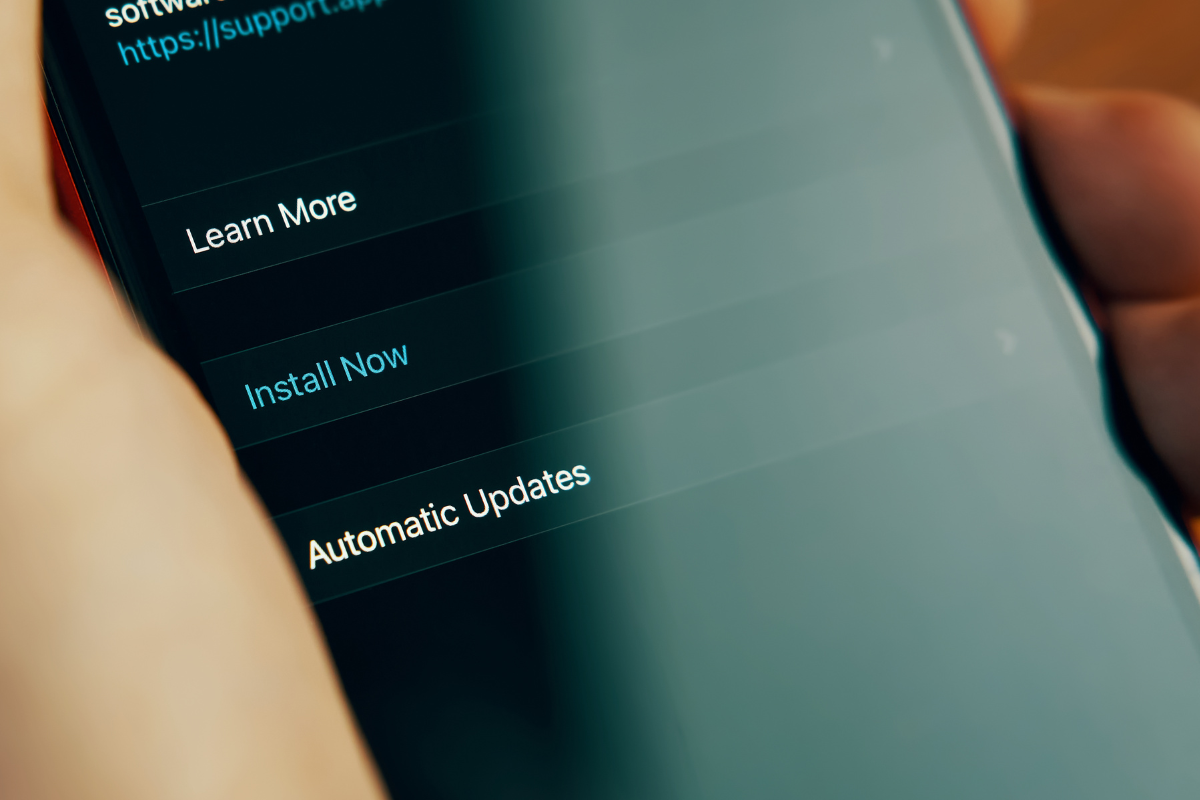
Updates often fix bugs related to Apple ID, App Store payments, and security verification.
4. Remove and Re-Add Your Payment Method
Sometimes a quick reset solves the problem.
Try this:
- Go to Payment & Shipping
- Swipe left on your payment method
- Tap Remove
- Add it again
This refreshes the connection between your bank and Apple systems.
5. Check for App Store or iCloud Pending Balances
If you have an unpaid balance—even a small one—Apple may freeze new payments.
Check your balance:
- Open Settings
- Tap your Apple ID name
- Select Media & Purchases → View Account
Clear any pending charges and try again.
6. Sign Out and Sign In Again
A simple Apple ID refresh can fix most verification issues.
Steps:
- Go to Settings
- Tap your Apple ID name
- Scroll down and tap Sign Out
- Sign in again
Make sure you know your Apple ID password before logging out.
7. Fix Region or Address Mismatch
Your Apple region must match your billing address and currency.
For example, a Canadian card will only work if your Apple region is set to Canada.
To check:
Go to Settings → Apple ID → Media & Purchases → View Account → Country/Region
When You Should Visit a Repair Shop
If you’ve tried all the steps above but your iPhone still refuses to accept payments, the issue could be deeper possibly linked to software corruption, failed updates, or Apple ID verification errors that require diagnostic support.
A technician can check whether your phone has internal software conflicts or hardware problems affecting connectivity.
Your local top rated phone repair store in Mississauga can quickly diagnose and fix these device-level issues. If the problem relates to Apple Pay hardware, NFC failure, or damaged components, a professional technician is the safest option.
At times, the best solution is to bring your device to a trusted shop that handles iPhone repair Mississauga services daily.
Payment method errors on an iPhone are annoying but usually easy to fix. Start with the basics check your details, update your device, confirm your bank settings, and refresh your Apple ID. If nothing works, visiting a professional repair shop ensures your phone is properly diagnosed and restored.
