
If the colors on your iPhone screen look wrong too yellow, too blue, faded, or uneven it can make everyday use frustrating. In many cases, this issue is caused by settings or minor software glitches that you can fix at home. This guide walks you through practical steps to try before visiting a repair shop. If none of these solutions work, it may be time for professional help.
Step 1: Check Display Settings First
Before assuming something is broken, start with your iPhone’s display settings. Apple includes several features that change how colors appear.
Turn Off True Tone
True Tone adjusts screen color based on lighting conditions, which can sometimes make the display look yellow or dull.
- Go to Settings
- Tap Display & Brightness
- Turn True Tone off
Check your screen again to see if the colors look normal.
Review Night Shift Settings
Night Shift reduces blue light, giving the screen a warmer tone.
- Open Settings
- Tap Display & Brightness
- Select Night Shift
- Turn it off or adjust the color temperature slider
Step 2: Look at Color Filters and Accessibility Options
Color filters are often enabled accidentally and can cause strange color changes.
- Go to Settings
- Tap Accessibility
- Select Display & Text Size
- Tap Color Filters
- Make sure Color Filters are turned off
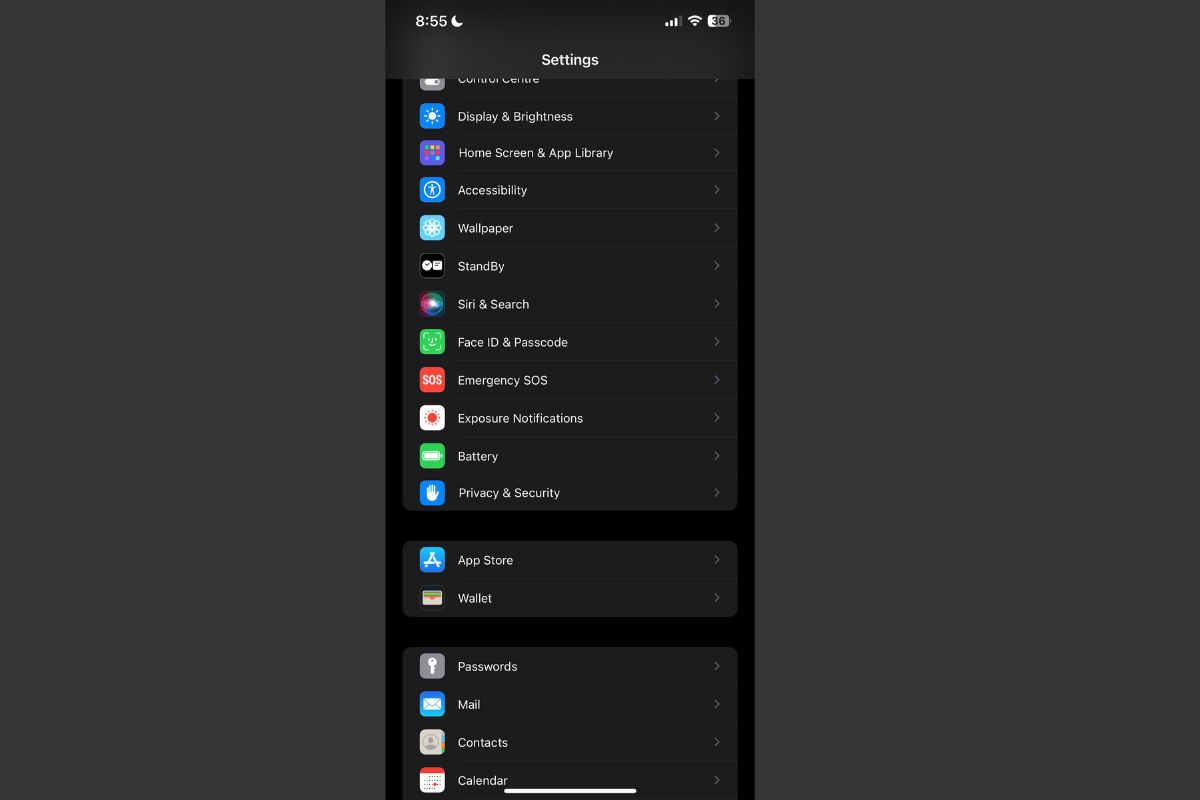
If they are on, turning them off usually fixes color distortion immediately.
Step 3: Adjust Brightness and Auto-Brightness
Low brightness or auto-adjusting brightness can affect how colors appear.
- Open Settings
- Tap Display & Brightness
- Increase brightness manually
- Scroll down and turn Auto-Brightness off (under Accessibility > Display & Text Size)
This gives you consistent screen lighting and more accurate colors.
Step 4: Restart and Update Your iPhone
Sometimes the issue isn’t settings it’s a temporary software glitch.
Restart Your Device
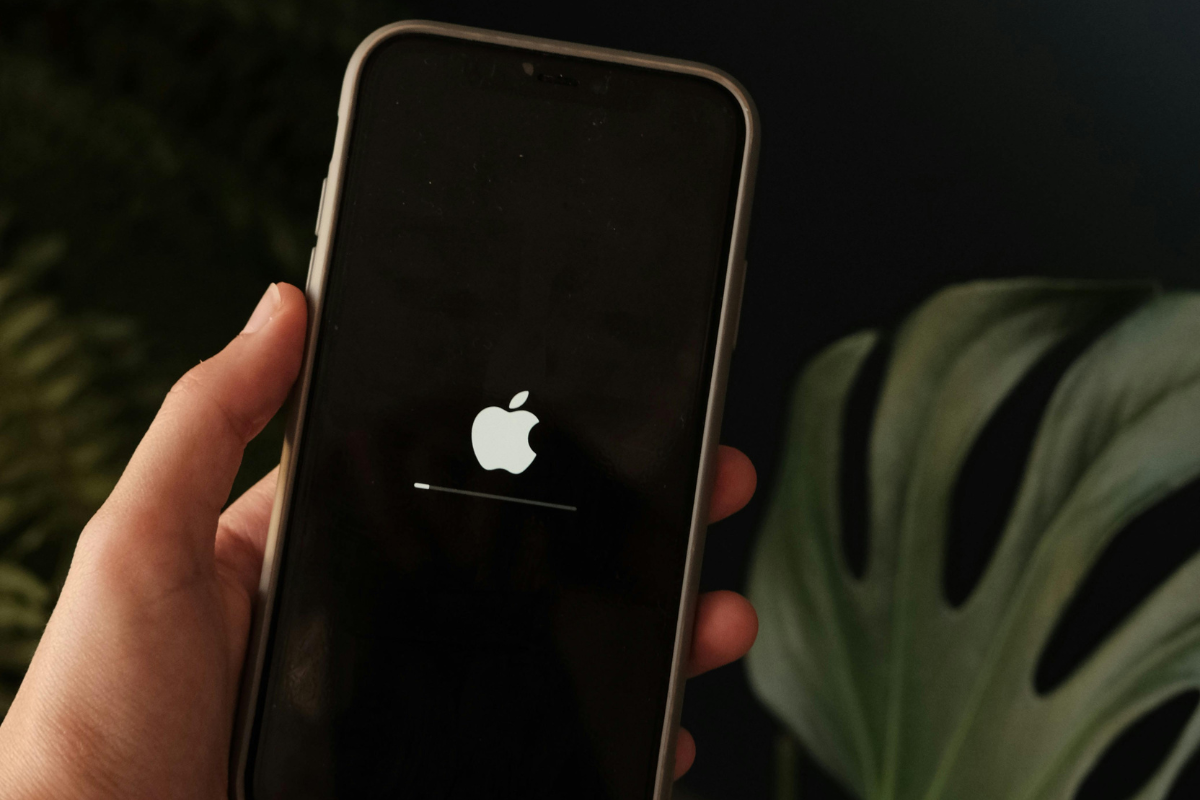
A simple restart can reset display processes.
- Power off your iPhone
- Wait 30 seconds
- Turn it back on
Check for iOS Updates
Outdated software can cause display bugs.
- Go to Settings
- Tap General
- Select Software Update
- Install any available updates
Step 5: Reset Display Settings (Safe Option)
If the problem started recently, resetting display-related settings may help.
- Go to Settings
- Tap General
- Select Transfer or Reset iPhone
- Tap Reset
- Choose Reset All Settings
This does not erase your data but restores system settings to default.
When At-Home Fixes Don’t Work
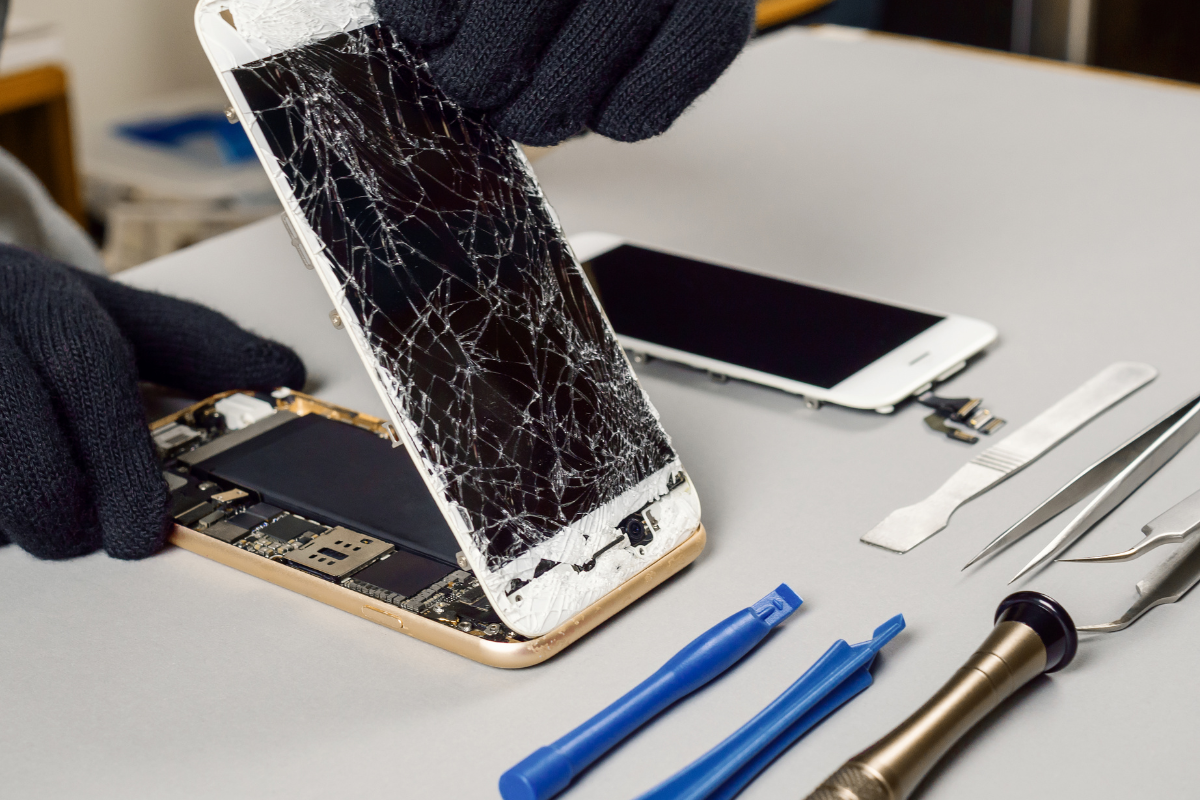
If your screen still shows incorrect colors after trying all the steps above, the issue may be hardware-related. Common causes include:
- Screen damage from drops
- Internal display connector issues
- Low-quality replacement screens
- Water or moisture exposure
In these cases, professional inspection is the safest option. Visiting a trusted Mississauga phone repair shop ensures your device is checked properly without risking further damage.
Get Professional Help in Mississauga
Color issues tied to hardware often require expert tools and genuine replacement parts. At Fix Phone Mississauga, technicians can diagnose whether the screen itself needs repair or replacement. Choosing a local top rated phone repair store in Mississauga helps ensure accurate fixes and reliable results.
Always try settings and software fixes first they solve many color problems quickly. If the issue persists, don’t force fixes or ignore the signs. Professional repair can restore your iPhone’s display and prevent bigger problems later.
