
If your iPhone screen isn’t responding properly to swipes, it can be frustrating. Many swipe issues are caused by simple problems that can often be fixed at home. This guide will walk you through practical steps to troubleshoot and resolve swipe problems. If these steps don’t work, visiting a professional mobile repair shop is the safest option.
1. Clean Your Screen
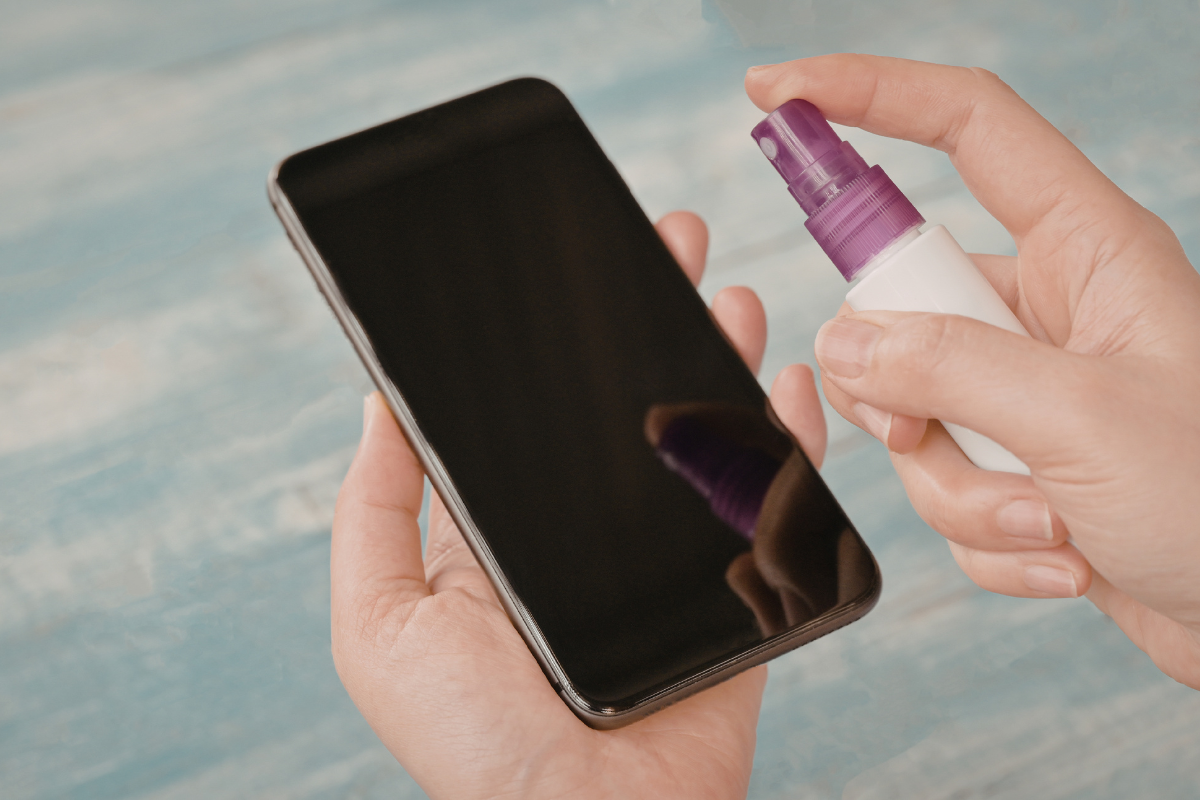
A dirty or greasy screen can cause your iPhone to misinterpret swipes. Use a microfiber cloth to gently wipe your screen, removing fingerprints, dust, or smudges. Avoid using harsh chemicals, which could damage the screen coating.
2. Remove Screen Protector and Case
Sometimes, screen protectors or phone cases interfere with touch sensitivity. Temporarily remove your screen protector and case to see if swipe responsiveness improves. If it does, you may need a higher-quality screen protector or a better-fitting case.

3. Restart Your iPhone
Restarting your iPhone can fix minor software glitches that affect touch responsiveness. For most iPhone models, press and hold the power button and either volume button until the slider appears. Slide to power off, wait a few seconds, then turn your phone back on.
4. Update iOS Software
Outdated software can cause swipe and touch issues. Go to Settings > General > Software Update and install any available updates. Keeping your iOS updated ensures your device has the latest fixes and improvements.

5. Adjust 3D Touch or Haptic Touch Settings
Incorrect touch sensitivity settings can make swiping feel unresponsive. Navigate to Settings > Accessibility > Touch, then check 3D & Haptic Touch. Adjust the touch sensitivity to see if it improves swipe performance.
6. Reset All Settings
If other steps don’t work, resetting all settings can resolve software conflicts. Go to Settings > General > Reset > Reset All Settings. This won’t delete your data but will reset system settings like Wi-Fi passwords, wallpapers, and accessibility options.
7. Professional iPhone Repair in Mississauga
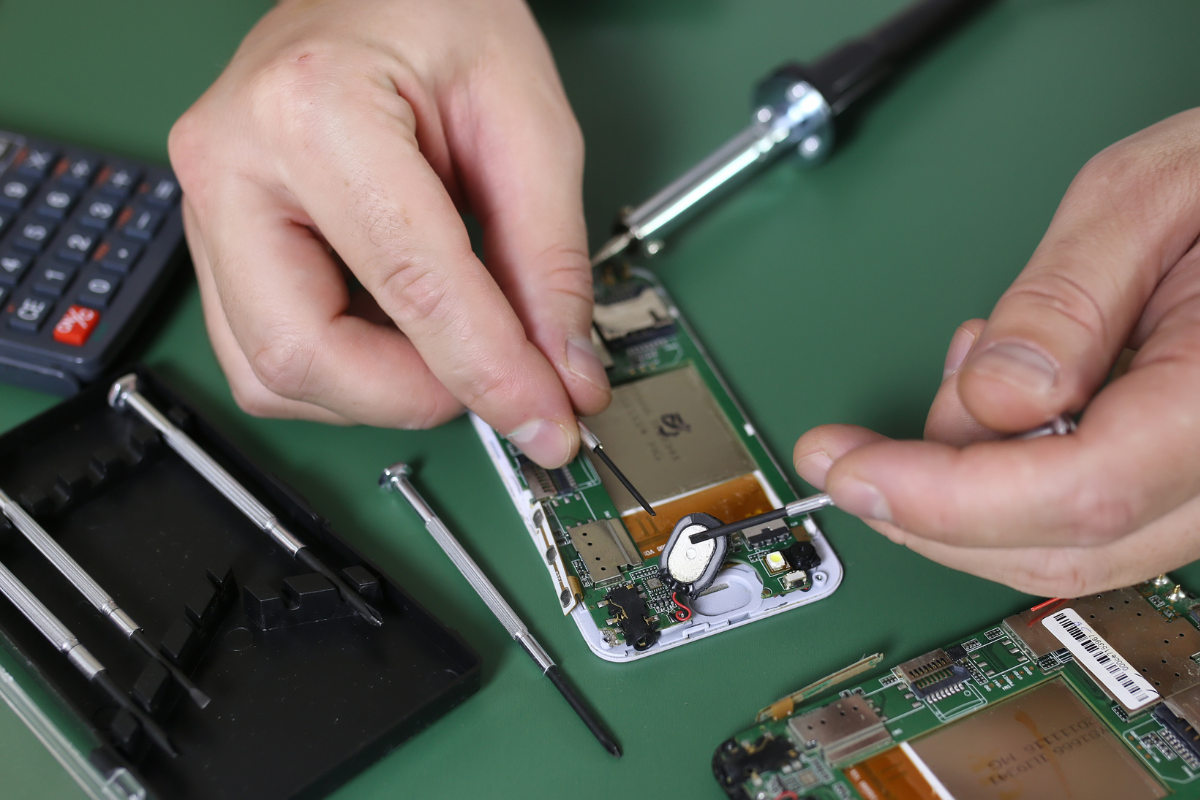
If your swipe issues persist after trying the steps above, there may be a hardware problem with your screen or digitizer. Visiting a local top rated phone repair store in Mississauga ensures your device is checked by experienced technicians. They can diagnose the issue accurately and perform iPhone repair Mississauga safely, restoring full touchscreen functionality..
Swipe problems on an iPhone can be caused by dirt, a faulty screen protector, software glitches, or hardware issues. Start with simple home fixes like cleaning, restarting, and updating iOS. If the problem continues, a professional cell phone repair by an expert service near you in Mississauga is the most reliable solution.
