
Group chats are useful for family updates, work conversations, and planning events. But sometimes a group chat becomes noisy, irrelevant, or distracting. Many iPhone users ask a simple question: how do you exit a group chat on iPhone without causing issues or losing important messages.
This guide walks you through safe and simple steps you can try at home first. If things do not work as expected, it also explains when professional help from a local repair shop makes sense.
Step 1: Check the Type of Group Chat You Are In
Before trying to leave a group chat, confirm what kind of chat it is. iPhones support different messaging formats, and not all allow you to exit.
You can leave a group chat only if:
- Everyone in the chat is using iMessage
- The group has at least three people
To check:
- Open the Messages app
- Open the group chat
- Look at the message bubbles
Blue bubbles mean iMessage
Green bubbles mean SMS or mixed users
If you see green bubbles, you cannot leave the chat. In that case, move to the next step.
Step 2: Leave an iMessage Group Chat
If the group chat is iMessage-based, leaving is simple.
- Open the group chat
- Tap the group icons or contact name at the top
- Tap “Leave this Conversation”
- Confirm your choice
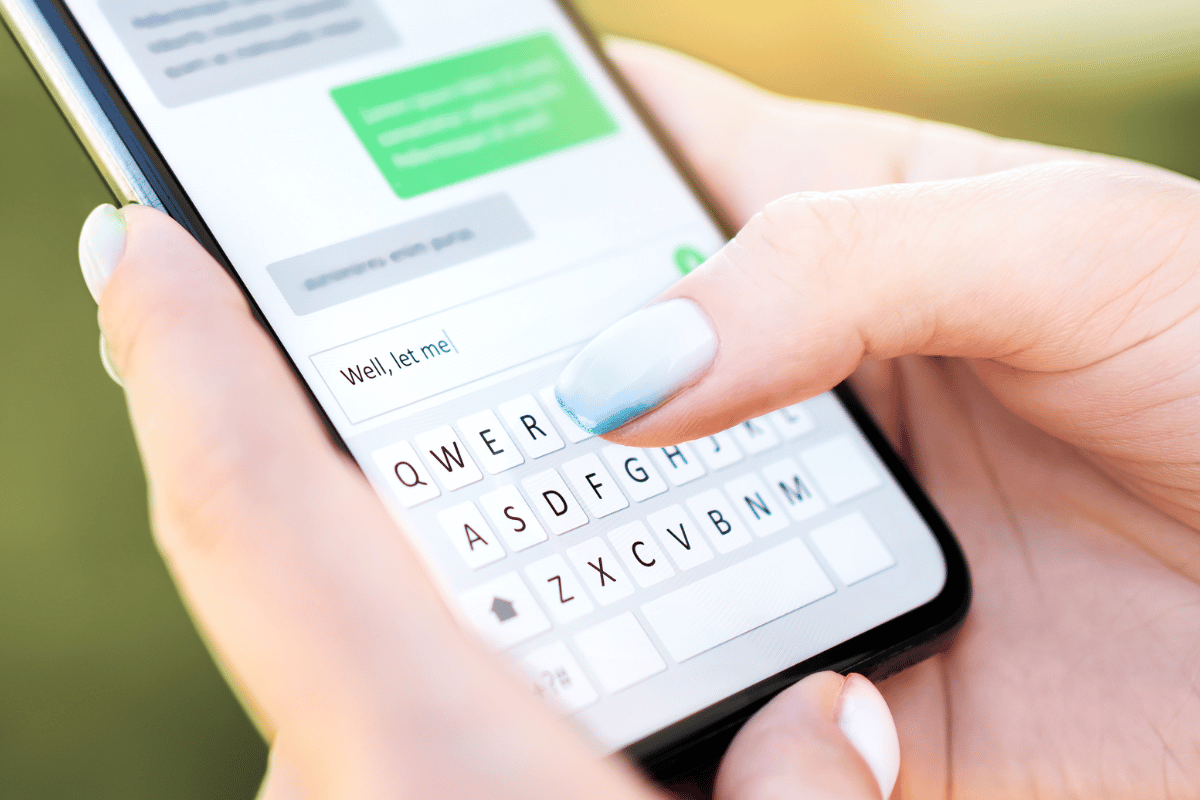
Once you leave, you will stop receiving messages from that group. You can only rejoin if someone adds you again.
Step 3: Mute the Group If You Cannot Leave
If the “Leave this Conversation” option is missing, your best home solution is to mute the chat.
- Open the group chat
- Tap the group name or icons at the top
- Turn on “Hide Alerts”
This stops notifications while keeping the conversation accessible if you need it later. It is a practical option for work or family groups you cannot exit.
Step 4: Make Sure Your iPhone Software Is Up to Date
Sometimes users cannot leave a group chat because of a software issue.
To check for updates:
- Go to Settings
- Tap General
- Tap Software Update
Install any available updates. Apple often fixes messaging bugs through system updates.
Step 5: Restart Your iPhone
A simple restart can solve temporary glitches that affect Messages.
- Power off your iPhone
- Wait 30 seconds
- Turn it back on
After restarting, check the group chat again to see if the exit option appears.
Step 6: Sign Out and Back Into iMessage
If the issue continues, refreshing iMessage can help.
- Go to Settings
- Tap Messages
- Turn off iMessage
- Restart your iPhone
- Turn iMessage back on
This step resolves many sync and messaging issues without deleting data.
When Home Fixes Do Not Work
If you still cannot exit group chats, your iPhone may be experiencing deeper software or system-level problems. This can happen after failed updates, storage issues, or device crashes.
At this point, visiting a professional service for Iphone repair Mississauga is a smart move. Technicians can safely diagnose software issues, restore system functions, and ensure your messages work correctly without risking data loss.

If your device is also showing other problems such as freezing, app crashes, or touch issues, a trusted Mississauga phone repair shop can address everything in one visit.
Always try simple home fixes first. They solve most group chat problems quickly and safely. If your iPhone still does not behave normally, professional repair ensures the issue is fixed properly and prevents bigger problems later.
If you need expert help, Fix Phone Mississauga is ready to assist with reliable, local service you can trust.
