
A zoomed-in iPhone screen can feel frustrating, especially when icons look oversized and you can’t tap what you need. Many users assume the screen is broken, but in most cases, this issue is caused by a setting or a minor software glitch. Before visiting a repair shop, it’s worth trying a few safe fixes at home. This guide walks you through realistic solutions step by step and explains when professional help is the better option.
Why Your iPhone Screen Looks Zoomed In
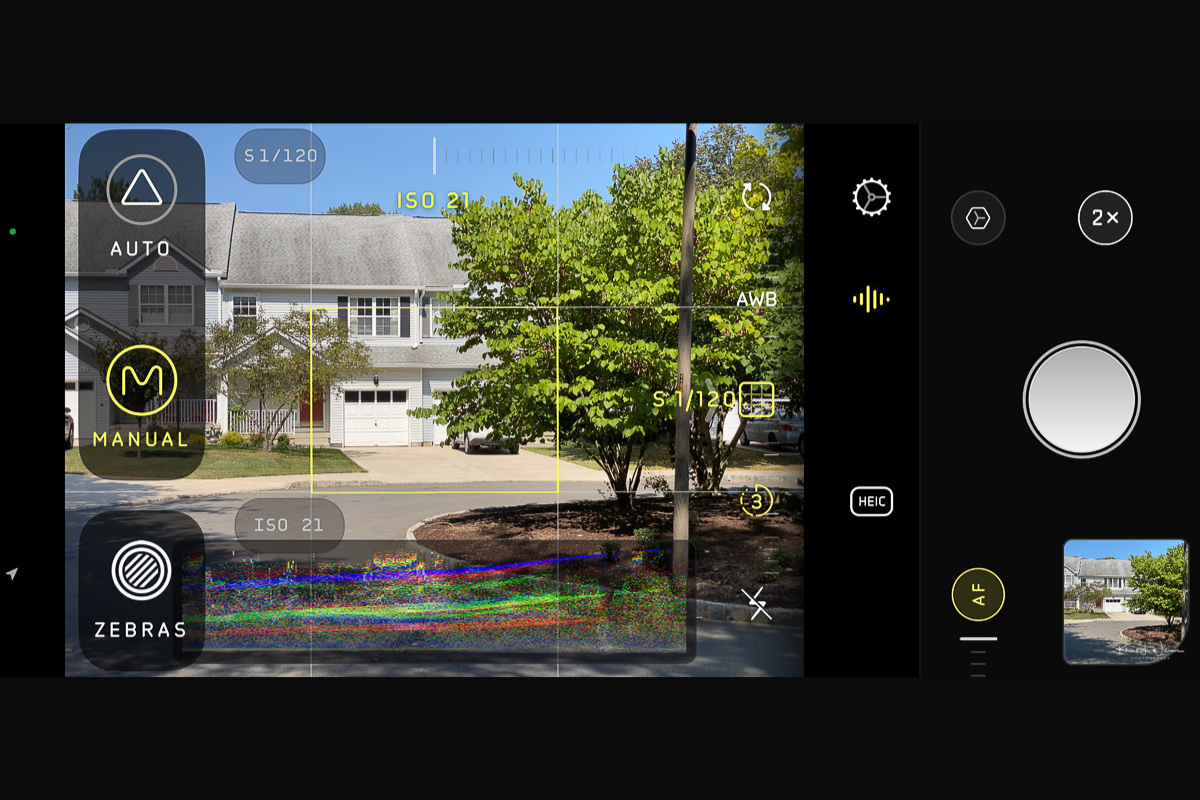
The most common reason for a zoomed-in iPhone screen is the Accessibility Zoom feature. This feature is designed for users who need larger text and icons, but it can be turned on accidentally. In some cases, display settings, app-level zoom, or system bugs can also cause the screen to stay enlarged.
Understanding the cause helps you apply the right fix without risking further issues.
Quick Fix: Use the Three-Finger Gesture
If your screen suddenly zooms in, try this first:
- Place three fingers on the screen
- Double-tap quickly with all three fingers
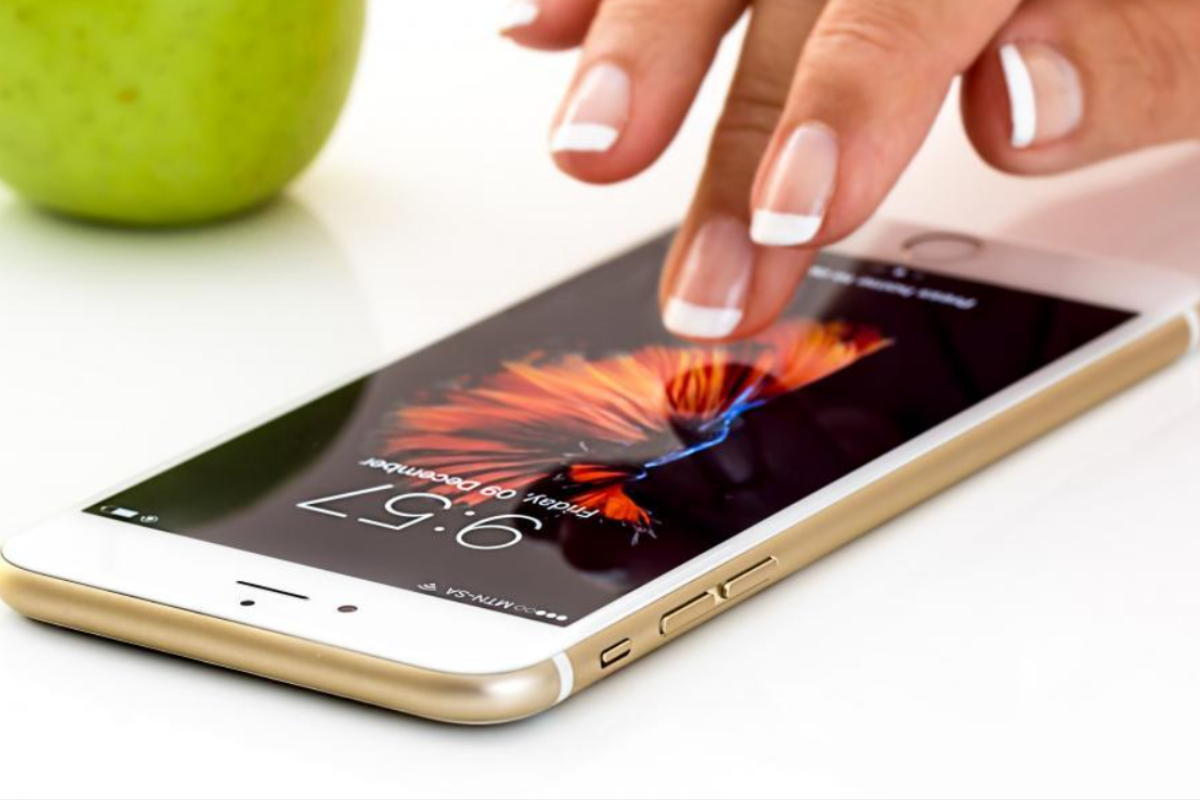
This gesture toggles Zoom on and off. If the screen returns to normal, the issue was caused by the Zoom accessibility feature. This is the fastest and safest fix, and it works on most iPhone models.
Turn Off Zoom from iPhone Settings
If the gesture doesn’t work or feels difficult to use, you can disable Zoom manually.
- Open Settings
- Go to Accessibility
- Tap Zoom
- Toggle Zoom off
If the screen is too zoomed in to tap accurately, use the three-finger drag gesture to move around the screen until you can reach the settings.
Check Display Zoom Settings
Some iPhones allow Display Zoom, which enlarges icons and text across the system.
- Open Settings
- Tap Display & Brightness
- Select Display Zoom
- Choose Standard
- Restart your iPhone to apply changes
This setting affects how content is displayed but does not involve accessibility zoom.
Restart or Force Restart the iPhone
A temporary software issue can sometimes cause display problems.
- Restart the iPhone normally
- If that doesn’t work, perform a force restart based on your model
This step refreshes the system and often resolves display glitches without data loss.
Update iOS to Avoid Display Bugs
Running an outdated version of iOS can lead to screen issues.
- Go to Settings > General > Software Update
- Install any available update
Updates often include bug fixes that address screen behavior and accessibility problems.
When Home Fixes Don’t Work
If the screen remains stuck in a zoomed-in state even after adjusting settings and restarting, there may be a deeper software or display issue. In rare cases, physical damage to the display can cause touch input to behave incorrectly, making the screen appear constantly zoomed.
At this point, it’s best to avoid random resets or third-party apps and consult a professional. A trained technician can diagnose whether the issue is software-related or requires screen attention. For users in the area, seeking Iphone repair Mississauga services ensures the problem is handled safely without risking your data.
Get Professional Help If Needed
If you’ve tried all the steps above and the issue persists, visiting a trusted Phone repair Mississauga shop is the safest option. Professionals can quickly identify the cause, restore proper display settings, and check for hidden hardware issues.
Always try simple settings fixes before assuming your iPhone screen is damaged. Many zoom issues are reversible in minutes. If not, expert repair support ensures your phone is restored without unnecessary replacements.
