
Your iPhone’s location services are essential for navigation apps, weather updates, Find My iPhone, and more. Sometimes, these features stop working because location services are off. Before rushing to a repair shop, you can try some simple fixes at home. This guide will walk you through turning on location services and checking related settings to ensure your iPhone functions as expected.
Step 1: Open Location Settings
- Unlock your iPhone and open the Settings app.
- Scroll down and tap Privacy & Security.
- Tap Location Services at the top of the screen.
Here, you’ll see whether location services are enabled. If the toggle is off, slide it to turn it on. This simple step solves most issues immediately.
Step 2: Adjust App-Specific Permissions
Location services can be enabled globally but restricted for individual apps. To ensure each app works correctly:
- Under Location Services, scroll to the list of apps.
- Select the app you want to use location features with (e.g., Maps, Weather, Find My).
- Choose the preferred setting: Always, While Using the App, or Ask Next Time.
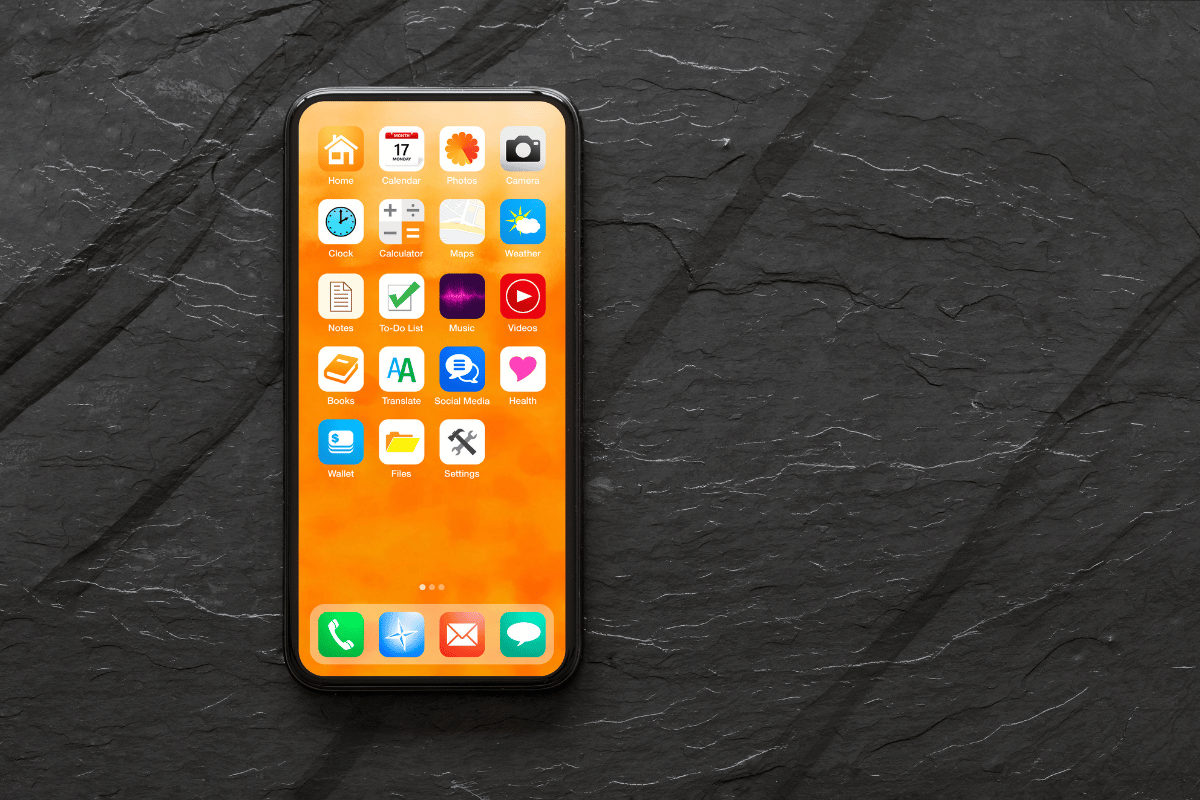
If an app still isn’t detecting your location, check that Precise Location is enabled. This option ensures your iPhone can pinpoint your location accurately.
Step 3: Check System Services
System services also rely on location data for certain functions:
- Scroll to the bottom of the Location Services page and tap System Services.
- Make sure options like Find My iPhone, Compass Calibration, and Location-Based Alerts are turned on.
Turning off these settings can prevent some essential iPhone functions from working properly.
Step 4: Restart Your iPhone
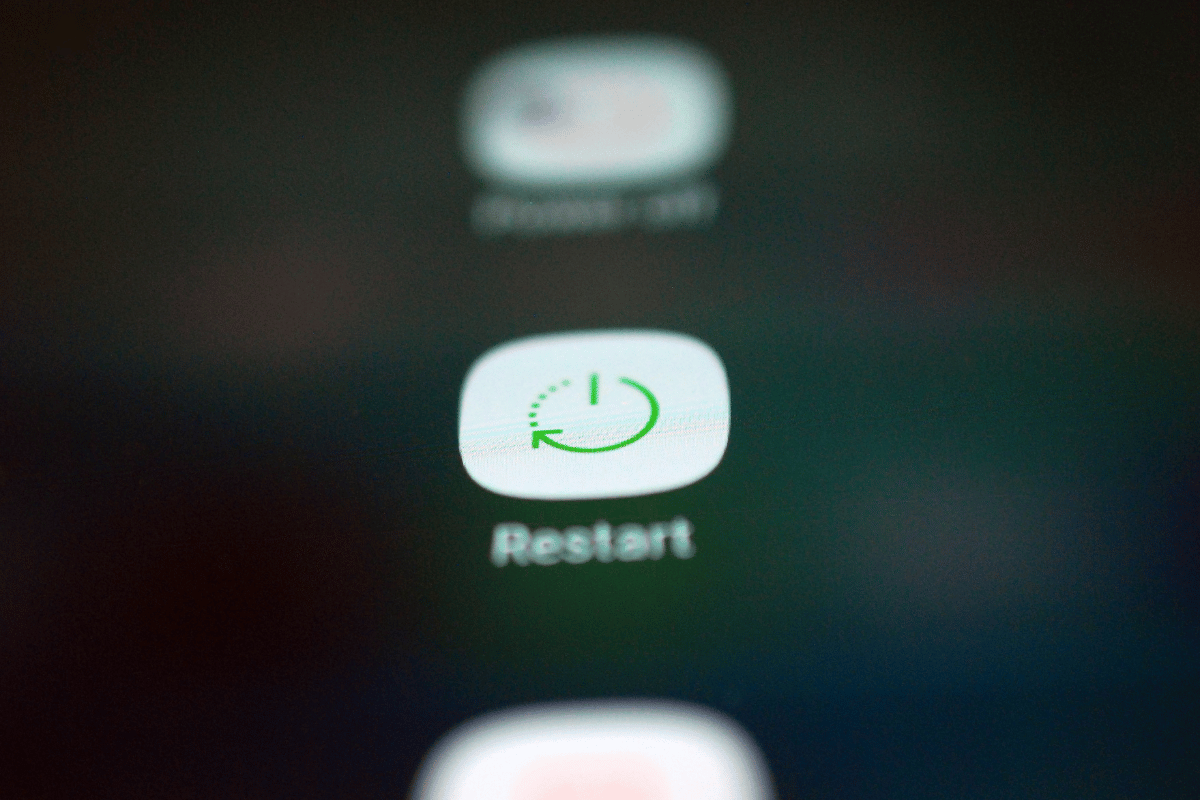
Sometimes settings are correct, but location still doesn’t work due to minor glitches. Restarting your iPhone can resolve these issues. Simply press and hold the power button and slide to power off. Wait a few seconds and turn the device back on.
Step 5: Update iOS
If your iPhone is running an outdated version of iOS, location services may malfunction. To update:
- Go to Settings > General > Software Update.
- If an update is available, follow the prompts to install it.
Keeping your device updated ensures all features work efficiently and reduces unexpected errors.
Step 6: When to Visit a Repair Shop
If you’ve tried all these steps and your iPhone still cannot detect location, there may be a hardware issue. For reliable solutions, visit a professional service. A local top rated phone repair store in Mississauga can check your iPhone thoroughly, fix any hardware issues, and ensure your location services work correctly.
Turning on and managing location services on your iPhone is straightforward. Start with the settings adjustments at home, check app permissions, system services, restart your device, and update iOS. If problems persist, professional help from cell phone repair Mississauga experts can get your iPhone back to full functionality.
