
An app update is supposed to bring performance improvements, bug fixes, and new features. However, many smartphone users experience the exact opposite scenario. Shortly after installing an update, applications start freezing, showing black screens, or closing unexpectedly.
When multiple applications crash simultaneously, the issue usually stems from corrupted temporary data, system cache conflicts, or compatibility glitches between the new app version and your operating system. Before panicking or heading to a repair shop, you can resolve most of these software conflicts using straightforward troubleshooting steps.
Step 1: Restart Your Device
A simple reboot clears temporary system files and closes lingering background processes that might be interfering with your apps.
- Press and hold your phone’s power button and volume up button simultaneously until the power menu appears.
- Tap Restart and wait for your phone to reboot fully.
- Test the crashing application to see if normal functionality has returned.
If a quick reboot does not solve the problem, the issue likely runs deeper than a temporary system glitch.
Step 2: Clear the App Cache and Data
Over time, cached data accumulates to speed up app loading times. When an update installs over an outdated cache, corrupted files often cause immediate crashes. Clearing this data forces the application to build a fresh, clean cache.
- Open your phone’s Settings menu.
- Navigate to Apps or App Management and locate the specific app that keeps crashing.
- Tap Storage & cache.
- Select Clear Cache first. Test the app.
- If crashes persist, return to the menu and select Clear Storage (or Clear Data). Note that clearing data will reset the app to its default state, meaning you may need to log back into your account.
Step 3: Update Android System Software
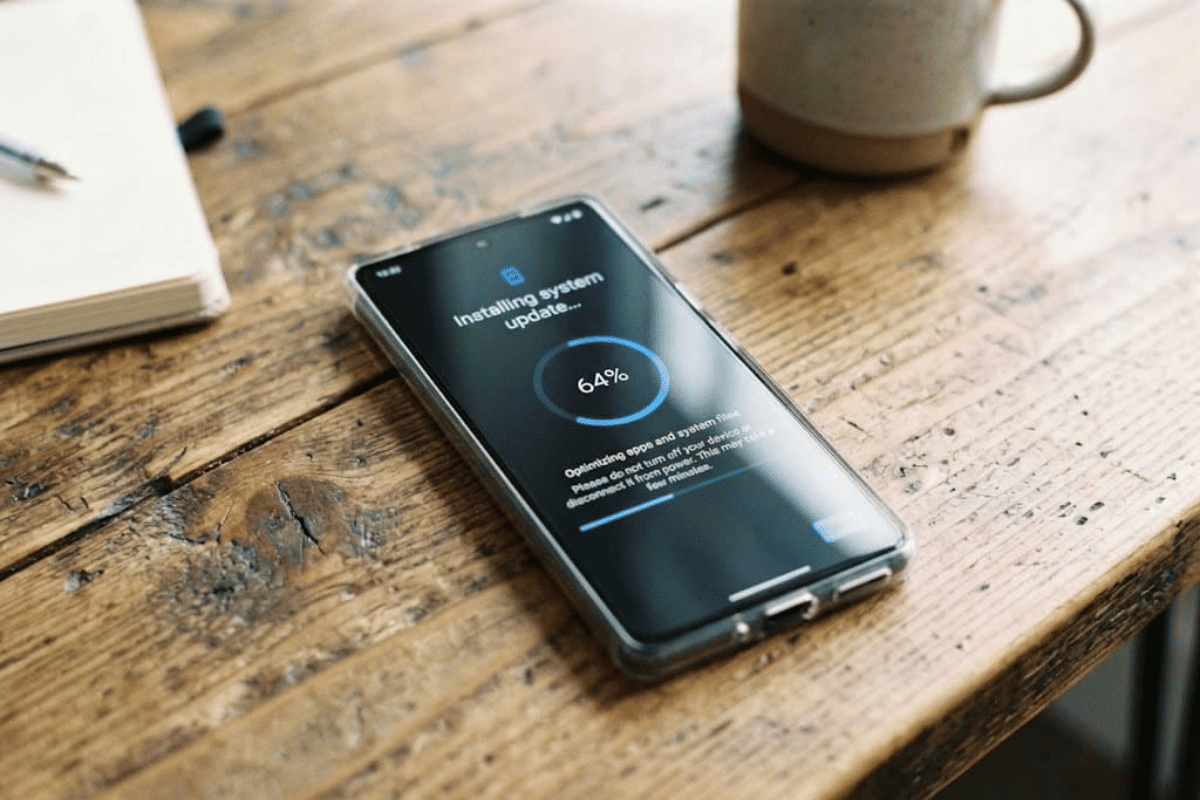
Sometimes, an individual app update relies on system dependencies or security patches that your current operating system version does not yet support. Ensuring your entire phone runs the latest software version resolves these conflicts.
- Open Settings.
- Scroll down and tap System or Software Update.
- Tap Check for updates and download any pending system files.
- Restart your phone after the installation finishes.
Step 4: Uninstall and Reinstall the Application
Corrupted installation packages can occur during download spikes or interrupted Wi-Fi connections. Removing the application entirely and downloading a fresh copy from the Google Play Store replaces any damaged files.
- Long-press the crashing app icon on your home screen or app drawer.
- Tap Uninstall or drag the icon to the trash bin.
- Open the Google Play Store, search for the application, and tap Install.
Step 5: Check App Permissions and Storage Space
Insufficient storage space or restricted permissions can prevent newly updated apps from writing temporary files, resulting in sudden force closes.
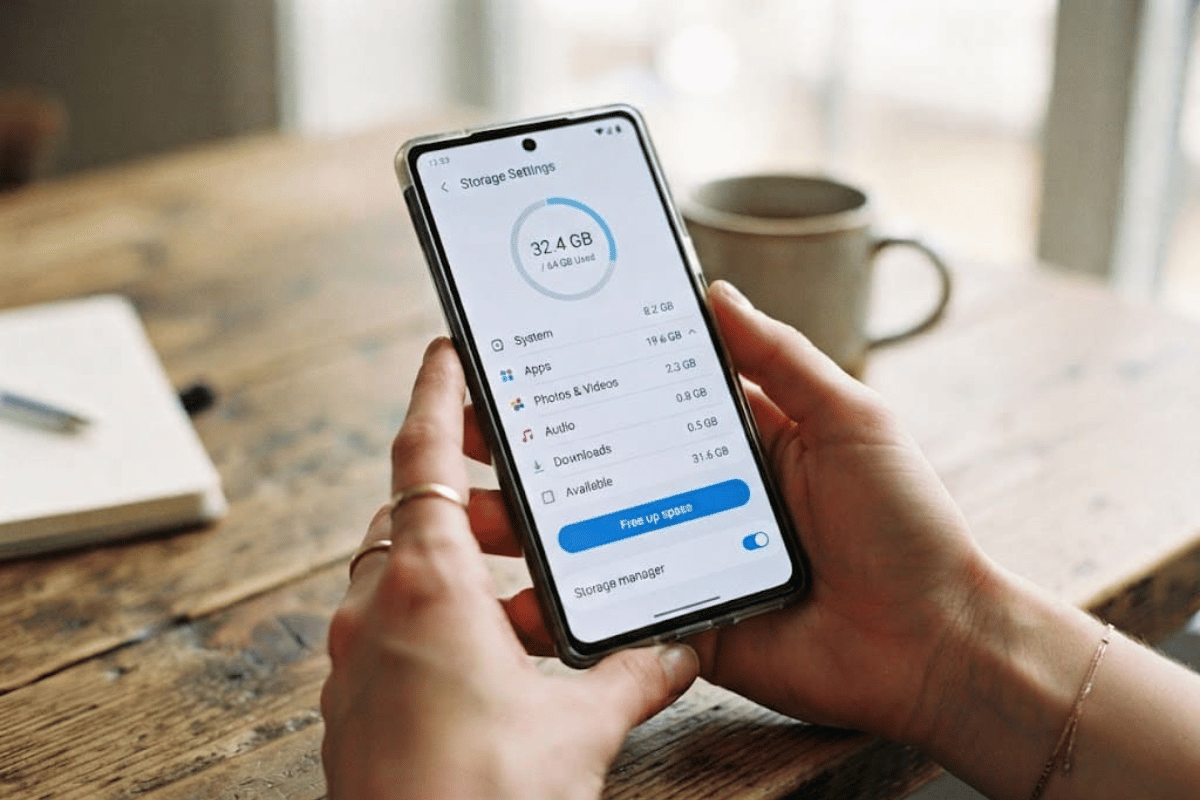
- Go to Settings and select Storage. Ensure you have at least 1GB to 2GB of free space available for smooth system operations.
- Navigate to Apps, select the problematic application, and tap Permissions. Ensure necessary permissions like storage or network access are granted.
Step 6: Clear the System Cache Partition
If multiple apps are crashing across your device after a major system update, clearing the system cache partition through recovery mode can eliminate leftover corrupted data from older firmware versions.
- Power off your phone completely.
- Press and hold the correct combination of hardware buttons (usually Power and Volume Down) until the bootloader menu appears.
- Use the volume buttons to highlight Recovery Mode and press the power button to select it.
- Navigate to Wipe cache partition using the volume keys, then confirm with the power button.
- Select Reboot system now once the process completes.
When to Seek Professional Help
If you have tried clearing caches, reinstalling software, and rebooting your device, but applications continue to crash across the entire operating system, the root cause may be hardware-related or stem from a corrupted firmware partition. Underlying storage failure, motherboard damage, or deep system corruption require specialized diagnostic tools.
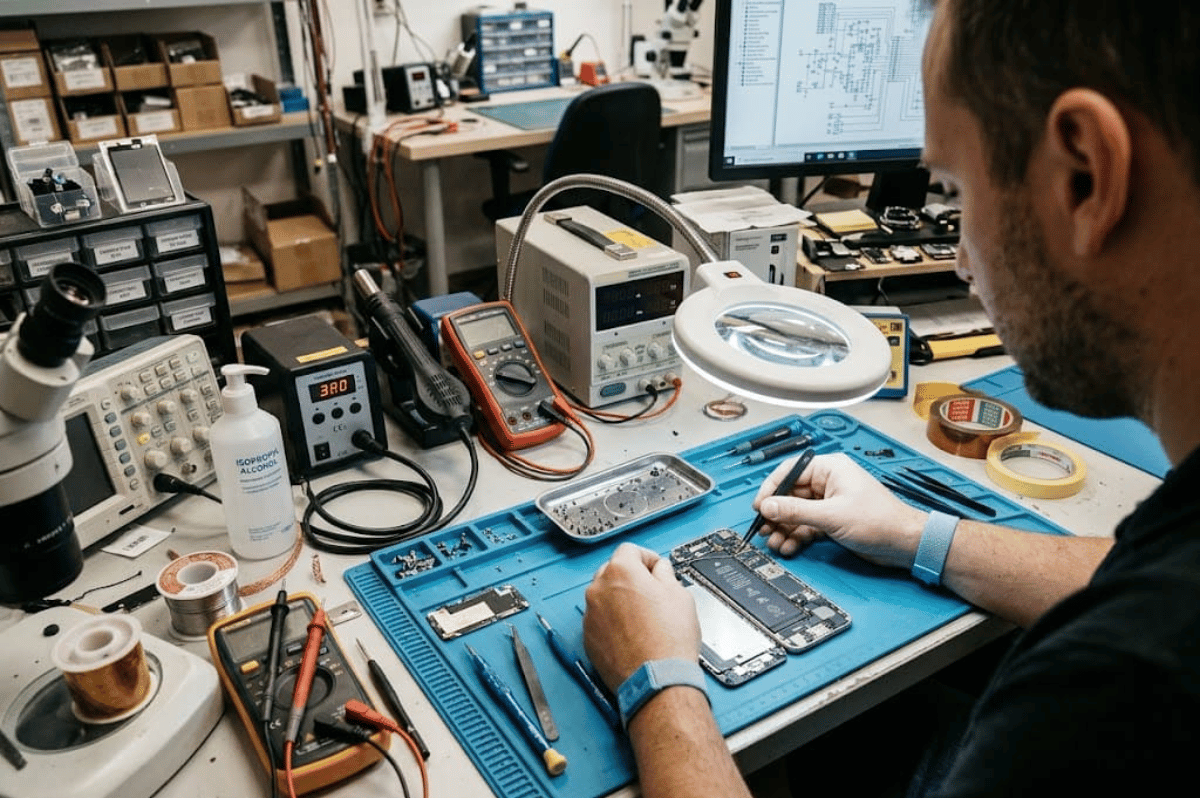
When software troubleshooting fails, professional technicians can diagnose hardware health, repair corrupted partitions, or evaluate physical components. For reliable diagnostic assessments and hardware troubleshooting, local device support is essential. Residents in the Peel region can rely on professional Phone repair Mississauga services to restore device stability. Whether you need a software overhaul, Cell phone repair, or advanced hardware diagnostics, expert technicians can get your device running smoothly again.