
Is Android Auto not connecting when you plug in your phone or start your car? A faulty USB cable, an incomplete setup, or a wireless pairing problem could be responsible. The connection issue may also come from your vehicle’s infotainment system rather than your phone.
This guide walks you through practical checks to help identify the cause. Park safely before changing settings or testing connections. Try one fix at a time so you can tell which step makes a difference.
1. Check Your Phone and Car Compatibility
Before troubleshooting, confirm that your vehicle supports the connection method you are using. Some cars support wired Android Auto but cannot connect wirelessly.
Google currently lists Android 9 or higher for most wired connections and Android 11 or higher for wireless connections and certain newer vehicles. Check the requirements for your specific phone and vehicle, especially if you are setting up Android Auto for the first time.
Check your owner’s manual for the correct USB port and Android Auto availability for your model and trim. Being able to make Bluetooth calls does not by itself confirm wireless Android Auto support.
2. Restart Your Phone and Infotainment System
Restarting both devices is a reasonable first step when a previously working connection suddenly fails.
- Disconnect your phone from the vehicle.
- Restart your phone using its power menu.
- Restart the infotainment system using the procedure in your vehicle’s manual.
- Confirm that Android Auto is enabled in the vehicle’s settings.
- Reconnect your phone and test again.
Restart procedures differ between vehicles, so avoid guessing button combinations or disconnecting the car battery. Chevrolet’s official troubleshooting guidance also recommends checking software, restarting both devices, and reconnecting.
3. If Android Auto Is Not Connecting Through USB
Try a Different Data Cable
A phone charging successfully does not prove that its USB data connection works.
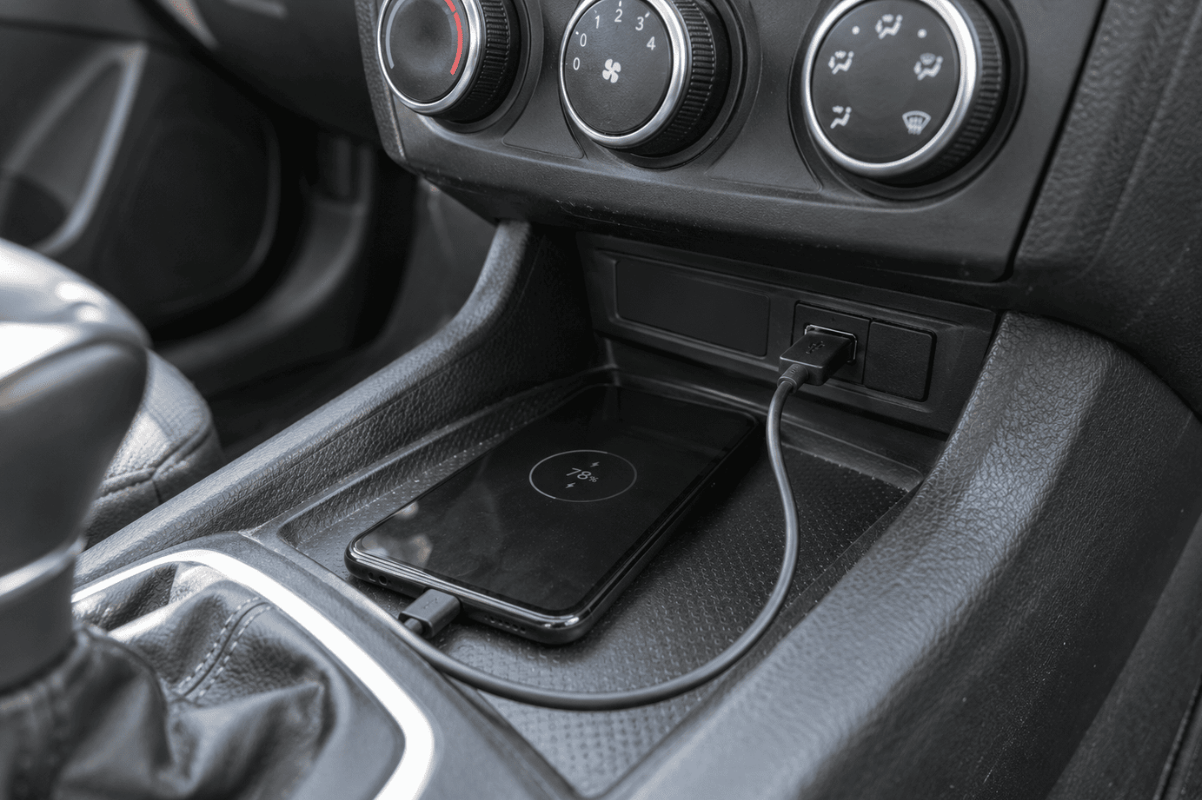
Test a known-good cable that supports data transfer. Google recommends a high-quality cable shorter than one metre, connected directly without a USB hub or extension. Replacing the cable is particularly useful when Android Auto previously worked and has stopped connecting.
Use the vehicle’s designated smartphone connection port. Other ports may be intended only for charging.
Inspect the Phone’s USB Port
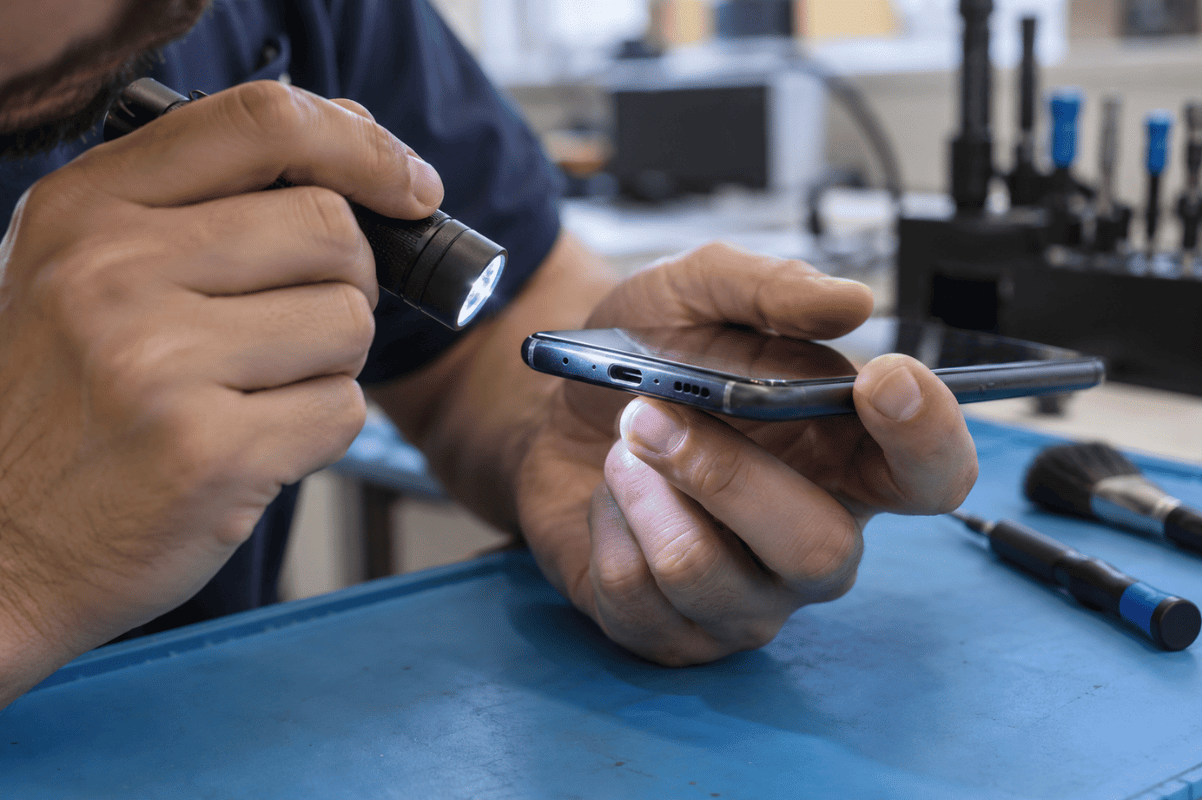
Disconnect the cable and examine the phone’s port under a light.
Look for:
- A connector that does not insert fully.
- Visible debris or damage.
- A connection that drops during normal movement.
- A case that prevents the plug from fitting securely.
Do not force the connector, insert metal tools, or pour cleaning liquid into the port. If the connection remains loose with multiple suitable cables, a professional inspection can help determine whether cell phone repair is necessary.
4. If Wireless Android Auto Is Not Connecting
Start by confirming that your car supports wireless Android Auto. Then complete the setup while parked:
- Turn on your phone’s Bluetooth and Wi-Fi.
- Keep Location Services enabled during setup.
- Open the vehicle’s phone-pairing menu.
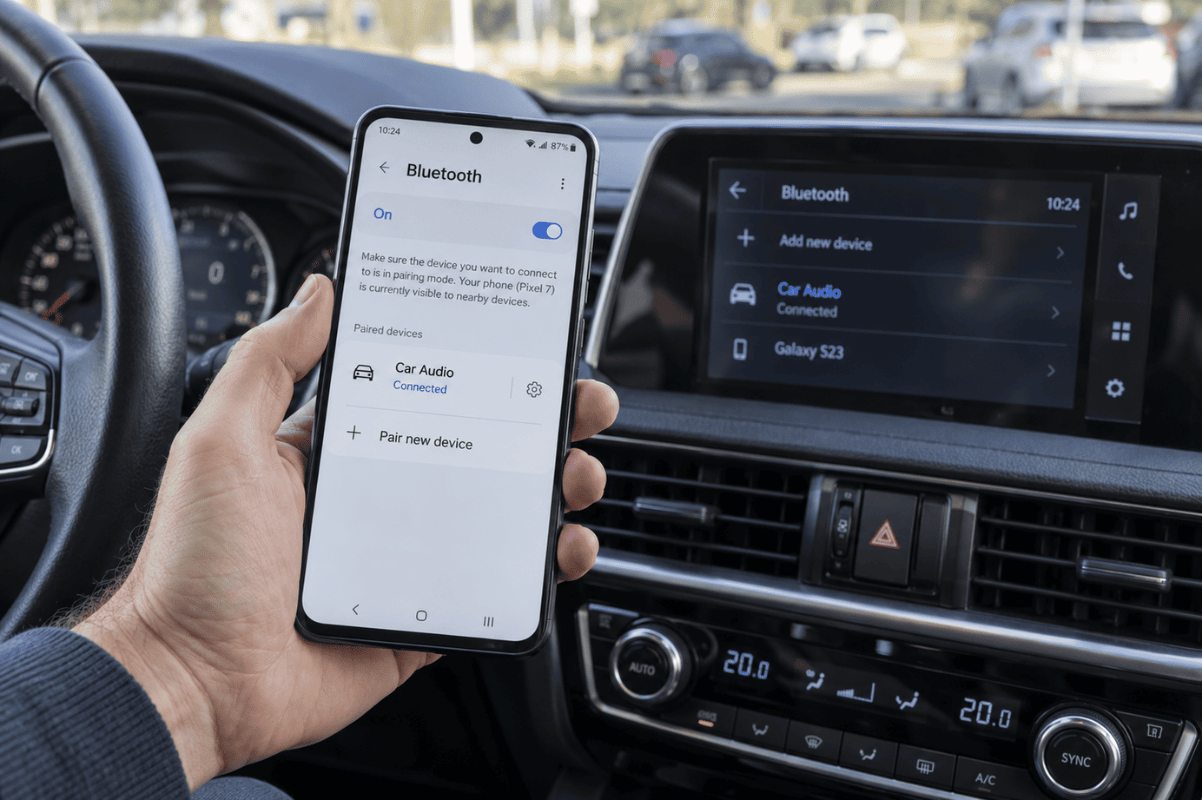
- Pair your phone through Bluetooth and follow the prompts on both screens.
- Select Android Auto on the car display if it does not open automatically.
Google recommends keeping Bluetooth, Wi-Fi, and Location Services enabled during the initial wireless setup.
If your vehicle also supports wired Android Auto, test it with a USB cable. A successful wired connection suggests that further troubleshooting should focus on wireless compatibility or pairing.
5. Remove the Saved Pairing and Connect Again
An existing pairing may need to be recreated.
- Remove your phone from the vehicle’s saved-device list.
- On your phone, open Bluetooth settings and forget the vehicle.
- Restart both devices.
- Pair them again and complete the setup prompts.
Chevrolet documents this process for resolving connection problems. Menu names vary across manufacturers.
You can also search your phone’s Settings for Android Auto, then open Previously connected cars. Google recommends Forget all cars when troubleshooting trouble connecting to a second vehicle. This removes saved Android Auto vehicle connections, so you will need to set them up again.
6. Check for Updates and Unfinished Setup Prompts
Check for available phone software updates and Android Auto updates through the official update tools on your device. Chevrolet includes keeping phone software current among its connection checks.
After updating, reconnect while parked and check your phone for unfinished setup screens. Google notes that Android Auto may request an update during setup. Complete the on-screen instructions before expecting it to appear on your dashboard.
For an aftermarket receiver, check its manufacturer’s website for firmware updates and installation instructions.
7. Work Out Whether the Problem Follows the Phone
Before paying for repairs, compare connections if another compatible phone or vehicle is available.
- Another phone works with the same car and cable: Your phone’s settings, software, or USB port deserve further checking.
- Multiple compatible phones fail in the same car: Investigate the vehicle’s settings, USB connection, or infotainment system.
- Your phone works in another compatible car: Contact the original vehicle’s manufacturer or dealer for guidance.
- Several cables disconnect from your phone: A port inspection may be appropriate.
These comparisons narrow down the possibilities. They do not prove that a particular component has failed.
When to Seek Professional Help
If Android Auto is still not connecting, record your phone model, Android version, vehicle year and model, connection method, and any error message. These details make support more useful.
If testing points to a loose or damaged phone port, contact Fix Phone Mississauga to discuss an assessment and options for phone repair in Mississauga. If several phones fail only in your vehicle, seek help from the vehicle or stereo manufacturer first.