If your Android phone keeps dropping its Bluetooth connection, the cause may be as simple as a low battery, a weak connection, or an accessory that is trying to connect to another device. A saved pairing, outdated software, or a phone fault is also possible. A disconnect by itself does not identify the cause.
Start by charging both devices, bringing them close together, and restarting them. If the problem continues, remove the saved pairing and connect again. Test another Bluetooth accessory to help determine whether the issue follows the phone or one particular device. Menu names vary across Android brands and versions, so check your phone maker’s instructions when a setting is hard to find. The steps below are for Android, not iPhone.
Quick checks before changing settings
Try these low-risk checks first:
- Check the battery on both devices. Charge your phone and the Bluetooth accessory, such as earbuds, a speaker, or a watch. Some accessories behave unreliably when their battery is nearly empty.
- Keep the devices close. Test them in the same room, with few walls or other obstacles between them. If the connection improves nearby, distance or interference may be contributing.
- Check whether the accessory is connected elsewhere. A headset or speaker may reconnect to a nearby tablet, laptop, or second phone. Disconnect it from that device and test it with your Android phone again.
- Notice what “disconnecting” means. Check whether the accessory disappears from the connected-device list, the sound stops while it still shows as connected, or the phone’s Bluetooth switch turns off. These are different symptoms and can point to different next steps.
- If you are in a car, test while parked. Do not adjust phone or vehicle settings while driving. A car’s Bluetooth system can have its own saved-device list and pairing instructions.
Common reasons Bluetooth connections drop
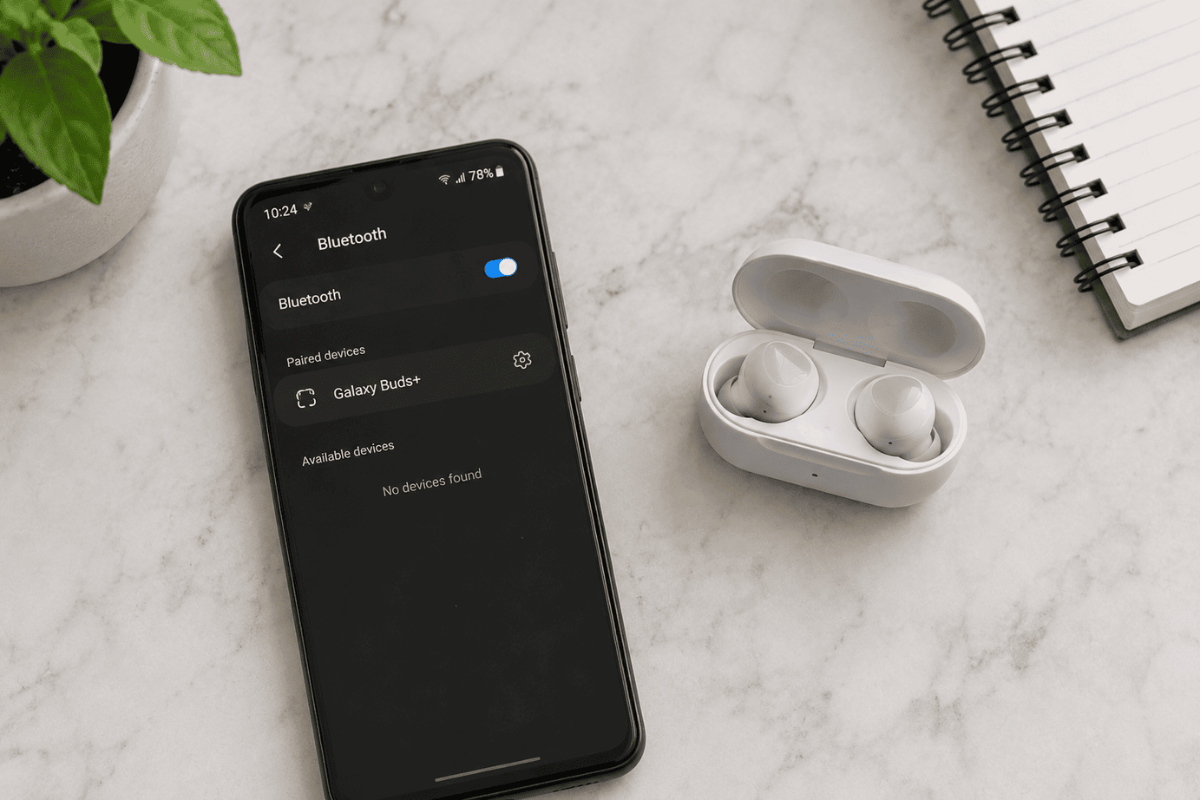
Bluetooth connects nearby devices over a short-range wireless signal. A connection can drop when the accessory loses power, moves out of range, or switches its connection to another device. A phone case or nearby obstacles may also affect the signal in some situations.
Sometimes the saved pairing between the two devices stops working correctly. Restarting and pairing again can refresh that connection. Software updates may also address compatibility or connection problems. Accessories such as car stereos, earbuds, and smartwatches may have their own updates or companion apps, so check the accessory maker’s instructions too.
If only one accessory disconnects, the issue may be with that accessory, its settings, or its compatibility. If several known-good accessories disconnect from the same phone, the phone’s settings, software, or wireless hardware may need further assessment. Neither pattern proves a particular part has failed.
Step-by-step troubleshooting
Try one step at a time and test the connection before moving on. This makes it easier to see whether a change helped.
1. Turn Bluetooth off and back on, then restart both devices
This is a good first step when a connection that used to work has started dropping unexpectedly.
- On your phone, open Settings and search for “Bluetooth,” or open the Bluetooth control from Quick Settings.
- Turn Bluetooth off, wait a few seconds, then turn it on again.
- Turn the accessory off and back on. Use its manual if you are unsure how.
- Restart your phone from its power menu, then reconnect the accessory.
Look for a stable connection during a short test. If the accessory still disconnects, continue to the pairing and comparison steps. For a Galaxy phone, Samsung describes its restart and Bluetooth checks in its Bluetooth troubleshooting guide.
2. Forget the accessory and pair it again
Try this if the accessory keeps disconnecting despite having charge and being nearby. Forgetting a device removes its saved Bluetooth pairing. It does not factory reset your phone, but you will need to pair that accessory again.
- Open your phone’s Bluetooth settings.
- Find the accessory in the list of saved devices.
- Tap its settings icon and choose Forget, Unpair, or a similar option.
- Put the accessory into pairing mode using its manual.
- On your phone, choose Pair new device or the equivalent, then select the accessory and follow the prompts.
On many Samsung Galaxy phones, the path is Settings > Connections > Bluetooth. On Pixel phones, Google’s guide uses Settings > Connected devices and then the Bluetooth controls. Names and layouts can vary by model and software version.
For a vehicle, remove the phone from the car’s saved-device list as well as forgetting the car on your phone. Follow the vehicle manual to clear and recreate the pairing. If the connection stays stable with other accessories but not the car, the car’s settings or infotainment system may need attention.
3. Check sound settings and the accessory’s app
If the accessory still appears connected but sound or calls stop, check the settings for that device. This is relevant for earbuds, headsets, and car systems where media audio and call audio can be controlled separately.
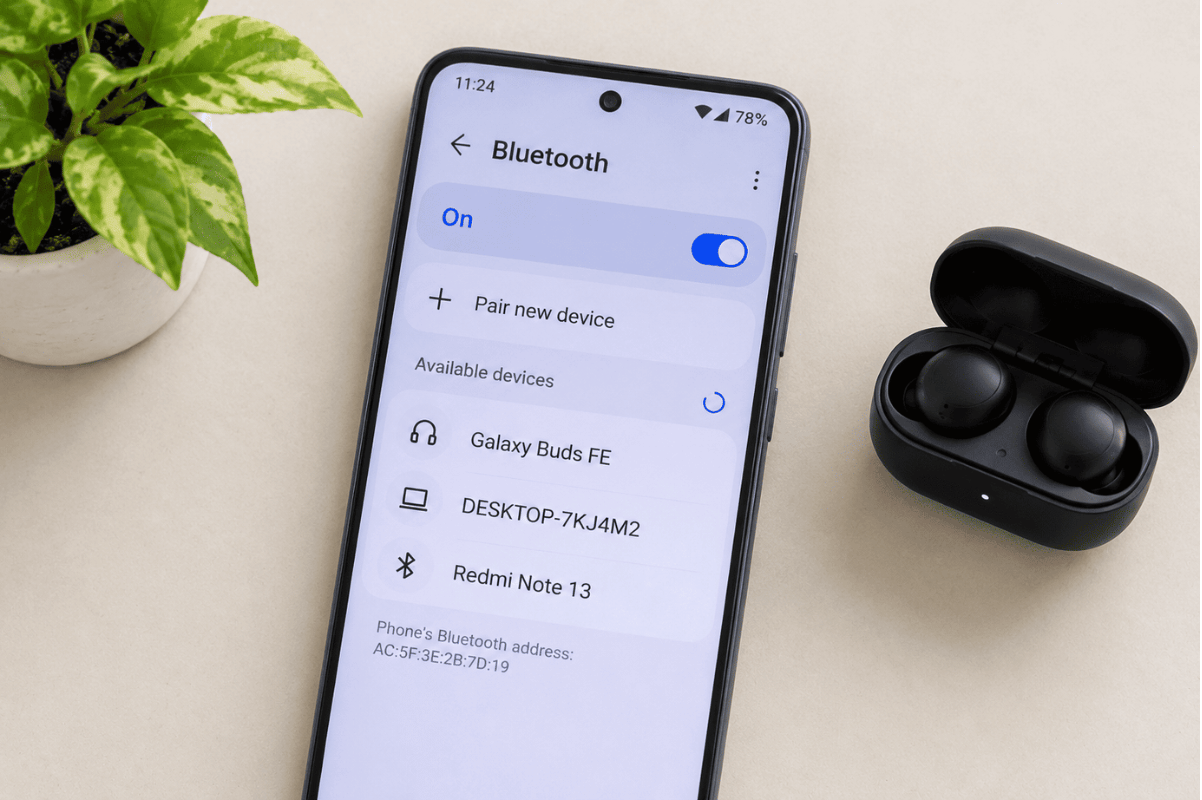
- In Bluetooth settings, tap the gear or settings icon beside the accessory.
- Check that the relevant option, such as Media audio or Phone audio, is enabled if it appears.
- If the accessory requires a companion app, open it and check its connection instructions and available updates.
These controls are not identical on every Android phone or accessory. If you do not see the same wording, search Settings or check the accessory maker’s support page. If the accessory shows as connected but audio still goes somewhere else, disconnect other paired devices and test again.
4. Update the phone and accessory
An update may help when the problem began after a software change or when the phone and accessory have not been updated for some time. Check the phone maker’s instructions for your model.
- Open Settings and search for Software update or System update.
- If an update is offered, install it using the phone’s on-screen directions. Keep the phone charged and connected as instructed.
- Check the accessory maker’s instructions or its official companion app for a firmware update. Firmware is the software built into the accessory.
- Restart both devices and test the connection again.
Do not install unofficial updates or files from unfamiliar sites. If the issue began immediately after an update and continues across multiple accessories, note the phone model, Android version, and when the problem started. That information can help the manufacturer or a repair professional investigate.
5. Test another accessory, and test the original accessory elsewhere
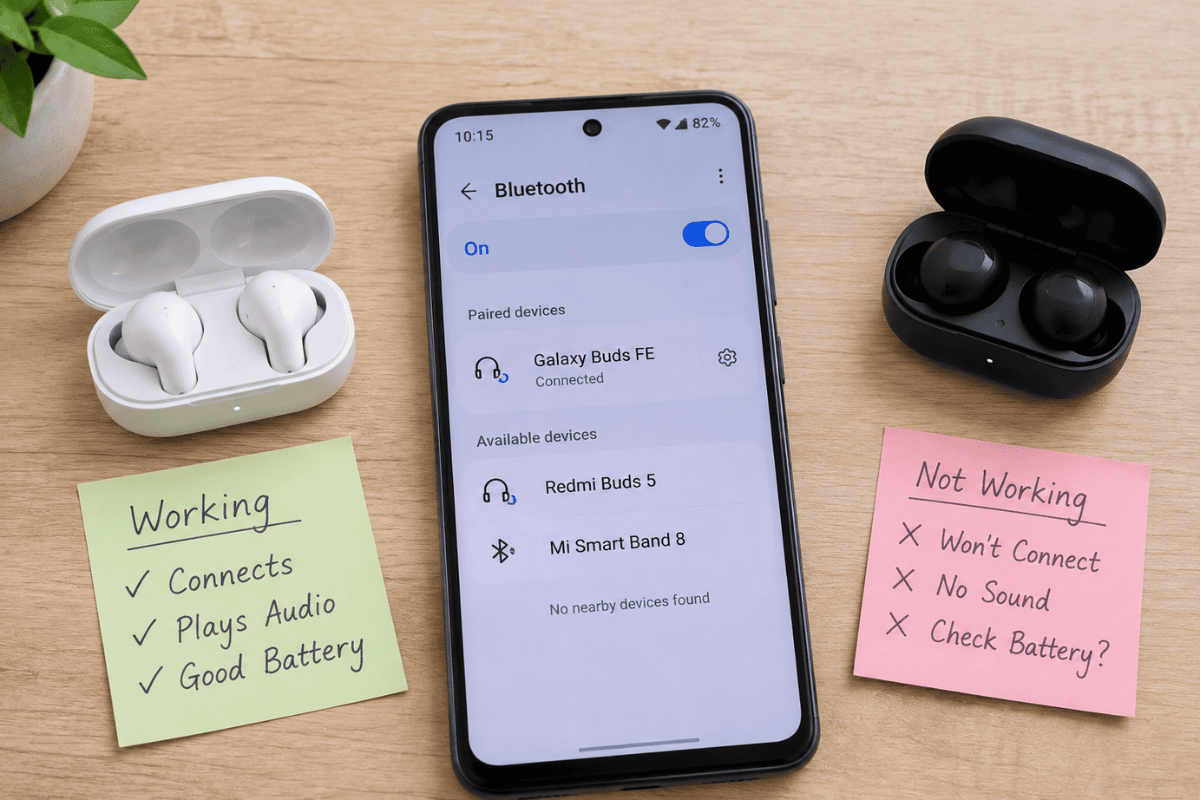
This comparison can help narrow down whether the problem appears limited to one accessory or follows the phone.
- Pair a different Bluetooth accessory with your Android phone and test it in the same location.
- If possible, connect the original accessory to another compatible phone, tablet, or computer.
- Compare what happens, including whether the connection drops, the accessory disappears, or audio alone stops.
If the original accessory drops on multiple devices but another accessory stays connected to your phone, the accessory may need troubleshooting from its manufacturer. If multiple accessories disconnect from your phone but work elsewhere, a phone setting, software issue, or hardware fault may be involved. These are clues, not a diagnosis.
6. Consider a Bluetooth and Wi-Fi settings reset
Try this only after the simpler steps, especially if several accessories disconnect or the issue began after settings changed. This reset removes saved Bluetooth and Wi-Fi connections, so you will need to pair accessories again and reconnect to Wi-Fi networks. It is not the same as a factory reset and should not erase your photos or messages. Read your phone’s confirmation screen before proceeding.
Menu paths differ. On recent Samsung Galaxy phones, the option may be under Settings > General management > Reset > Reset Wi-Fi and Bluetooth settings. On Pixel phones, Google lists Settings > System > Reset options > Reset Bluetooth & Wi-Fi. Other Android brands may use a different label or location. Samsung also notes that connection information may be removed when its reset is used. See the current Samsung connection guidance or Google Pixel Bluetooth help for device-specific details.
After the reset, restart the phone, reconnect to Wi-Fi if needed, and pair one accessory. Test it before reconnecting all your devices. If it still drops, contact the phone or accessory manufacturer, or consider a professional assessment.
7. Use built-in diagnostics if your phone offers them
Some models include a Bluetooth diagnostic tool. For example, Google says Bluetooth diagnostics are available on Pixel 6 and newer, including Pixel Fold. On those phones, the path is Settings > Connected devices > Bluetooth diagnostics. Samsung Members also offers Bluetooth phone diagnostics on supported Galaxy devices with the app installed.
Follow the on-screen instructions and review any information-sharing details before submitting diagnostic data. If diagnostics report a problem, or the connection still fails across several accessories, share the results with the manufacturer or a repair professional. Not every Android model has the same tool.
When to stop troubleshooting
Stop using or charging the phone if its battery appears swollen, the phone is smoking, or it becomes unusually hot. Do not press on a swollen case, open the phone, or try to handle a damaged battery. Seek appropriate professional help.
Also arrange an assessment if the phone has visible damage, was recently exposed to liquid, or Bluetooth problems began after a drop. Avoid repeatedly resetting settings if nothing changes. If the phone’s Bluetooth switch itself turns off repeatedly, several accessories disconnect, or the phone cannot find nearby devices, further diagnosis may be more useful than repeating basic pairing steps.
What to expect from professional repair
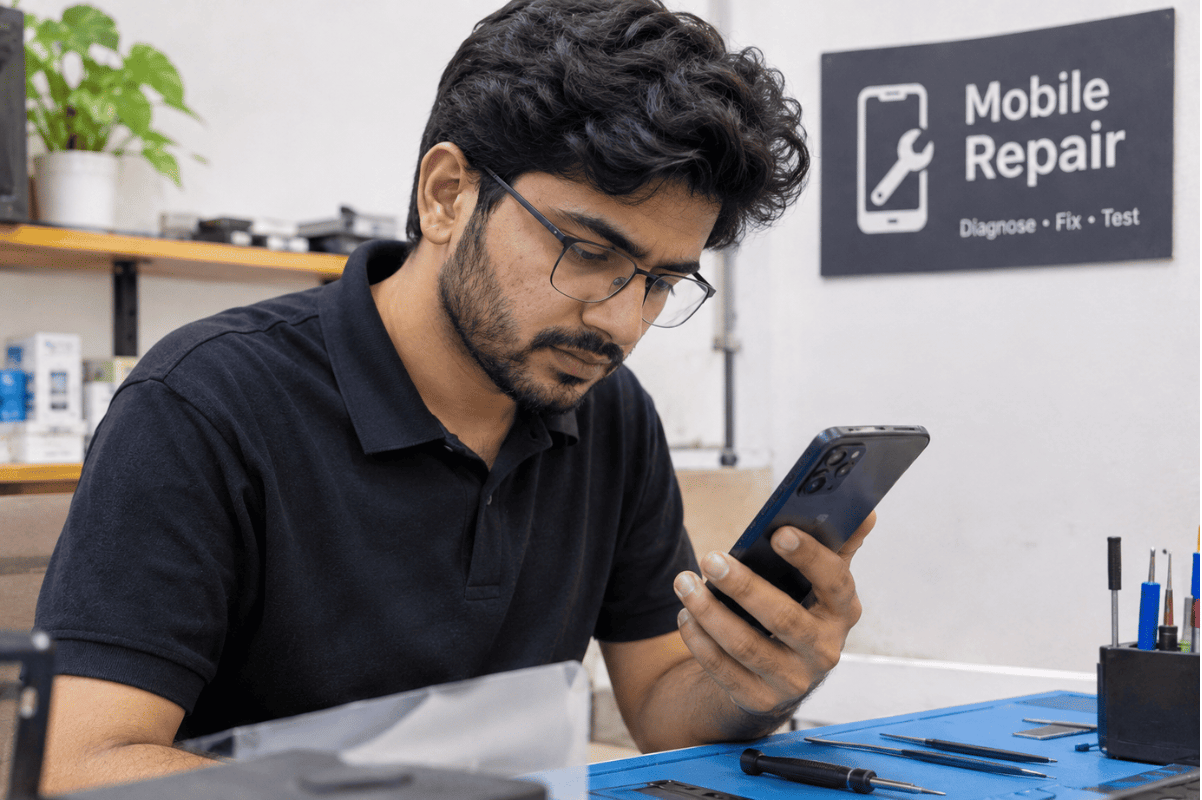
A repair professional can ask when the disconnects occur, compare the phone’s behaviour with another accessory, and check whether the issue follows the phone. They may review the model’s settings and software or inspect the phone if there is a history of impact or liquid exposure. Further steps depend on the findings. A symptom alone does not establish which component, if any, needs repair.
Fix Phone Mississauga lists Android phone repair in Mississauga. Contact the shop first to ask whether it can assess your Bluetooth symptoms and what information to bring, such as the phone model, Android version, accessory model, and steps you have already tried. For details, see its Phone repair Mississauga page. A professional cell phone repair assessment may be appropriate when several working accessories fail with one phone or when physical damage is involved.
Ways to reduce future Bluetooth problems
- Keep your phone and accessory charged, especially before a long drive or trip.
- Install updates through the phone maker’s settings and the accessory maker’s official app or instructions.
- When a headset or speaker disconnects, check whether it has switched to another nearby device.
- Keep the phone and accessory within a practical range and test without obstacles if the signal seems inconsistent.
- Save the accessory’s pairing instructions. If you need to pair again, use its model-specific steps rather than guessing.
- For a vehicle, follow the vehicle manual and keep its saved-device list current.
Frequently asked questions
Why does my Android Bluetooth disconnect when the screen is off?
There is no single cause. The accessory may be switching devices, the connection may be weak, or phone or accessory software may be involved. First test with the phone nearby, confirm the accessory is not connecting elsewhere, and compare with another accessory. If the problem happens only with one app, check that app’s settings and updates.
Will resetting Bluetooth and Wi-Fi delete my photos?
A Bluetooth and Wi-Fi settings reset is different from a factory reset. It removes saved connection information, such as Wi-Fi networks and Bluetooth pairings, so you will need to reconnect them. It should not be used without reading the confirmation screen, since the exact effects can vary by phone.
Should I factory reset my Android phone?
A factory reset erases the phone’s data and settings. It is not a first step for an isolated Bluetooth problem. Consider it only after less disruptive steps have failed, the phone maker recommends it, and you have made and checked a backup. If several devices fail to connect, contact the phone maker or seek an assessment before erasing your phone.
Do these instructions apply to iPhone?
No. The menu paths here are for Android phones, and Android settings vary by manufacturer. iPhone settings and reset procedures are different. If an iPhone is the device disconnecting, use Apple’s guidance for that model instead.
A sensible next step
Start with charge, range, a restart, and a fresh pairing. If several working accessories still disconnect from your Android phone, or the phone is damaged or unusually hot, stop repeating resets and seek advice. If you are in Mississauga, contact Fix Phone Mississauga to ask whether it can assess the problem.