
Bluetooth headphones, earbuds, speakers, and car audio systems can sometimes have volume problems on Android. You may notice that your phone and Bluetooth device change volume together, the volume is too low, or the volume jumps unexpectedly.One setting that can help with certain Bluetooth compatibility problems is Disable absolute volume. This guide explains what it does, how to enable it, and what to try if it does not solve the problem.
What Is Absolute Bluetooth Volume on Android?
Absolute volume allows your Android phone and connected Bluetooth device to share volume control. For example, changing the volume on your phone may also change the volume on your Bluetooth headphones or speaker.This normally makes Bluetooth audio easier to control. However, some older or incompatible Bluetooth devices can behave incorrectly when both devices are controlling the same volume level.Turning on Disable absolute volume separates the volume controls. Your phone and Bluetooth accessory can then manage their volume levels independently.
How to Enable Disable Absolute Volume
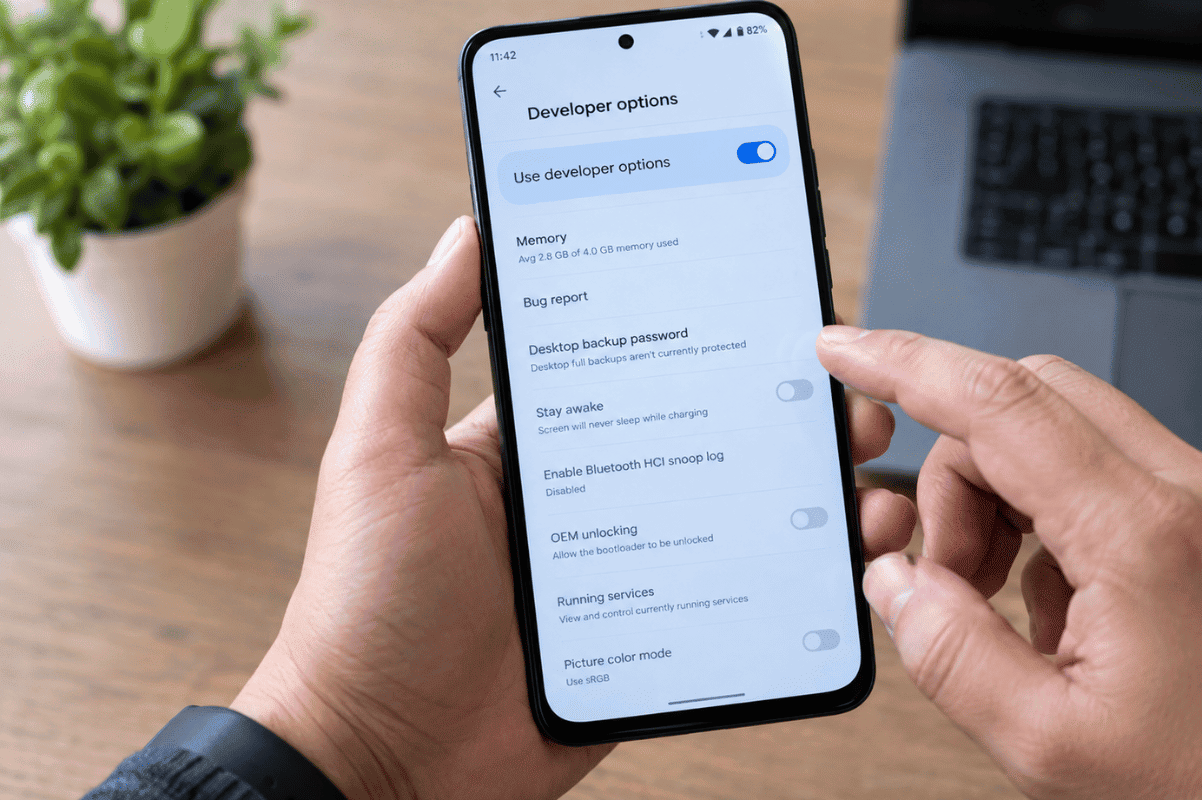
The setting is normally found inside Android’s Developer Options. The exact menu names can vary by phone manufacturer and Android version.
Step 1: Enable Developer Options
- Open Settings.
- Tap About phone.
- Find Build number.
- Tap Build number seven times.
- Enter your PIN, password, or pattern if requested.
- You should see a message confirming that Developer Options have been enabled.
On some Android phones, the Build number may be located under Software information.
Step 2: Open Developer Options
Return to the main Settings menu and look for:
Settings > System > Developer options
On Samsung, Xiaomi, OnePlus, Motorola, and other Android phones, the location can be different. Use the Settings search bar and search for Developer options if you cannot find it.
Step 3: Find Disable Absolute Volume
Scroll through Developer Options until you find Disable absolute volume. It may appear under a Bluetooth or Networking section.
Turn the switch ON.
The wording can be confusing. You are enabling the option called “Disable absolute volume,” so the toggle needs to be turned on to disable the shared volume control.
Restart and Reconnect Your Bluetooth Device
After changing the setting, restart your Android phone. Then disconnect and reconnect your Bluetooth headphones, earbuds, speaker, or car audio system.You may need to adjust the volume separately on both devices. Start at a low volume and gradually increase it to a comfortable level.Google’s Android community has documented this setting as a troubleshooting step for Bluetooth volume conflicts, although its availability and effectiveness can vary between devices.
What If Disable Absolute Volume Does Not Work?
The setting does not fix every Bluetooth volume problem. Try these steps before assuming your phone has a hardware fault:
Forget and Re-Pair the Bluetooth Device
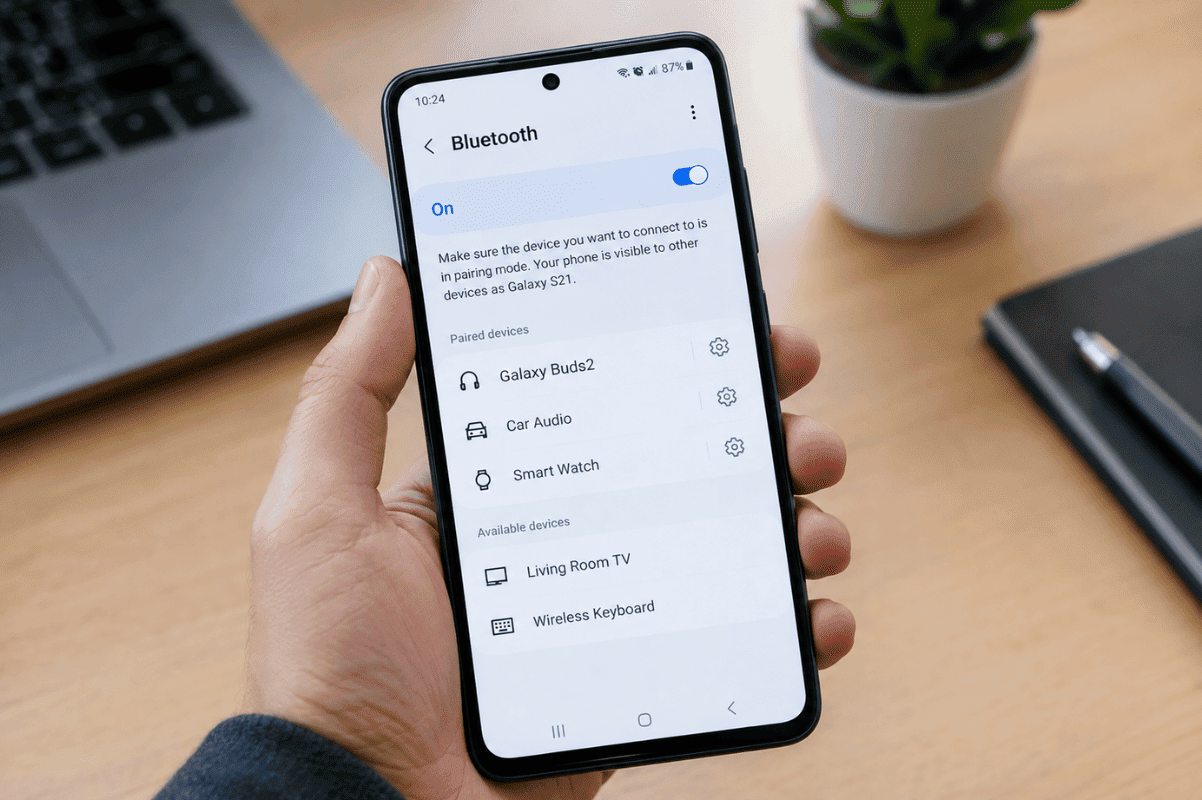
Go to your Bluetooth settings, select the connected device, and choose Forget or Unpair. Restart the phone and pair the device again.
Test Another Bluetooth Device
Connect a different pair of headphones or another speaker. If the second device works normally, the original accessory may have a compatibility or firmware problem.
Check for Android Updates
Install available system updates and update your Bluetooth accessory’s companion app or firmware if the manufacturer provides one.
Check Whether the Problem Is Only in One App
If Bluetooth audio works normally in other apps, the issue may be related to the specific music, video, or audio application rather than Android’s Bluetooth system.
When Should You Get Professional Help?
If Bluetooth audio remains unreliable after trying these steps, the problem could involve software, Bluetooth configuration, the accessory, or the phone’s hardware.A professional Cell phone repair technician can test the phone with different Bluetooth devices and determine whether the problem is software-related or requires further repair.For users searching for Phone repair Mississauga, a local repair shop can also help diagnose persistent Bluetooth, speaker, charging, or connectivity problems before you consider replacing the phone.The Disable absolute volume setting is worth trying when your Android phone has Bluetooth volume compatibility problems. Because Android menus differ between manufacturers and software versions, you may not see the setting on every device.Try the simple troubleshooting steps first. If the issue continues across multiple Bluetooth devices, professional diagnosis can help identify whether the problem is with the phone or the accessory