When Android File Transfer stops working, moving photos, videos, or documents between your phone and computer can become frustrating. The good news is that many connection problems have simple solutions you can try yourself.
This guide walks you through the most common causes and practical fixes. If none of these steps solve the problem, the issue may involve your phone’s hardware, charging port, or internal storage, which may require professional inspection.
Why Android File Transfer Stops Working
Several issues can prevent your Android device from connecting properly:
- Faulty USB cable
- Damaged USB port
- Incorrect USB mode selected
- Outdated software
- Corrupted Android File Transfer app
- Storage permission issues
- Hardware damage inside the phone
Finding the actual cause makes troubleshooting much easier.
1. Check Your USB Cable First
Many USB cables only support charging and cannot transfer data.
Try these steps:
- Use the original cable that came with your phone.
- Test another USB data cable.
- Connect directly to your computer instead of using a USB hub.
- Try another USB port.
A cable that charges normally may still fail during file transfers.
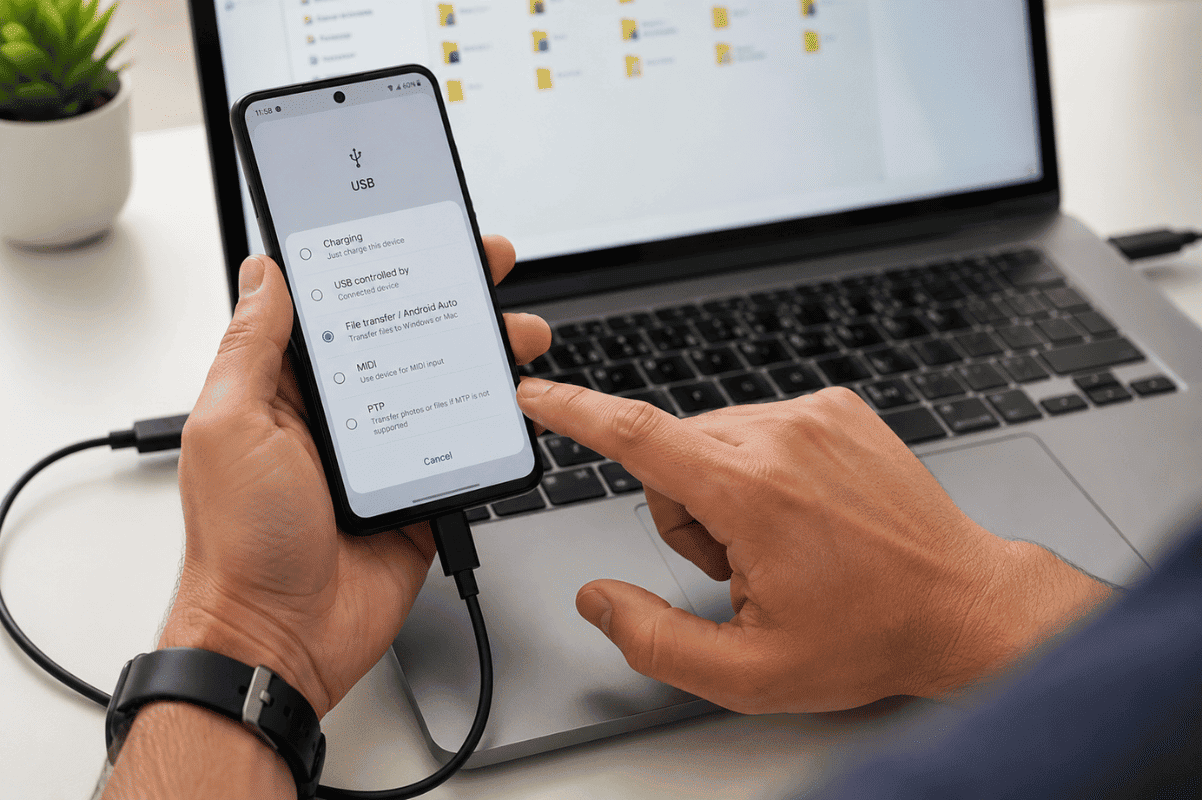
2. Select the Correct USB Connection Mode
Android devices usually default to charging mode.
After connecting your phone:
- Unlock the device.
- Swipe down the notification panel.
- Tap the USB notification.
- Select File Transfer (MTP) or Transfer Files.
If this option is not selected, your computer may never detect your phone’s storage.
3. Restart Both Devices
A simple restart often clears temporary software glitches.
Restart:
- Your Android phone
- Your Windows PC or Mac
Reconnect the phone after both devices finish rebooting.
4. Update Android File Transfer (Mac Users)
If you’re using a Mac, the Android File Transfer application itself may be outdated or corrupted.
Try:
- Closing the application completely.
- Reinstalling the latest version.
- Disconnecting and reconnecting your phone.
If the app freezes immediately after launch, reinstalling often resolves the issue.
5. Check for Android Software Updates
Older Android versions sometimes develop compatibility issues with newer operating systems.
To check:
Settings > Software Update > Download and Install
Install any available updates before testing the connection again.
6. Enable File Transfer Permissions
Some Android devices require additional permission before allowing access.
After connecting:
- Unlock the phone.
- Accept any permission requests.
- Allow your computer to access files.
Ignoring these prompts can prevent successful transfers.
7. Free Up Internal Storage
If your phone storage is nearly full, transferring files may fail.
Check available storage:
Settings > Storage
Delete:
- Large videos
- Duplicate photos
- Old downloads
- Unused apps
Then reconnect your phone and try again.
8. Test on Another Computer
This helps determine whether the issue is with the phone or the computer.
If the phone works on another computer:
- Your original computer may have driver issues.
- USB settings may be corrupted.
- Security software could be blocking the connection.
If the phone fails on multiple computers, the problem is more likely with the phone itself.
9. Clean the Charging Port Carefully
Pocket lint and dust commonly collect inside USB-C and Micro USB ports.
Use:
- Compressed air
- A soft plastic cleaning tool
- A flashlight to inspect the port
Avoid using metal objects, which can permanently damage the charging connector.
10. Check for Physical Damage
If your phone has recently been:
- Dropped
- Exposed to water
- Bent
- Frequently disconnected while charging
The USB connector or internal motherboard may have developed damage.
This type of fault cannot usually be fixed with software troubleshooting.
Signs You May Need Professional Repair
Home troubleshooting has limits.
Consider professional assistance if:
- The computer never detects the phone.
- USB charging works but file transfer never starts.
- The connection repeatedly disconnects.
- The charging port feels loose.
- The phone only connects at certain angles.
- You see moisture or corrosion inside the charging port.
These symptoms often indicate a hardware issue that requires proper diagnosis.
A technician can inspect the charging port, USB controller, and internal board for damage. In some cases, advanced Micro Soldering may be required to restore data transfer functionality without replacing the entire device.
Prevent Future File Transfer Problems
To reduce future issues:
- Use quality USB data cables.
- Disconnect the cable safely after transfers.
- Keep the charging port clean.
- Install Android updates regularly.
- Avoid pulling the cable at an angle.
Good habits help protect both your charging port and your data.
When to Visit a Repair Shop
If every troubleshooting step fails, continuing to reconnect the phone usually won’t solve the problem.
A professional technician can quickly determine whether the issue is caused by software, the charging port, or internal hardware. If you’re looking for reliable Phone repair Mississauga having the device inspected early can prevent further damage and improve the chances of a successful repair.
Most Android File Transfer problems are caused by simple issues such as the wrong USB mode, a faulty cable, outdated software, or permission settings. Working through these fixes one by one can often restore file transfers without spending any money.
If your phone still refuses to connect after trying everything in this guide, the problem is likely hardware-related. At that point, professional diagnosis is the safest way to protect your device and recover normal file transfer functionality.