If your Android screen keeps turning off while you are using your phone, the problem may be caused by a simple setting, battery issue, software glitch, or a faulty component. Before paying for a repair, there are several safe troubleshooting steps you can try at home.
This guide explains the most common causes and what to do if your Android screen continues turning off.
Why Does My Android Screen Keep Turning Off?
An Android phone may turn its display off unexpectedly because of:
- A short screen timeout setting
- Battery-saving features
- A software glitch
- An overheating phone
- A faulty power button
- A damaged charging port or cable
- A screen or internal hardware problem
If the phone works normally after a simple setting change or restart, professional service may not be necessary.
1. Check Your Screen Timeout Setting
Your screen may be turning off because the screen timeout is set too low.
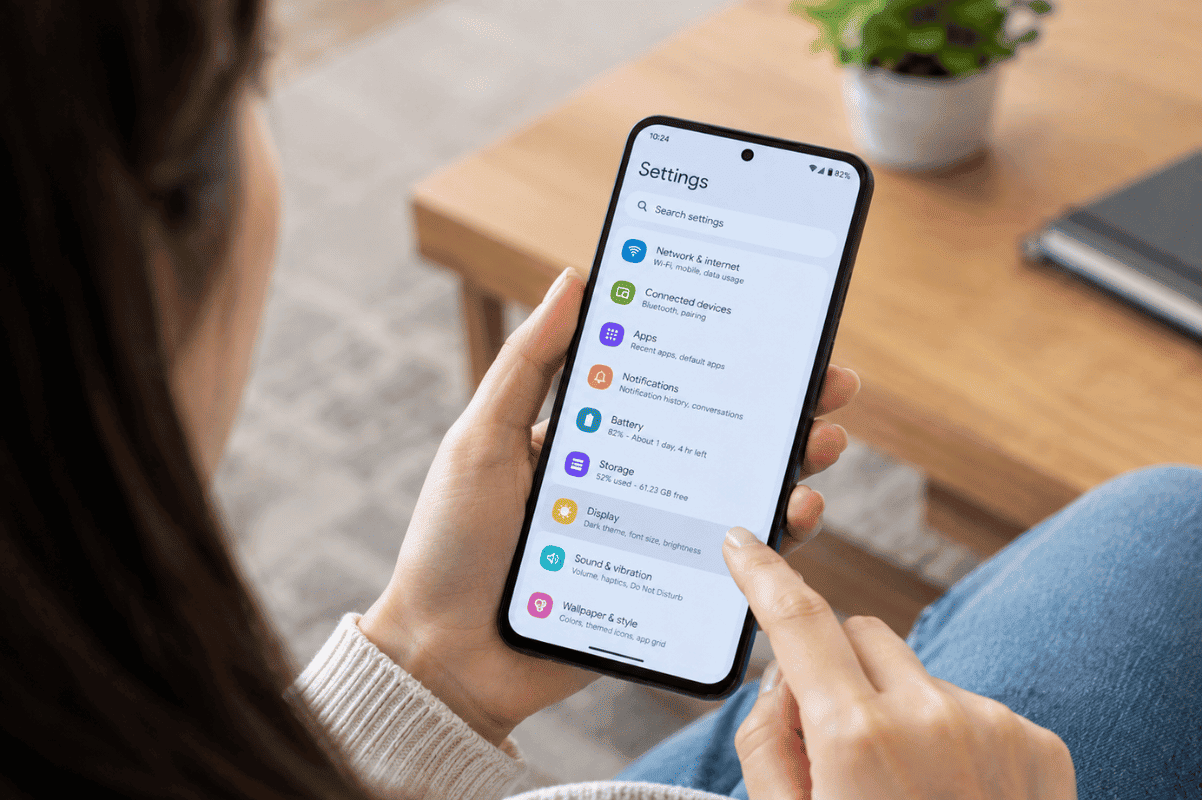
Open Settings and search for Screen timeout, Sleep, or Display timeout, depending on your Android model. Increase the timeout to a longer period, such as 2, 5, or 10 minutes.
Use the phone normally afterward to see whether the problem returns.
2. Restart Your Android Phone
A temporary software problem can sometimes cause the display to shut off unexpectedly.
Press and hold the Power button and select Restart. If your phone is frozen, you may need to hold the Power button for several seconds to force a restart.
After the phone turns back on, check whether the screen stays active.
3. Check Battery Saver Settings
Battery-saving modes can change how your phone manages the display and background activity.
Go to Settings > Battery and check whether Battery Saver, Power Saving Mode, or a similar feature is enabled. Temporarily turn it off and test your phone.
Also check whether the issue happens mainly when the battery level is very low.
4. Check for Overheating
If your phone becomes unusually hot, Android may limit certain functions to protect the device.
Remove the phone from direct sunlight, disconnect it from the charger, close demanding apps, and allow it to cool naturally. Avoid putting a hot phone in a refrigerator or freezer.
If the screen repeatedly shuts off whenever the phone becomes warm, the issue may require further inspection.
5. Check the Power Button
A stuck, damaged, or overly sensitive power button can make the screen turn off unexpectedly.
Remove the case temporarily and press the button several times gently. If the screen continues turning off without you touching the button, the button or its internal connection may need attention.
6. Update Android and Your Apps
Software bugs can sometimes affect display behaviour. Check Settings > System > Software Update for an available Android update.
You should also update your apps through the Google Play Store. Keeping the software current can resolve compatibility and stability problems.
When Should You Get Professional Help?
If your Android screen keeps turning off after trying these steps, the problem may not be a simple setting or software issue.
Professional cell phone repair may be appropriate if the phone has been dropped, exposed to liquid, overheats frequently, or shows other symptoms such as flickering, lines, random restarts, or a screen that stays black.
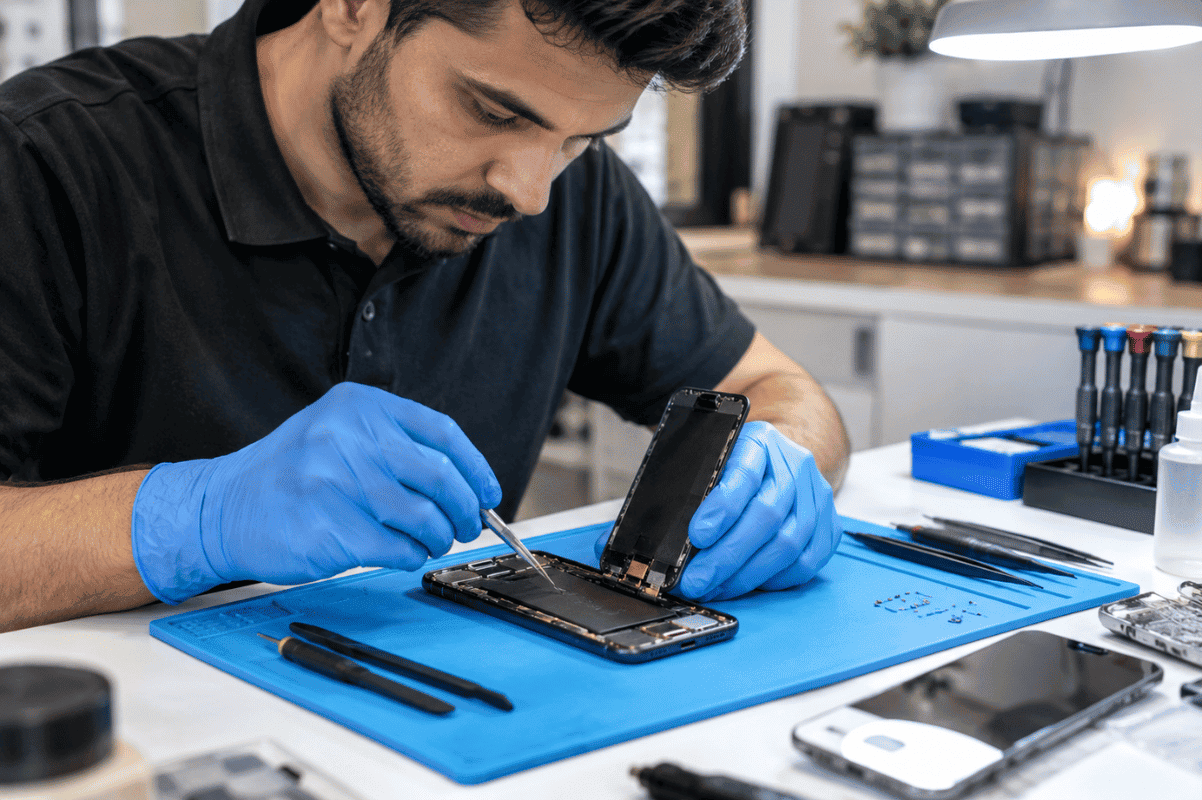
A technician can test the display, battery, power button, charging system, and internal connections to identify the actual cause.
Need Phone Repair in Mississauga?
If basic troubleshooting does not solve the problem, bringing your phone to a professional can prevent you from replacing the wrong component or making the issue worse. For customers looking for Phone repair Mississauga, a proper diagnostic can help determine whether the problem is software-related or requires hardware service.
Start with the simple fixes above. If the screen continues turning off unexpectedly, professional diagnosis is the next practical step.