
An Android tablet that suddenly refuses to turn on can be frustrating, especially if it contains important files, photos, or work documents. The good news is that a tablet is not always permanently damaged. In many cases, the problem is caused by a drained battery, charging issue, or software crash that you can fix at home.
This guide walks you through safe troubleshooting steps that work for most Android tablets. If none of these solutions restore power, it may be time to seek Cell Phone repair by an expert service to prevent further damage.
Why Won’t My Android Tablet Turn On?
Before trying any fixes, it helps to understand the possible cause. Common reasons include:
- A completely drained battery
- Faulty charging cable or power adapter
- Dirty or damaged charging port
- Frozen operating system
- Failed software update
- Battery failure
- Physical or water damage
- Internal hardware malfunction
Identifying the likely cause makes troubleshooting much easier.
1. Charge the Tablet for at Least 30 Minutes
Many tablets need several minutes of charging before showing any sign of life.
Try these steps:
- Plug the tablet into a wall outlet instead of a computer USB port.
- Use the original charger if available.
- Leave it charging for at least 30 minutes.
- Check whether the charging icon appears.
If nothing appears on the screen, continue with the next steps.
2. Check the Charger and Charging Cable
Charging accessories often fail before the tablet itself.
Inspect for:
- Bent USB connectors
- Frayed cables
- Loose charging adapter
- Burn marks or visible damage
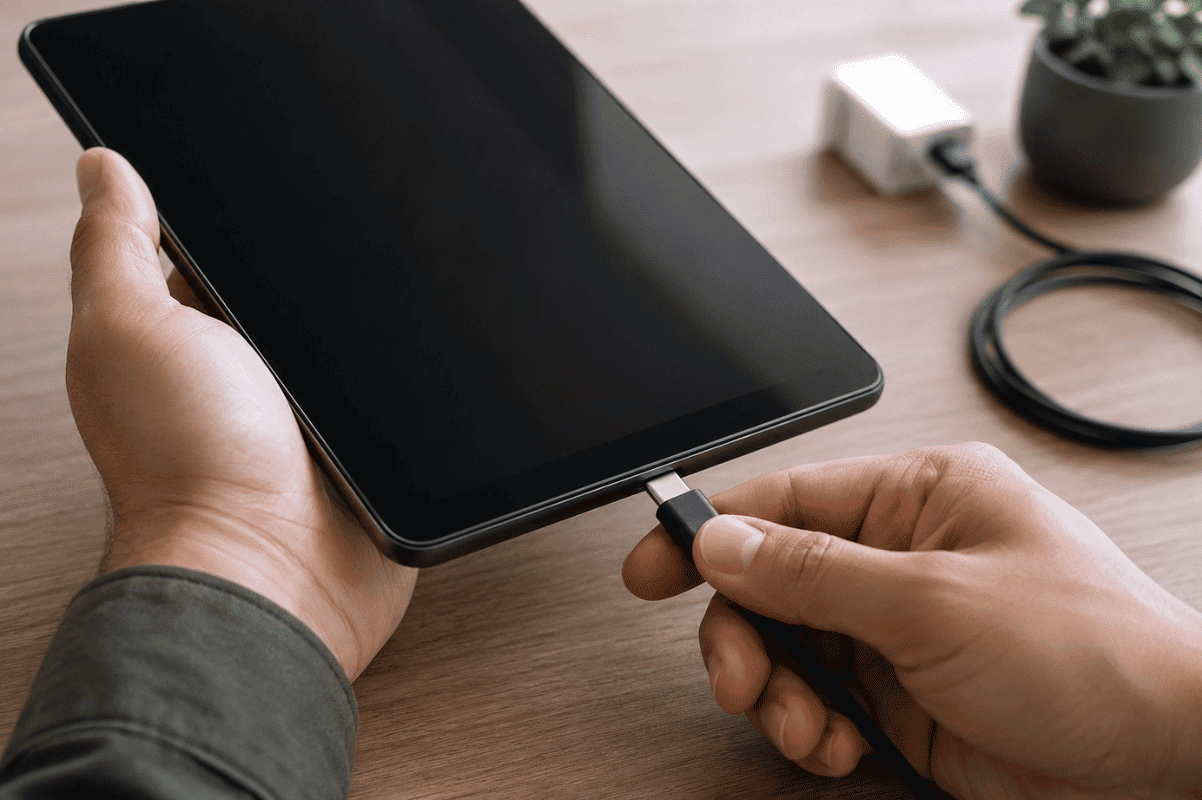
If possible, test another compatible charger that matches your tablet’s power requirements.
3. Inspect the Charging Port
Pocket lint, dust, and debris commonly block charging ports.
Look carefully inside the port using a flashlight.
If debris is visible:
- Turn the tablet off if possible.
- Use a soft plastic toothpick or compressed air.
- Never use metal tools that may damage the charging pins.
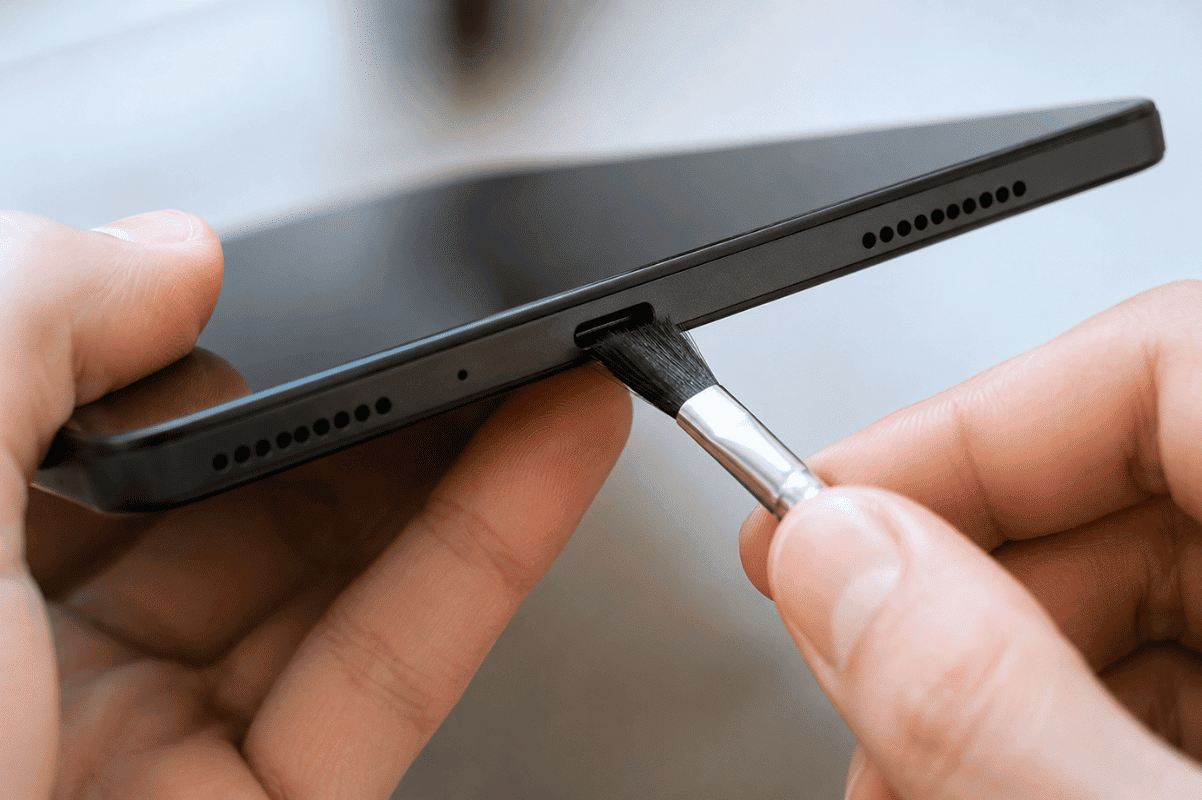
A damaged charging port usually requires professional repair.
4. Perform a Forced Restart
Sometimes Android freezes while the hardware is still working.
For most tablets:
- Hold the Power button for 20 to 30 seconds.
- If nothing happens, hold both the Power and Volume Down buttons for about 15 seconds.
- Release the buttons if the logo appears.
Different manufacturers may use slightly different button combinations, but this method works for many Samsung, Lenovo, Google, and other Android tablets.
5. Look for Screen Problems
Sometimes the tablet is powered on, but the display is not working.
Signs include:
- Vibration when pressing buttons
- Notification sounds
- Charging sounds
- LED indicator lights
If these are present but the screen stays black, the display may need repair rather than the entire tablet.
6. Try Booting into Recovery Mode
If the tablet starts but freezes on the logo, Recovery Mode may help.
The general process is:
- Power off the tablet.
- Hold the Power and Volume Up buttons together.
- Release when the recovery menu appears.
From here, you can clear the cache partition if your model supports it. Avoid performing a factory reset unless you have backed up your data, as it can erase personal information.
7. Remove Recently Added Accessories
External devices can occasionally interfere with startup.
Disconnect:
- SD cards
- USB devices
- Keyboard cases
- USB hubs
Then attempt to power on the tablet again.
8. Watch for Signs of Water Damage
If the tablet recently came into contact with water:
- Do not keep pressing the power button repeatedly.
- Do not charge it immediately.
- Let it dry completely before attempting to power it on.
Water damage can create electrical shorts that become worse if power is applied too soon.
9. Consider Battery Failure
Lithium-ion batteries wear out over time.
Signs of a failing battery include:
- The tablet only works while plugged in.
- It powers off unexpectedly.
- Battery drains extremely fast.
- The back of the tablet appears swollen.
A swollen battery should be replaced promptly because it can become a safety hazard.
10. When Home Fixes Don’t Work
If your Android tablet still refuses to turn on after completing these steps, the problem may involve:
- Failed charging port
- Faulty battery
- Power management chip
- Motherboard damage
- Internal component failure
These repairs require specialized tools and proper diagnosis. Visiting a Local top rated phone repair store can help identify the exact issue without unnecessary replacement of parts.
Can Your Data Still Be Recovered?
In many situations, yes.
If the storage chip remains functional, technicians may still be able to recover:
- Photos
- Videos
- Documents
- Contacts
- App data
The chances of recovery depend on the cause of the failure and whether the storage itself has been damaged.
How to Prevent Your Android Tablet from Failing Again
A few habits can help extend your tablet’s life:
- Use quality chargers and cables.
- Keep the charging port clean.
- Avoid exposing the tablet to extreme heat.
- Install software updates regularly.
- Use a protective case.
- Do not allow the battery to stay at 0% for long periods.
- Back up important files regularly.
When Should You Visit a Repair Shop?
Professional repair is recommended if:
- The tablet will not charge with multiple chargers.
- It was dropped recently.
- It has water damage.
- The charging port feels loose.
- The screen stays black but the device vibrates.
- The battery is swollen.
- None of the troubleshooting steps restore power.
Early diagnosis can often prevent more expensive repairs later.
An Android tablet that won’t turn on does not always mean the device is beyond repair. Many problems can be solved by charging the battery properly, checking the charger, cleaning the charging port, or performing a forced restart. These simple troubleshooting steps are safe for most users and can save both time and money.
If your tablet still shows no signs of life after trying these solutions, a professional inspection is the safest next step. An experienced technician can determine whether the issue is related to the battery, charging system, display, or internal hardware and recommend the most cost-effective repair.