Many Android users wonder whether installing antivirus software is necessary. The short answer is that most people do not need a dedicated antivirus app if they follow safe browsing habits and keep their phone updated.
However, antivirus software can be useful in certain situations, especially if you frequently download apps from outside the Google Play Store or click unknown links.
This guide explains when antivirus software is worth installing, when Android’s built-in security is enough, and what to do if your phone shows signs of malware.
How Secure Is Android Without Antivirus?
Android already includes several security features that protect your device.
These include:
- Google Play Protect scans installed apps for harmful behavior.
- Regular Android security updates fix known vulnerabilities.
- App permissions let you control access to your camera, microphone, contacts, and location.
- Google Safe Browsing helps warn you about dangerous websites.
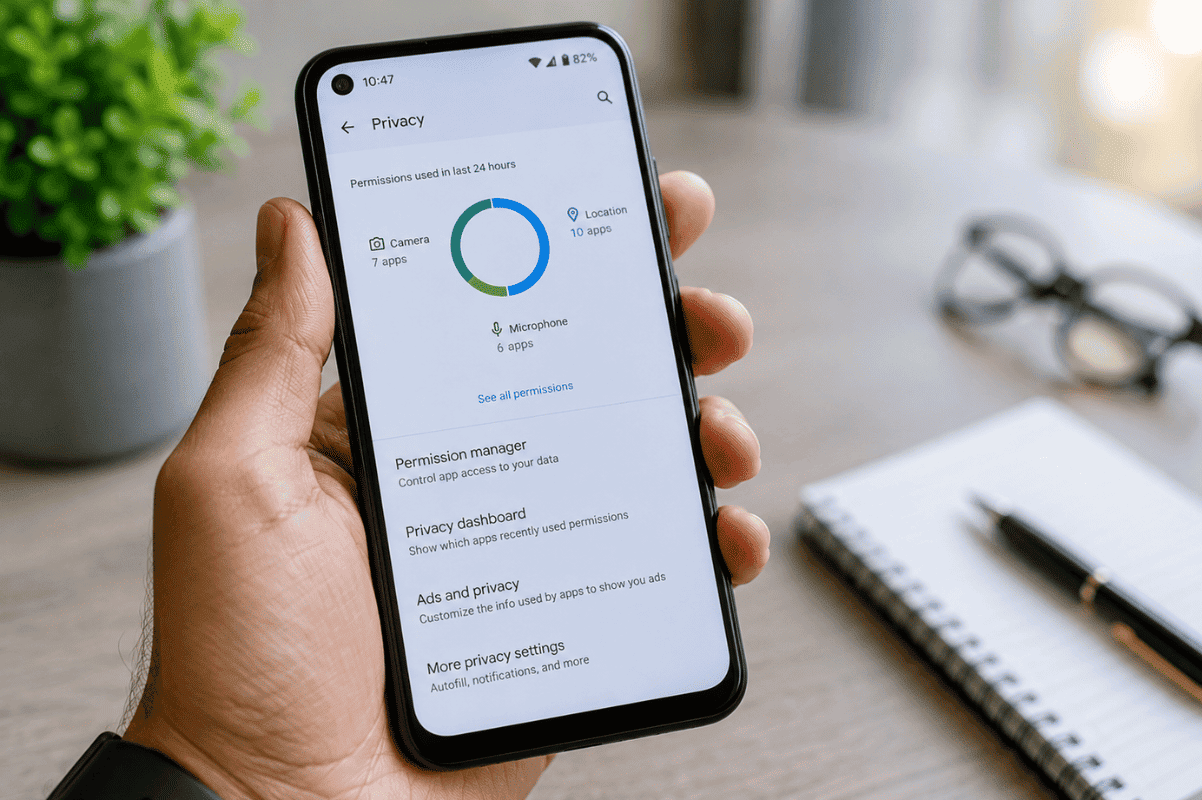
If you download apps only from the Google Play Store and keep your phone updated, these protections are enough for many users.
When Should You Install Antivirus Software?
Installing antivirus software may be a good idea if you:
- Download apps from third-party websites.
- Open email attachments from unknown senders.
- Frequently connect to public Wi-Fi networks.
- Store sensitive business or financial information on your phone.
- Share your phone with multiple users.
Choose a well-known antivirus app with good reviews and avoid free apps that request unnecessary permissions.
Signs Your Android Phone May Have Malware
If your phone behaves differently than usual, malware could be one possible cause.
Watch for these signs:
- Pop-up ads appearing frequently
- Battery draining much faster than normal
- Apps crashing without explanation
- Phone overheating during light use
- Slow performance
- High mobile data usage
- Unknown apps installed automatically
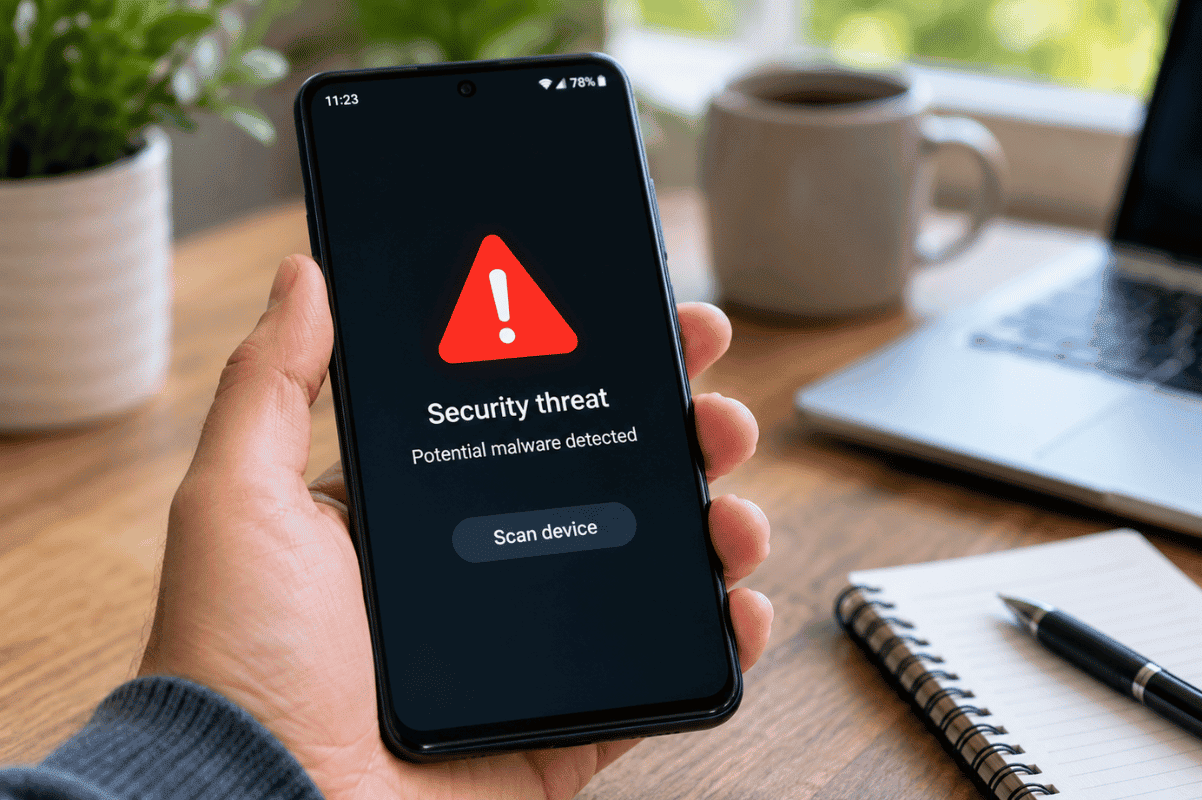
These symptoms do not always mean your phone has a virus, but they should not be ignored.
What You Can Do Before Installing Antivirus
Before downloading another app, try these simple fixes.
1. Update Android
Go to Settings > Software Update and install the latest available update.
Security patches often fix vulnerabilities that malware tries to exploit.
2. Scan with Google Play Protect
Open the Google Play Store.
Tap your profile picture, then choose Play Protect and run a security scan.
Google will alert you if harmful apps are detected.
3. Remove Suspicious Apps
Delete any apps you do not recognize or no longer use.
If a problem started after installing a particular app, uninstall it and restart your phone.
4. Clear Browser Data
If unwanted ads keep appearing, clearing your browser’s cache and cookies can help.
Most browsers include this option under Privacy or History settings.
5. Review App Permissions
Open Settings > Privacy > Permission Manager.
Remove permissions that seem unnecessary, especially for apps requesting access to your location, microphone, or contacts.
When Antivirus Won’t Solve the Problem
Sometimes the issue is not malware.
A damaged battery, faulty storage, or failing motherboard can also cause freezing, overheating, random restarts, and poor performance.
If you’ve completed the software checks and your phone still has problems, it may require professional diagnosis.
A trusted Cell phone repair technician can identify whether the issue is software-related or caused by failing hardware.
Tips to Keep Your Android Phone Safe
Good security habits are often more effective than installing multiple antivirus apps.
Follow these best practices:
- Download apps only from trusted sources.
- Keep Android and your apps updated.
- Use a strong screen lock.
- Enable two-factor authentication on important accounts.
- Avoid clicking unknown links in emails or text messages.
- Back up important data regularly.
- Review installed apps every few months.
These simple habits greatly reduce the risk of malware infections.
Most Android users do not need antivirus software because Android already includes strong built-in security features. Keeping your phone updated, downloading apps from trusted sources, and reviewing app permissions are usually enough to stay protected.
If your phone continues to overheat, crash, or perform poorly after trying these steps, the problem may not be related to malware. Visiting a reliable Phone repair Mississauga shop can help determine whether a hardware issue is affecting your device and get it working properly again.
Frequently Asked Questions
Is free antivirus good enough?
Many free antivirus apps provide basic protection. However, Android’s built-in security features are already sufficient for most users who practice safe browsing.
Can Android phones get viruses?
Traditional computer viruses are uncommon on Android. Most security threats come from malicious apps, phishing attacks, and spyware.
Does factory resetting remove malware?
In many cases, yes. A factory reset removes most malicious apps and software. Be sure to back up your important files before resetting your phone.
Should I install more than one antivirus app?
No. Running multiple antivirus apps can slow your phone and may cause conflicts. If you choose to install one, use only a single trusted application.