
If your iPhone isn’t sending or receiving emails, you’re not alone. Many iPhone users in Canada and the U.S. face this issue, and in most cases, it can be resolved at home with a few simple checks. Before visiting a local top rated phone repair store in Mississauga, try these step-by-step solutions to get your email working again.
1. Check Your Internet Connection
Email problems often start with a weak or unstable internet connection.
- Test Wi-Fi or Cellular Data: Open Safari and try loading a website. If it doesn’t load, toggle Airplane Mode on and off, or restart your Wi-Fi router.

- Switch Networks: If Wi-Fi is slow, switch to cellular data temporarily and check if emails load.
A stable connection is essential for syncing emails with your mail server.
2. Make Sure Your Mail Settings Are Correct
Incorrect mail settings are another common cause.
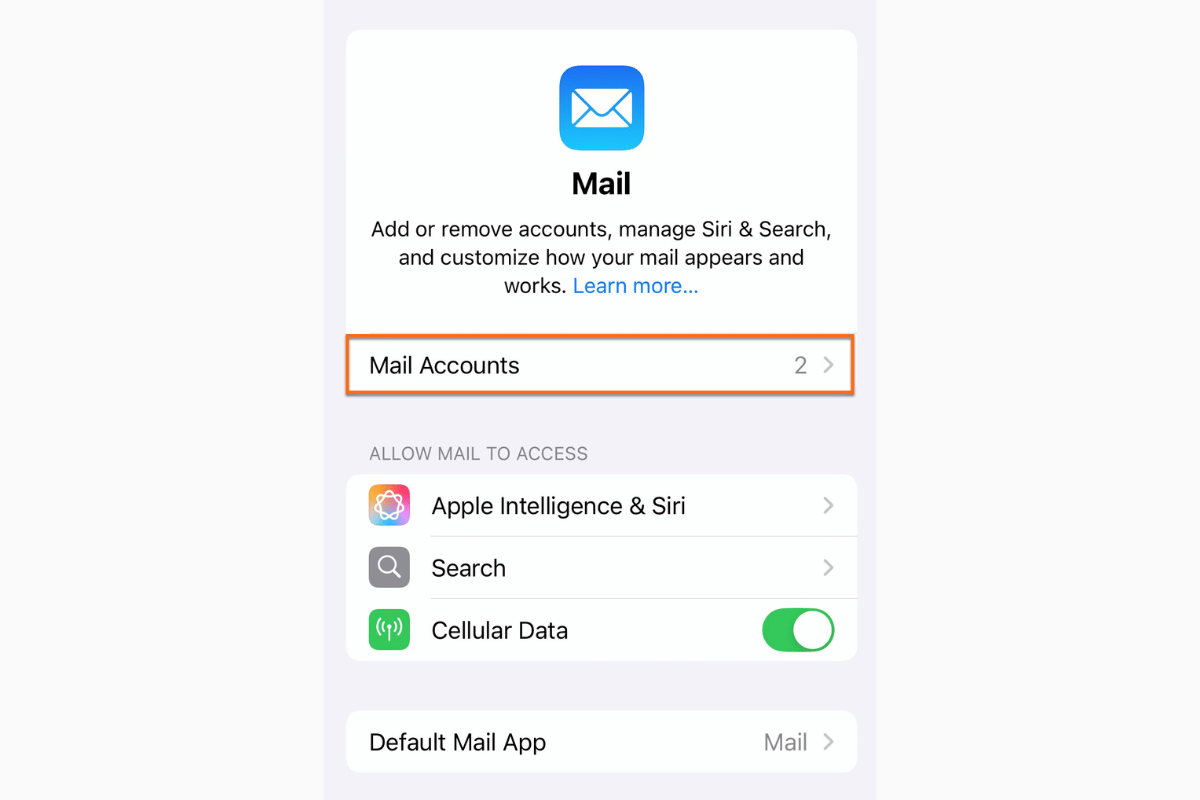
- Go to Settings → Mail → Accounts.
- Tap your email account and verify the incoming and outgoing mail server details.
- If you’re unsure about the settings, visit your email provider’s support page (for example, Gmail, Outlook, or Yahoo) and compare.
You can also delete and re-add your email account. Sometimes, starting fresh helps the system reconfigure automatically.
3. Update Your iPhone Software
Apple frequently releases iOS updates that fix bugs, including those affecting Mail.
- Go to Settings → General → Software Update.
- If an update is available, tap Download and Install.
After updating, restart your device and check if your emails appear normally.
4. Review Mail App Notifications and Fetch Settings
Sometimes, your email might be working, but notifications are turned off, or the app is fetching data too slowly.
- Open Settings → Mail → Accounts → Fetch New Data.
- Choose Push for instant updates or Fetch every 15–30 minutes.
- Also, go to Settings → Notifications → Mail and make sure alerts are turned on.
5. Check Email Storage and Sync Limits
If your inbox is full, new emails may not download.
- Open your email provider’s app or website and clear old emails, especially ones with large attachments.
- For accounts like Gmail or Outlook, make sure your storage quota isn’t exceeded.
Additionally, ensure that your iPhone’s Mail Days to Sync setting (under account settings) is not limited to just one day or one week.
6. Restart Your iPhone
This quick step fixes many temporary glitches.
- Press and hold the Power button until the slider appears.
- Slide to power off, wait 10 seconds, then turn your device back on.
After restarting, open the Mail app and refresh your inbox.
7. Reset Network Settings (If the Problem Persists)
If nothing works so far, resetting your network settings can clear out old or conflicting data.
- Go to Settings → General → Transfer or Reset iPhone → Reset → Reset Network Settings.
Your saved Wi-Fi passwords will be erased, but this often resolves hidden connection issues that affect email syncing.
8. When It’s Time to Visit a Repair Expert
If your iPhone still refuses to send or receive emails after trying all these methods, the issue could be deeper — possibly related to a faulty mail app, system glitch, or network chip problem.
That’s when visiting a cell phone repair Mississauga service is the smart move. Skilled technicians can inspect your device, perform diagnostics, and ensure your iPhone’s network and app functions are working properly again. Whether it’s a minor configuration issue or a deeper software fault, professional help saves time and frustration.
Quick Tips Before You Go
- Always back up your emails and important data using iCloud or your email provider.
- Keep your iPhone updated regularly to prevent software-related issues.
- Avoid using public Wi-Fi for email access, especially if you handle sensitive information.
Email issues can interrupt your daily routine, but most are simple to fix once you know where to look. Follow the above steps, and you’ll likely have your inbox running smoothly again in minutes. But if the problem continues, your local technicians at cell phone repair Mississauga can diagnose and restore your device quickly.
Getting professional support ensures your iPhone stays reliable whether it’s for emails, apps, or other essential tasks.
