Your text messages can contain important conversations, verification codes, business information, and personal memories. If your Android phone is lost, damaged, or reset, those messages may disappear unless you have a backup.
This guide explains practical ways to back up Android SMS to a computer using reliable methods. Most users can complete the process in a few minutes without technical experience.
Why You Should Back Up Android SMS
A regular SMS backup helps you:
- Protect important conversations
- Save business or legal records
- Prepare before upgrading to a new phone
- Keep copies before performing a factory reset
- Recover messages after accidental deletion
Creating a backup before any phone repair or software update is always recommended.
Method 1: Use Google Backup (Best for Most Users)
Google Backup is the easiest option for Android users.
Steps
- Open Settings.
- Tap Google.
- Select Backup.
- Turn on Back up using Google One or Backup by Google.
- Tap Back Up Now.
Your SMS messages are stored in your Google account. Although this method does not create a readable file on your computer, it allows your messages to be restored when setting up another Android device.
Best for: Everyday users who want automatic protection.
Method 2: Export SMS to Your Computer with SMS Backup & Restore
If you want an actual backup file stored on your computer, this is one of the most practical options.
Steps
- Install SMS Backup & Restore from the Google Play Store.
- Open the app and choose Set Up a Backup.
- Select Messages.
- Save the backup locally or to cloud storage.
- Connect your phone to your computer using a USB cable.
- Copy the backup file from your phone’s storage to your computer.
This creates an XML backup file that can later be restored if needed.
Best for: Users who want complete control over their backups.
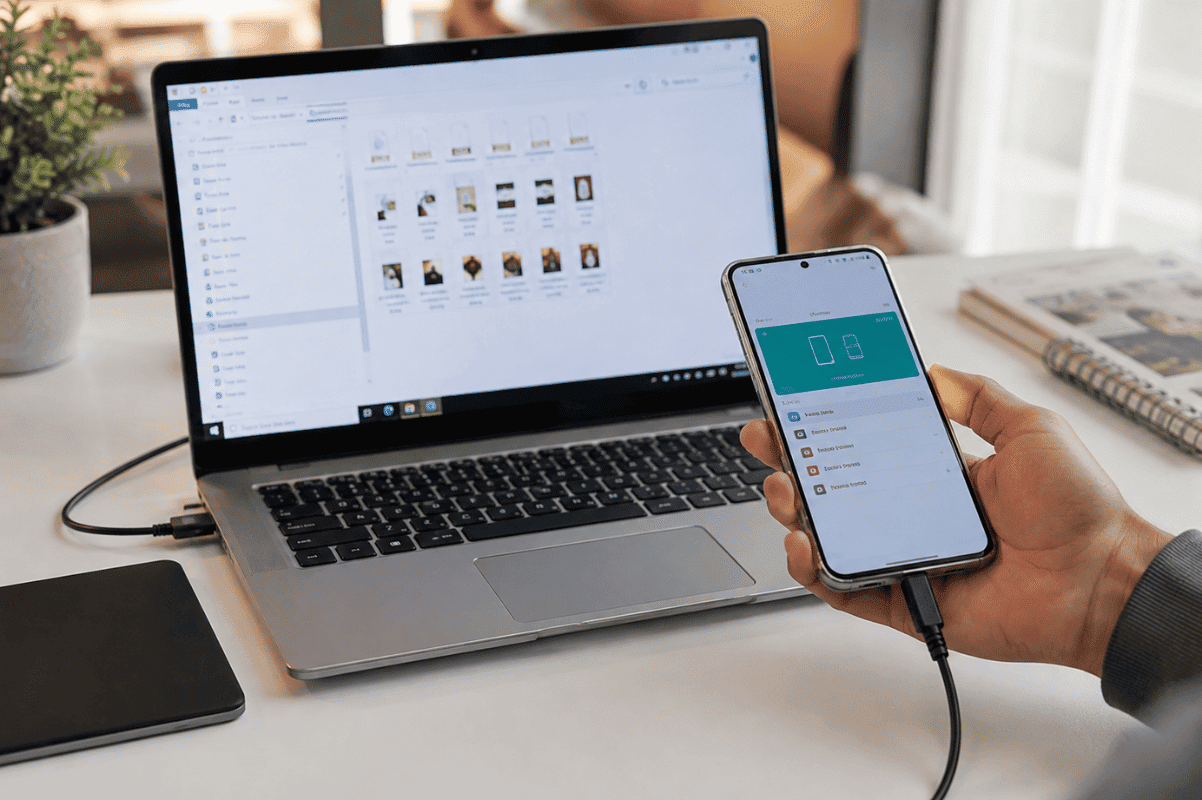
Method 3: Copy SMS Backup Using a USB Connection
If you’ve already created an SMS backup with an app, transferring it to your computer is simple.
Steps
- Connect your Android phone to your computer.
- Select File Transfer (MTP) mode on the phone.
- Open the phone storage on your computer.
- Locate the backup folder created by your SMS backup app.
- Copy the file to your computer.
Keep the backup in a folder that is regularly included in your computer backups.
Method 4: Use Samsung Smart Switch (Samsung Devices)
Samsung users have another convenient option.
Steps
- Install Samsung Smart Switch on your computer.
- Connect your Samsung phone with a USB cable.
- Open Smart Switch.
- Click Backup.
- Wait until the process finishes.
This backs up messages along with contacts, photos, settings, and other data.
Can You Read SMS Backups on Your Computer?
It depends on the backup format.
- Google backups cannot be viewed directly.
- XML files created by SMS Backup & Restore can be opened with compatible software or restored to another Android device.
- Manufacturer backup tools usually use proprietary formats that are intended for restoring rather than reading.
Common Backup Problems
Computer Does Not Detect Your Phone
Try these solutions:
- Unlock your phone.
- Choose File Transfer instead of charging mode.
- Use the original USB cable.
- Try another USB port.
- Restart both devices.
Backup Stops Before Completing
Possible causes include:
- Low storage space
- Weak internet connection for cloud backups
- Outdated backup application
- Battery saver limiting background activity
Update the app and ensure enough storage is available before trying again.
Messages Are Missing
Some messaging apps store conversations differently, especially if RCS chat features are enabled. Verify which messages are selected during the backup process.
How Often Should You Back Up SMS?
For most users:
- Monthly is enough for personal use.
- Weekly is better for business users.
- Before software updates.
- Before replacing your phone.
- Before sending your device for repairs.
Regular backups reduce the risk of permanent data loss.
When Professional Help Is Needed
If your phone has stopped turning on, has severe water damage, or cannot be detected by a computer, avoid repeatedly attempting recovery. Continued use may reduce the chances of recovering important data.
A professional technician may still be able to recover information depending on the condition of the device. Some advanced cases require Micro Soldering to access damaged hardware safely.
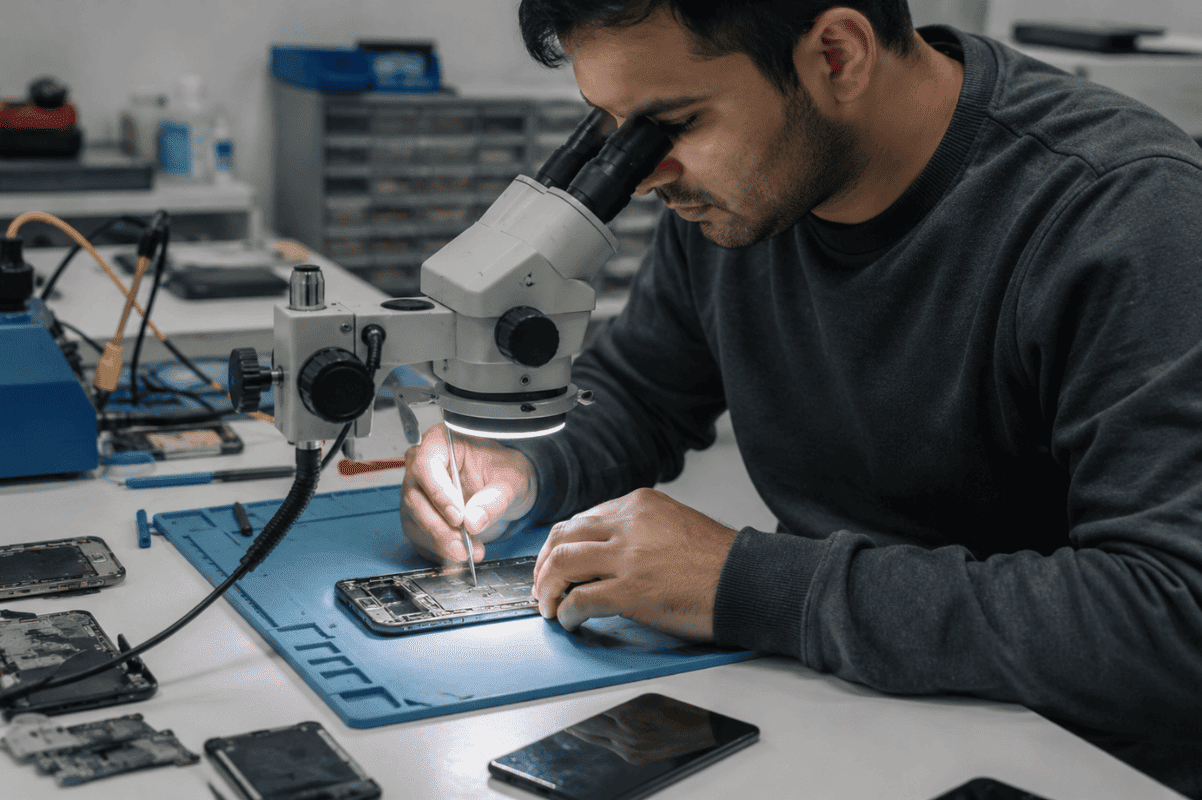
If your device has physical damage along with data concerns, visiting a trusted Phone repair Mississauga service can help determine whether your messages and other important files can still be recovered.
Backing up Android SMS to a computer is one of the simplest ways to protect valuable conversations. Google Backup works well for automatic protection, while apps like SMS Backup & Restore give you a portable backup file that you can store on your computer.
If your phone is too damaged to create a backup or you cannot access your data, professional assistance may be the safest option before the problem becomes worse.