Whether you want to reduce distractions, protect children from inappropriate content, or improve online safety, knowing how to block websites on an Android phone can be helpful. Fortunately, Android offers several ways to restrict access to specific websites without requiring advanced technical skills.
This guide covers practical methods you can try at home. If you’re experiencing issues caused by malware, browser problems, or device settings that won’t respond, a professional Cell Phone repair by an expert service can help diagnose the underlying problem.
Why Block Websites on an Android Phone?
Blocking websites can help you:
- Prevent access to inappropriate content
- Reduce distractions during work or study
- Improve parental controls for children’s devices
- Protect against phishing and malicious websites
- Limit access to time-wasting websites
The best method depends on who will be using the phone and how much control you need.
Method 1: Use Google Family Link
If you’re managing a child’s Android phone, Google Family Link is one of the easiest solutions.
Steps:
- Install Google Family Link on both devices.
- Connect the child’s Google account.
- Open Controls.
- Go to Content Restrictions.
- Configure website and app restrictions as needed.
This method works well for parents who want long-term website management.
Method 2: Block Websites Using SafeSearch
While SafeSearch doesn’t block every website, it filters explicit content from Google Search results.
To enable SafeSearch:
- Open the Google app.
- Tap your profile picture.
- Select Settings.
- Tap SafeSearch.
- Turn on Filter.
This is a good first step for improving browsing safety.
Method 3: Use a Secure DNS Service
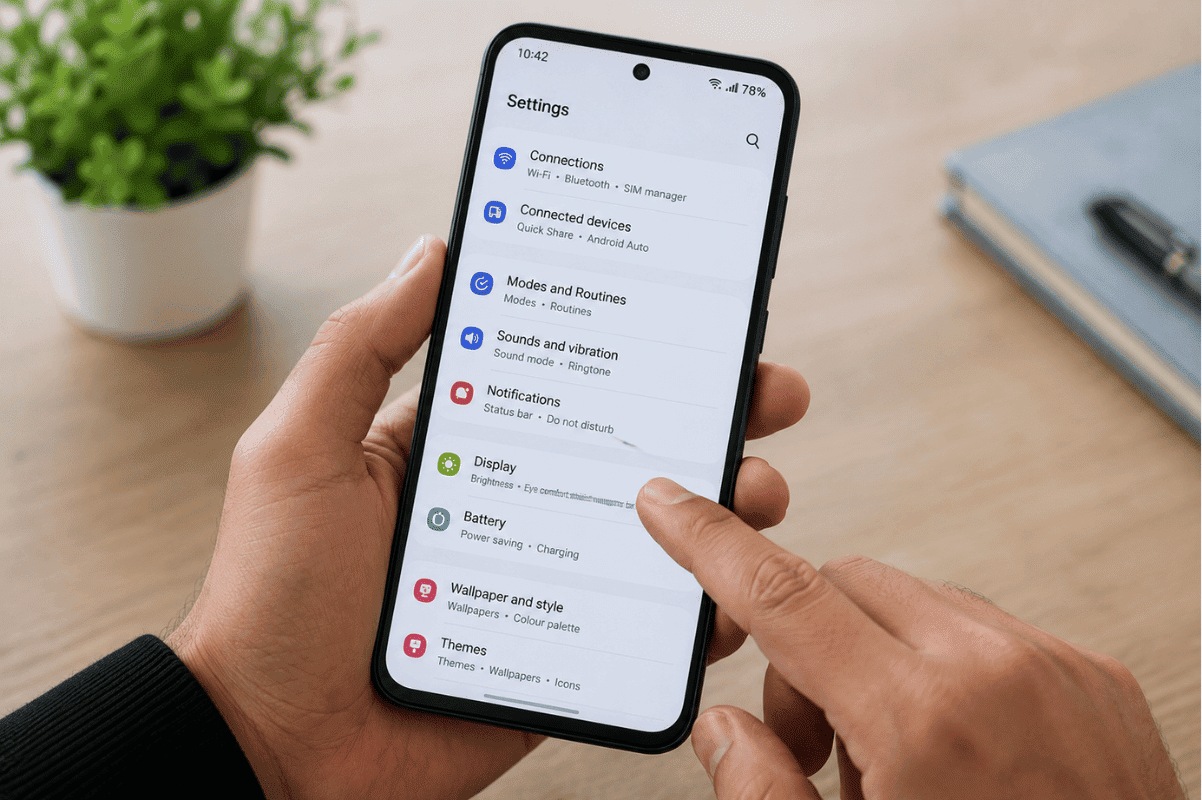
Private DNS providers can block malicious or adult websites before they load.
To change your DNS:
- Open Settings.
- Tap Network & Internet.
- Select Private DNS.
- Choose Private DNS provider hostname.
- Enter the DNS hostname provided by your preferred filtering service.
- Save your changes.
Many family-safe DNS providers offer free filtering options.
Method 4: Install a Website Blocking App
Several Android apps let you block specific websites or categories.
Common features include:
- Blocking selected websites
- Scheduled blocking times
- Password protection
- Focus mode for productivity
Before installing any app, check its reviews, permissions, and privacy policy.
Method 5: Use Browser Settings
Some browsers include built-in safety features.
For example:
- Enable Safe Browsing.
- Turn on enhanced security options.
- Block pop-ups.
- Disable risky website permissions.
Keeping your browser updated also improves protection against harmful websites.
Method 6: Block Websites Through Your Home Wi-Fi Router
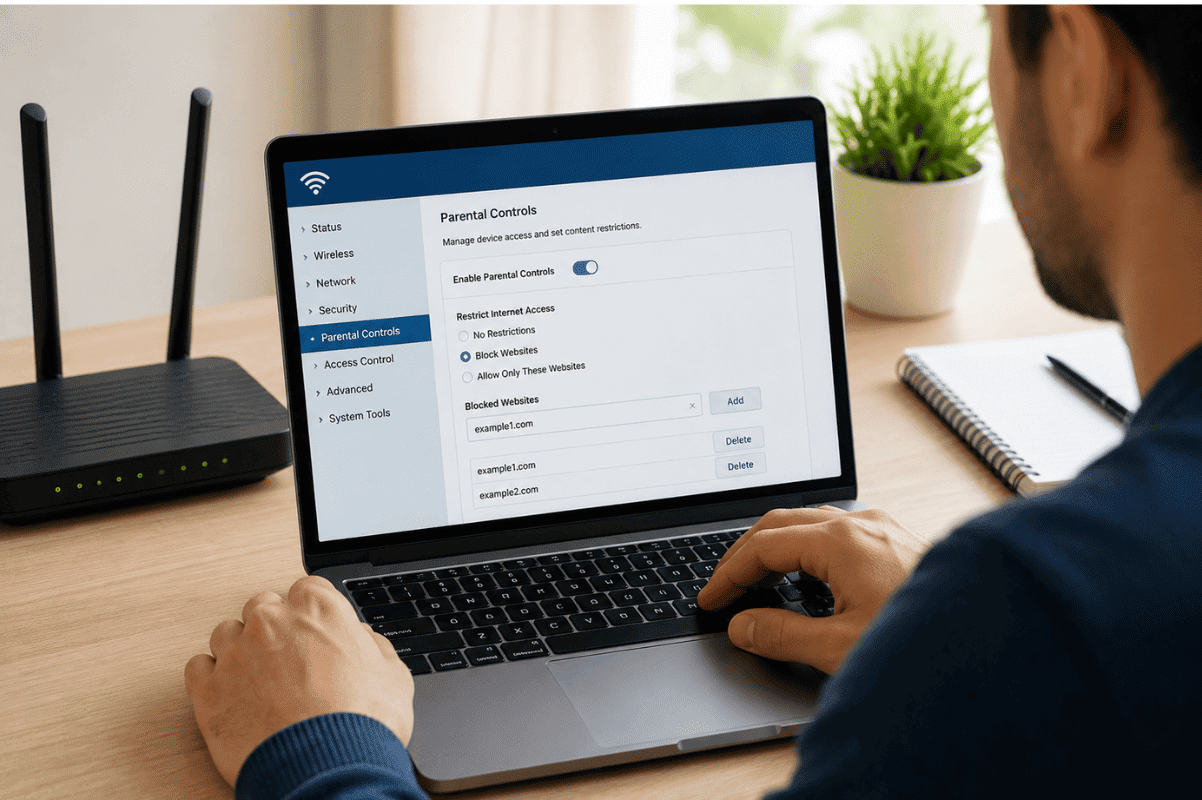
If you want to block websites for every device connected to your home network, your router may offer parental controls.
Many modern routers allow you to:
- Block specific websites
- Schedule internet access
- Filter adult content
- Manage connected devices
This solution works across phones, tablets, laptops, and smart TVs.
What If a Website Still Opens?
If blocked websites continue to load, try these troubleshooting steps:
- Restart your Android phone.
- Clear your browser cache.
- Update your browser.
- Verify your DNS settings.
- Disable VPN services temporarily.
- Check whether another browser is bypassing your restrictions.
Sometimes browser extensions or VPN apps can override website filtering.
Signs Your Phone May Have a Security Issue
If you notice any of these problems, your phone could be affected by malware:
- Websites opening automatically
- Constant pop-up ads
- Unknown apps appearing
- Browser redirects
- Slow performance
- Rapid battery drain
Run a trusted mobile security scan and remove suspicious apps immediately.
If the issue persists after basic troubleshooting, visiting a Local top rated phone repair store can help identify software corruption or hardware-related problems affecting your device.
Tips to Stay Safe While Browsing
Following a few good habits can improve your online security:
- Keep Android updated.
- Download apps only from trusted sources.
- Avoid clicking suspicious links.
- Use strong passwords.
- Enable two-factor authentication.
- Install reputable mobile security software.
These simple practices reduce the risk of phishing attacks and malware infections.
Will blocked websites stay blocked in every browser?
Not always. Some methods only apply to specific browsers, while router-based filtering or DNS filtering works across most browsers and apps.
Learning how to block websites on an Android phone is an effective way to improve privacy, productivity, and online safety. Start with built-in options like SafeSearch, Family Link, or Private DNS before installing third-party apps. If website restrictions stop working because of malware, software issues, or unusual phone behavior, professional diagnosis can save time and prevent further problems.
At Fix Phone Mississauga, we always recommend trying safe troubleshooting steps first. If your Android phone continues to experience browser issues or security problems, our experienced technicians are ready to help restore your device to normal performance.
Frequently Asked Questions
Can I block one specific website on Android?
Yes. You can use website-blocking apps, browser extensions (where supported), or parental control tools to block individual websites.
Does Android have built-in website blocking?
Android doesn’t include a universal website blocker, but features like Family Link, SafeSearch, and Private DNS can help restrict website access.
Can I block websites without installing an app?
Yes. Using Private DNS, router parental controls, or Google Family Link allows you to block or filter websites without installing additional website-blocking apps on the phone.