
Custom notification sounds make it easier to identify which app is sending an alert without looking at your phone. Whether you want a unique tone for messages, emails, or social media, Android allows you to customize notification sounds for many apps.
This guide explains how to change notification sounds for different Android apps, what to do if the option is missing, and when a software or hardware issue may require professional help.
Can You Set Different Notification Sounds for Each App?
Yes. Most Android phones let you assign different notification sounds to individual apps. Many apps also allow separate sounds for different types of notifications, such as direct messages, group chats, or email alerts.
The exact steps may vary depending on your phone manufacturer and Android version, but the overall process is similar.
Before You Start
Make sure that:
- Your phone is running the latest version of Android.
- The app is updated from the Google Play Store.
- Notification permissions are enabled for the app.
Method 1: Change Notification Sound from Android Settings
Follow these steps:
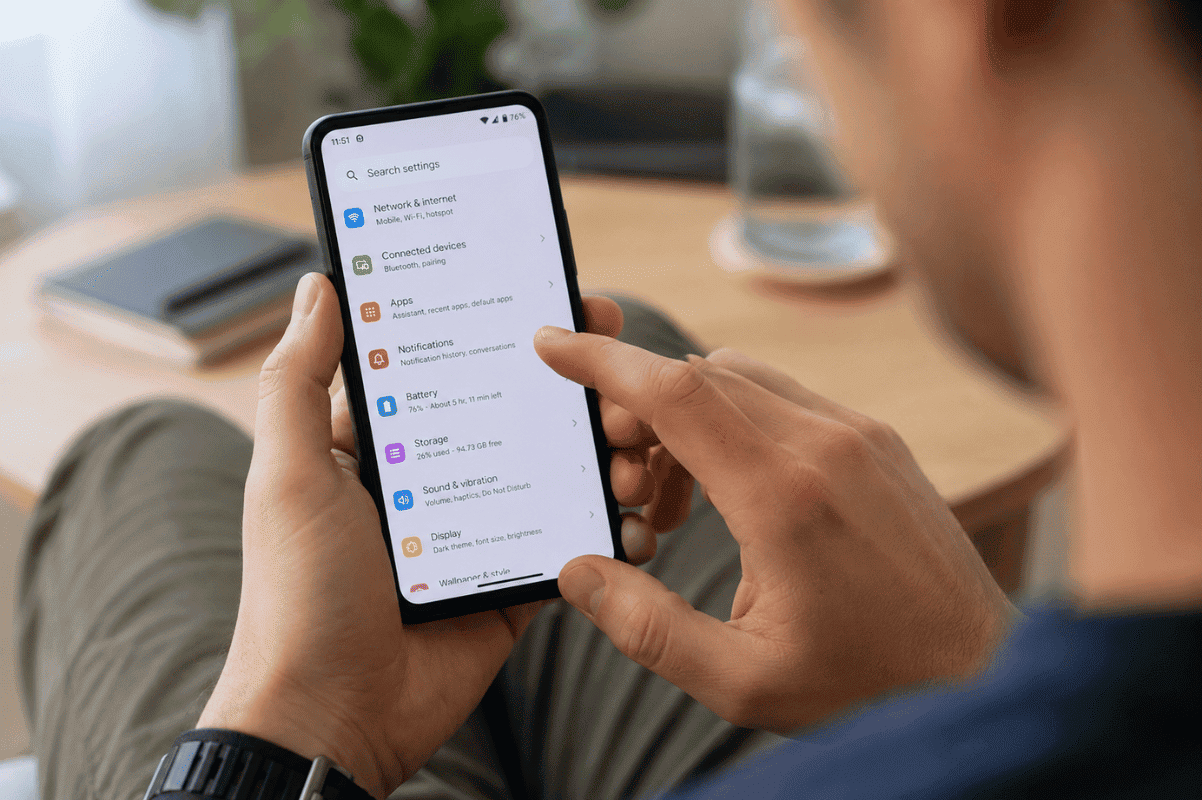
- Open Settings.
- Tap Apps or Apps & Notifications.
- Select the app you want to customize.
- Tap Notifications.
- Choose the notification category you want to edit.
- Tap Sound.
- Select your preferred notification tone.
- Tap Save or go back to apply the changes.
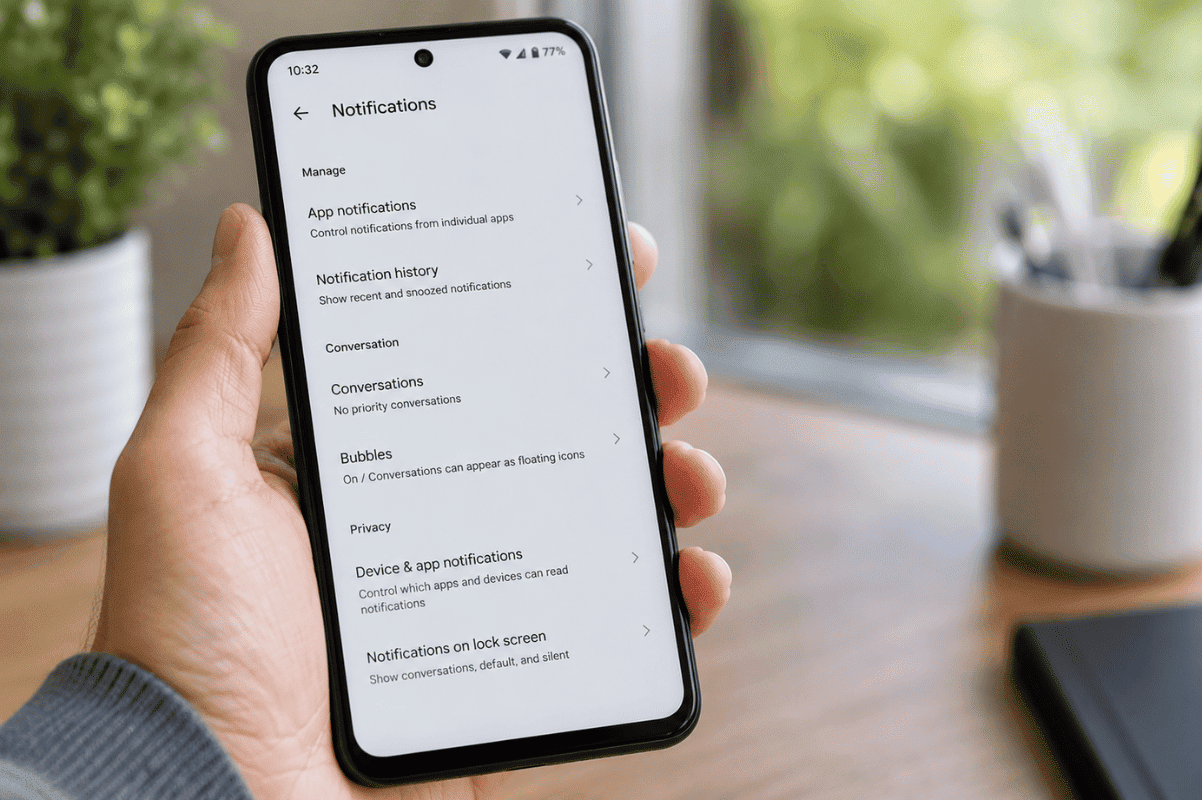
Your selected sound will now play whenever that notification arrives.
Method 2: Change Notification Sound Inside the App
Some apps manage notification sounds internally.
For example:
- Messaging apps
- Email apps
- Social media apps
- Business communication apps
Open the app, go to Settings, then Notifications, and look for Notification Sound or Sound Settings.
How to Use a Custom Notification Sound
If you want to use your own audio file:
- Download or transfer the sound file to your phone.
- Save it in the Notifications folder if available.
- Open notification sound settings.
- Select the custom sound from the available list.
Supported formats typically include MP3, OGG, and WAV.
Why Can’t I Change Notification Sounds?
If the option is unavailable, try these solutions.
Update the App
Older app versions may not support custom notification sounds.
Update the app through the Google Play Store.
Check Notification Categories
Android separates notifications into categories.
For example, an app may have separate settings for:
- Messages
- Calls
- Promotions
- Reminders
Make sure you’re editing the correct notification category.
Disable Do Not Disturb
If Do Not Disturb mode is active, your custom sounds may not play.
Go to Settings > Sound > Do Not Disturb and review your settings.
Restart Your Phone
A simple restart often refreshes notification settings after changes are made.
What If Notification Sounds Still Don’t Work?
If notifications remain silent after trying every setting:
- Check your phone’s media and notification volume.
- Verify that notification permissions are enabled.
- Reset app preferences if necessary.
- Test with another app to determine whether the issue affects only one application.
If all apps fail to play notification sounds, there could be a deeper software issue.
When the Problem May Be Hardware Related
Sometimes the issue is not caused by notification settings.
If your phone has:
- No speaker sound
- Distorted audio
- Water damage
- Physical impact after a drop
the speaker or internal audio components may be damaged.
If basic troubleshooting doesn’t restore notification sounds, visiting a trusted Phone repair Mississauga technician can help identify whether the problem is hardware-related.
For devices with damaged speakers or other internal faults, professional Cell phone repair services can restore normal audio performance.
Tips for Managing Android Notifications
To keep notifications organized:
- Use different sounds for work and personal apps.
- Assign louder tones to important messaging apps.
- Disable notifications from apps you rarely use.
- Review notification permissions every few months.
- Keep your phone updated to avoid software bugs.
Changing notification sounds for different apps on Android is a simple way to personalize your phone and quickly recognize important alerts. Most users can complete the process in just a few minutes using Android Settings or the app’s own notification options.
If you’ve checked every setting and notification sounds still don’t work, the issue may be related to your phone’s speaker or software. In that case, having your device inspected by a professional technician can help restore normal functionality and prevent further problems.
Frequently Asked Questions
Can every Android app have a different notification sound?
Most apps support custom notification sounds, but some developers limit customization.
Why is the Sound option missing?
Some apps control notification sounds within their own settings instead of Android Settings.
Can I use a song as my notification sound?
Yes. As long as the audio file is supported and stored on your phone, you can select it as a custom notification sound.
Will changing notification sounds affect my ringtone?
No. Notification sounds and incoming call ringtones are separate settings.