
If you use Outlook on an Android phone and need to change your email password, you may expect to find a Change Password option inside the Outlook app. In most cases, it is not there.
For Outlook.com, Hotmail, Live, and other Microsoft personal accounts, the password is managed through your Microsoft account. After you change it, the Outlook Android app will ask you to enter the new password the next time it needs to sign in.
Here is how to change your Outlook password from an Android phone.
How to Change Outlook Password on Android
You can complete the process using your phone’s web browser.
1. Open a browser on your Android phone
Open Chrome or another trusted browser on your phone.
Go to your Microsoft account and sign in with the Outlook email address and your current password.
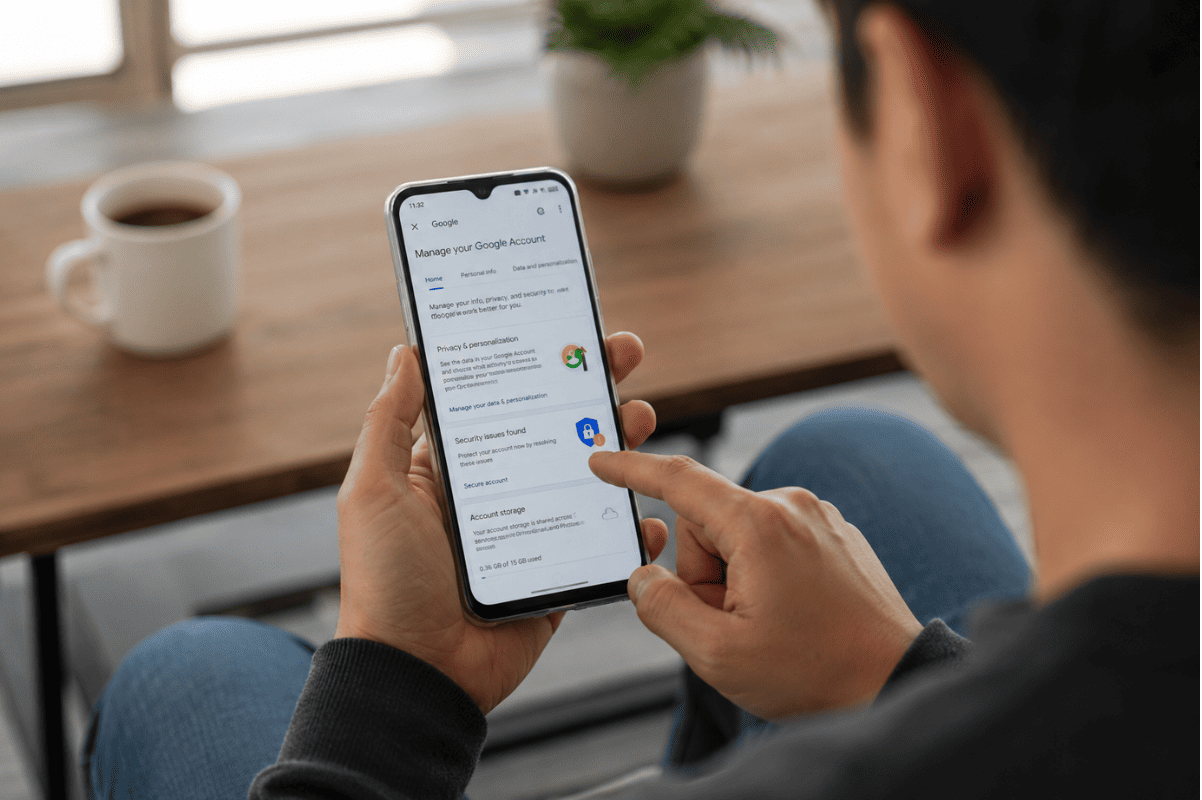
2. Open your Microsoft account security settings
Once signed in, open the security section of your Microsoft account.
Look for the Change password option. Microsoft currently provides password management through the Microsoft account dashboard rather than through the Outlook mobile app.
3. Enter your new password
Follow the prompts to create your new password.
Choose a password that you do not use for other accounts. Avoid using easily guessed information such as your name, birthday, phone number, or common words.
If Microsoft asks you to verify your identity, complete the security check before continuing.
4. Save the new password
After entering the new password, select Save.
Your Microsoft account password is now changed. This password may also be used for other Microsoft services connected to the same account.
What Happens to Outlook After Changing the Password?
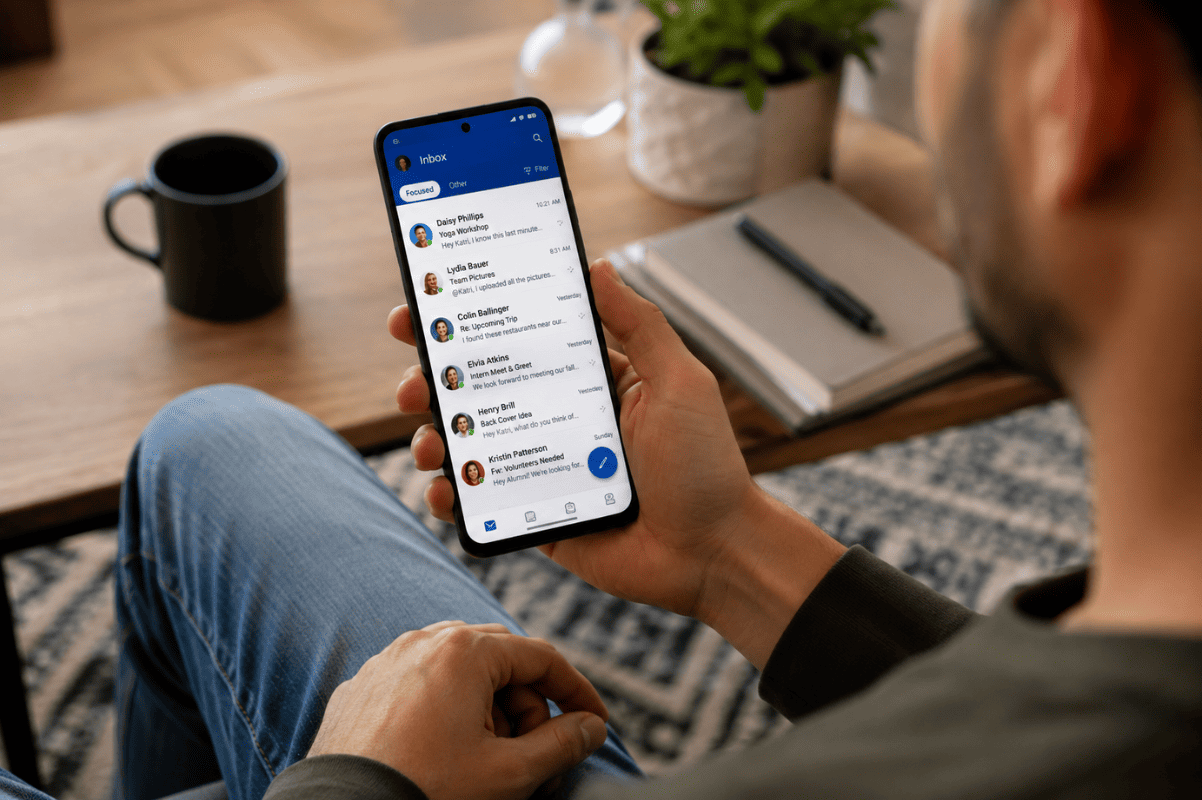
Changing your password can cause Outlook on Android to request your updated sign-in details.
Microsoft says Outlook Mobile will prompt you to enter the latest password after you change the password for the email account.
When you see the sign-in prompt:
- Open Outlook.
- Select your account if prompted.
- Enter the new password.
- Complete any verification request.
- Allow Outlook a moment to sync your mailbox.
Your emails should start syncing normally once the new credentials are accepted.
What If You Forgot Your Outlook Password?
If you cannot remember the old password, you do not need to know it before starting the recovery process.
Open the Microsoft account sign-in page and choose Forgot password? Microsoft will ask you to verify your identity before allowing you to create a new password.
You may be asked to receive a verification code through one of the recovery methods connected to your account.
If you cannot complete the verification process, Microsoft provides a sign-in helper for account access problems.
Outlook Still Asking for Your Old Password?
Sometimes Outlook can continue showing a password prompt after you have already changed your password.
Try these simple fixes first.
Check the new password
Make sure you are entering the new password rather than the previous one. Also check for accidental spaces or incorrect capital letters.
Update Outlook
Open the Google Play Store and check whether an update is available for Microsoft Outlook. An outdated app can sometimes cause account or synchronization problems.
Restart your Android phone
Close Outlook completely and restart the phone. Then open Outlook and try signing in again.
Check your internet connection
Try switching between Wi-Fi and mobile data. A weak or unstable connection can prevent Outlook from completing the sign-in process.
Remove and add the account again
If Outlook continues rejecting the correct password, removing the affected account from Outlook and adding it again may resolve the problem.
Before doing this, make sure you know the correct email address and new password.
What If You Use a Work or School Outlook Account?
The process can be different for Microsoft 365 work or school accounts.
Your organization may control password changes through its IT system. Microsoft notes that work or school password resets can be handled through the organization’s password-reset process or by contacting the IT administrator.
If your employer manages the account, avoid repeatedly changing settings in Outlook. Contact your IT department if the account remains locked or refuses the new password.
When Should You Get Help With Your Android Phone?
Changing an Outlook password is normally an account task, so you can usually handle it yourself from an Android phone.
However, if Outlook is only one of several apps experiencing sign-in, syncing, or connectivity problems, the issue may be related to the phone rather than your Microsoft account.
For example, you may need help if:
- Outlook repeatedly crashes after updating.
- Multiple email accounts stop syncing.
- Your Android phone has wider internet or app problems.
- Outlook will not open or keeps freezing.
- The account works on another device but not on your phone.
If basic troubleshooting does not solve the problem, professional Cell phone repair can help identify whether the issue is related to the Android device, app configuration, or connectivity.
For users in the area, a Phone repair Mississauga service can also help troubleshoot broader Android software problems when the issue goes beyond the Outlook account itself.
Changing an Outlook password on Android is slightly different from changing a password inside a typical mobile app. For Microsoft accounts, the password is managed through your Microsoft account, while the Outlook Android app uses those updated credentials to access your email.
If you know your current password, the change is usually straightforward. If you forgot it, use Microsoft’s account recovery process and complete the required identity verification. Once the password is changed, enter the new credentials in Outlook when the app asks you to sign in again.