
Connecting an Android phone to a Mac is not as straightforward as connecting it to a Windows PC. Since macOS does not natively support Android file transfers, many users assume something is wrong with their phone when it refuses to connect.
Fortunately, most connection problems are easy to solve at home. Whether you want to transfer photos, videos, documents, or music, this guide walks you through the safest and most practical methods. If your Android device still refuses to connect after trying these solutions, the problem may involve damaged hardware that requires professional Cell phone repair.
Why Doesn’t Android Connect to Mac Automatically?
Apple designs macOS primarily for iPhones and iPads, so Android devices require additional software or compatible file transfer methods.
Common reasons include:
- Unsupported USB mode
- Faulty USB cable
- Damaged charging port
- Missing transfer software
- macOS permissions
- Outdated Android software
Before assuming your phone has a serious issue, work through the solutions below.
Method 1: Use Android File Transfer Alternative (Recommended)
Google’s original Android File Transfer app has been discontinued, so many users now rely on modern alternatives.
Popular options include:
- OpenMTP
- MacDroid
- Commander One
These applications allow you to:
- Browse Android storage
- Copy photos
- Move videos
- Transfer documents
- Manage folders
Steps
- Install one of the supported transfer apps.
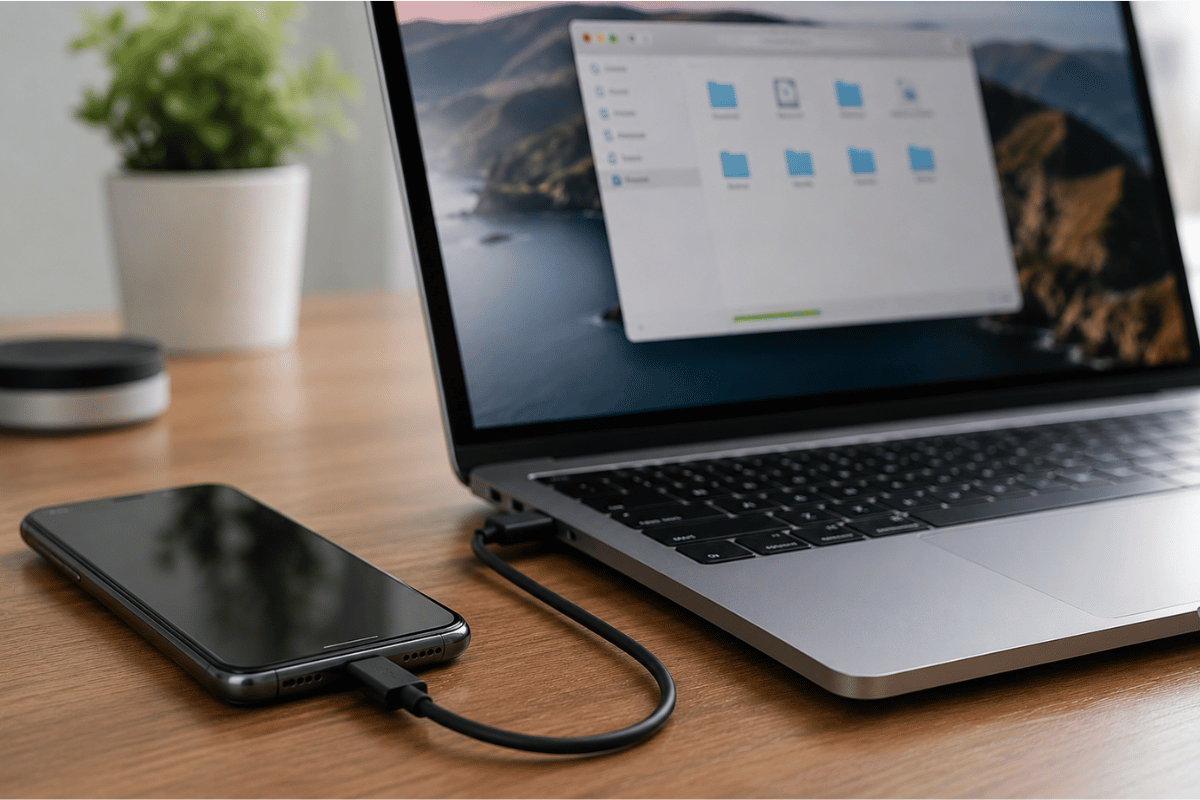
- Connect your Android phone using a USB cable.
- Unlock your phone.
- Tap the USB notification.
- Select File Transfer or MTP.
- Open the transfer application on your Mac.
- Begin moving files.
This remains the fastest solution for most Android users.
Method 2: Use Google Drive
If you only need a few files, cloud storage is often easier than using a cable.
On Android
- Upload files to Google Drive.
- Wait for synchronization.
On Mac
- Open your browser.
- Visit Google Drive.
- Download the files.
This method works well for:
- PDFs
- Photos
- Documents
- Small videos
Method 3: Transfer Photos with Google Photos
If your goal is only moving pictures, Google Photos makes the process simple.
Steps
- Enable Backup on Android.
- Wait until photos finish uploading.
- Open Google Photos on your Mac.
- Download the desired images.
This eliminates the need for USB connections entirely.
Method 4: Bluetooth Transfer
Bluetooth works for smaller files.
Enable Bluetooth
On Android:
- Open Settings
- Bluetooth
- Turn it on
On Mac:
- Open System Settings
- Bluetooth
- Pair your Android phone
After pairing, send files directly.
Bluetooth is much slower than USB and is best for small documents or photos.
Method 5: Use Nearby Share Alternatives
Google’s Nearby Share for Mac support is still limited, but several third-party applications provide wireless file transfers over the same Wi-Fi network.
These tools are convenient when:
- You don’t have a USB cable
- Both devices are connected to the same Wi-Fi
- You frequently move files
How to Enable File Transfer Mode
Many users miss one important step.
After plugging in the USB cable:
- Unlock your Android phone.
- Swipe down from the top.
- Tap the USB notification.
- Select:
- File Transfer
- Transfer Files
- MTP
If you leave it on Charging Only, your Mac will never detect the storage.
Check Your USB Cable
Not every USB cable transfers data.
Some cables only charge devices.
Try:
- Original manufacturer cable
- Certified USB cable
- Another cable you know supports data
This simple test solves many connection problems.
Try Another USB Port
Sometimes the issue is your Mac instead of the phone.
Try:
- Another USB port
- Different USB-C adapter
- Another Mac if available
If another computer detects the phone, your original Mac may need troubleshooting.
Restart Both Devices
A restart refreshes background services.
Restart:
- Android phone
- Mac computer
Reconnect after both devices finish rebooting.
Update Your Android Software
Older Android versions occasionally create compatibility issues.
Check for updates:
Settings → Software Update → Install Updates
Updating may improve USB communication.
Update macOS
Likewise, keeping macOS updated helps maintain compatibility with newer Android devices.
Go to:
System Settings → General → Software Update
Install any available updates.
Check USB Permissions
Some Android phones ask permission before allowing file transfers.
Watch for prompts such as:
- Allow file access?
- Trust this computer?
- Allow USB debugging?
Approve the prompt before attempting the transfer.
Test Safe Mode
If file transfer apps continue crashing, another application on your Android device may be interfering.
Booting into Safe Mode temporarily disables third-party apps.
If your Mac detects the phone while in Safe Mode, recently installed apps may be causing the problem.
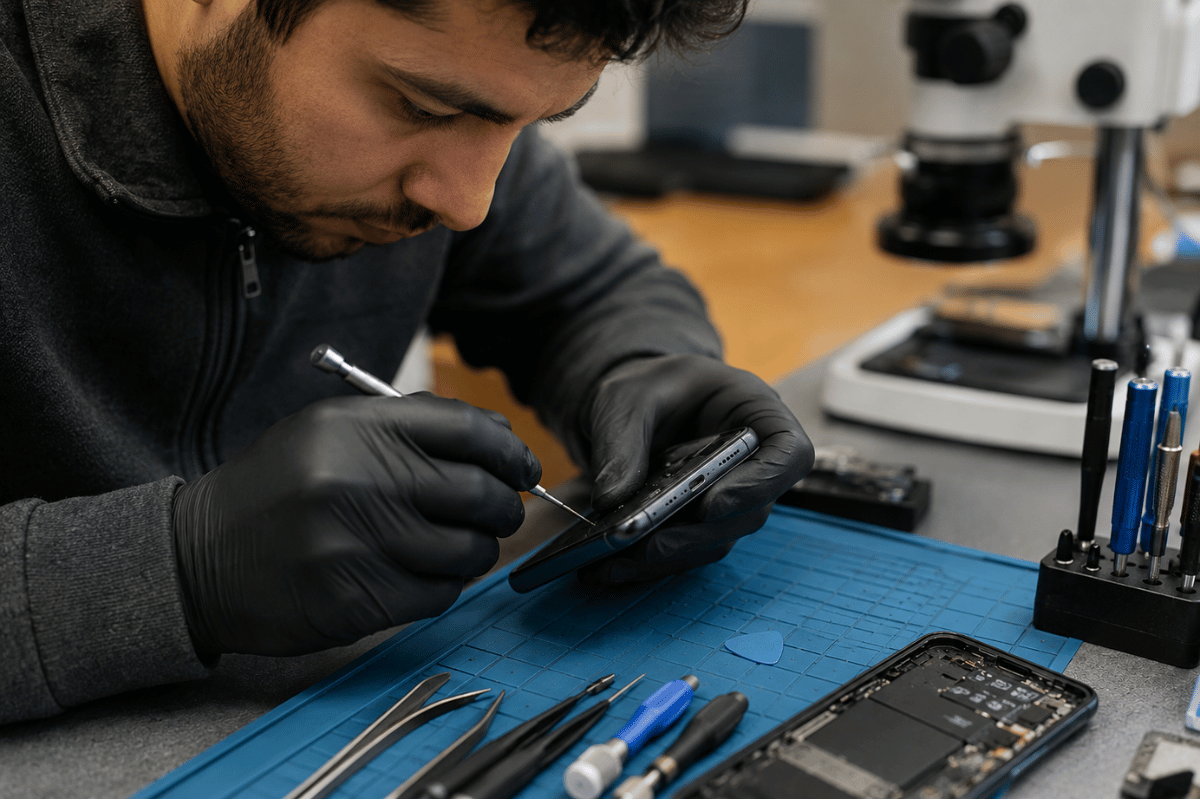
Signs of Hardware Problems
If none of the software solutions work, the problem may be physical.
Possible hardware faults include:
- Loose charging port
- Bent USB connector
- Water damage
- Internal motherboard damage
- Broken USB controller
These issues usually require professional diagnosis.
Some severe cases involve board-level repairs such as Micro Soldering, especially if the charging port circuitry has failed.
Prevent Future Connection Problems
Following a few habits can reduce connection issues.
- Use quality USB cables
- Keep software updated
- Avoid forcing connectors
- Clean charging ports carefully
- Back up important files regularly
- Avoid moisture exposure
These practices help protect both your data and your phone.
Most Android phones can connect to a Mac after selecting the correct USB mode, using a reliable data cable, and installing a compatible file transfer application. Cloud services such as Google Drive and Google Photos also provide convenient alternatives when you don’t need a wired connection.
If your phone still isn’t recognized after trying every step in this guide, the issue could be related to a damaged charging port or internal hardware. At that point, visiting a trusted Phone repair Mississauga shop for a professional inspection can save time and prevent further damage. A technician can quickly determine whether the problem is software-related or requires hardware repair.
Frequently Asked Questions
Why won’t my Android phone appear on my Mac?
Usually because the phone is set to Charging Only, the USB cable only supports charging, or file transfer software is missing.
Can I connect Android to Mac without USB?
Yes. Google Drive, Google Photos, Bluetooth, and wireless transfer apps allow file sharing without cables.
Why does my phone charge but not transfer files?
Most often, the USB cable does not support data transfer or the phone is using Charging Only mode.
Is Android File Transfer still available?
Google no longer actively supports Android File Transfer. Most users now choose alternatives like OpenMTP or MacDroid.
When should I seek professional repair?
If multiple cables, computers, and transfer methods fail, your phone may have a damaged USB port or motherboard that requires professional service.