Want to watch videos, photos, apps, or other content from your Android phone on a bigger screen? You can often connect an Android phone to a smart TV wirelessly without using an HDMI cable or other physical connection.
Most newer Android phones and smart TVs support wireless screen sharing through features such as Google Cast, Smart View, Chromecast, or built-in screen mirroring.
This guide explains how to connect your Android phone to a TV wirelessly and what to check if the connection does not work.
Before You Start
Before trying to connect your Android phone to your TV, check these basic requirements:
- Make sure both devices are connected to Wi-Fi.
- Connect the phone and TV to the same Wi-Fi network.
- Turn on your smart TV and make sure it is ready to receive a connection.
- Keep your Android phone reasonably close to the TV.
- Install pending system updates on the phone or TV if available.
The same Wi-Fi network is especially important. If your phone uses mobile data while the TV is connected to Wi-Fi, wireless casting may not work.
Method 1: Use Google Cast or Screen Cast
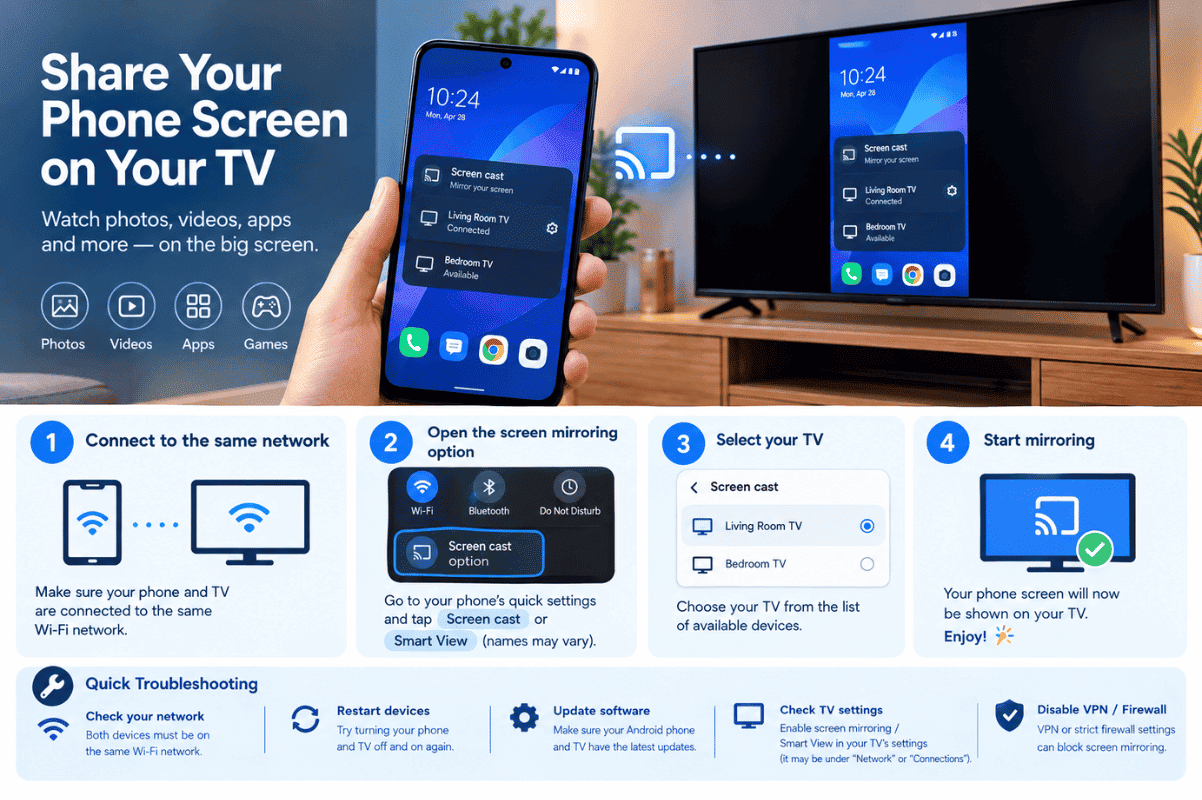
Many Android phones include a Cast option in the quick settings panel.
Step 1: Turn on your TV
Make sure your smart TV is switched on and connected to Wi-Fi.
Step 2: Open Quick Settings
On your Android phone, swipe down from the top of the screen. You may need to swipe down again to see the full list of settings.
Look for an option such as:
- Cast
- Screen Cast
- Screen Share
- Wireless Display
- Smart View
The name depends on your phone manufacturer and Android version.
Step 3: Select your TV
Tap the casting or screen-sharing option. Your phone should search for compatible devices nearby.
Select your TV from the available devices.
Step 4: Confirm the connection
Some TVs display a permission request or PIN. Follow the instructions shown on your TV.
Once connected, your Android screen should appear on the television.
Method 2: Use Google Home With Chromecast
If your TV has Chromecast built in or you use a Chromecast device, the Google Home app can be used for screen casting.
- Install or open the Google Home app on your Android phone.
- Make sure your phone and Chromecast or compatible TV are on the same Wi-Fi network.
- Select your TV or Chromecast device.
- Choose the option to cast your screen.
- Confirm the connection when prompted.
You can also cast content directly from supported apps. Look for the Cast icon inside apps such as YouTube and select your TV.
Casting directly from an app can be preferable when you only want to watch a particular video rather than mirror the entire phone screen.
Method 3: Samsung Smart View
Samsung Galaxy phones commonly provide Smart View for wireless screen mirroring.
To use it:
- Swipe down from the top of the screen.
- Find Smart View in the Quick Settings panel.
- Tap Smart View.
- Select your compatible TV.
- Confirm the connection on the TV if requested.
Your Samsung phone should then mirror its display on the TV.
If Smart View is missing, check the Quick Settings panel’s edit options. The feature can also vary depending on the Galaxy model and software version.
If Your Android Phone Cannot Find the TV
If your TV does not appear, try these troubleshooting steps in order.
1. Check the Wi-Fi network
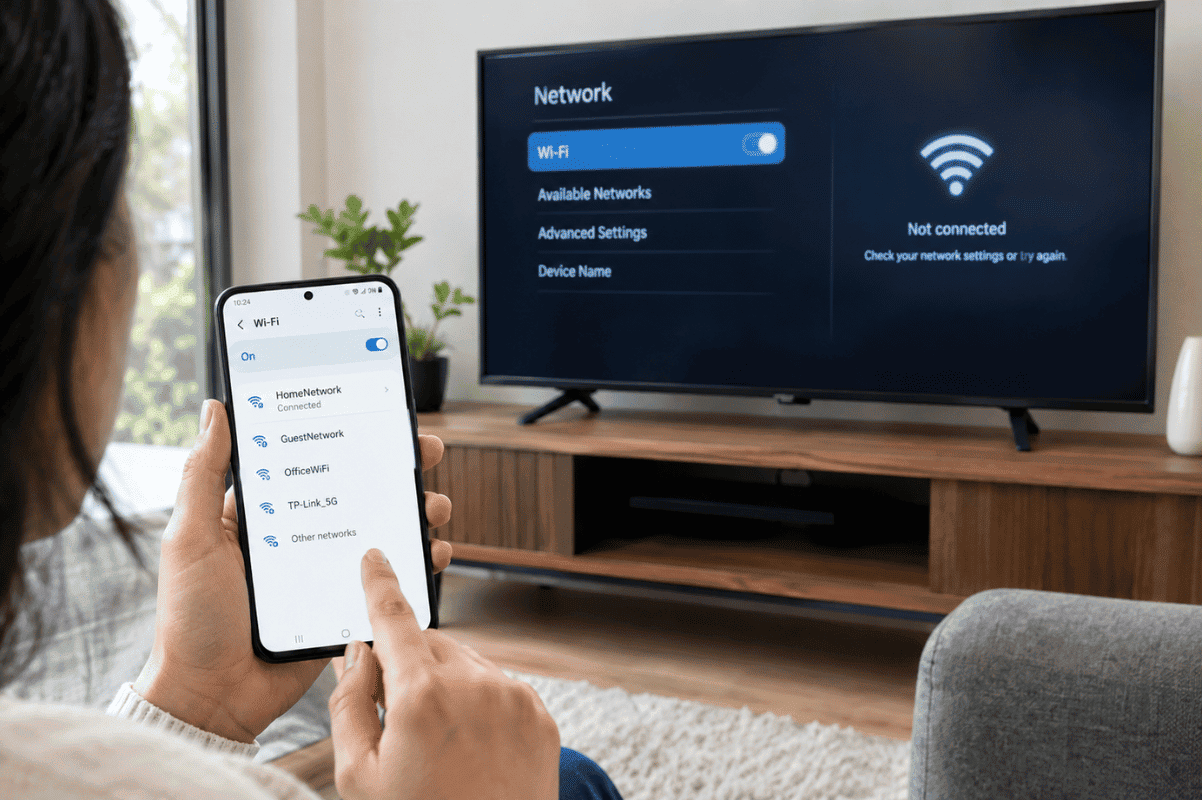
Confirm that both devices are connected to the same Wi-Fi network. Also check whether one device is connected to a guest network.
2. Restart both devices
Turn the TV off and restart your Android phone. If possible, unplug the TV from power for about 30 seconds before reconnecting it.
This can clear temporary connection problems.
3. Restart your router
If other wireless devices are also having problems, restart your Wi-Fi router. Wait until the connection is fully restored before trying again.
4. Turn Wi-Fi off and back on
On your Android phone, temporarily disable Wi-Fi and enable it again. Reconnect to your home network and retry screen casting.
5. Check TV settings
Some smart TVs have a screen mirroring, casting, or device connection setting that must be enabled before your phone can connect.
Check the TV’s network or connection settings.
What If the TV Supports a Different Casting System?
Not every Android phone and TV uses the same wireless technology.
For example, your phone may support Google Cast while an older TV may use a different screen-mirroring system. In this situation, the TV may not appear in the phone’s casting menu.
Check the TV manufacturer’s instructions to determine which wireless connection method it supports.
If the TV does not support wireless casting, a compatible Chromecast or another supported streaming device may provide an alternative.
Why Does Wireless Screen Mirroring Keep Disconnecting?
A connection that repeatedly drops can be caused by several factors.
Try the following:
- Move the phone closer to the Wi-Fi router.
- Reduce the distance between the phone and TV.
- Restart the router.
- Close unnecessary apps running in the background.
- Update the phone’s software.
- Update the TV’s firmware.
- Check whether other devices are using heavy network bandwidth.
If the connection works briefly and then stops, testing another Wi-Fi network can also help determine whether the problem is related to your home network.
What If Wireless Casting Still Does Not Work?
If you’ve confirmed that the TV and phone are compatible, restarted both devices, checked Wi-Fi, and tried the available casting methods, the problem may be related to the phone’s software, wireless hardware, or TV compatibility.
Before paying for cell phone repair, try the basic troubleshooting steps above. They can resolve many connection problems without requiring professional service.
However, if your Android phone also has problems connecting to Wi-Fi, Bluetooth, mobile networks, or other wireless devices, the issue may require further diagnosis.
A professional Phone repair Mississauga service can help determine whether the problem is software-related or connected to the phone’s hardware.
Before looking for professional help, check these points:
- Phone and TV are connected to the same Wi-Fi network.
- Both devices have been restarted.
- Wi-Fi has been turned off and back on.
- Your TV supports the casting method you are using.
- Your Android phone and TV software are updated.
- You have tried another compatible casting method if available.
For many users, fixing the Wi-Fi connection or selecting the correct screen-sharing feature is enough to get Android-to-TV wireless casting working again. If other wireless functions on the phone are also failing, professional troubleshooting may be the next practical step.