
If you suspect someone installed mSpy on your Android phone without your permission, you can check several settings yourself before seeking professional help. mSpy is monitoring software that can potentially access sensitive information such as messages, calls, location data, and other device activity.
Unusual battery drain or increased data usage does not automatically mean mSpy is installed. However, unexpected apps, unfamiliar permissions, or changes to security settings deserve attention.
This guide explains how to check your Android phone and what to do if you find something suspicious.
1. Look for Unfamiliar Apps
Start by checking the applications installed on your Android phone.
Open:
Settings → Apps → See all apps
Review the complete app list and look for applications you do not recognize. Pay particular attention to apps you did not install yourself.
Some monitoring software may use an ordinary-looking name or icon, so simply checking for the word “mSpy” may not be enough.
Before deleting an unfamiliar app, search its exact name online or check its developer information. Some unfamiliar apps are legitimate system or manufacturer applications.
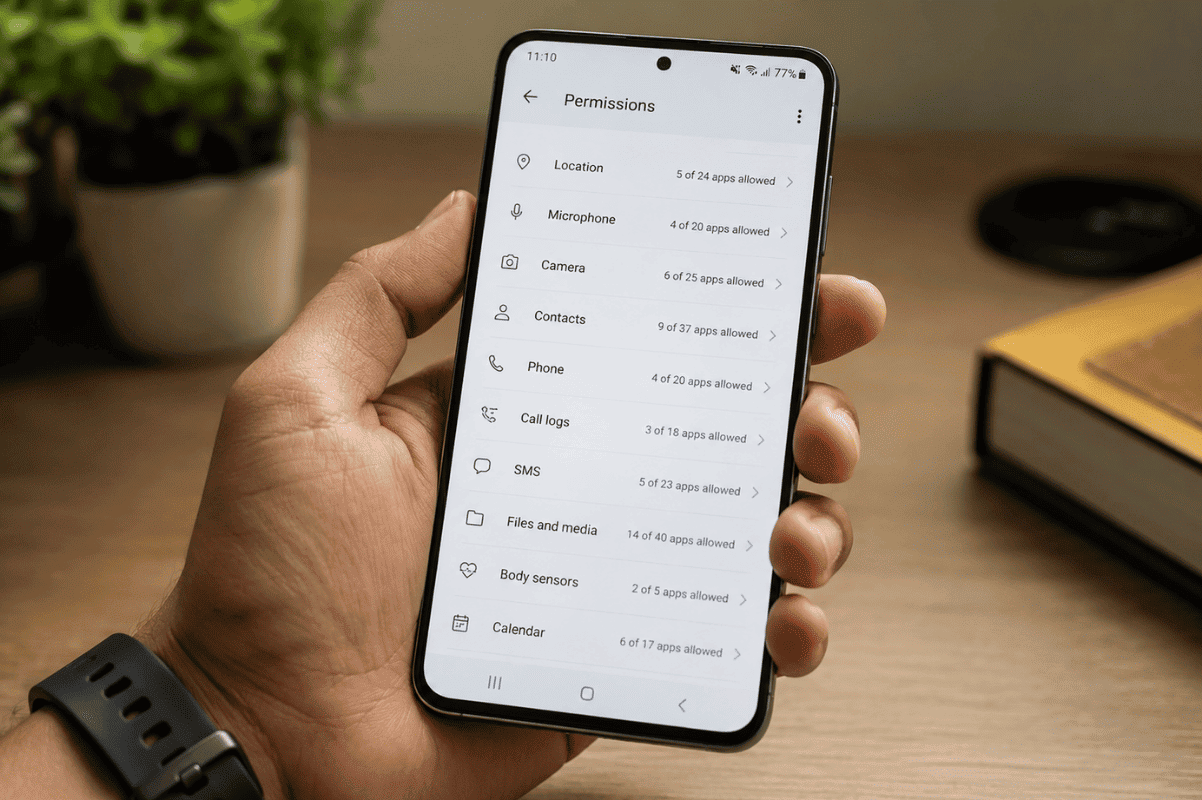
2. Check Which Apps Have Sensitive Permissions
Monitoring software often requires access to sensitive Android permissions.
Go to:
Settings → Privacy → Permission Manager
Depending on your Android version, the menu may be located under Security & Privacy.
Check applications with access to:
- Location
- Microphone
- Camera
- SMS
- Contacts
- Phone
- Files and media
Look for an application that has permissions that do not match its purpose. For example, a basic utility app requesting access to SMS, microphone, contacts, and location deserves closer examination.
You can revoke unnecessary permissions from the same area.
3. Check Accessibility Services
Accessibility access can provide powerful control over an Android device, so it is important to review this setting.
Try:
Settings → Accessibility → Installed apps or Downloaded apps
The exact wording varies between Android manufacturers.
Look for unfamiliar services that you do not remember enabling. If you find one, disable it and investigate the associated application.
Do not disable accessibility services belonging to features you intentionally use, such as legitimate accessibility tools.
4. Review Device Administrator Apps
Some monitoring applications may request elevated device privileges.
Search your Android settings for:
Device admin apps
You may find this under:
Settings → Security → More security settings → Device admin apps
The location differs between Samsung, Google Pixel, Motorola, and other Android phones.
If an unfamiliar application has administrator access, disable that access before attempting to uninstall the application.
5. Check Battery and Mobile Data Usage
Unexpected battery consumption or data usage can provide useful clues, although neither is proof that mSpy is installed.
Check:
Settings → Battery → Battery usage
Then review:
Settings → Network & internet → App data usage
On Samsung devices, these options may appear under Battery and device care or Connections.
Look for applications consuming significant resources when you rarely use them. An unusual pattern can help identify an application worth investigating.
6. Uninstall Suspicious Applications
If you have identified an unfamiliar application and confirmed that it is not a legitimate Android or manufacturer service, try uninstalling it.
Go to:
Settings → Apps → [App name] → Uninstall
If the uninstall option is unavailable, check whether the application has device administrator, accessibility, VPN, or other elevated access.
Remove the unnecessary access first, then try uninstalling the application again.
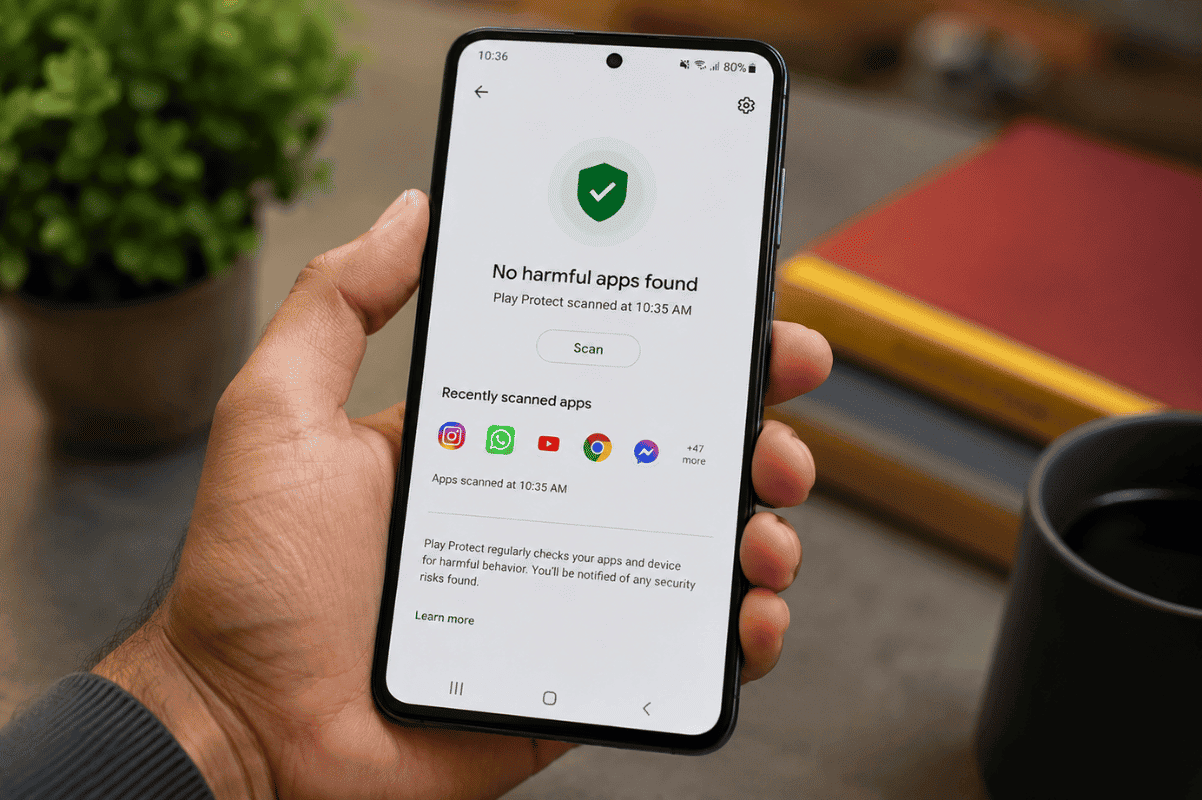
7. Scan the Phone With Google Play Protect
Android includes Google Play Protect, which can scan applications for potentially harmful behavior.
Open the Google Play Store and:
Tap your profile picture → Play Protect → Scan
Make sure Play Protect is enabled.
If it detects a potentially harmful application, follow Google’s recommended steps to remove or secure it.
8. Update Android and Change Important Passwords
After removing suspicious software, install available Android and security updates.
Then consider changing passwords for accounts that may have been accessible from the phone, especially:
- Google account
- Banking accounts
- Social media
- Messaging services
Use another trusted device if you believe your Android phone may still be monitored.
Also enable two-factor authentication wherever available.
9. Consider a Factory Reset if Problems Continue
If you cannot identify or remove suspicious software, a factory reset may be the most thorough option.
Before resetting, back up important photos, contacts, and documents. Avoid restoring unknown applications or questionable backups afterward.
A factory reset erases personal data and installed applications, so make sure you understand what will be removed before proceeding.
If the phone continues showing unusual behavior after a reset, professional diagnosis is recommended.
When to Get Professional Help
If you have followed these steps but still suspect monitoring software, avoid repeatedly changing settings without knowing what you are disabling. A professional can inspect the device, review security settings, identify unusual software, and help determine whether a reset is appropriate.
For users searching for Phone repair Mississauga, a local technician can also help with Android troubleshooting when software problems cannot be resolved at home.
Professional Cell phone repair can be useful when the issue involves a combination of software, security, and device problems.
Final Checklist
Before considering the problem resolved:
- Check installed applications
- Review sensitive permissions
- Inspect Accessibility Services
- Review Device Administrator access
- Check battery and data usage
- Run Google Play Protect
- Update Android
- Change important passwords
- Enable two-factor authentication
- Factory reset the phone if necessary
If you still cannot determine whether mSpy or another monitoring application is present, professional assistance is the safer next step.