
Accessibility features on Android devices are designed to help users with vision, hearing, mobility, or other accessibility needs. However, some features can be enabled accidentally, making the phone difficult to use. Common examples include TalkBack, Magnification, Select to Speak, or Accessibility Menu.
This guide explains how to disable accessibility settings on Android phones using simple steps you can try at home before seeking professional assistance.
Why Accessibility Features Get Turned On
Accessibility settings can be activated in several ways:
- Accidental button combinations
- Software updates changing settings
- Children or other users modifying phone settings
- Accessibility shortcuts enabled on the device
When activated unexpectedly, these features may change how your phone responds to taps, gestures, or voice commands.
How to Disable Accessibility Features on Android
Method 1: Turn Off Accessibility Through Settings
This is the easiest method for most Android devices.
- Open Settings.
- Scroll down and tap Accessibility.
- Select the feature that is currently enabled.
- Toggle the feature Off.
Depending on your phone model, accessibility settings may be located under:
- Settings > Accessibility
- Settings > System > Accessibility
- Settings > Additional Settings > Accessibility
Common features you may want to disable include:
- TalkBack
- Accessibility Menu
- Magnification
- Voice Access
- Select to Speak
How to Disable TalkBack on Android
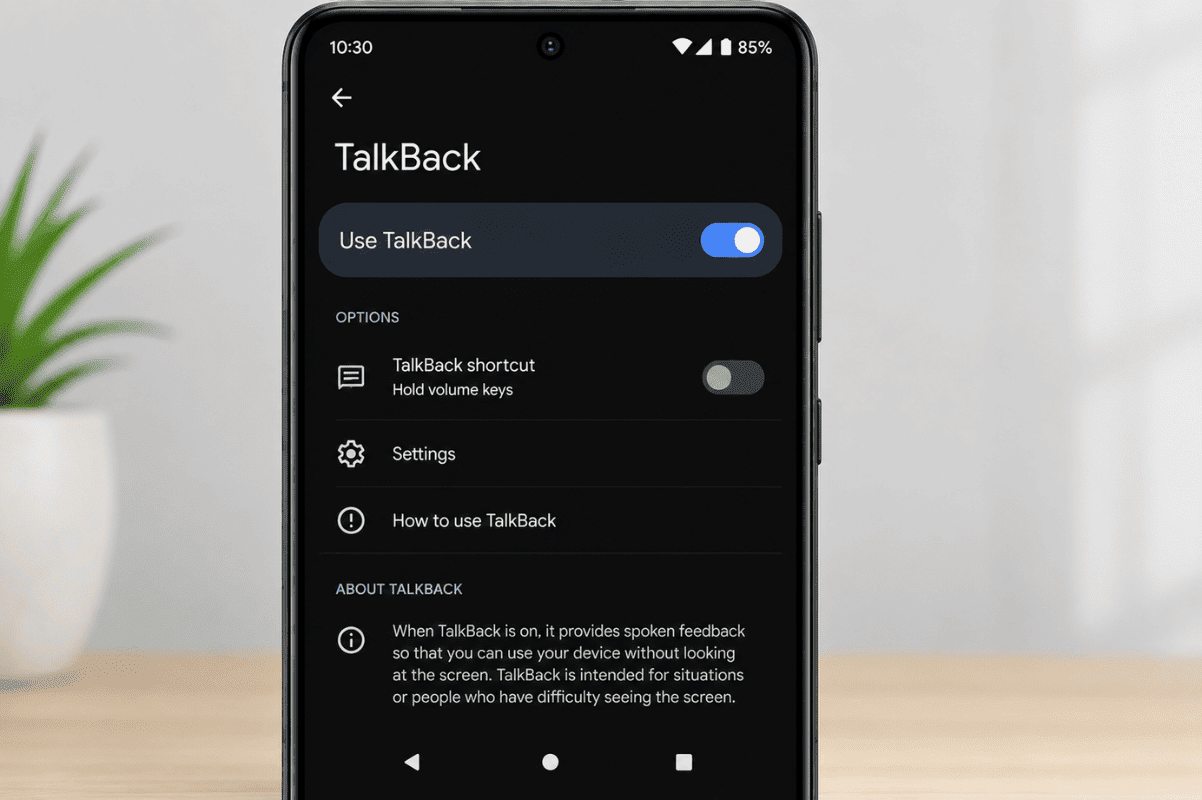
TalkBack is one of the most commonly activated accessibility features. It provides spoken feedback and changes touch controls.
If TalkBack is enabled:
- Tap an item once to highlight it.
- Double-tap to select it.
- Open Settings.
- Navigate to Accessibility.
- Select TalkBack.
- Turn TalkBack Off.
Quick Shortcut Method
Many Android phones allow TalkBack to be disabled by pressing and holding both volume buttons for about 3 seconds.
If this shortcut is enabled, TalkBack should turn off immediately.
How to Disable Accessibility Shortcut
Sometimes accessibility features keep turning on because the shortcut remains active.
To disable it:
- Open Settings.
- Tap Accessibility.
- Select Accessibility Shortcut.
- Turn the shortcut Off.
This prevents accidental activation in the future.
How to Disable Magnification
If your screen appears permanently zoomed in:
- Open Settings.
- Go to Accessibility.
- Select Magnification.
- Toggle the feature Off.
Quick Fix
On many Android devices, triple-tapping the screen can disable magnification if it was activated accidentally.
How to Disable Voice Access
Voice Access allows users to control their device using voice commands.
To disable it:
- Open Settings.
- Go to Accessibility.
- Tap Voice Access.
- Switch it Off.
If Voice Access keeps restarting, restart the device after disabling the feature.
Restart Your Android Device
If accessibility settings appear stuck:
- Press and hold the power button.
- Select Restart.
- Wait for the device to reboot.
A simple restart often resolves temporary software glitches affecting accessibility settings.
Update Android Software
Outdated software can sometimes cause settings issues.
To check for updates:
- Open Settings.
- Tap Software Update or System Update.
- Download and install available updates.
After updating, verify that accessibility features remain disabled.
Reset Accessibility Settings
If accessibility features continue to reactivate unexpectedly, resetting accessibility preferences may help.
On many Android devices:
- Open Settings.
- Select General Management or System.
- Tap Reset.
- Choose Reset Accessibility Settings if available.
The exact wording may vary depending on the manufacturer.
When DIY Fixes Do Not Work
If accessibility settings cannot be disabled, the issue may be related to:
- Software corruption
- Malware or unwanted apps
- System configuration errors
- Physical button problems triggering accessibility shortcuts
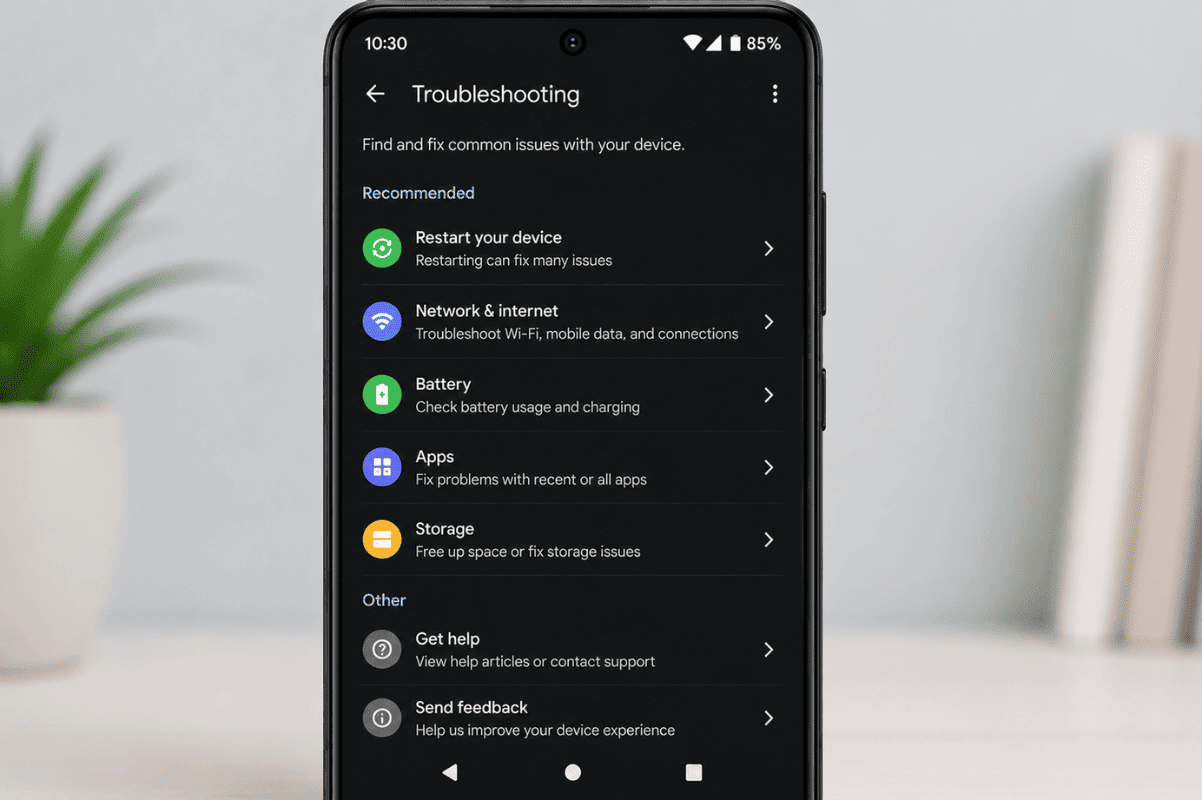
In these cases, professional diagnostics may be required.
A qualified technician can inspect the device, remove problematic software, and ensure all settings are functioning properly.
When to Visit a Repair Shop
Consider professional assistance if:
- Accessibility features re-enable automatically
- The screen becomes unresponsive
- Settings app crashes repeatedly
- The phone has suffered recent physical damage
- Software troubleshooting does not resolve the problem
For users in the Greater Toronto Area, a trusted Phone repair Mississauga service can diagnose deeper software or hardware issues. If the device has additional problems such as display damage, a professional Cell phone repair technician can identify whether multiple issues are affecting performance.
Most Android accessibility features can be disabled in just a few minutes through the Settings menu. Start by identifying the active feature, turn it off, and disable accessibility shortcuts to prevent future accidental activation. If the problem persists after restarting, updating, and resetting accessibility settings, professional support may be the most efficient solution.
Trying these simple fixes at home first can save time and help restore normal phone operation without unnecessary repairs.