Mock Location is an Android developer feature that allows users to set a custom GPS location on their device. It is commonly used for app testing, software development, location-based troubleshooting, and privacy purposes.
If you need to enable Mock Location on your Android phone, this guide walks you through the process step by step.
What Is Mock Location on Android?
Mock Location lets an app provide a fake GPS location instead of your phone’s actual location. Developers often use this feature to test location-based apps without physically traveling to different places.
Android does not enable this feature by default. You must first activate Developer Options and install a compatible mock location application.
Before You Begin
Make sure you have:
- An Android phone running Android 8.0 or newer
- Access to your phone’s Settings menu
- A trusted mock location app installed from the Google Play Store
Always download location-related apps from reputable sources to reduce security risks.
Step 1: Enable Developer Options
Developer Options must be enabled before Android allows mock locations.
Follow these steps:
- Open Settings.
- Tap About Phone.
- Locate Build Number.
- Tap the Build Number seven times.
- Enter your device PIN or password if prompted.
- You should see a message confirming that Developer Options have been enabled.
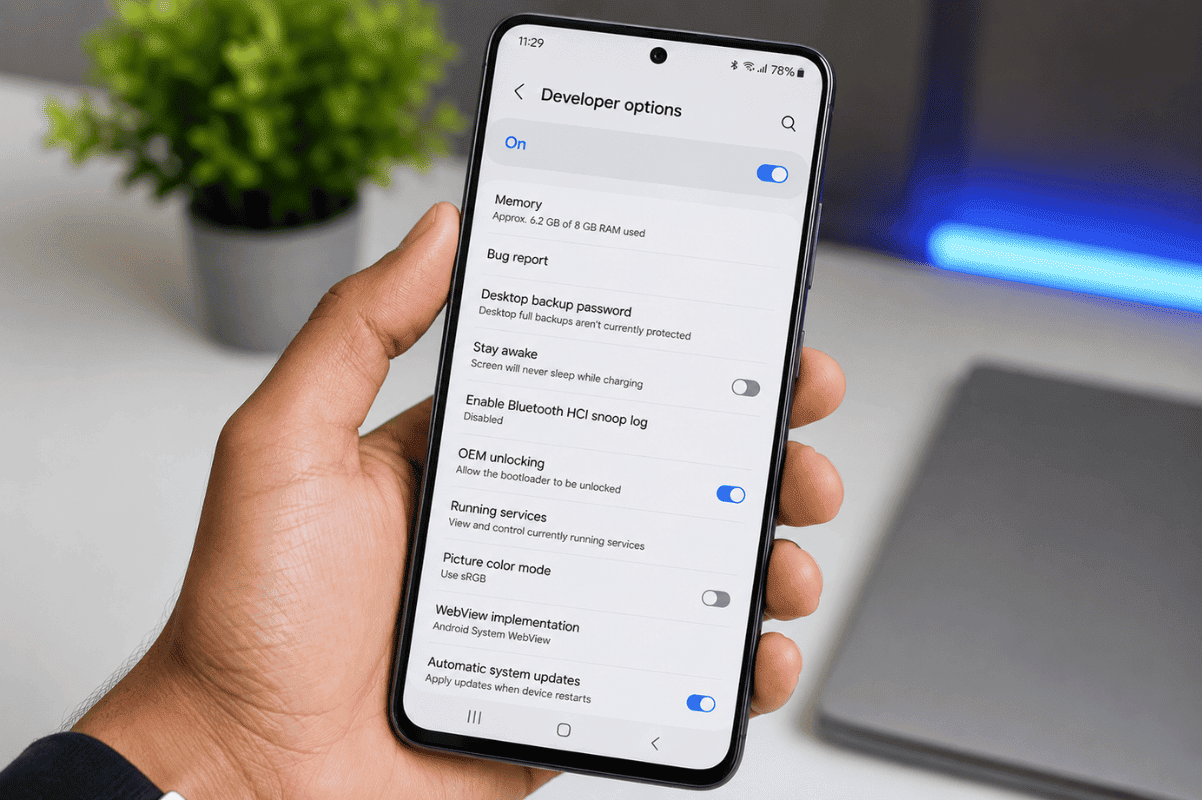
The location of the Build Number may vary slightly depending on your phone manufacturer.
Step 2: Install a Mock Location App
Next, install a mock GPS application from the Google Play Store.
After installation:
- Open the app once.
- Grant any required permissions.
- Leave the app installed for the next steps.
Choose an app with positive reviews and recent updates.
Step 3: Select the Mock Location App
Now connect the app to Android’s Developer Options.
- Open Settings.
- Go to Developer Options.
- Scroll down to Select Mock Location App.
- Tap the option.
- Choose the mock location app you installed.
Android will now allow that application to control GPS location data.
Step 4: Set a Custom Location
To use Mock Location:
- Open the mock location app.
- Search for the desired location.
- Place the location pin.
- Tap the start or play button within the app.
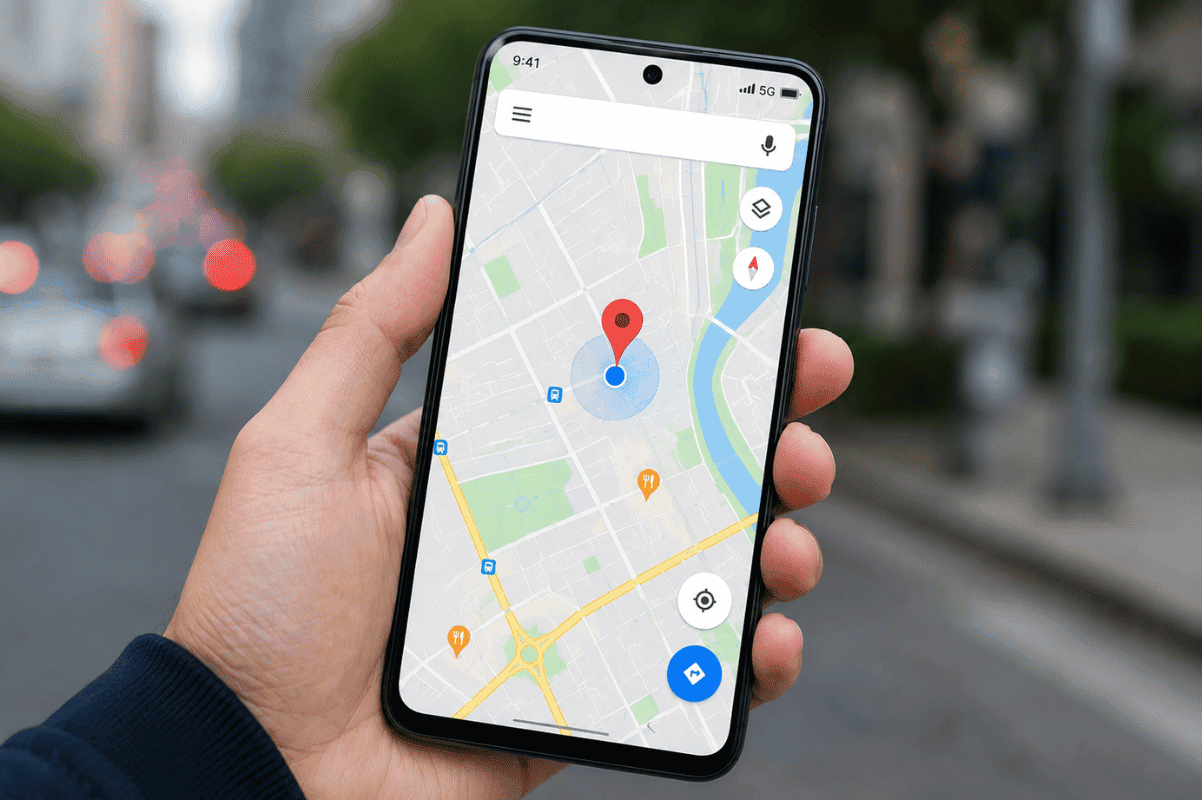
Your Android device should now report the selected location to supported applications.
Common Problems and Fixes
Mock Location Option Is Missing
Try the following:
- Confirm Developer Options are enabled.
- Restart your phone.
- Update Android software if available.
Apps Still Detect Your Real Location
Some applications use additional location verification methods.
Try:
- Enabling high-accuracy location mode.
- Restarting the app.
- Clearing app cache.
- Restarting your phone.
Mock Location Stops Working
If the feature stops unexpectedly:
- Reopen the mock location app.
- Confirm it is still selected in Developer Options.
- Check battery optimization settings that may restrict background activity.
When to Seek Professional Help
If Developer Options are missing, settings continuously reset, or location services fail to function correctly, there may be an underlying software issue.
In some cases, damaged system files or hardware-related problems can affect GPS functionality. Before considering advanced repairs, perform a factory reset only after backing up important data.
If problems continue, a professional Cell phone repair technician can diagnose software and hardware issues affecting location services.
For users in the Greater Toronto Area, a trusted Phone repair Mississauga shop can help identify whether the issue is related to Android settings, GPS hardware, or other device faults.
Enabling Mock Location on Android is straightforward once Developer Options are activated. Most users can complete the setup in just a few minutes using a trusted mock GPS application.
Start with the basic troubleshooting steps outlined above. If location settings remain inaccessible or GPS problems persist, professional assistance may be the fastest way to restore proper device functionality.