
Handing someone your unlocked phone should not mean giving them access to your messages, photos, or banking apps. If you want to know how to lock apps on Android, start with the security features already available on your device.
The right method depends on your phone model, Android version, and the app you want to protect. This guide explains the main options, how to check that they work, and when a problem may need professional attention.
Start with your phone’s screen lock
Before protecting individual apps, open Settings and search for “screen lock”. Set a PIN or password that other people cannot easily guess. Fingerprint unlocking can make access convenient, but keep your backup PIN or password secure.
Lock the phone, then wake it and check that it requires authentication. If it opens without asking, review any settings that keep it unlocked in trusted places or near connected devices.
A screen lock protects the whole phone when locked. An app lock adds protection when someone is already using your unlocked device. Hiding an app icon alone does not provide that protection.
Check for an app’s own lock first
Open the app you want to protect and look in its settings for Privacy, Security, App lock, or a similar option. Some messaging, banking, and password management apps offer their own authentication controls.
If available:
- Enable the app’s lock or authentication requirement.
- Choose the shortest suitable locking delay.
- Leave the app, wait for that delay, and reopen it.
Look for a fingerprint, PIN, or password prompt before private information appears. If the app opens immediately, check whether its lock activates only after the screen turns off.
Menu names and behaviour vary. Use the app developer’s help instructions if the option is unclear. A missing lock setting does not mean the phone is faulty.
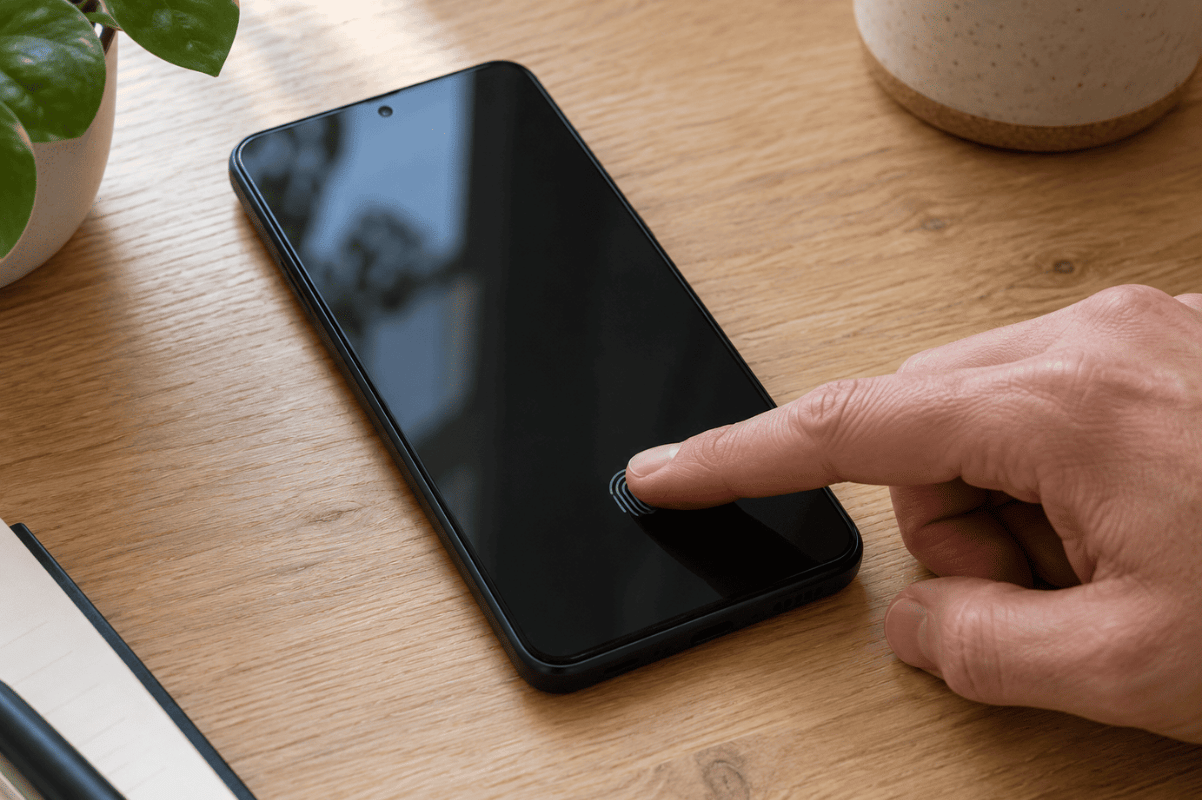
How to lock apps on Android using built-in settings
Search your phone’s Settings for “App lock”. Some manufacturers include a feature that protects selected apps directly, while others use a separate protected area.
If your phone offers App lock, follow its setup instructions, select the apps you want to protect, and review when they relock. Then leave a protected app and reopen it after the selected locking condition occurs.
The expected result is an authentication prompt. Test each important app separately.
If nothing appears in Settings, check the manufacturer’s instructions for your exact model. Android phones do not all have the same security menus, and installing an update does not guarantee a particular feature will become available.
Use Private Space on supported Android phones
Private Space is available on supported devices running Android 15 or later. Manufacturer restrictions, supervised accounts, or workplace management can prevent its use.
On supported Pixel phones, open Settings > Security & privacy > Private space and follow the setup prompts. Choose a separate lock if you want protection from someone who knows your main phone PIN.
Install the apps you need inside Private Space. These are separate installations; existing apps outside it remain accessible unless protected separately. A different Google Account can help keep synced information separate.
Set Private Space to lock whenever the device locks. Lock your phone, unlock it, and confirm that entering Private Space requires authentication.
Apps inside a locked Private Space stop running and cannot deliver notifications. Avoid placing apps there if you rely on continuous background activity or urgent alerts. Google’s explains these limits.
Use Secure Folder on supported Samsung phones
On supported Galaxy phones, Samsung offers Secure Folder for keeping apps and files in a protected area.
Samsung’s documented path is Settings > Security and privacy > More security settings > Secure Folder, although menus vary by software version. Searching Settings for “Secure Folder” may be easier.
Complete setup, choose a lock, and use Add apps inside the folder. This creates a separate copy of an app. The original outside the folder remains available.
Review Auto lock Secure Folder and choose an appropriate option. Trigger that locking condition, then reopen the folder to confirm that it asks you to authenticate.
Also review its notification settings, since notifications can be allowed while the folder is locked. Follow for your software version. Do not assume simply leaving the folder locks it.
Pin an app before lending your phone
App pinning is useful when someone needs to use one app briefly. It keeps that app on screen until you unpin it. It does not put a password on the app itself.
Search Settings for “App pinning” or “Pin app”. Enable it and, where offered, require your screen lock credentials before unpinning.
Open the app, display Recent apps, tap its icon, and choose Pin if available. Navigation varies by phone. Follow the displayed instructions to unpin.
Before handing over the phone, test that leaving the pinned app requires authentication. Remember that the person can still explore information within that app. Pinning your photo gallery, for example, may expose more than one photo. See for navigation details.
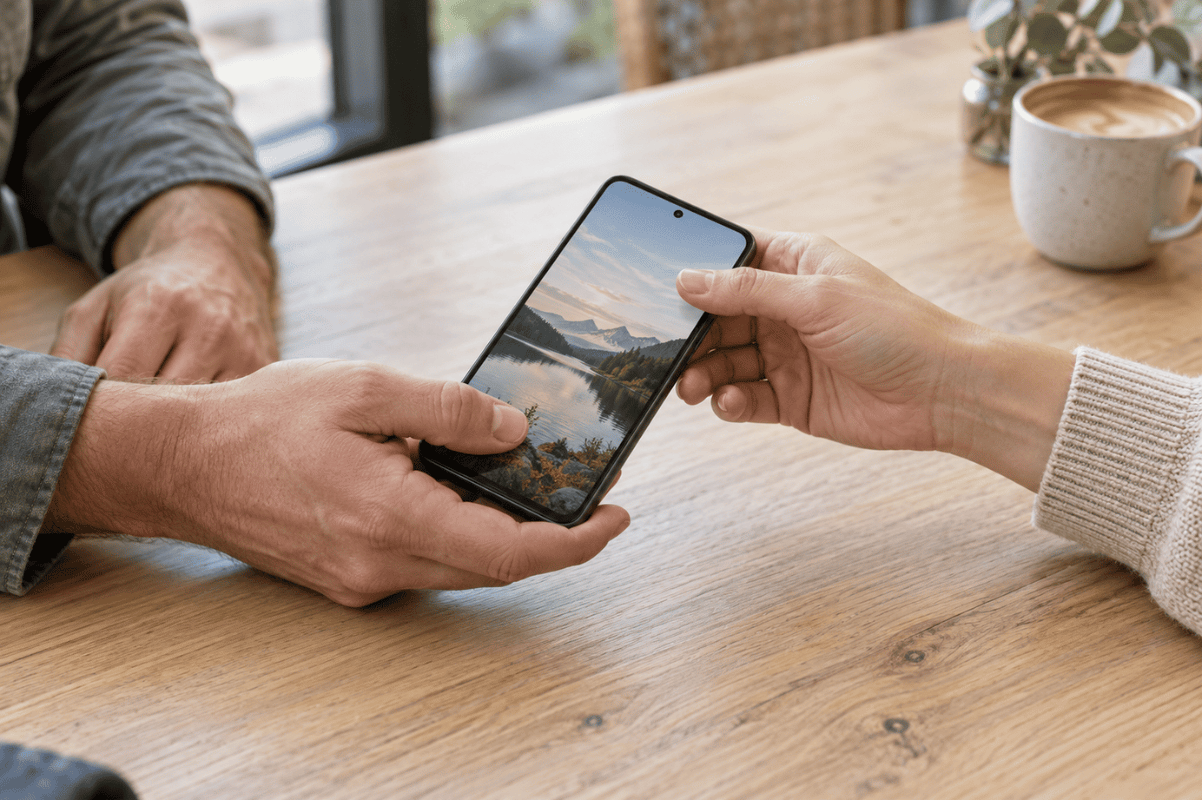
Check notifications and other access points
An app lock may still leave message previews visible elsewhere.
Search Settings for lock screen notifications and hide sensitive content. Check the protected app’s notification settings too. Send yourself a test message and inspect what appears while the phone is locked.
Also check connected watches and other devices where the same account is signed in. Locking an app on your phone does not automatically protect those devices.
Prefer built-in features before considering a third-party app locker. Such apps may request broad permissions and may not protect every route into an app. Avoid installing unfamiliar software simply because it promises stronger security.
If the lock does not work, try these checks
First, confirm that you are opening the protected app copy and that its locking delay has passed. Then restart the phone and test again. A restart turns the device off and on without erasing your stored data.
Check for official system and app updates, install available updates, and repeat the test.
If fingerprint recognition fails, gently clean and dry your finger and the sensor area, then try your PIN. Successful PIN access suggests that the lock itself still works.
Do not delete a protected space or clear app storage casually: locally stored information can be lost. A factory reset erases local phone data and settings. It is not an appropriate first response to a missing app-lock feature.
When to stop troubleshooting and get help
A missing feature usually calls for manufacturer or app support rather than cell phone repair. Forgotten credentials require the official recovery process; a repair shop cannot promise access to protected data.
Seek an assessment if touch input fails across several apps, the fingerprint sensor remains unresponsive, or problems began after physical damage. Phone screen repair may be relevant when damaged touch input prevents entering your PIN, but inspection is needed to identify the cause.
If you are in Mississauga and physical phone problems are preventing secure access, contact Fix Phone Mississauga to discuss the symptoms and whether a visit would help.