
Conference calls are useful when you need to speak with two or more people at the same time. You may want to discuss a work project with your team, plan something with family members, or talk with several people without making separate calls.
Most Android phones have a built-in conference calling feature. The exact buttons can look slightly different depending on your phone brand, Android version, and mobile carrier. However, the basic process is usually the same.
This guide explains how to make a conference call on Android and what to do if the merge option does not work.
How to Make a Conference Call on Android
You can usually start a conference call directly from the Phone app. You do not normally need to install another application for a basic conference call.
Follow these steps:
- Open the Phone app on your Android phone.
- Call the first person you want to include.
- Wait until the person answers the call.
- Look for the Add call option on the screen.
- Tap Add call.
- Select another contact or enter the person’s phone number.
- Wait for the second person to answer.
- Once they answer, tap Merge or Merge calls.
- The calls should now be connected together.
You can usually see the people included in the conference call on your screen. Some phones also let you manage individual callers during the conversation.
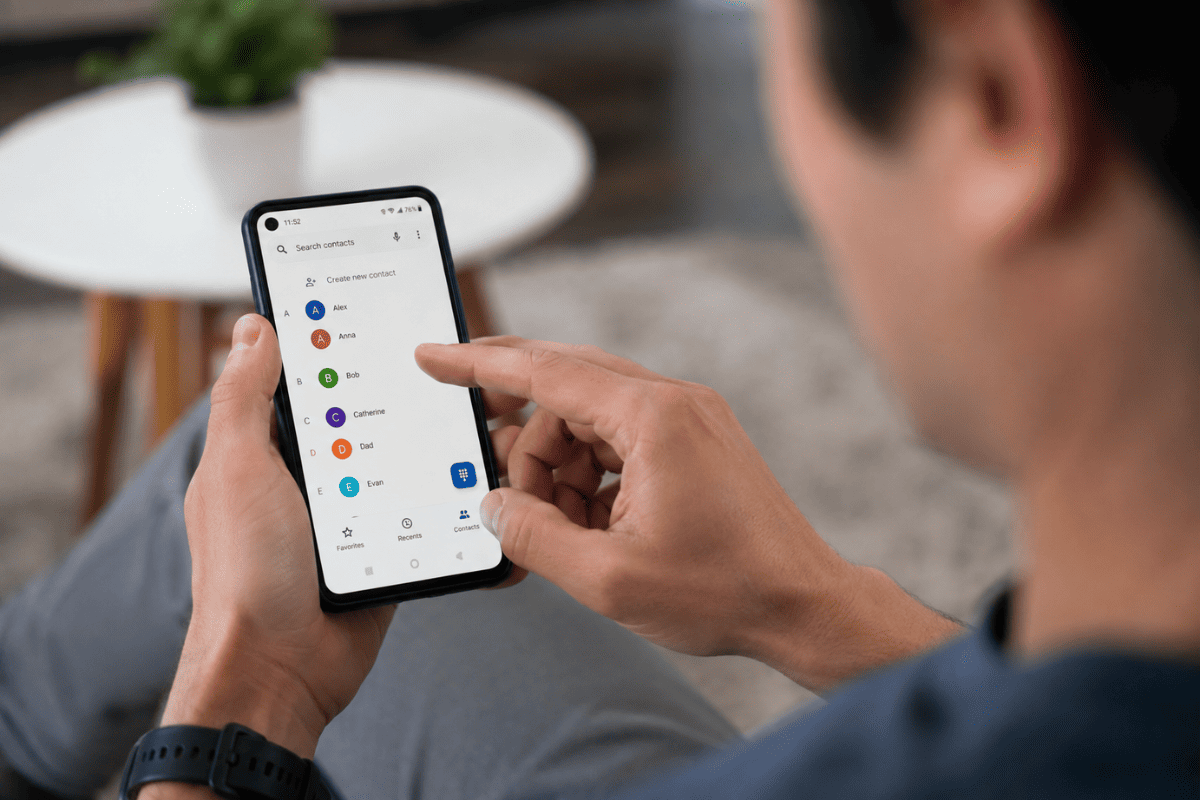
How to Add Another Person to an Existing Conference Call
If you are already on a conference call and want to include another person, your phone may allow you to add them without ending the current call.
Tap Add call and choose the next contact. The existing caller may be placed on hold while you connect with the new person.
After the new person answers, look for Merge calls. Tap it to bring everyone back into the same conversation.
The number of people you can add is not the same on every Android phone. Your mobile carrier and calling plan can also affect the number of participants allowed.
What If You Cannot Find the Merge Option?
One common problem is that the Merge button does not appear after the second person answers. This does not always mean there is something wrong with your Android phone.
Start by checking your mobile service. Some carriers or plans may have limitations on three-way or conference calling.
You can also end the call and try again. Sometimes the calling feature does not respond correctly during a temporary network problem.
If the issue continues, restart your phone and make another test call.
Check Your Mobile Network
A weak or unstable mobile connection can cause problems when you try to connect multiple calls.
Look at the signal indicator on your phone. If the signal is very weak, move to an area with better coverage and try again.
You can also make a normal phone call to check whether your connection is working properly. If regular calls frequently drop, the problem may be related to your network, SIM card, or carrier service rather than the conference calling feature.
If you recently changed your SIM card or mobile provider, check that the SIM is properly activated.
Restart Your Android Phone
Restarting your phone is one of the simplest troubleshooting steps and can fix temporary software problems.
Press and hold the power button, select Restart, and wait for the phone to turn back on.
After restarting, open the Phone app and try making a conference call again.
If your phone does not show the same calling options after the restart, check whether there is a pending software update.
Check for Android Updates
An outdated version of Android can sometimes cause problems with built-in phone features.
The location of the update option depends on your phone. On many Android devices, you can check under:
Settings > System > Software update
Some manufacturers place software updates under Settings > About phone or another similar menu.
If an update is available, connect your phone to a stable Wi-Fi network and install it when convenient. Make sure the battery has enough charge before starting the update.
After the update is complete, test the conference call feature again.

Check Whether Your Phone App Is Working Properly
The Phone app controls your regular calls and several calling features. If the app is not working correctly, conference calling may also be affected.
Try making a normal call first. If the call works, try adding another person.
If the Phone app freezes, closes unexpectedly, or does not respond when you tap Add call, restart your phone and try again.
You should also make sure that your Phone app is the default calling application and that it has the necessary permissions.
Why Does a Conference Call Keep Dropping?
Conference calls use more than one connection, so an unstable network can become more noticeable.
If the call keeps dropping, check your signal strength and try the call from another location.
Avoid making the call in an area where your phone regularly switches between different network connections.
If other people on the call have similar problems, the issue may be related to the network or carrier service rather than your phone.
What If Regular Calls Also Do Not Work?
If you cannot make normal calls either, conference calling may not be the main problem.
Check whether your phone shows a mobile network signal. You can also restart the device and check your SIM card.
If possible, test the SIM in another compatible phone. This can help determine whether the problem is with the SIM or your Android device.
If the SIM works correctly in another phone but your device continues to have calling problems, the phone may need further inspection.
When Should You Get Professional Help?
Simple software and network checks can solve many conference calling problems. However, professional Cell phone repair may be worth considering if your phone has other calling issues that do not go away.
For example, you may need help if:
- Regular calls keep disconnecting.
- Your phone cannot detect the SIM card.
- The microphone does not work during calls.
- The speaker has stopped working.
- The phone has been dropped or exposed to liquid.
- Calling problems started after physical damage.
- Software troubleshooting has not solved the problem.
A technician can check the device and determine whether the problem is related to the hardware, software, or network connection.
Phone Repair in Mississauga
If you have tried the basic troubleshooting steps and your Android phone still has broader calling problems, professional Phone repair Mississauga services can help identify the cause.
Before visiting a repair shop, make a note of what happens when you try to make a call. For example, record whether the call drops, the merge button is missing, the microphone does not work, or the phone cannot connect to the mobile network. This information can make troubleshooting easier.
Making a conference call on Android is usually straightforward. Call the first person, select Add call, connect with another person, and then tap Merge calls.
If the option is missing, first check your mobile service, signal strength, phone software, and Phone app. A simple restart can also resolve temporary problems.
If normal calls are failing as well or the phone has physical damage, the issue may require professional diagnosis. Start with the basic checks at home, then get help if the problem continues.
Frequently Asked Questions
Can every Android phone make conference calls?
Most Android phones support basic conference calling, but the feature can depend on your mobile carrier, phone model, and calling plan.
Why is the Merge button missing?
The Merge option may not appear because of carrier restrictions, network problems, or limitations with the calling service. Restarting the phone and checking with your carrier can help.
How many people can join an Android conference call?
There is no single number for every Android phone. The maximum number depends mainly on your carrier and calling plan.
Do conference calls cost extra?
A conference call may use your regular calling plan, but charges depend on your carrier and plan. Check your mobile provider’s terms if you are unsure.
Do I need an app for a conference call?
Not necessarily. Many Android phones support basic conference calling through the built-in Phone app. For larger meetings or video calls, separate communication apps may provide additional features.