
Mirroring an Android phone to a Roku TV is usually done over the same Wi-Fi network. But what if you do not have Wi-Fi available?
You may still have a few options depending on your Android phone, Roku device, and available connections. Some methods work through a mobile hotspot, while others may require a wired connection or compatible third-party hardware.
Before visiting a repair shop, try these practical solutions at home.
Can You Mirror Android to Roku Without Wi-Fi?
Yes, but there is an important limitation.
Most Roku screen mirroring features are designed to work when the Android phone and Roku device can communicate over the same local network. If you have no traditional home Wi-Fi, you can sometimes create a local connection using your phone’s hotspot.
However, not every Android phone or Roku model supports every connection method. Compatibility can also vary between Android versions and Roku devices.
Method 1: Use Your Android Phone as a Hotspot
If you do not have a home Wi-Fi connection, your Android phone’s hotspot may provide an alternative network.
Step 1: Turn on Mobile Hotspot
On your Android phone:
- Open Settings.
- Go to Network & Internet, Connections, or a similar option.
- Select Mobile Hotspot or Hotspot & Tethering.
- Turn on the mobile hotspot.
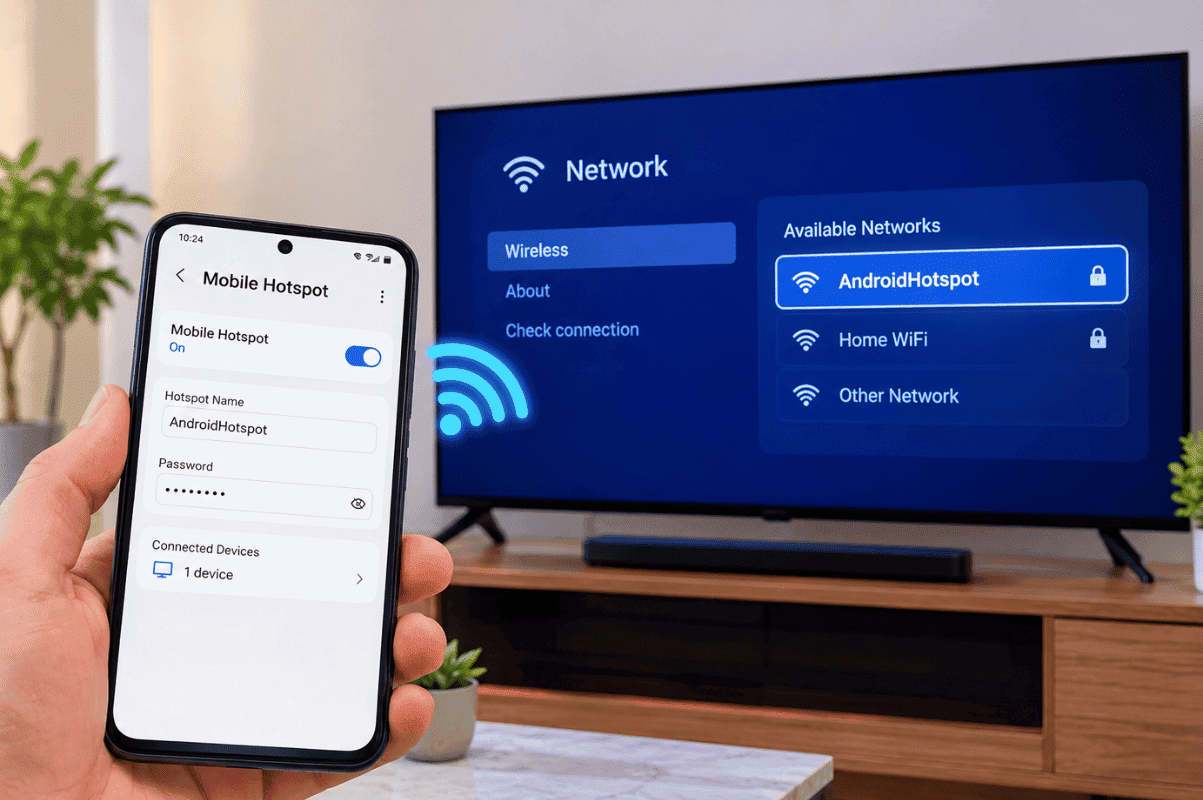
The exact menu names depend on your Android manufacturer.
Step 2: Connect Roku to the Hotspot
On your Roku:
- Open Settings.
- Select Network.
- Choose Set up connection.
- Select Wireless.
- Find your Android phone’s hotspot.
- Enter the hotspot password.
Your Roku and Android phone should now be connected to the same local network.
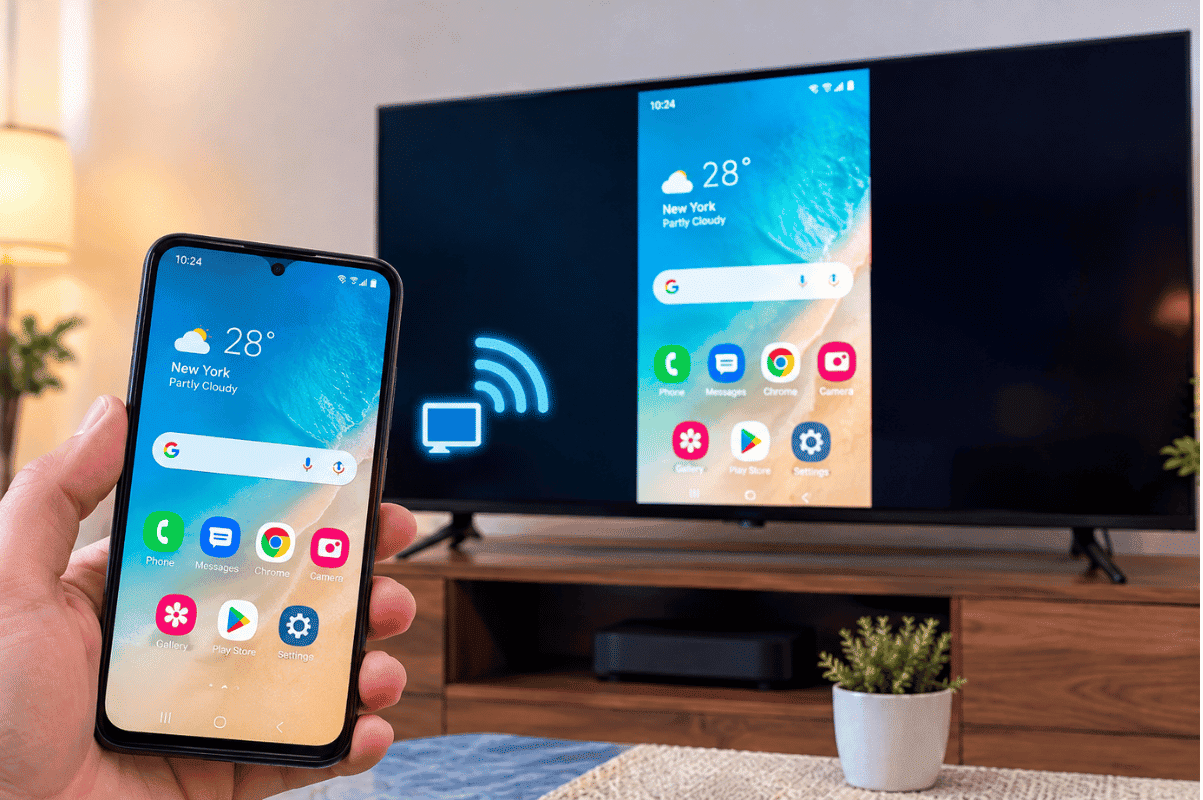
Step 3: Enable Screen Mirroring
On your Android phone, look for an option such as:
- Smart View
- Cast
- Screen Cast
- Wireless Display
- Screen Mirroring
The name depends on the manufacturer.
Select your Roku device if it appears.
Important: Using a mobile hotspot can consume mobile data, especially when streaming video.
Method 2: Check Roku Screen Mirroring Settings
If your Roku does not appear on your Android phone, check whether screen mirroring is enabled.
On the Roku device:
- Open Settings.
- Select System.
- Choose Screen mirroring.
- Select Screen mirroring mode.
- Choose Prompt or Allow, depending on your preference.
Then try searching for the Roku device again from your Android phone.
Method 3: Restart Both Devices
A temporary connection problem can prevent your Android phone from finding Roku.
Try this simple reset:
- Restart your Android phone.
- Restart your Roku.
- Turn the mobile hotspot off and back on.
- Reconnect Roku to the hotspot.
- Try screen mirroring again.
This can resolve basic network discovery problems without requiring any repair.
What If Your Android Phone Cannot Mirror to Roku?
Not every Android phone supports Roku’s screen mirroring technology in the same way.
If your phone has no Cast, Smart View, Wireless Display, or similar feature, check the phone manufacturer’s specifications and Android settings.
You should also make sure the phone is running an updated version of Android.
If your phone’s wireless functions are suddenly missing, unreliable, or unable to detect nearby devices, the issue may be more than a Roku setting.
What If Roku Is Not Detecting the Phone?
Try these checks:
- Make sure both devices are connected to the same hotspot.
- Turn off any VPN temporarily.
- Restart both devices.
- Check Roku’s screen mirroring settings.
- Move the phone closer to the Roku.
- Install available system updates.
- Test another compatible device if available.
If another Android phone can connect successfully, the problem may be specific to your phone.
When a Repair Shop Can Help
If your Android phone has other wireless problems, such as Bluetooth failing, Wi-Fi repeatedly disconnecting, or the phone being unable to detect nearby devices, consider getting the device checked.
For customers in Mississauga, Phone repair Mississauga services can help diagnose hardware and software problems affecting connectivity.
A technician can determine whether the problem is caused by settings, software, a damaged component, or another hardware issue.
Final Check Before Getting Your Phone Repaired
Before taking your phone to a shop, try the following:
- Restart your Android phone.
- Restart Roku.
- Test a mobile hotspot.
- Confirm Roku screen mirroring is enabled.
- Update Android and Roku software.
- Test another compatible Android device.
If these steps work with another phone but not yours, professional Cell phone repair may be worth considering.
You can sometimes mirror an Android phone to Roku without traditional Wi-Fi by using your phone’s mobile hotspot as the shared network. However, compatibility depends on the Android phone and Roku model.
If hotspot mirroring does not work, troubleshoot the network and device settings first. If your Android phone also has broader Wi-Fi, Bluetooth, or wireless connectivity problems, a professional diagnosis can help identify the underlying issue.