Although fax machines are less common today, many healthcare providers, law firms, government offices, and businesses across Canada and the United States still use fax for important documents. The good news is that you don’t need a physical fax machine to receive a fax. Your Android phone can handle the job with the right app or online fax service.
This guide explains how to receive fax on Android, the best methods to use, common problems you may encounter, and simple fixes you can try before seeking professional help.
Can You Receive a Fax on an Android Phone?
Yes. Android phones cannot receive traditional fax signals directly through their cellular network, but they can receive faxes using internet-based fax services.
Most online fax providers assign you a dedicated fax number. When someone sends a fax to that number, the service converts it into a PDF or image that you can view on your Android device.
Method 1: Use an Online Fax App
The easiest way to receive faxes is by using an online fax application.
Most services work similarly:
- Download a trusted fax app from Google Play.
- Create an account.
- Choose a local or toll-free fax number.
- Share your fax number with the sender.
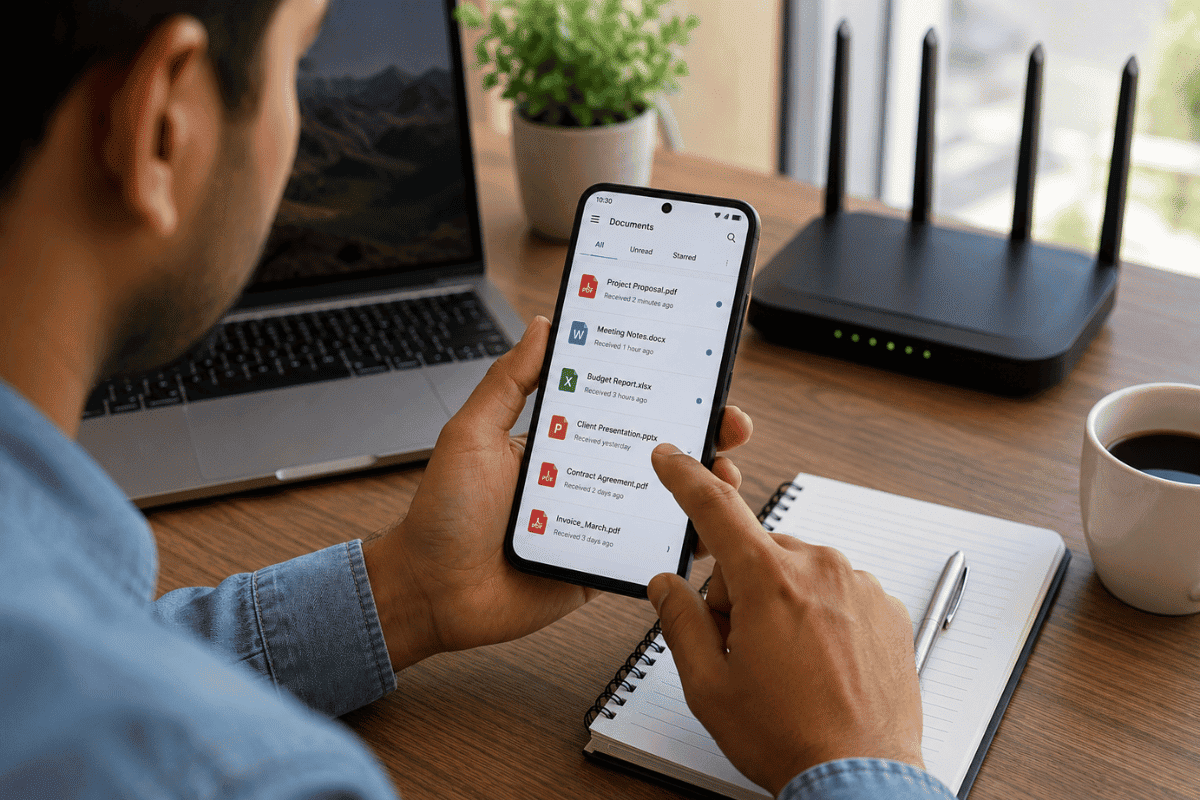
- Receive incoming faxes directly within the app.
Many apps also allow you to:
- Save documents as PDFs.
- Forward faxes by email.
- Print documents.
- Store files securely in the cloud.
Some services offer free trials, while others require a monthly subscription.
Method 2: Receive Faxes by Email
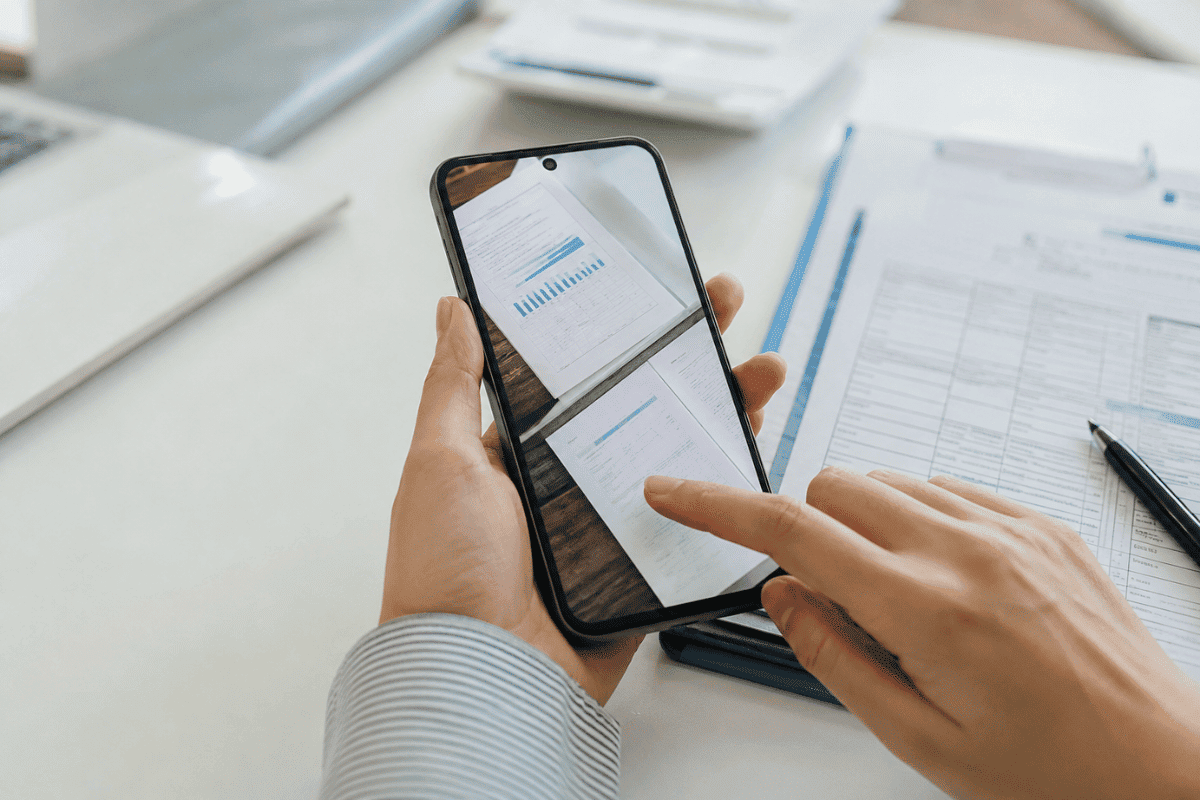
Many internet fax providers automatically send incoming faxes to your email address.
After setting up your account:
- The sender transmits the fax.
- The service receives it.
- A PDF copy is emailed to you.
- You can download and view it on your Android phone.
This option is convenient if you already manage business documents through email.
Method 3: Use a Business Fax Service
If you receive documents regularly for work, a business fax solution may be a better option.
These services typically include:
- Multiple users
- Secure document storage
- Digital signatures
- Cloud backups
- Mobile access
- Administrative controls
They are commonly used by medical clinics, real estate offices, legal firms, and accounting businesses.
What You’ll Need
Before receiving a fax on Android, make sure you have:
- A reliable internet connection
- An Android phone running the latest software
- A trusted online fax service
- Available storage space
- Access to your email account (if using email delivery)
Common Problems and How to Fix Them
If you’re having trouble receiving a fax, try these solutions first.
Check Your Internet Connection
A weak or unstable connection may prevent new documents from downloading.
Switch to a stable Wi-Fi network if possible.
Verify Your Fax Number
Confirm that the sender is using the correct fax number.
Even one incorrect digit can prevent delivery.
Update Your Fax App
Older versions of fax applications may contain bugs or compatibility issues.
Visit Google Play and install any available updates.
Check Your Storage Space
If your phone is nearly full, incoming PDF files may fail to download.
Delete unnecessary files or move photos to cloud storage.
Review App Permissions
Make sure the app has permission to:
- Access storage
- Send notifications
- Use mobile data or Wi-Fi
Without these permissions, you may miss incoming documents.
Restart Your Phone
Restarting your Android device clears temporary software issues that can interfere with app performance.
Security Tips When Receiving Faxes
Business documents often contain confidential information.
To keep your documents secure:
- Use strong account passwords.
- Enable two-factor authentication when available.
- Avoid using public Wi-Fi for sensitive documents.
- Delete unnecessary files after downloading.
- Lock your phone with a PIN, fingerprint, or facial recognition.
When the Problem May Be Your Phone
If your fax app continues to:
- Crash repeatedly
- Freeze while opening documents
- Fail to download files
- Close unexpectedly
- Display corrupted PDFs
the issue may be related to your Android device rather than the fax service.
Before assuming there’s a hardware problem:
- Restart the phone.
- Update Android.
- Clear the app cache.
- Reinstall the application.
If the issue continues across multiple apps, it may require professional Cell phone repair. Problems such as failing storage, software corruption, or damaged internal components can affect document downloads and app performance. If you’re located in Ontario, a trusted Phone repair Mississauga technician can diagnose the issue and recommend the most practical solution.
Tips for Receiving Faxes Smoothly
Follow these best practices:
- Keep your fax app updated.
- Maintain a stable internet connection.
- Regularly back up important documents.
- Keep sufficient free storage on your device.
- Enable app notifications so you never miss an incoming fax.
- Organize received documents into folders for easy access.
Learning how to receive fax on Android is straightforward with today’s online fax services. Whether you choose a dedicated fax app or receive documents through email, you can securely access important files without a traditional fax machine.
If you’ve tried the recommended troubleshooting steps and your Android phone still struggles to receive or open fax documents, the issue could be related to the device itself. In that case, having your phone professionally inspected can save time and help prevent future problems.