
Getting locked out of your Android phone can be frustrating, especially when you cannot remember your PIN, password, or screen lock pattern. Fortunately, you can reset a locked Android phone using Google Find Hub or the device’s recovery mode.
However, a factory reset permanently removes data stored on your phone. This guide explains both methods, what to check before resetting, and how to set up your device afterward.
What to Know Before Resetting a Locked Android Phone
Before performing a factory reset, consider these important points:
- Data loss: A factory reset deletes locally stored photos, apps, messages, and settings. Previously backed-up information may be recoverable.
- Google account: You may need the Google account previously associated with your phone to complete setup.
- Battery: Charge your phone to at least 70% before resetting.
- Device differences: Recovery mode instructions vary between Samsung, Google Pixel, Motorola, and other Android phones.
If you recently changed your Google account password, Google recommends waiting 24 hours before resetting your device.
Method 1: Reset a Locked Android Phone Using Google Find Hub
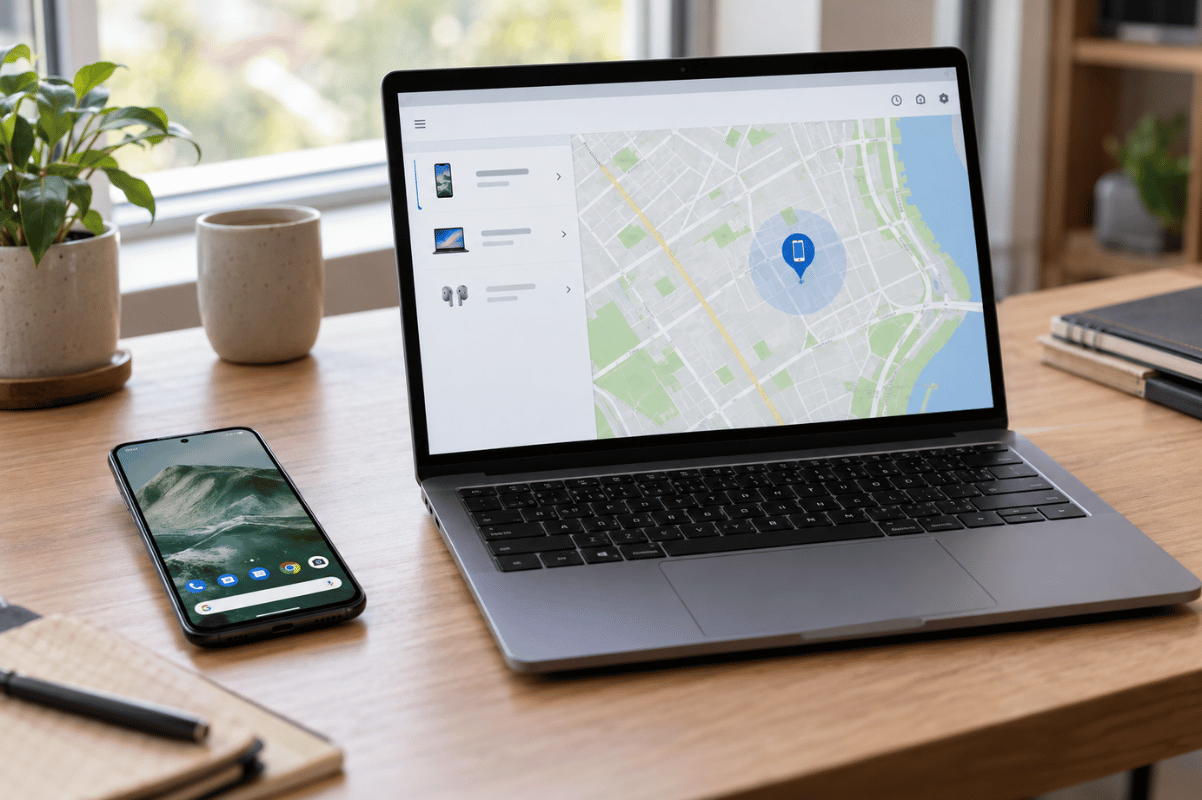
Google Find Hub, previously called Find My Device, allows you to remotely erase your Android phone without opening its Settings menu.
Steps to Reset Your Android Phone Remotely
- Open a browser on another smartphone or computer.
- Visit Google Find Hub.
- Sign in using the Google account associated with your locked phone.
- Select your Android device from the available devices.
- Open the device’s Settings option.
- Select Factory reset.
- Follow the confirmation instructions to erase your phone.
For this method to work, your locked phone must be powered on, connected to the internet, signed in to Google, and have Find Hub enabled.If your device is offline or cannot be accessed through Find Hub, consider the recovery mode method.
Method 2: Factory Reset Android Phone Using Recovery Mode
Recovery mode allows you to reset certain Android phones using their physical buttons without accessing the Settings menu.
Steps for Google Pixel 6 and Newer Models
- Turn off your Android phone.
- Press and hold the Power and Volume Down buttons until the Fastboot screen appears.
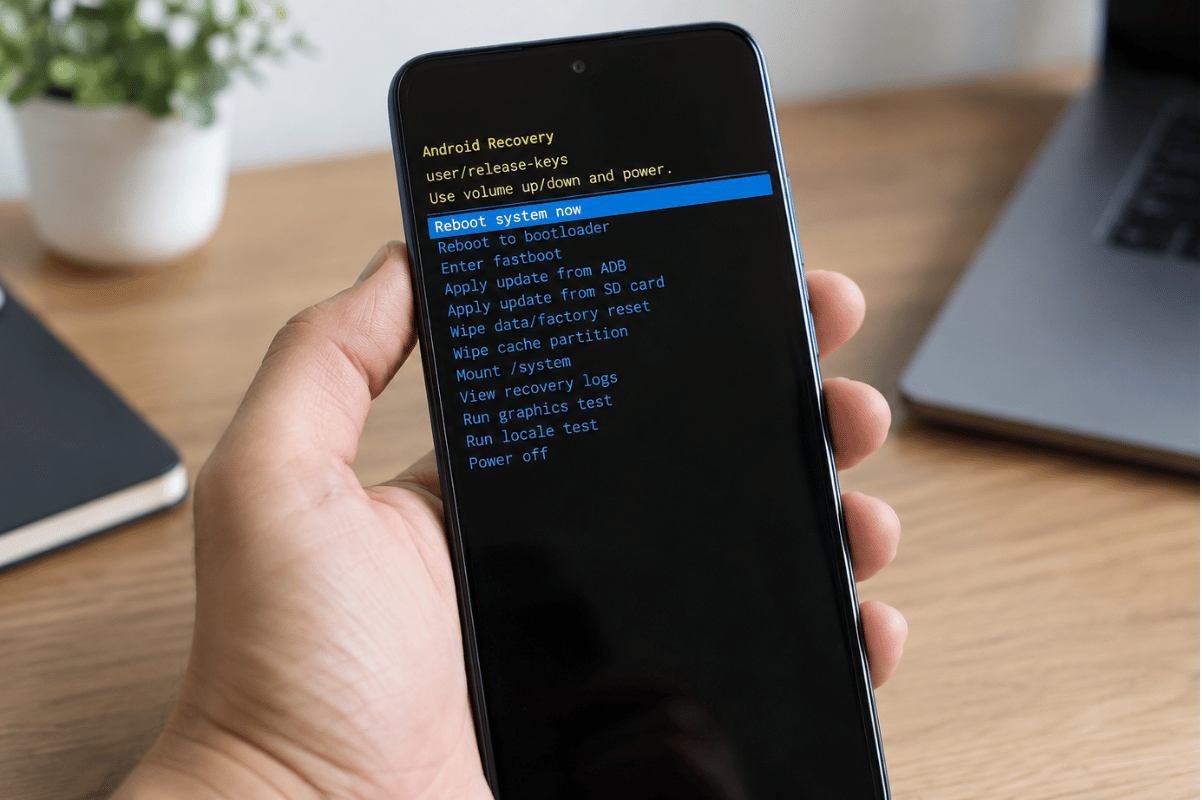
- Use the volume buttons to highlight Recovery mode.
- Press the Power button to confirm.
- If the screen displays “No command,” hold Power, press Volume Up once, and release both buttons.
- Select Wipe data/factory reset using the volume buttons.
- Press Power to confirm your selection.
- Select Factory data reset.
- Once the reset finishes, select Reboot system now.
Your phone will restart and display the initial setup screen.
Important: Samsung Galaxy and other Android models may use different button combinations or require additional steps. Check your manufacturer’s official instructions before attempting recovery mode.
What Happens After Resetting a Locked Android Phone?
After a factory reset, Android may activate Factory Reset Protection (FRP).This security feature helps prevent unauthorized access to lost or stolen devices.During setup, your phone may request a previously associated Google account or other existing screen-lock credentials.If you have forgotten your Google password, use Google Account Recovery before continuing.Once verification is complete, connect to Wi-Fi, configure a new screen lock, and restore any available backup.A factory reset does not automatically bypass Google’s ownership verification.
When Should You Seek Professional Phone Repair?
If your Android phone cannot enter recovery mode, repeatedly restarts, or has damaged buttons, professional cell phone repair may be necessary.Hardware problems involving the power button, display, or internal components can prevent normal troubleshooting.For users looking for phone repair Mississauga, Fix Phone Mississauga can help assess potential hardware problems and explain suitable repair options.Professional repair does not guarantee recovery of deleted data or removal of Google’s ownership verification.Resetting a locked Android phone is possible through Google Find Hub or recovery mode, even when you cannot access the Settings menu. Remember that both methods erase local data and may require Google account verification afterward.If your phone has physical damage or cannot complete the reset process, consider professional assistance before attempting further troubleshooting.